Export PDF

RGBlink
MSP 331S 12G-SDI Capture

User Manual

MSP 331S 12G-SDI Capture

MSP 331 (Family) User Manual

601-0331-05-0

RGBlink

www.rgblink.com

November 2026

1MSP 331 Family_Specification

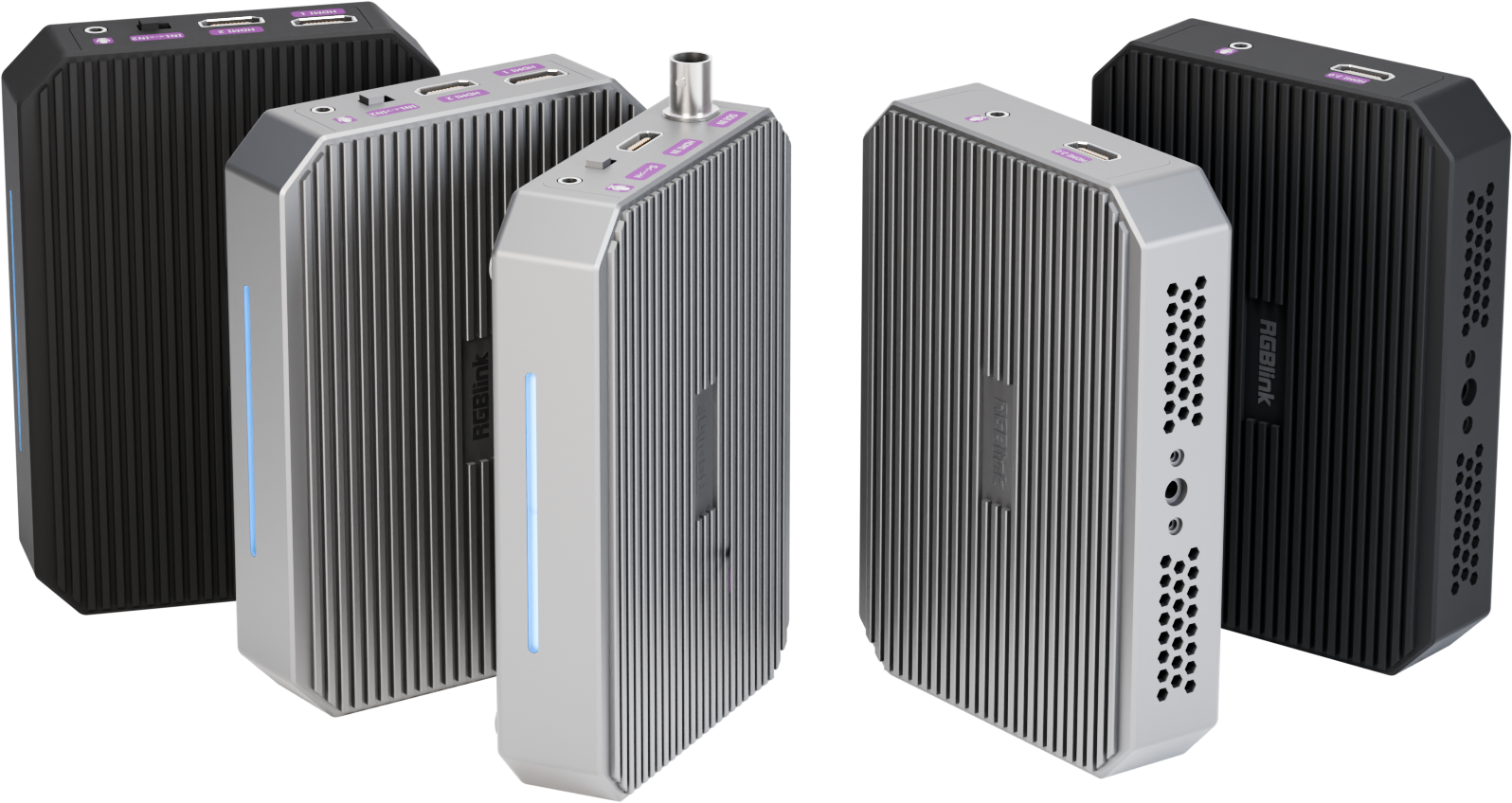
*From left to right: MSP 331HE, MSP 331H, MSP 331S, MSP 331U Gen2, MSP 331U Gen1
MSP 331 Family: HDMI 2.0/12G SDI & Dual HDMI2.0 4K Capture Cards
Key Features + HDMI 2.0 input support HDCP 2.3, backward compatible + MSP 331S supports 1 × 12G-SDI input (downward compatible) + MSP 331S supports 12G SDI to HDMI2.0 conversion without delay or image quality loss + HDMI input support up to RGB 4:4:4 8bit 4K@60Hz, backward compatible with 4K@50Hz, 4K@30Hz, 2K@240Hz + USB 3.2 interface provides 5Gbps high bandwidth + Compatible with OBS/Potplayer/VLC/Vmix/Xsplit/Microsoft Teams + HDR to achieve better color performance and richer detail representation + Mix for Line in and HDMI audio + UVC 1.5 and UAC 1.0 standards, compatible with Windows, MacOS and Linux, plug and play + Dynamic light pipe to display signal status in real time

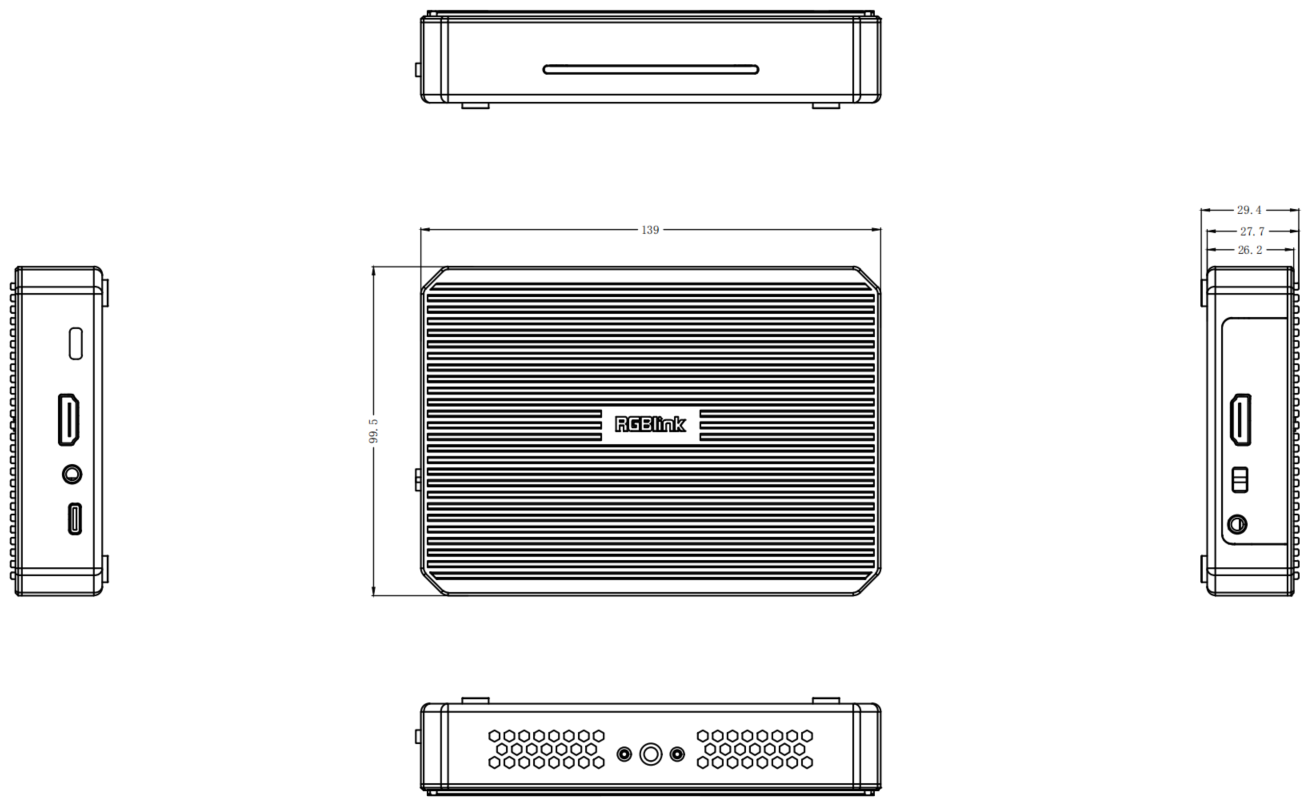
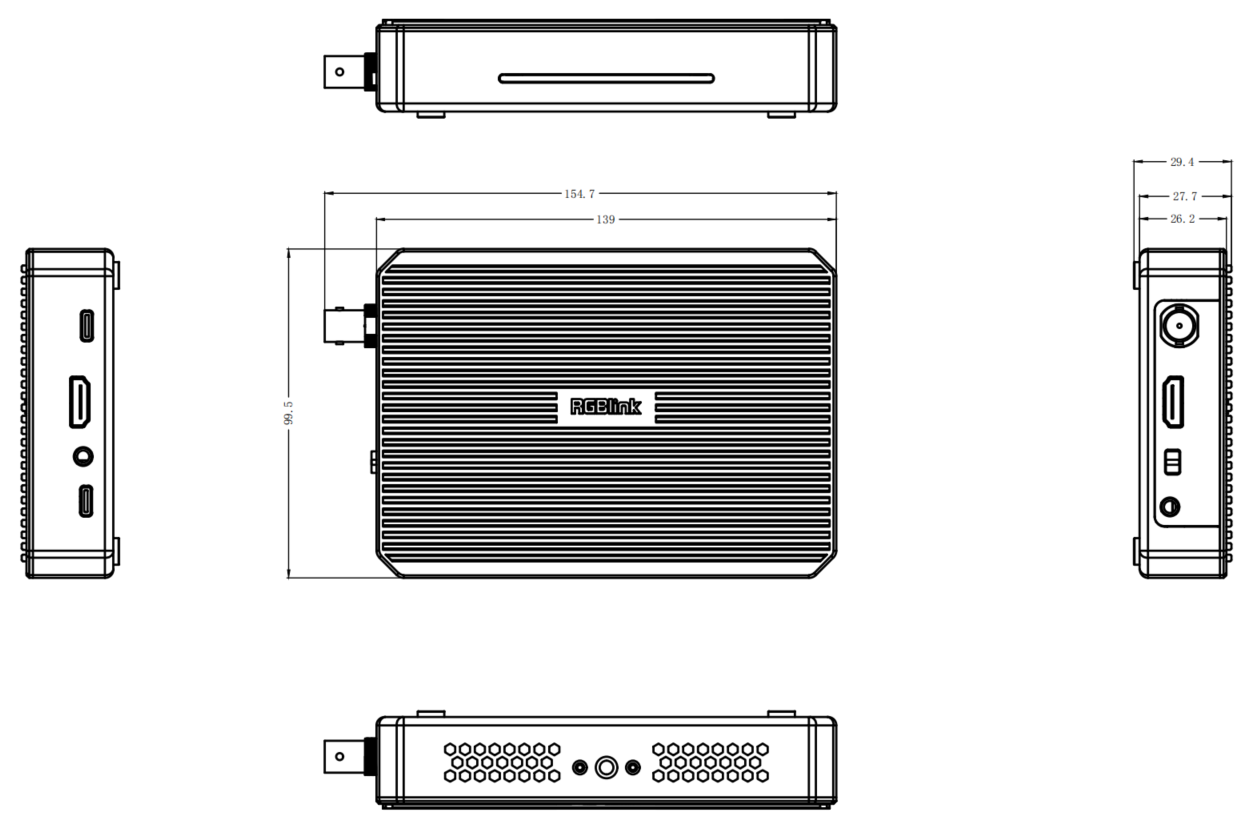
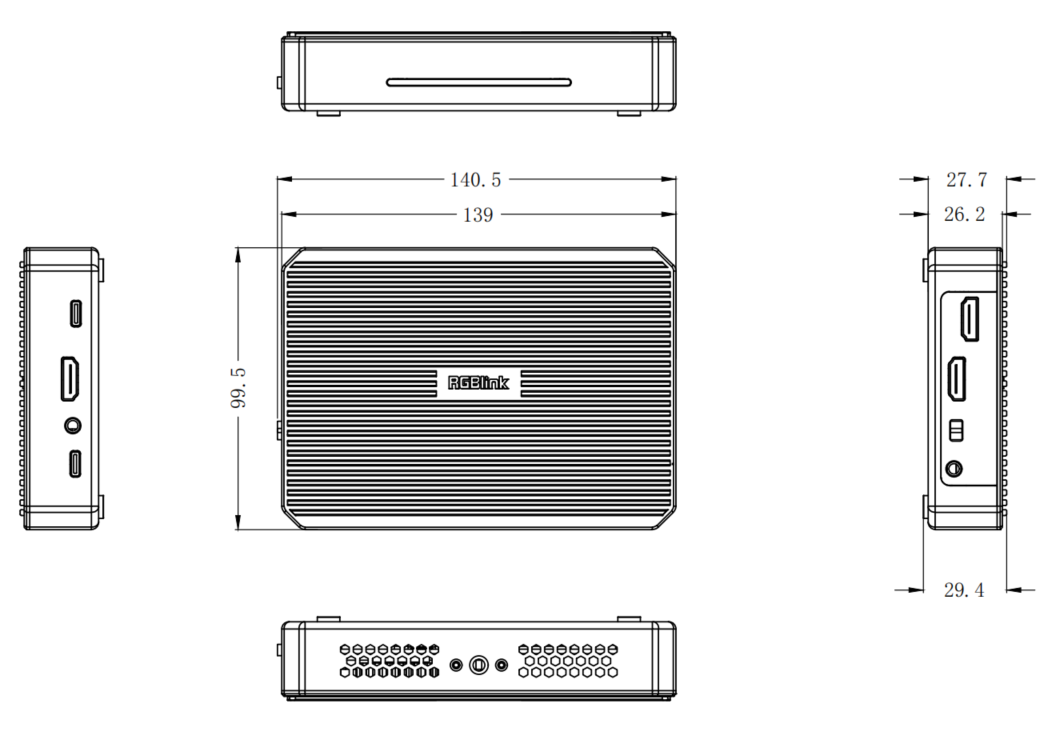
Dimension

Model
MSP 331U Gen 1/Gen 2:139mm × 99.5mm × 29.4mm (Dip not included)
MSP 331S:154.7mm × 99.5mm × 29.4mm
MSP 331H/MSP 331HE:140.5mm × 99.5mm × 29.4mm

Connectors

ModelMSP 331U Gen1MSP 331U Gen2MSP 331SMSP 331HMSP 331HE
InputHDMI 2.0HDMI-A11122
12G SDIBNC//1//
OutputHDMI 2.0HDMI-A1 (LOOP)1 (LOOP)111
CaptureUSB 3.2USB-C11111
AudioIn3.5mm Audio Jack11111
Out3.5mm Audio Jack11111

Performance

ItemParameters
Input ResolutionHDMI 2.02160p@23.98/24/25/29.97/30/50/59.94/60
1080p@23.98/24/25/29.97/30/50/59.94/60
1080i@50/59.94/60
720p@50/59.94/60
576p59.94/60
480p@50
SMPTE2160p@60/59.94/50/30/29.97/24/23.98
1440p@144/60
1080p@240/120/60
720p@60
VESA4096 × 2160 @60/59.94/50/30/29.97/24/23.98
3840 × 2160 @60/59.94/50/30/29.97/24/23.98
2560 × 1440@144/60
2560 × 1080@60
1920 × 1080 @240/120/60
1280 × 720@60
12G SDI (K200S)2160p@23.98/24/25/29.97/30/50/59.94/60
SMPTE1080p@23.98/24/25/29.97/30/50/59.94/60
1080i@50/59.94/60
720p@50/59.94/60
576p@59.94/60
480p@50
Output ResolutionHDMI 2.02160p@23.98/24/25/29.97/30/50/59.94/60
1080p@23.98/24/25/29.97/30/50/59.94/60
1080psf@23.98/24/25/29.97/30
1080i@50/59.94/60
720p@50/59.94/60
576p@59.94/60
480p@50
USB 3.2RGB241920 × 1080@60
1280 × 720@60
YUY23840 × 2160@30/25
2560 × 1440@60
2560 × 1080@60
1920 × 1080@60
1280 × 720@60
NV123840 × 2160@30/25
2560 × 1440@60
2560 × 1080@60
1920 × 1080@120/60
1280 × 720@60
I4203840 × 2160@30
2560 × 1440@60
2560 × 1080@60
1920 × 1080@120/60
1280 × 720@60
P0101920 × 1080@60
1280 × 720@60
MJPGE3840 × 2160@60 (K200, K200S, K200H)
3840 × 2160@30 (k100, K200HE)
2560 × 1440@144/60
2560 × 1080@60
1920 × 1080@240/60
1280 × 720@60
Video Capture FormatRGB24, YUY2, NV12, I420, P010, MJPEG
Color Space8 bit RGB/YCbCr 4:2:2/4:4:4/4:2:0; 10 bit RGB/YCbCr 4:2:2
Audio Bit Depth /Sample Rate24bit (default)/ 48KHz
Supported StandardsSDI (K200S)12G-SDI
HDMI2.0
USB3.2

Power

ItemParameters
Input Voltage9V/1.5A
Max Power15W

Working Environment

ItemParameters
Operation Temperature0℃~70℃

Physical

ModelMSP 331U Gen1MSP 331U Gen2MSP 331SMSP 331HMSP 331HE
Net Weight280g280g300g300g300g
Net Dimension140.5mm × 99.5mm × 29.4mm140.5mm × 99.5mm × 29.4mm154.7mm × 99.5mm × 29.4mm140.5mm × 99.5mm × 29.4mm140.5mm × 99.5mm × 29.4mm

Order Codes

Product CodeItem
601-0331-03-0MSP 331U Gen1
601-0331-04-0MSP 331U Gen2
601-0331-05-0MSP 331S
601-0331-06-0MSP 331H
601-0331-07-0MSP 331HE

2MSP 331 Family_User Manual

Thank you for choosing RGBlink MSP 331 Family.

This manual provides information on the device features, installation and operation.

Before using the device for the first time, please read this manual carefully to ensure safe and proper use of the product.

3Declarations

FCC/Warranty

Federal Communications Commission (FCC) Statement

This equipment has been tested and found to comply with the limits for a class A digital device, pursuant to Part 15 of the FCC rules. These limits are designed to provide reasonable protection against harmful interference when the equipment is operated in a commercial environment. This equipment generates, uses, and can radiate radio frequency energy and, if not installed and used in accordance with the instruction manual, may cause harmful interference to radio communications. Operation of this equipment in a residential area may cause harmful interference, in which case the user will be responsible for correcting any interference.

Guarantee and Compensation

RGBlink provides a guarantee relating to perfect manufacturing as part of the legally stipulated terms of guarantee. On receipt, the purchaser must immediately inspect all delivered goods for damage incurred during transport, as well as for material and manufacturing faults. RGBlink must be informed immediately in writing of any complains.

The period of guarantee begins on the date of transfer of risks, in the case of special systems and software on the date of commissioning, at latest 30 days after the transfer of risks. In the event of justified notice of compliant, RGBlink can repair the fault or provide a replacement at its own discretion within an appropriate period. If this measure proves to be impossible or unsuccessful, the purchaser can demand a reduction in the purchase price or cancellation of the contract. All other claims, in particular those relating to compensation for direct or indirect damage, and also damage attributed to the operation of software as well as to other service provided by RGBlink, being a component of the system or independent service, will be deemed invalid provided the damage is not proven to be attributed to the absence of properties guaranteed in writing or due to the intent or gross negligence or part of RGBlink.

If the purchaser or a third party carries out modifications or repairs on goods delivered by RGBlink, or if the goods are handled incorrectly, in particular if the systems are commissioned operated incorrectly or if, after the transfer of risks, the goods are subject to influences not agreed upon in the contract, all guarantee claims of the purchaser will be rendered invalid. Not included in the guarantee coverage are system failures which are attributed to programs or special electronic circuitry provided by the purchaser, e.g. interfaces. Normal wear as well as normal maintenance are not subject to the guarantee provided by RGBlink either.

The environmental conditions as well as the servicing and maintenance regulations specified in this manual must be complied with by the customer.

Operators Safety Summary

The general safety information in this summary is for operating personnel.

Do Not Remove Covers or Panels

There are no user-serviceable parts within the unit. Removal of the top cover will expose dangerous voltages. To avoid personal injury, do not remove the top cover. Do not operate the unit without the cover installed.

Power Source

This product is powered by USB 3.0 with input voltage no more than 9V.

Do Not Operate in Explosive Atmospheres

To avoid explosion, do not operate this product in an explosive atmosphere.

Installation Safety Summary

Safety Precautions

For all product installation procedures, please observe the following important safety and handling rules to avoid damage to yourself and the equipment.

To protect users from electric shock, ensure that the chassis connects to earth via the ground wire provided in the AC power Cord.

The AC Socket-outlet should be installed near the equipment and be easily accessible.

Unpacking and Inspection

Before opening product shipping box, inspect it for damage. If you find any damage, notify the shipping carrier immediately for all claims adjustments. As you open the box, compare its contents against the packing slip. If you find any shortages, contact your sales representative.

Once you have removed all the components from their packaging and checked that all the listed components are present, visually inspect the system to ensure there was no damage during shipping. If there is damage, notify the shipping carrier immediately for all claims adjustments.

Site Preparation

The environment in which you install your product should be clean, properly lit, free from static, and have adequate power, ventilation, and space for all components.

1Overview

Meet MSP 331 Family

The MSP 331 Family is a range of 4K UHD HDMI/SDI video capture devices designed for live streaming, recording, conferencing, and multi-camera production.

All models feature high-speed HDMI® 2.0 and USB 3.2 interfaces, supporting video capture at up to 4K@60Hz. They are compatible with Windows, macOS, and Linux and support plug-and-play operation with popular software such as OBS, vMix, Tencent Meeting, and TikTok LIVE Studio.

Different models offer different video input configurations:

  • K100/K200: 1 × HDMI input
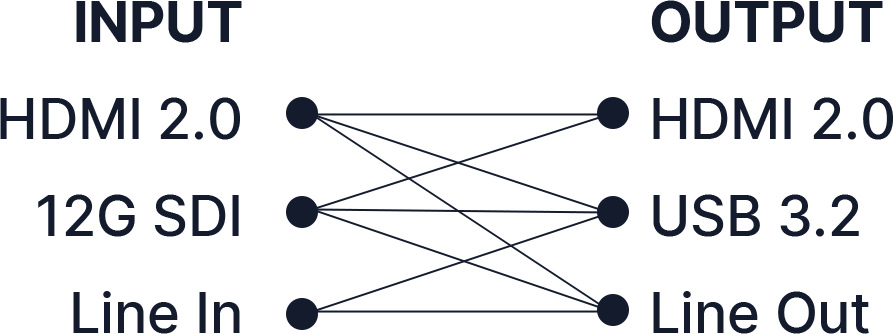
  • K200S: Adds 1 × 12G-SDI input to the K200 for SDI capture. SDI signals can also be converted to HDMI output.
  • K200H/K200HE: Adds 1 × HDMI input to the K200, supporting simultaneous capture of 2 HDMI signals.

Key Features

  • HDMI® 2.0 input supporting HDCP 2.3 and HDR
  • Captures up to 4K@60Hz and 2K@240Hz high refresh rate signals.
  • Available with 12G-SDI input (on 331S), supporting lossless conversion to HDMI.
  • USB 3.2 port delivering 5Gbps high-speed bandwidth.
  • UVC/UAC compliant for seamless compatibility with Windows, macOS, and Linux.
  • Mix for Line in and HDMI audio, built-in AGC (Automatic Gain Control)
  • Compatible with OBS, VLC, video conferencing, and live streaming applications.
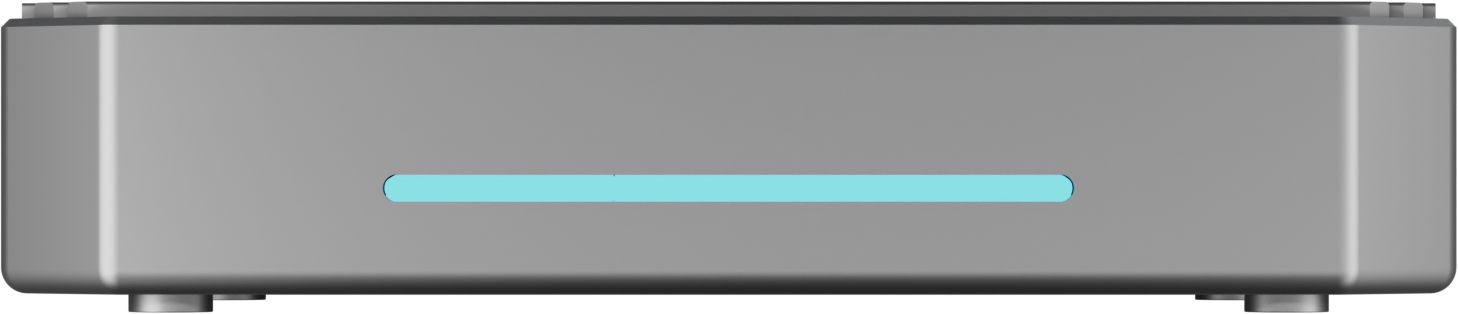
  • Dynamic light guide column provides real-time signal status indication.

1.1In the Box

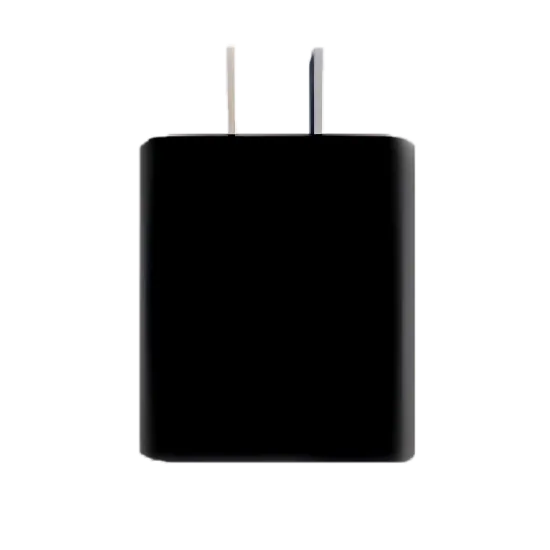
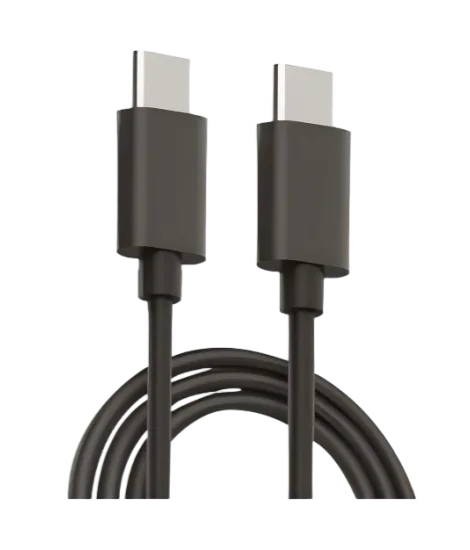
AdapterUSB-C Cable
Document imageDocument image
📢  Notes

Use the included power adapter whenever possible.
If a third-party adapter is used, ensure it provides at least 9 V/1.5 A to maintain stable system performance.

1.2Indicator Light

No.ColorRGB ValueLight StatusDescription
1PurpleR: 190 G: 125 B: 255BreathingPower-on: Initial state during power-on, lasts for about 3 seconds.
2RedR: 255 G: 26 B: 26Always onNo Input: No HDMI signal input or external audio input detected.
3GreenR: 15 G: 255 B: 15Left Scrolling+BreathingActive HDMI Input: HDMI signal detected, no external audio input detected.
4CyanR: 119 G: 255 B: 255Right Scrolling+BreathingAudio Mixing: HDMI signal and external audio input detected (mixed state).

1.3About Input

This chapter includes input ports description and the supported input resolution list.

1.3.1Input Ports

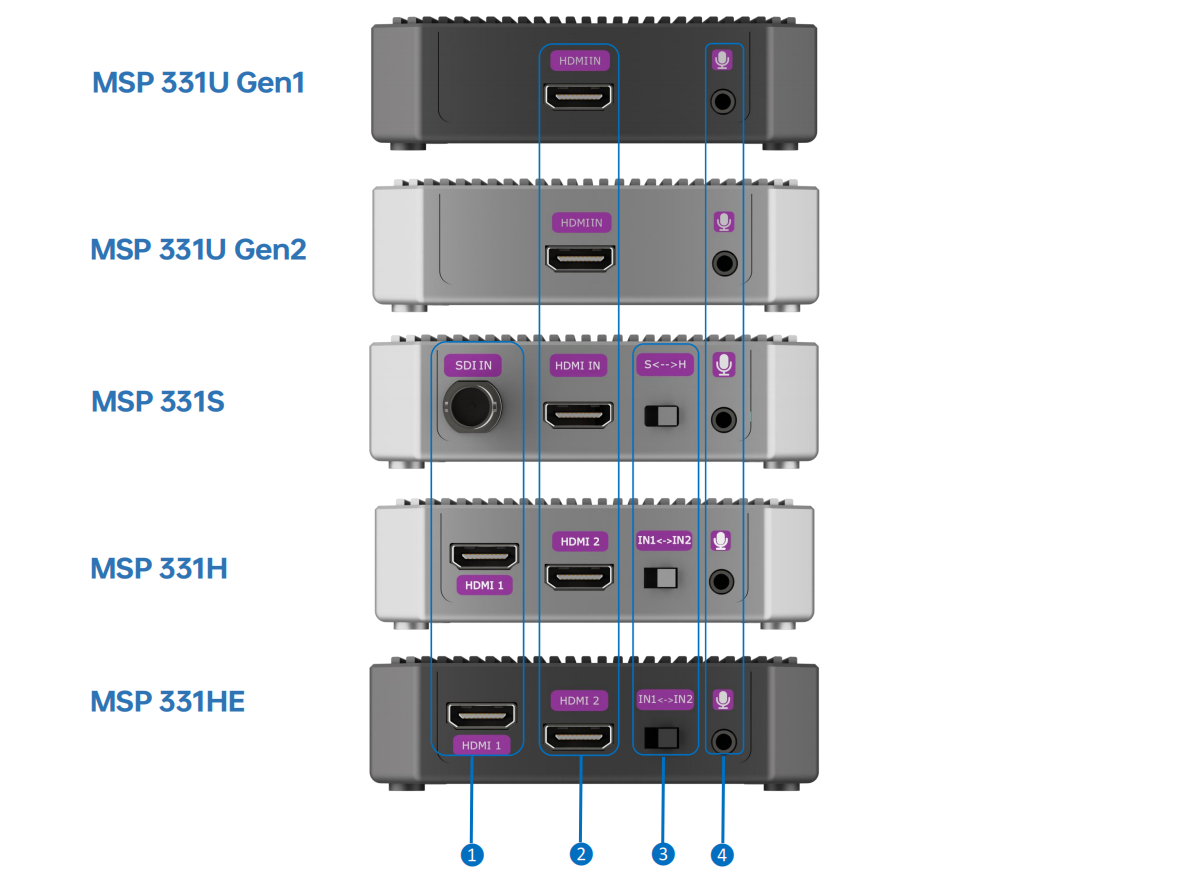
No.ItemDescription
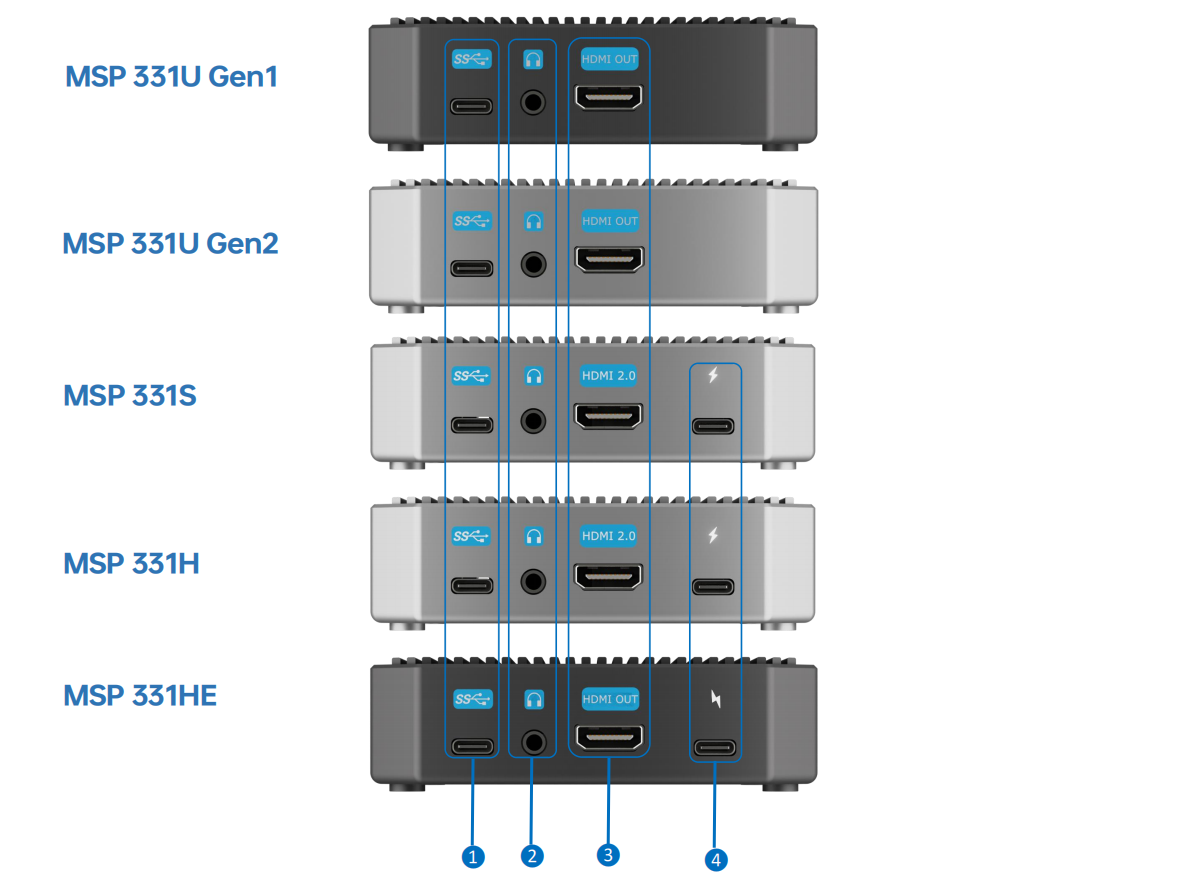
❶Input Port 1+ 12G SDI input, connect to HD cameras, computers, and other input sources. + HDMl input port, connect to PC, camera, XBOX or PS4.
❷Input Port 2HDMl input port, connect to PC, camera, XBOX or PS4.
❸Switch+ Toggle the switch toward S for SDI input, or toward H for HDMI input. + Toggle the switch toward IN1 for HDMI 1 input, or toward IN2 for HDMI 2 input.
❹Audio InputLine-in audio input port, connect to MP3, wireless microphone, cellphone or other music player devices.

1.3.2Supported Input Resolution

Resolution TypeParameter
Input ResolutionHDMI
SMPTE2160p@60/59.94/50/30/29.97/24/23.98
1440p@144/60
1080p@240/120/60
720p@60
VESA4096×2160@60/59.94/50/30/29.97/24/23.98
3840×2160@60/59.94/50/30/29.97/24/23.98
2560×1440@144/60
2560×1080@60
1920×1080@240/120/60
1280×720@60
12G SDI (for MSP 331S only)
SMPTE2160p@23.98/24/25/29.97/30/50/59.94/60
1080p@23.98/24/25/29.97/30/50/59.94/60
1080i@50/59.94/60
720p@50/59.94/60
480p@50
576p@59.94/60

1.4About Output

This chapter includes output ports description and the supported output resolution list.

1.4.1Output Ports

No.ItemDescription
❶USB-C+ USB 3.2 output port, connect to PC, laptop or tablet (via OTG cable). + Power port for MSP 331U Gen 1/Gen2.
❷Audio Output3.5mm analog audio output port, connect to loudspeaker or earphone.
❸HDMI OutputHDMI loop output port, connect to display devices.
❹USB-C Power Port9V/1.5A

1.4.2Supported Output Resolution

Resolution TypeParameter
Output ResolutionHDMI 2.02160p@23.98/24/25/29.97/30/50/59.94/60
1080p@23.98/24/25/29.97/30/50/59.94/60
1080psf@23.98/24/25/29.97/30
1080i@50/59.94/60
720p@50/59.94/60
480p@50
576p@59.94/60
USB 3.2
RGB241920×1080@60
1280×720@60
YUY23840×2160@30/25
2560×1440@60
2560×1080@60
1920×1080@60
1280×720@60
NV123840×2160@30
2560×1440@60
2560×1080@60
1920×1080@120/60
1280×720@60
I4203840×2160@30
2560×1440@60
2560×1080@60
1920×1080@120/60
1280×720@60
P0101920×1080@60
1280×720@60
MJPGE(K200/K200S/K200H)3840×2160@60
2560×1440@144/60
2560×1080@60
1920×1080@240/60
1280×720@60
MJPGE(K100/K200HE)3840 × 2160@30
2560 × 1440@144/60
2560 × 1080@60
1920 × 1080@240/60
1280 × 720@60

1.5Supported Softwares

No.Software TypeName
1Capture SoftwareOBS
2PotPlayer
3VLC
4XSplit VCam
5CameraFi
6Vmix
7Meeting SoftwareTencent Meeting
8Ding Talk Meeting
9Lark Meeting
10Microsoft Teams
11Streaming SoftwareSINSAM
12OthersAny other DirectShow/V4L2/AVCaptureSession encoding/streaming software

1.6Computer Configuration Requirements

Please follow the table for computer configuration.

HardwareDesktop computerNotebook computer
CPUIntel Core i5-6XXX 8G or aboveIntel Core i7-7700HQ 8G or above
GraphicsNVIDIA GeForce GTX 1060 8G or above
RAM8G or above
PortUSB 3.0/USB 3.1/USB 3.2
SystemWindows® 10 / Windows 8.1 / Windows 7(SP1) / macOS10.15 and above

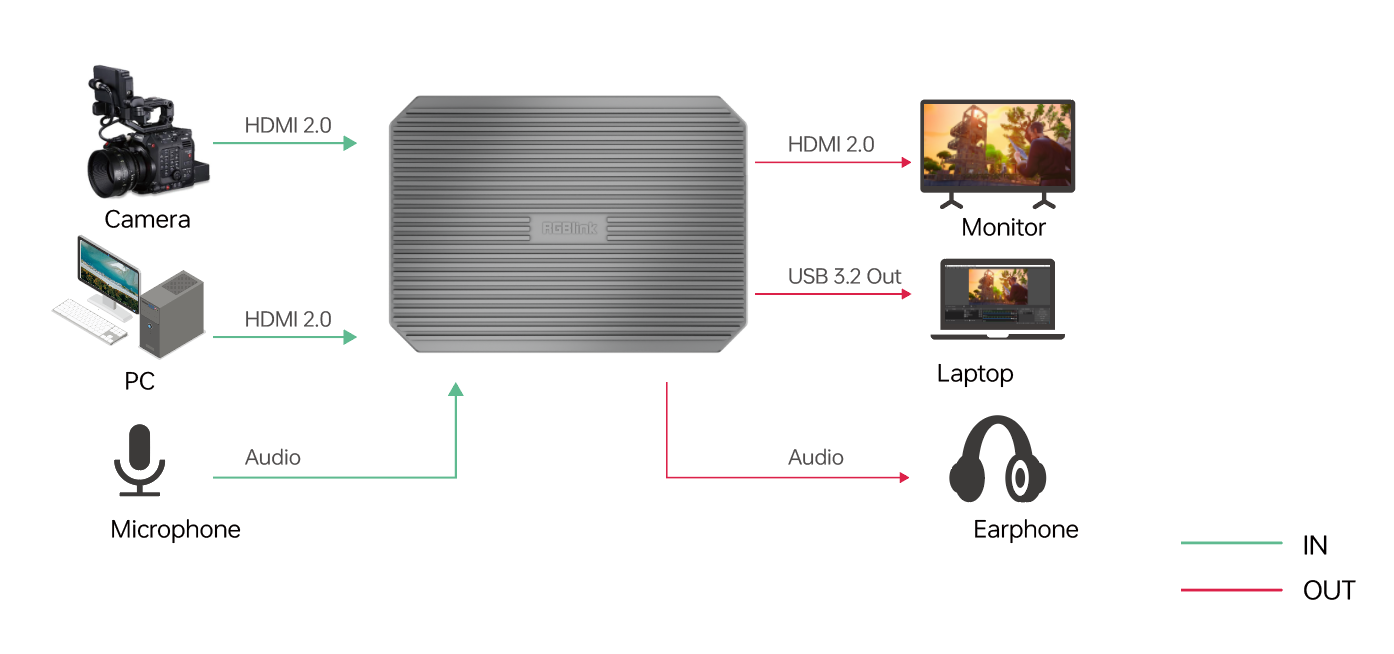
2Product Applications

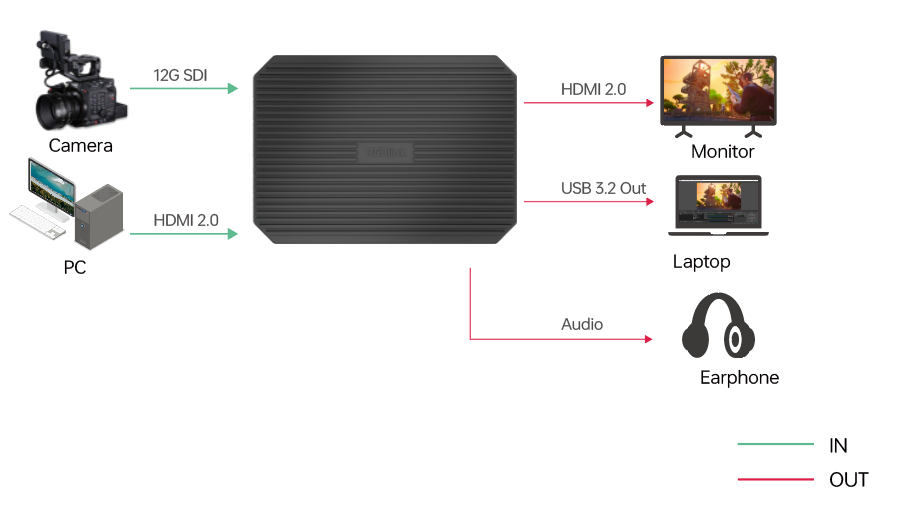
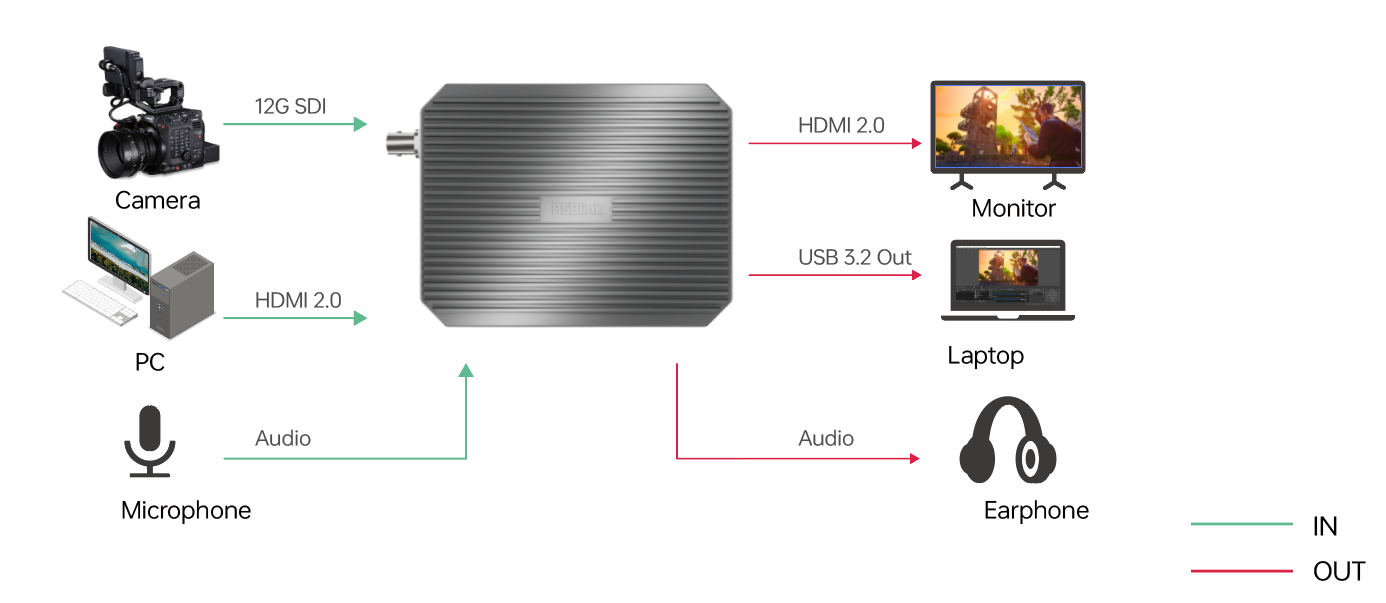
The following application diagrams illustrate typical setups for the MSP 331 Family.

ModelApplication
MSP 331U Gen 1/Gen 2
MSP 331S
MSP 331H/MSP 331HE

3Use Your Product

Once installation and setup are complete, refer to this chapter for operating instructions.

The interfaces, images, and illustrations in this chapter are for reference only. Actual displays may vary by version. Please refer to the actual interface on your device.

3.1OBS Streaming

[Download | OBS](https://obsproject.com/download)

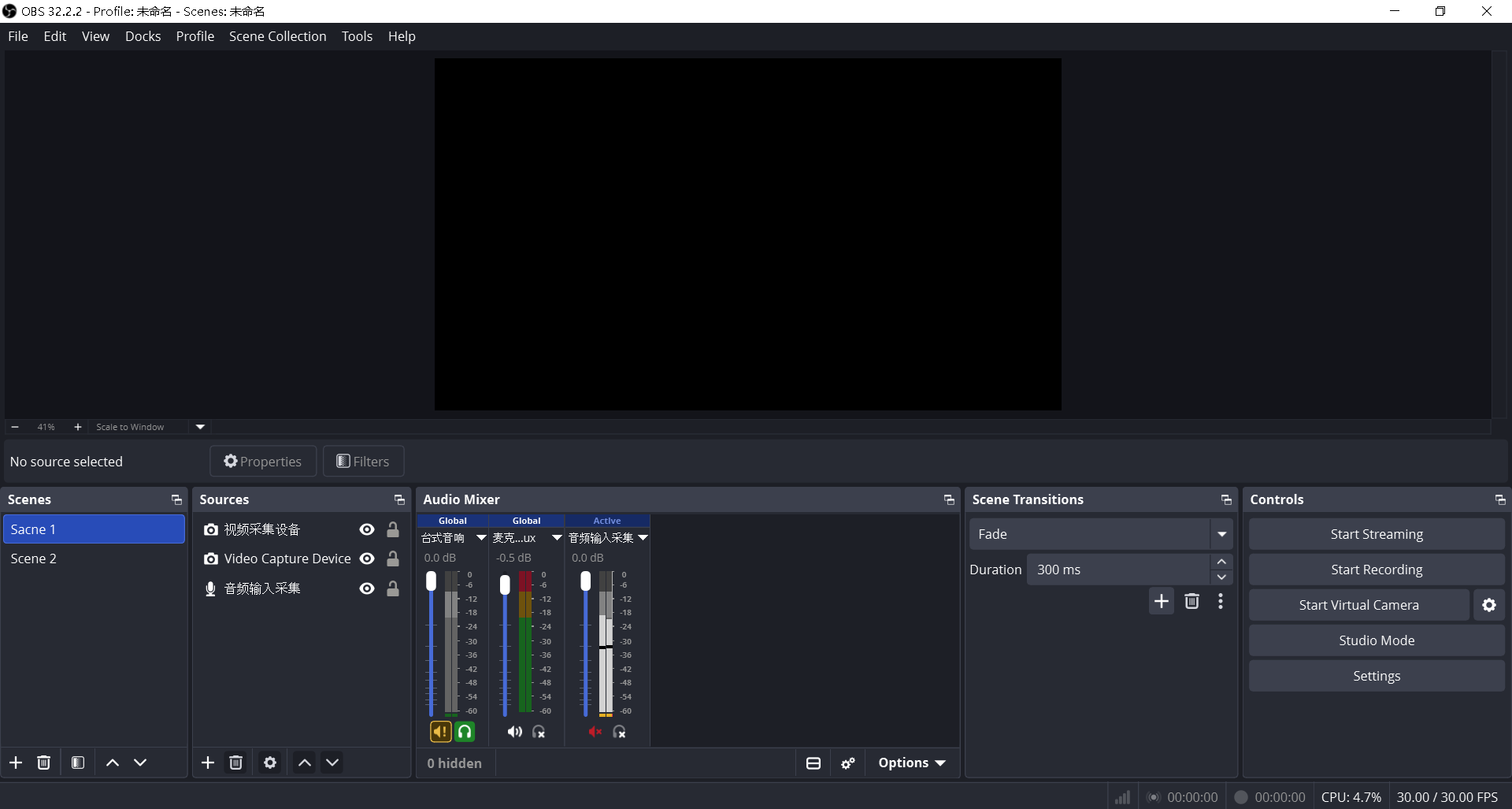
  1. Connect the MSP 331 device to your computer using a USB cable.
  2. Open OBS and create or select a scene.

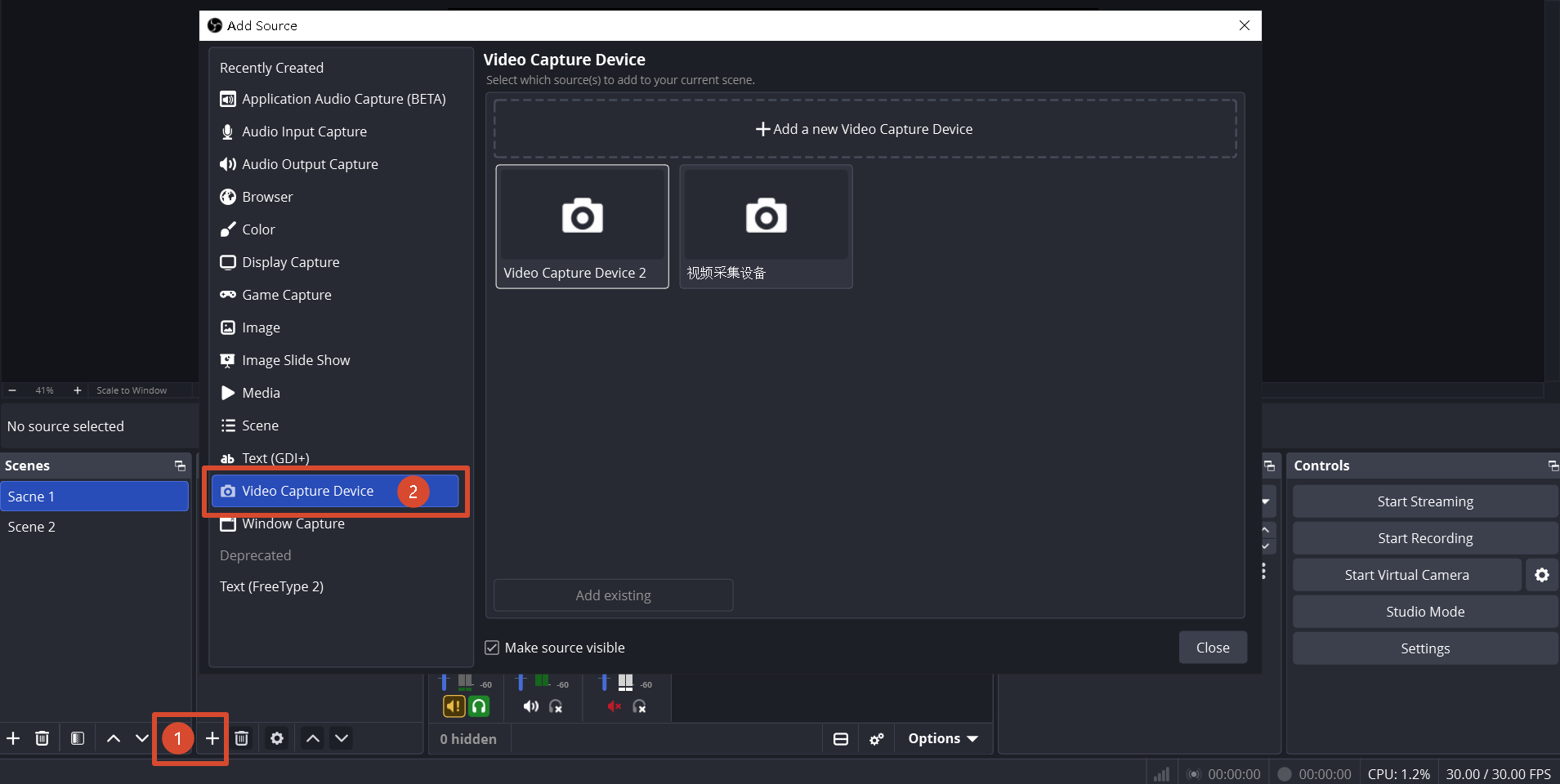
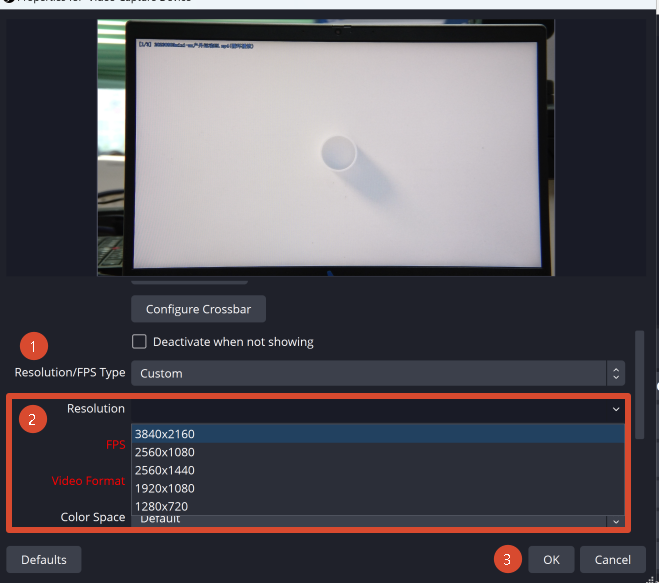
  1. In the Sources panel, click + and select Video Capture Device.

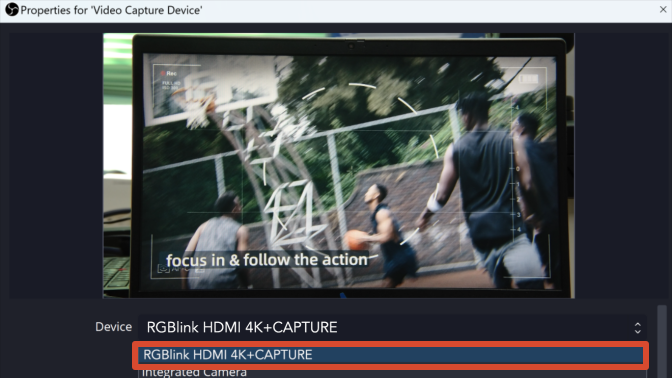
  1. Select the corresponding device from the device drop-down menu, such as RGBlink HDMI 4K+CAPTURE

  1. In the device properties, select Custom under Resolution/FPS Type. You can then set the resolution (up to 3840 × 2160), frame rate, and video format. Click OK to apply the settings.

  1. Drag the capture source to the desired position in the scene. Adjust its size and layer order to complete the scene setup.

3.2PotPlayer Capturing

Download [Global Potplayer](https://potplayer.tv/)
  1. Connect the MSP 331 device to your computer using a USB cable.
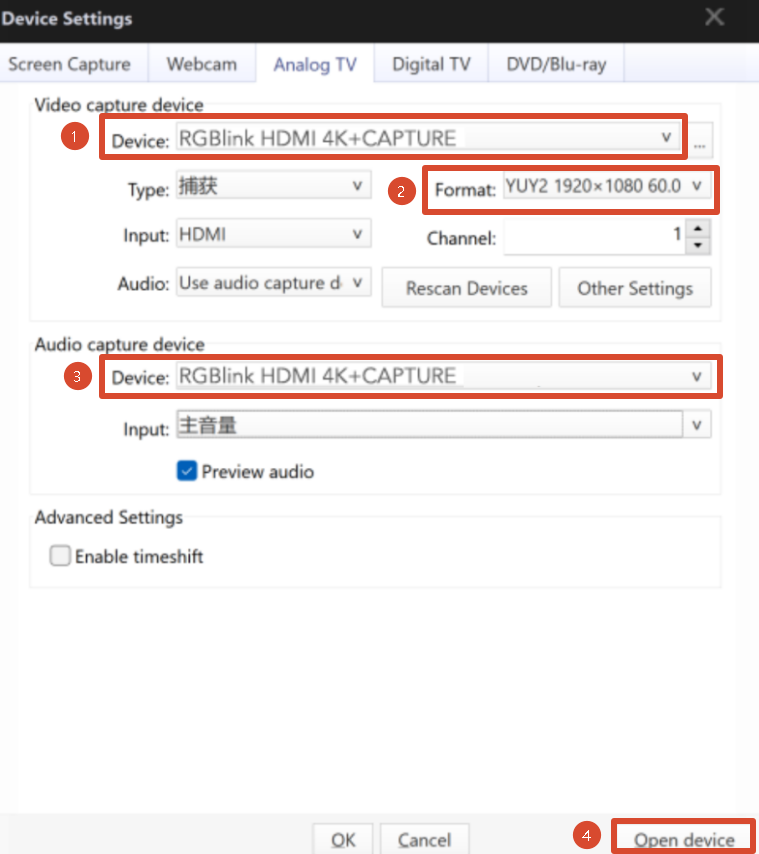
  2. Open PotPlayer and select Open > Device Settings from the drop-down menu.
  3. Under Video capture device, select the corresponding device, such as RGBlink HDMI 4K+CAPTURE.
  4. Click Format and select the desired video resolution from the drop-down menu.
  5. Under Audio capture device, select the corresponding device, such as RGBlink HDMI 4K+CAPTURE.
  6. Click Open Device.

📢  Notes

Available video resolutions depend on the options listed in the Format drop-down menu.  

3.3Audio Settings

When a computer is connected to the MSP 331 model via HDMI, if video is output normally but no audio is heard, set the computer's audio output device to the corresponding MSP device.

No audio input settings are required when only playing audio and video from the computer.

  • macOS: System Settings > Sound > Output. Select the corresponding MSP model from the list.
  • Windows: Settings > System > Sound > Choose where to play sound. Select the corresponding MSP model from the list.
📢  Notes

The device name shown in system settings may differ from the product model. You can also check the name next to the barcode on the bottom of the device.  

4FAQ

Q: Why is the highest available resolution only YUY2 1080p25?

A: The USB connection may not meet the required specifications. Check that:

  • The PC's USB port is USB 3.0 or higher.
  • The USB cable supports USB 3.0 or higher.

If not, use a USB 3.0 or higher port and cable.


Q: Why is HDMI video output normal but there is no audio?

A: When the computer is connected to the MSP 331 model via HDMI, set the computer's audio output device to the corresponding model.

For details, see 3.3 Audio Settings


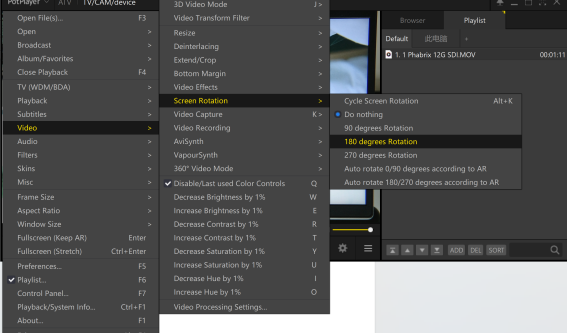
Q: Why is the image upside down when RGB24 is selected in PotPlayer?

A: In PotPlayer, select Video > Screen Rotation and choose 180 degrees Rotation.


Q: Does external audio override HDMI embedded audio?

A: No. HDMI embedded audio and external audio are mixed and output simultaneously.


Q: How do I adjust the mix volume?

A: Adjust the volume on the external audio device.

When HDMI input and Line-in audio are both present and mixing is enabled, the default mix ratio is 2:3: HDMI audio at 40% and Line-in audio at 60%.


Q: How can I get help with other issues?

A: Scan the QR code on the back of the device or contact Technical Support

5Technical Support

6Revision History

VersionDateDescriptionAuthor
V1.32026-08-31Publish documentation online, add 3.3 Audio Settings and FAQ items, and update related details.ZYL
V1.22025-10-15Integrate all the specification of the MSP 331 family.FMY
V1.12025-08-04Modify the accessories.FMY
V1.02025-06-18First release.FMY

About Us / Find Support

Xiamen RGBlink Science & Technology Co., Ltd. designs and manufactures professional video processing, switching, streaming and LED display control products for live events, broadcast, education and fixed installations.

Need help?

Choose one of the following support options:

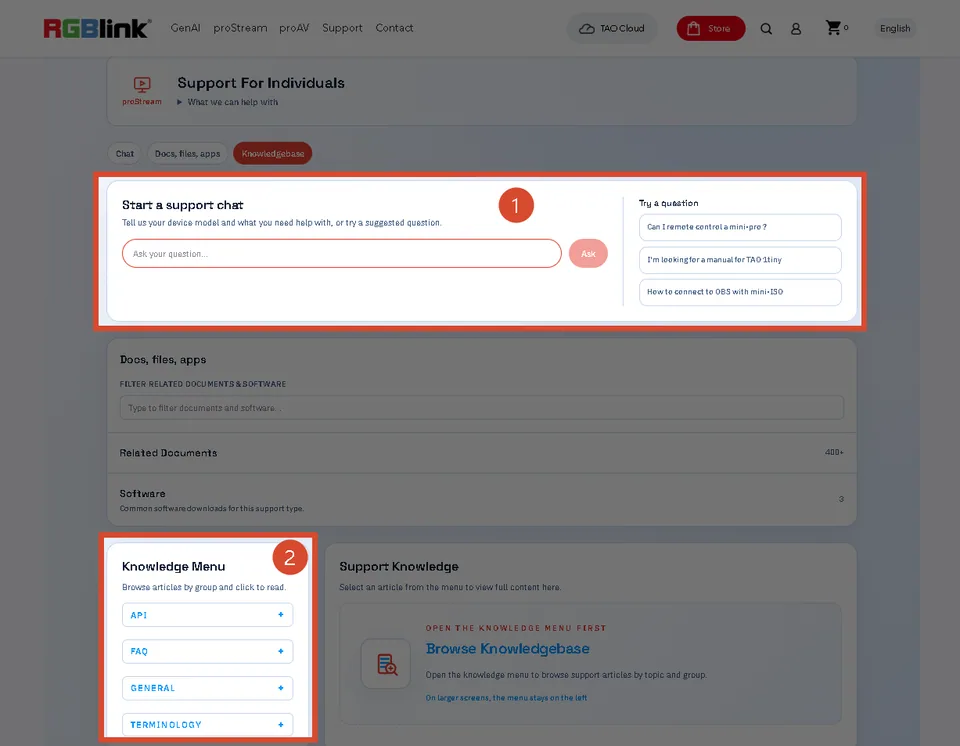
  • AI Support Search (Recommended): Visit Support > Support proStream/proAV/proEvents on the RGBlink official website and ask the RGBlink AI Bot for quick answers.
  • FAQs: Visit Support > Support proStream/proAV/proEvents on the RGBlink official website and browse Knowledge Menu > FAQ.
  • Contact Technical Support: Visit the Technical Support page of this manual or the RGBlink official website for our contact details.

Document image

RGBlink

www.rgblink.com

© Copyright Xiamen RGBlink Science & Technology Co Ltd