Online Manual
FLEX-16pro

3.3.1 Menu
After connecting the power supply, set the rear-panel power switch to ON to power on FLEX 16pro. Once the device starts up, the LCD screen displays the IP address and input information.
Press MENU to display the main menu on the LCD screen.
Rotate the knob to scroll through the options. Press the knob or ENTER to select an option and enter the corresponding menu.
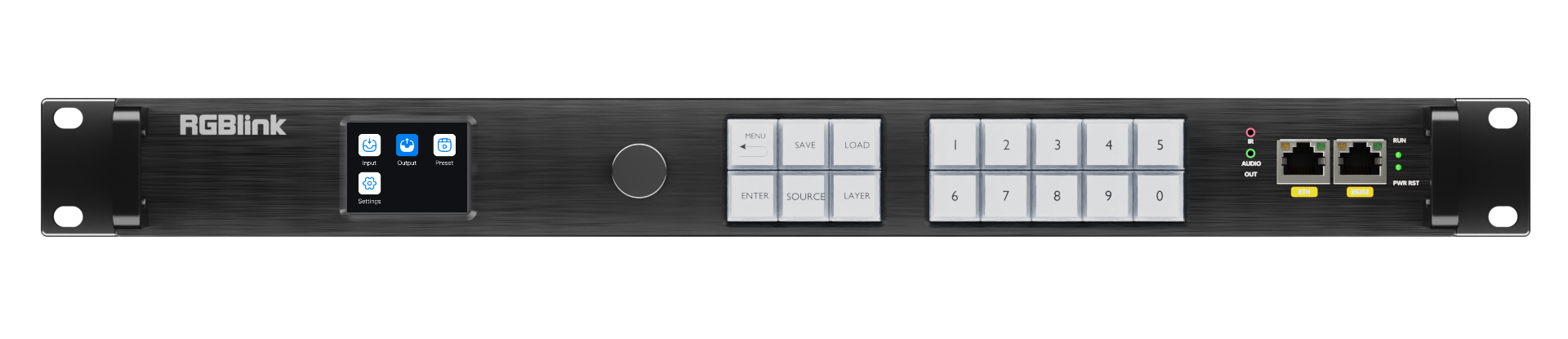
Input
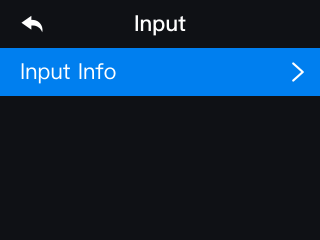
On the main menu, rotate the knob to scroll through the options. Select Input to enter the corresponding menu.
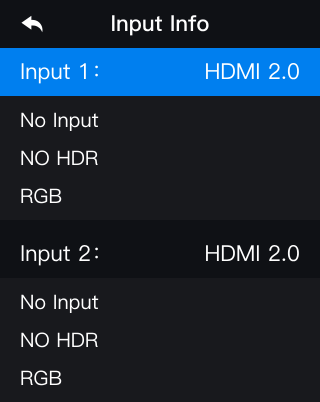
The Input menu displays input information, including the resolution, HDR status, and color space (RGB) of each input source.
If no valid input source is connected to the current input module, the corresponding field displays No Input, and no resolution is shown.
 | 👉 |  |
|---|
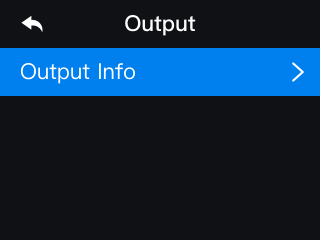
Output On the main menu, rotate the knob to scroll through the options. Select Output to enter the corresponding menu.
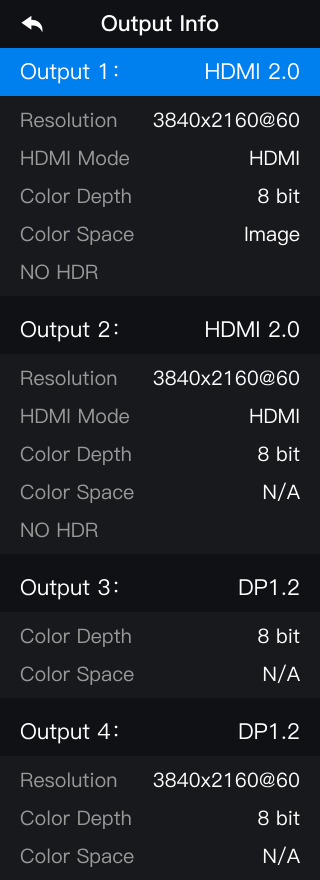
The Output menu displays output information, including the display resolution, HDMI mode, bit depth, color space, and HDR status of each output.
📢  Notes

 FLEX 16pro does not support custom output resolutions.
 | 👉 |  |
|---|
Preset
On the main menu, rotate the knob to scroll through the options. Select Preset to enter the corresponding menu.
In the** Preset** menu, users can save and load presets. FLEX 16pro supports up to 10 presets.
Use the numeric buttons to select a preset.
Settings
On the main menu, rotate the knob to scroll through the options. Select Settings to enter the corresponding menu.
The Settings menu provides access to system information, language, network settings, key lock, key brightness, factory reset, and other settings.
System Info
Displays the device's model, MCU version, key version, serial number (SN), and IP address.
Language/语言
The system supports two languages: Simplified Chinese and English.
Rotate the knob to select a language, then press the knob to confirm.
Network
Allows you to customize the device's IP address.
Rotate the knob to select a field, then press the knob to edit it. Rotate the knob or use the front-panel numeric buttons to change the value.
Key Lock
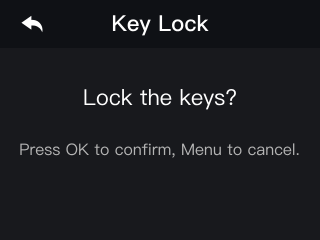
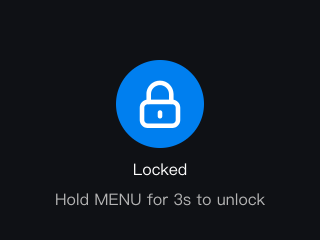
Locks the keys to prevent accidental operation.
Select Confirm in the confirmation dialog to lock the keys. Press MENU to cancel.
When the keys are locked, press and hold MENU for 3 seconds to unlock them.
 | 👉 |  |
|---|
Key Color
Allows you to adjust the brightness of the front-panel keys from 1% to 100%.
Rotate the knob to adjust the brightness. Press the knob or ENTER to confirm and apply the setting.
Factory Reset
Allows you to restore the device to factory settings.
On the confirmation screen, press the knob to perform a factory reset, or press MENU to cancel.