Online Manual
Q16pro-Gen2-4U

3.3 XPOSE APP
For APP download, please check rgblink official website > support page > proAV/proEvents > Software.
📢  Important

The device and phone must be in the same network.
Q16pro Gen2 support to load scene via XPOSE APP.
3.3.1 Connect Q16pro Gen2 to a phone
Connect Q16pro Gen2 to a phone through XPOSE APP using either of the following methods:
- Method 1: Wi-Fi connection
- Method 2: Direct connection
Before connecting, install XPOSE APP on your phone.
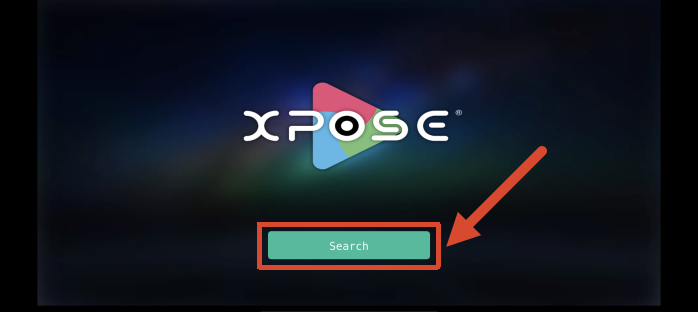
- Open XPOSE APP.
- Tap Search.
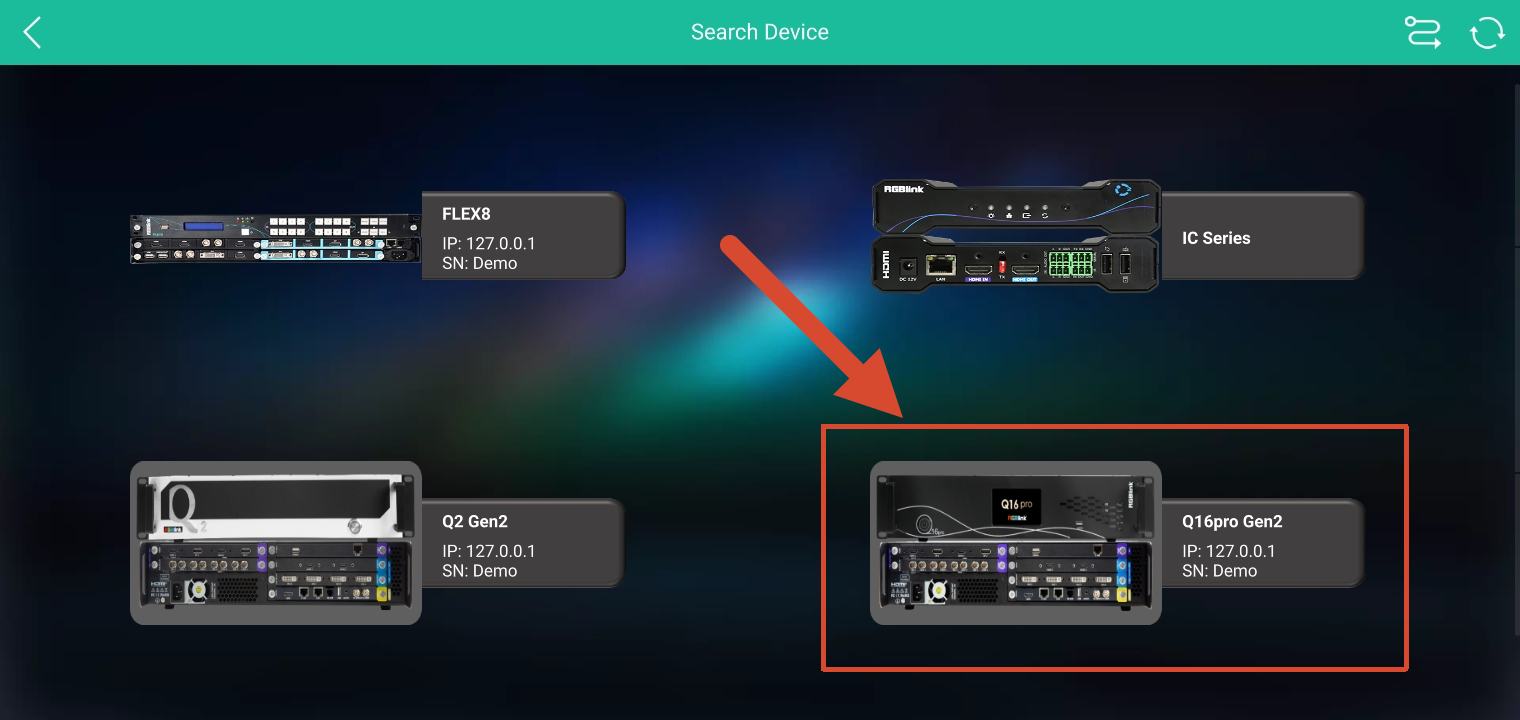
- Select Q16pro Gen2.
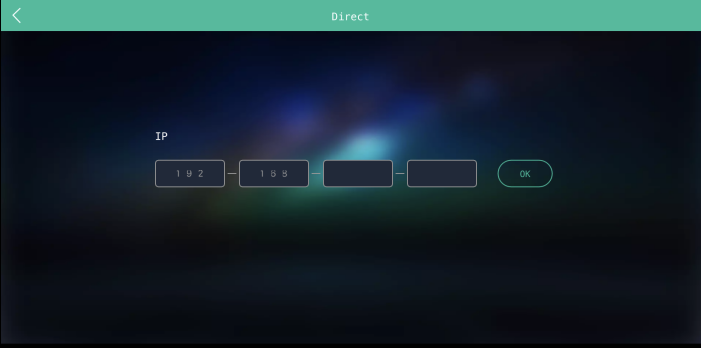
- Enter the IP address of Q16pro Gen2.
- Tap OK.
3.3.2 Load Scene
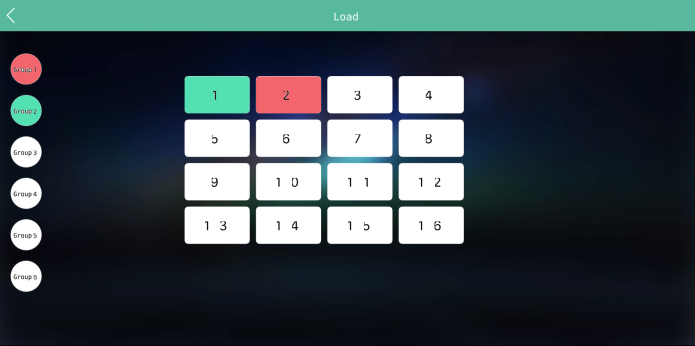
The scene list uses different colors to indicate scene status:
| Indicator Color | Status |
|---|---|
| Red | Current scene |
| Green | Saved scene |
| White | Empty scene |
To load a scene:
- Select a group on the left list.
- Select the required scene.
For example, if the current scene is Scene 2 in Group 1, select 1 to switch to Scene 1 in Group 1.
To load a scene from another group, select the required group first, then select the required scene.