
General / XTOOL / Software Operation
XTOOL Software Operation
overview
🔔 Current XTOOL Version:1.0.2.59
XTOOL is used to upgrade device firmware. It also displays the device connection status, device information, and firmware upgrade progress.
Before You Upgrade
Upgrade Package
Before upgrading, download the following files from the Official RGBlink Website:
- XTOOL installation package (See knowledge menu > article XTOOL software Install)
- Device firmware package
Upgrade Methods
XTOOL supports the following upgrade methods:
- Serial Upgrade: Connect the device to the computer using a serial cable.
- Network Upgrade: Connect the device to the computer using an Ethernet cable.
Using XTOOL
🚨  Warning
Do not disconnect the device or turn off its power during the firmware upgrade.
- Double-click the XTOOL icon to launch the software.
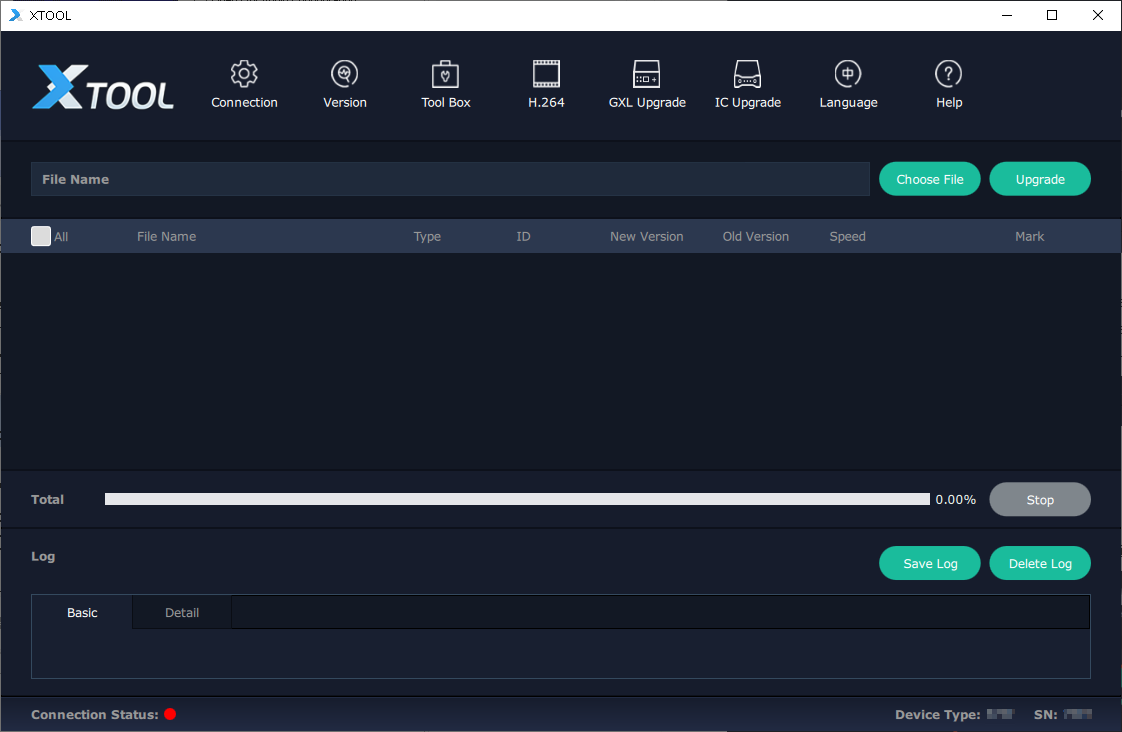
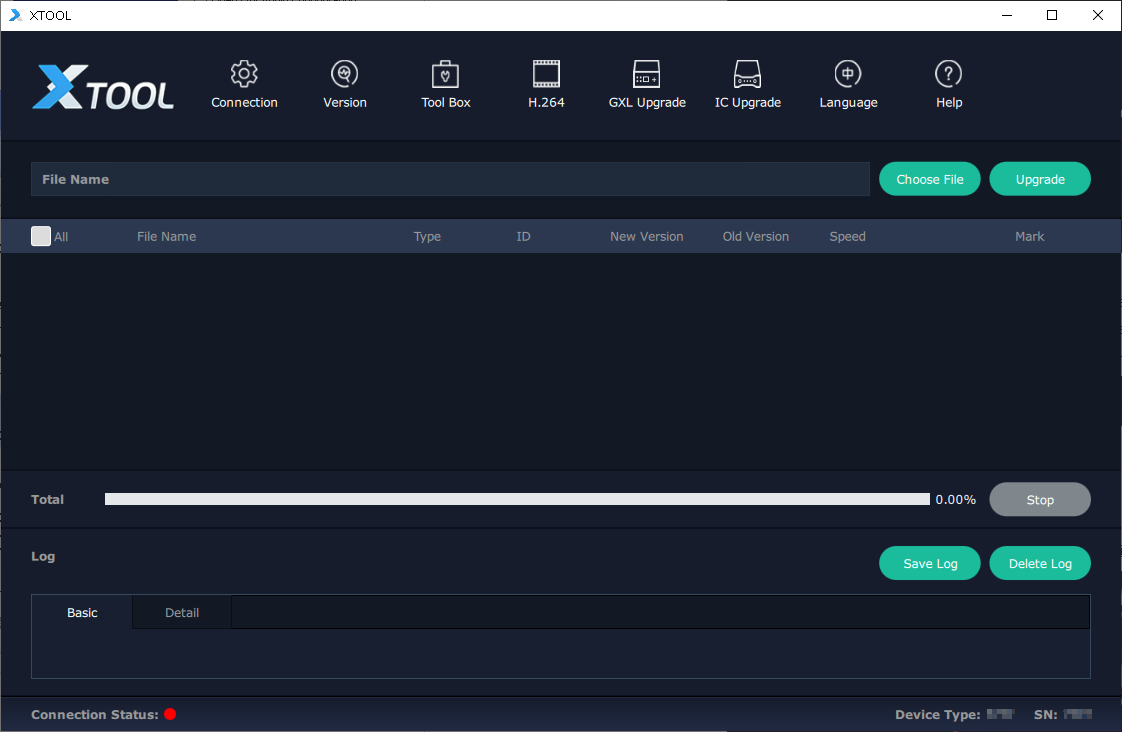
- Check the connection status in the lower-left corner of the main interface.
- Green indicates that the device is connected successfully.
- Red indicates that the device is disconnected or the connection has failed.
- Verify the device model and serial number in the lower-right corner of the main interface.
Serial Upgrade
- Connect the device to the computer using a serial cable.
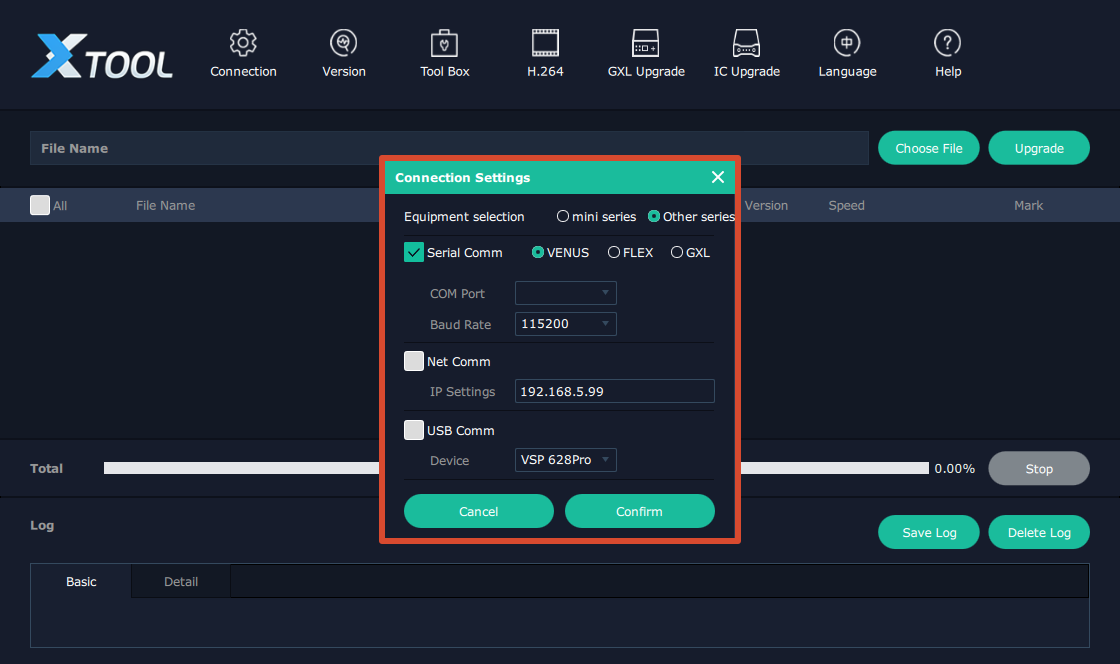
- Click Connection. In the dialog box, select the Equipment series, choose Serial Comm, and then click Confirm.
- After the device is connected successfully, click Choose File and select the .bin firmware file.

- Click All to select the firmware modules to be upgraded.

📢 Notes

After you click All, XTOOL automatically compares the firmware versions on the device with those in the upgrade package.

-  Files with the same version are not selected.
-  Files with different versions are selected automatically for upgrade.
- Click Upgrade. When the firmware upgrade confirmation dialog box appears, click Confirm to start the upgrade.
📢  Notes

During the upgrade, you can monitor both the individual module progress and the overall upgrade progress on this page.
- After the upgrade is complete, the firmware upgrade completed dialog box appears. Click Confirm.
- Power off the device, and then power it on again.
Network Upgrade
📢 Notes

Before upgrading over the network, make sure that the device and the computer are on the same local network and that their IP addresses are in the same subnet.
- Connect the device to the computer using an Ethernet cable.
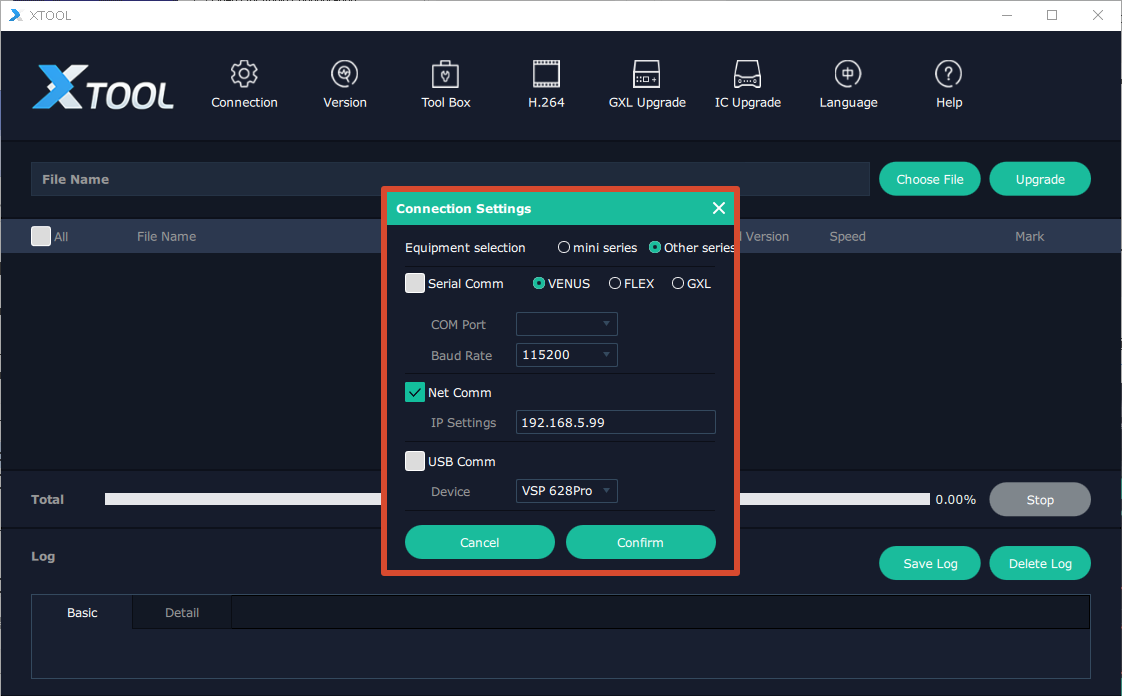
- Click Connection. In the dialog box, select the Equipment series, choose Net Comm, and then click Confirm.
- After the device is connected successfully, click Choose File and select the .bin firmware file.

- Click All to select the firmware modules to be upgraded.

📢 Notes

After you click All, XTOOL automatically compares the firmware versions on the device with those in the upgrade package.

-  Files with the same version are not selected.
-  Files with different versions are selected automatically for upgrade.
- Click Upgrade. When the firmware upgrade confirmation dialog box appears, click Confirm to start the upgrade.
📢 Notes

During the upgrade, you can monitor both the individual module progress and the overall upgrade progress on this page.
- After the upgrade is complete, the Firmware Upgrade Completed dialog box appears. Click Confirm.
- Power off the device, and then power it on again.