Online Manual
mini-max User Manual

3.11 Recording
mini-max supports recording the program output directly through a USB storage device.
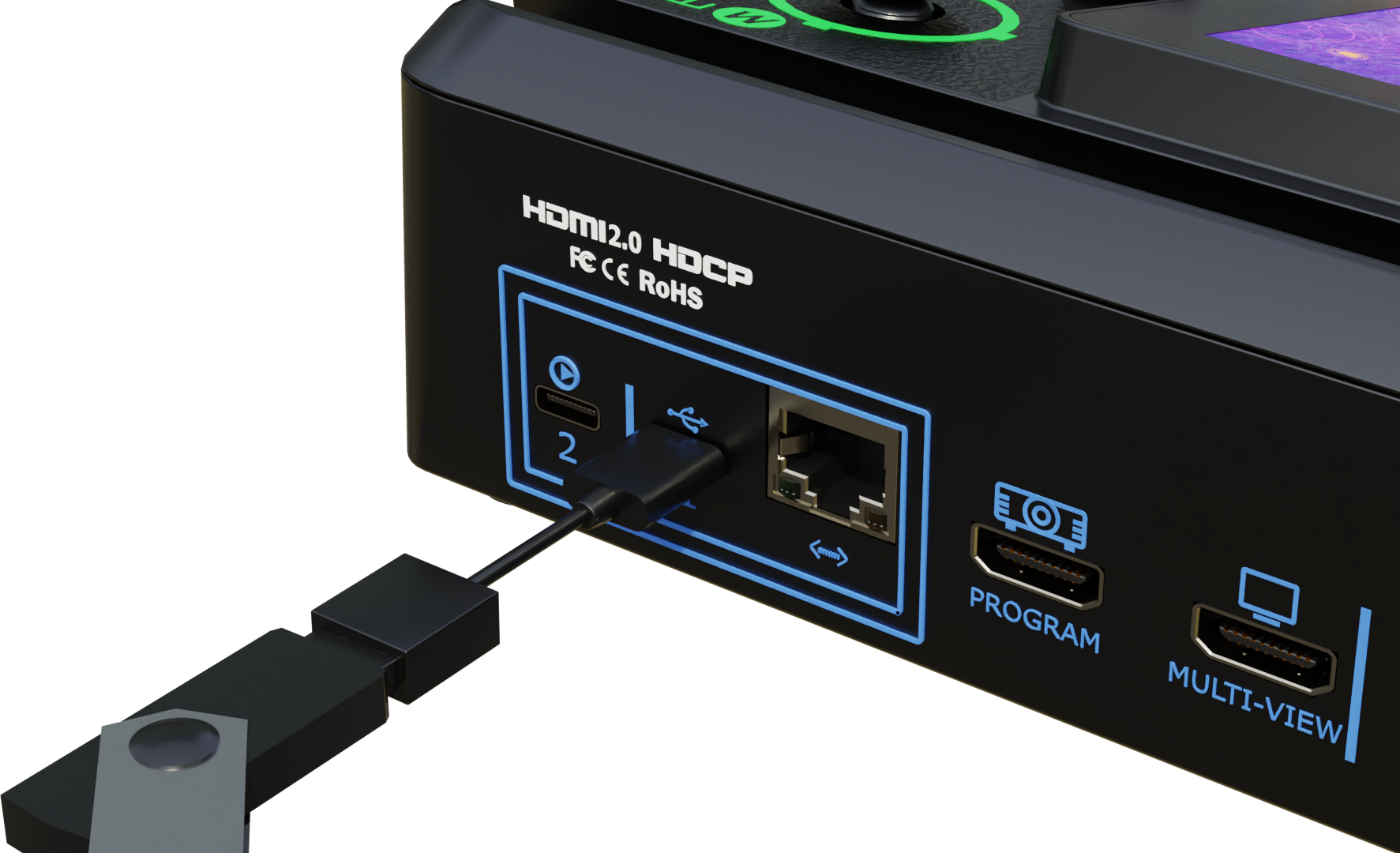
In addition to UVC camera input and asset import, USB-C 1 supports storage devices for local recording, providing recording backup for live streaming, meetings, and content production.
Use a USB flash drive or SSD for recording. SSD is recommended for multi-channel recording.
- Connect a USB flash drive or SSD to USB-C 1.
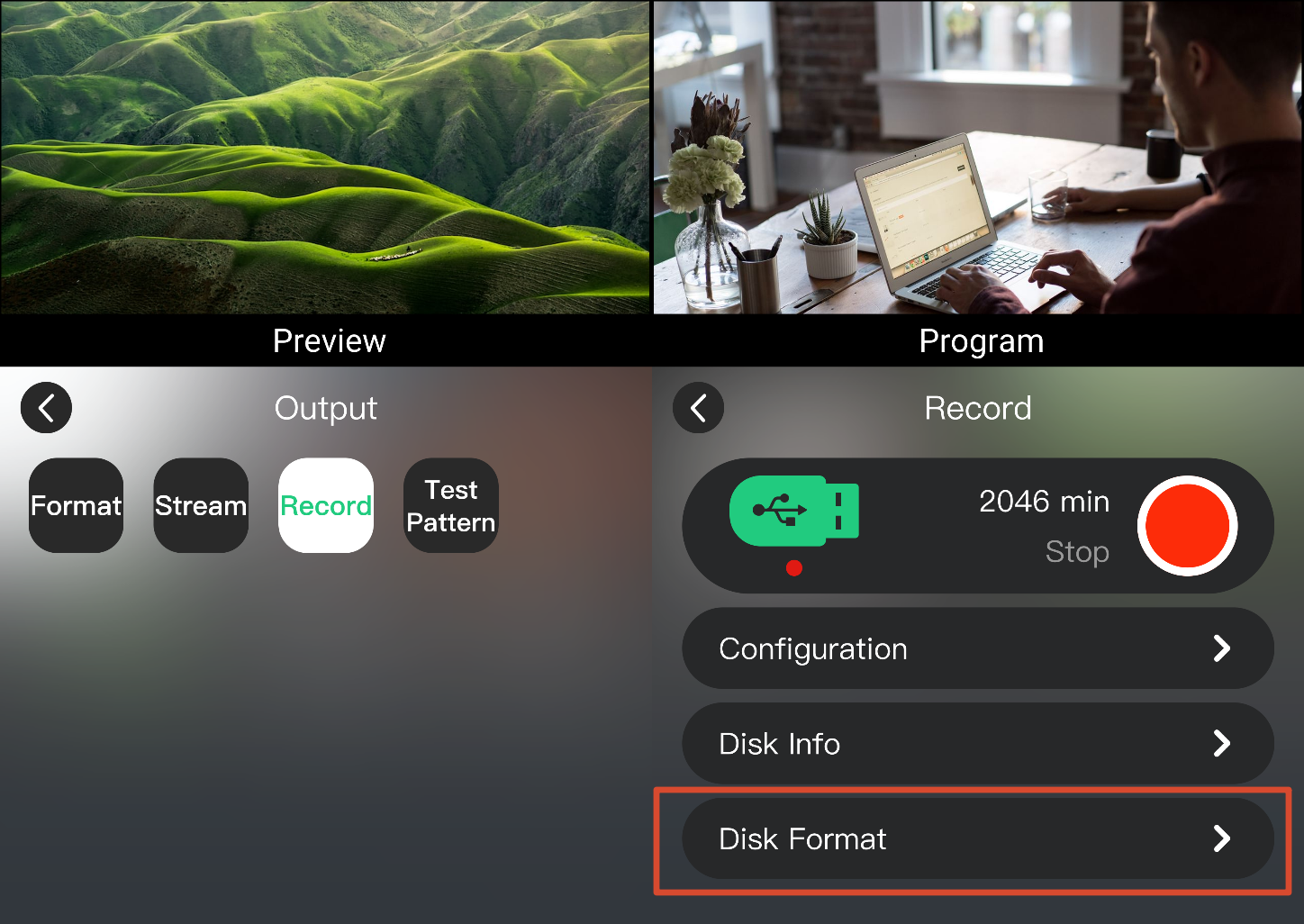
- Select MENU > OUTPUT > Record to open the recording settings page.
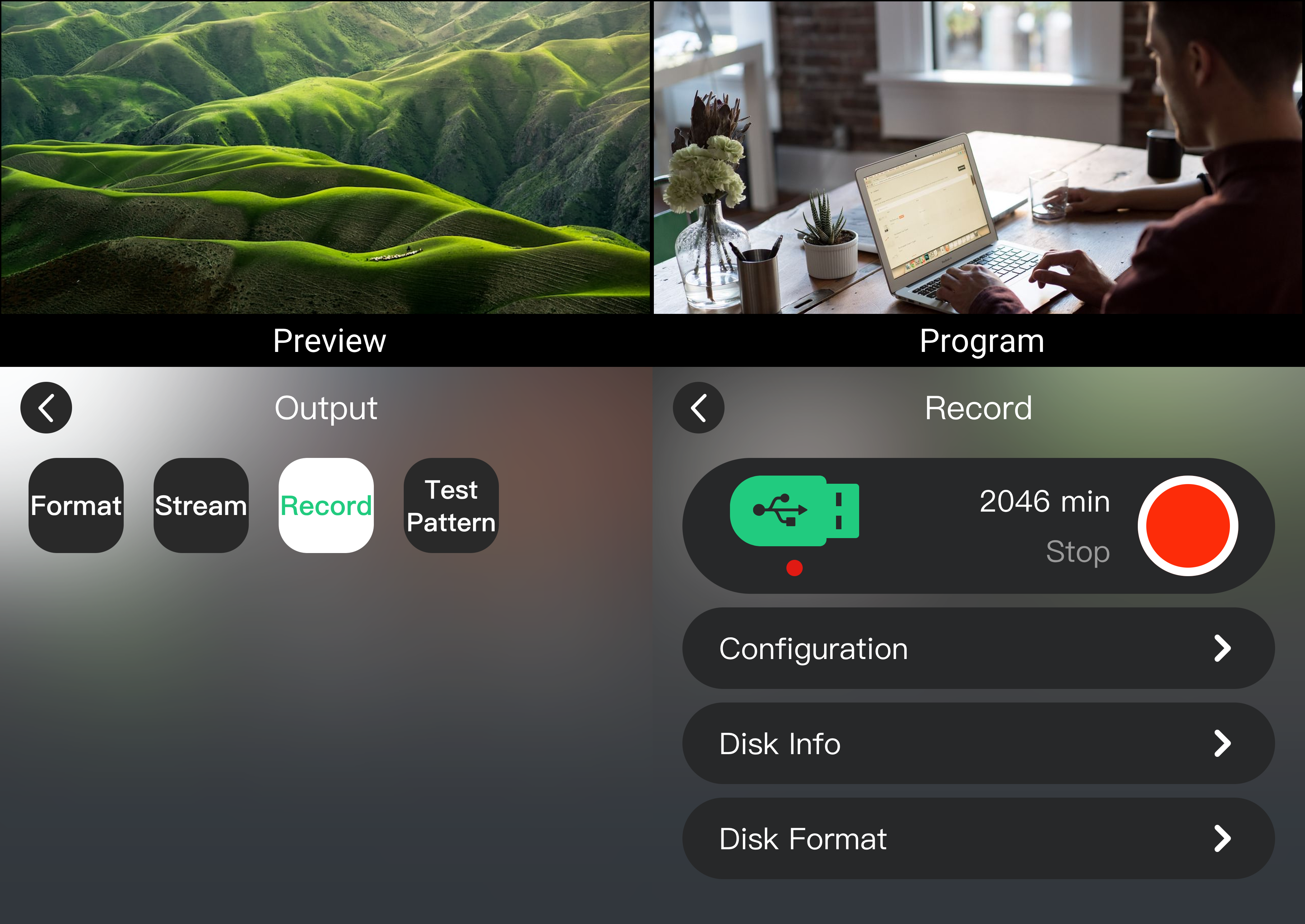
- The device automatically detects the storage status and displays:
- Remaining recording time
- Disk information
- The RECORD button lights white
3.11.1 Recording Capability
mini-max supports recording one fixed Program output (PGM) and up to three input sources simultaneously.
Selecting PVW (Preview) or AUX outputs as the recording source is not supported.
ISO recording allows separate recording of the PGM output and input sources. Each source generates an independent recording file.
The factory default setting enables one PGM recording channel:
- Resolution: 3840 × 2160@60
- Bitrate: 8 Mbps
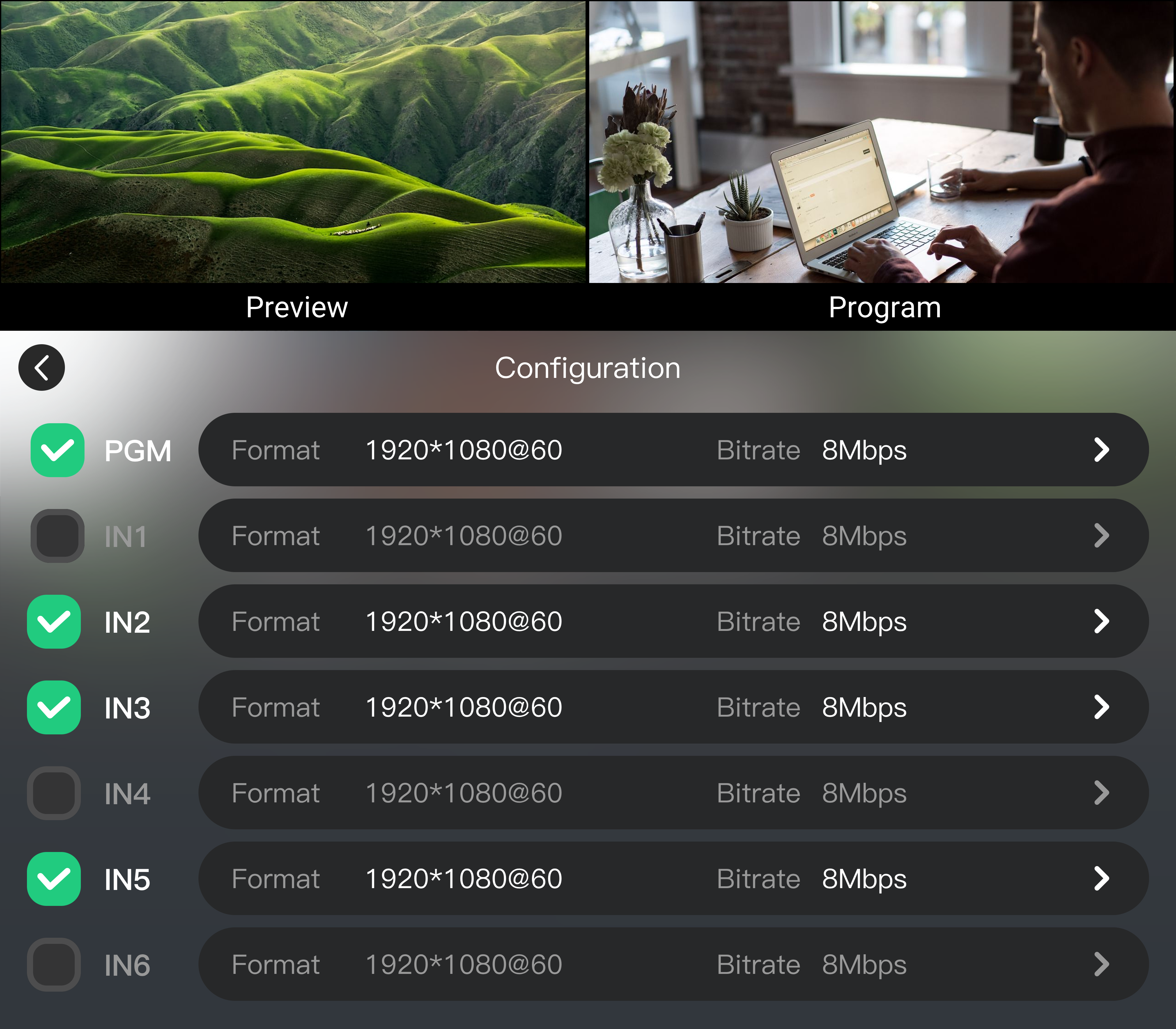
To record additional input sources, adjust the recording resolution and bitrate for PGM and each input source in OUTPUT > Record > Configuration.
The recording resolution follows the input source resolution. If the input source is 1080p, the recorded video will also be 1080p. The device does not upscale the video to a higher resolution.
📢  Notes
When recording multiple input sources, lower the PGM output resolution to 2K@60 to select up to 3 input sources for recording.
Higher bitrates provide better recording quality but require more storage space.
| Recording Channels (including one FIXED PGM) | Maximum Supported Specification |
|---|---|
| Single-channel recording | 1 × 4K@60 PGM |
| Dual-channel recording | 1 × 4K@30 PGM + 1 × 4K@30 IN |
| Three-channel recording | 1 × 4K@30 PMG + 2 × 2K@60 IN |
| Four-channel recording | 1 × 2K@60 PGM + 3 × 2K@60 IN |
📢  Important
No supported mini model allows users to configure the PGM and UVC output source independently.
3.11.2 Start Recording
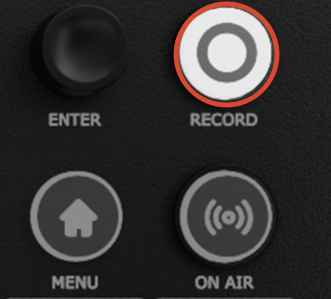
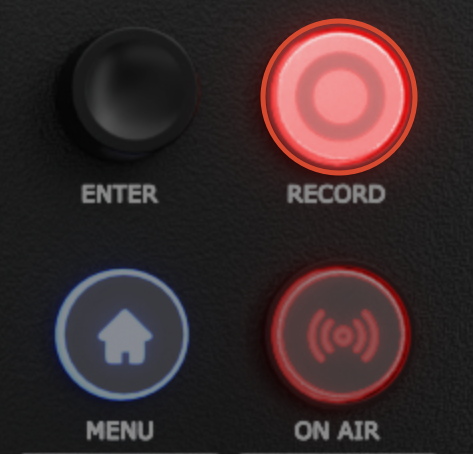
After confirming the status is normal, press the RECORD button on the front panel, or click the recording button on the recording settings page.
When recording starts:
- The RECORD button changes from white to red.
 | 👉 |  |
|---|
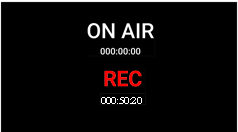
- The recording page displays recording duration and status information. The main interface and multiview screen also display the recording status.
3.11.3 Stop Recording
🚨  Risk of Recording File Loss

After stopping a recording, wait until the file-saving process is complete before disconnecting the storage device.

Removing the storage device during recording may result in file corruption or recording failure.
- Press the RECORD button again to stop recording.
- After recording stops, the RECORD button changes from red back to white.
3.11.4 Disk Format
The recording device must use the exFAT format.
If the format is incompatible, format the storage device on a Windows computer:
- File system: exFAT
- Allocation unit size: 128 KB
After formatting, confirm disk formatting from the recording page on mini-max.
📢  Notes
- Recording files are automatically split into 4 GB segments.
- For 2K@60 recording, set the corresponding input source resolution to 2K.
- Multi-channel recording requires high storage read/write performance. An SSD is recommended.