Online Manual
tinyZ

2.4 How to Use
Operating Mode
Standard Mode
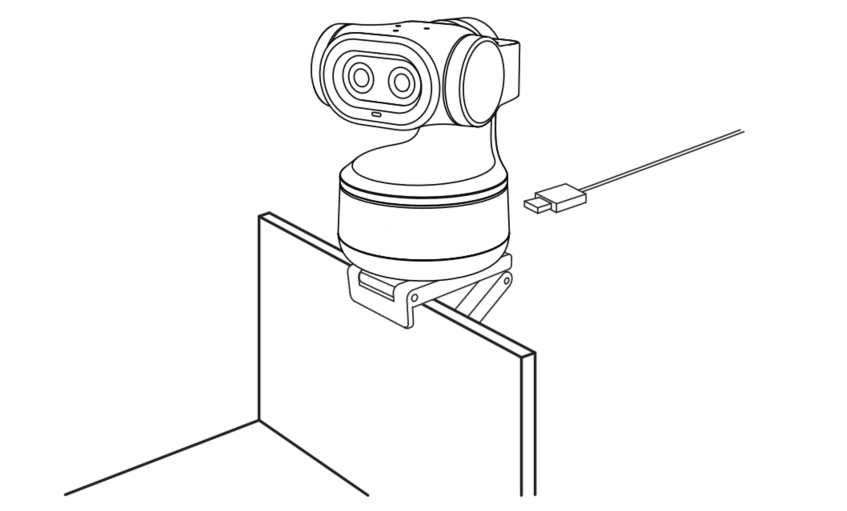
Place the camera on a flat surface after connecting it to a computer.
Alternatively, mount it on top of a monitor using a bracket (as shown below).
For bracket assembly instructions, refer to section Bracket.
Tracking Mode
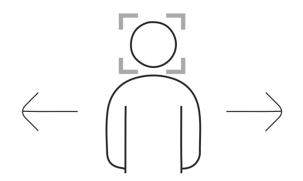
With gesture tracking enabled, the camera automatically follows subject movement.
Privacy Mode
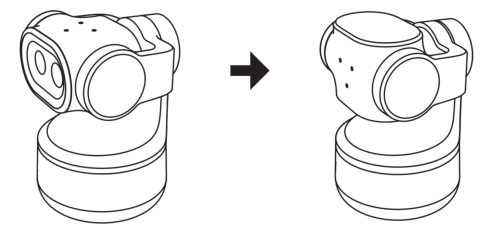
Manually tilt the gimbal downward until the indicator light turns off.
The device will then enter Privacy Mode.
Gesture Control
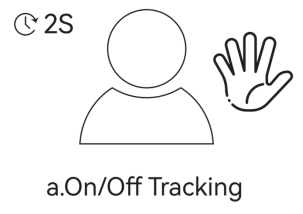
Hold the gesture for 2 seconds for recognition.
Enable / Exit Tracking Mode
- As shown in Figure a, perform the gesture. When the green indicator flashes blue twice and then turns solid blue, tracking mode is successfully enabled.
- Perform the same gesture again to exit tracking mode. The indicator returns to solid green.
📢 Notes
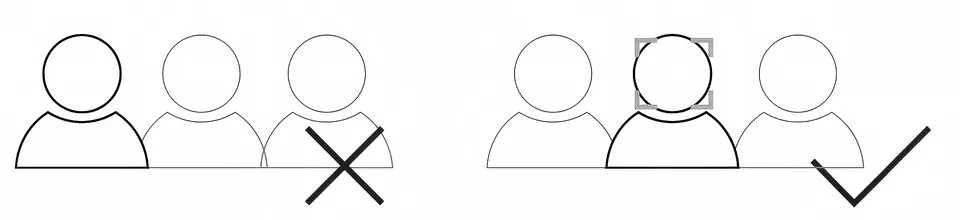
- Keep the subject centered in the frame during gesture recognition.
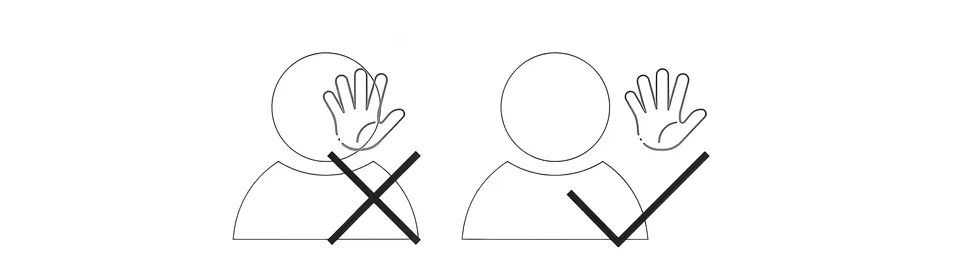
- Do not cover your face when performing gestures.
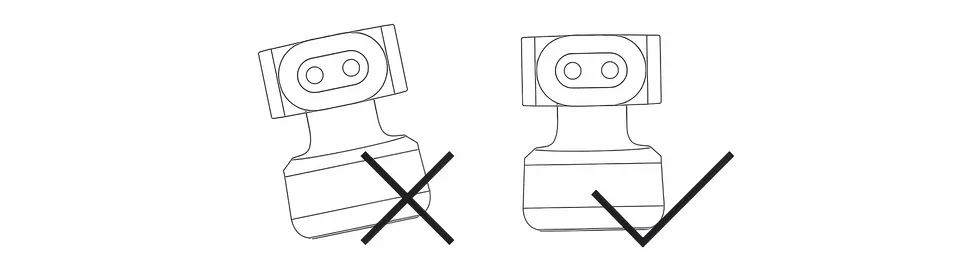
- Always position the camera upright. Do not tilt the device.
👁🗨 Shooting Mode
| Orientation | Picture | |
|---|---|---|
| Landscape Mode | Use the camera normally after standard installation. | 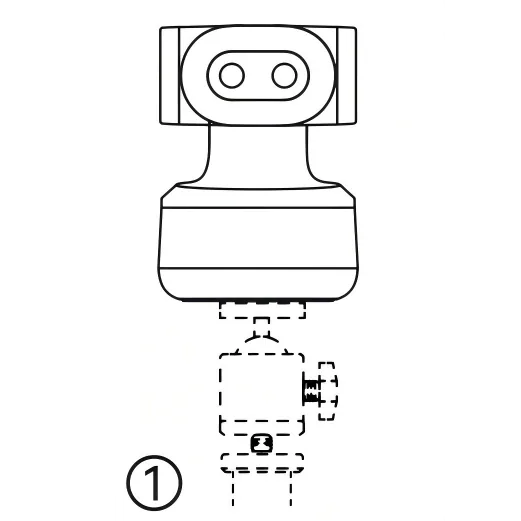 |
| Portrait Mode | Mount the camera horizontally using an external accessory to enable portrait orientation. | 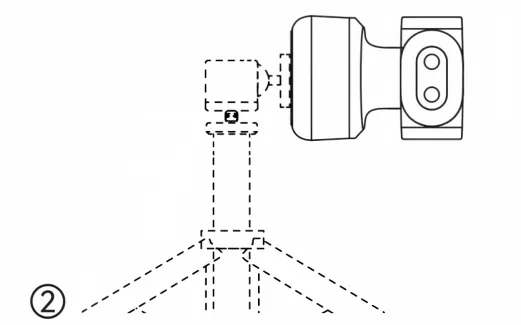 |
| Ceiling Mount Mode | The camera supports upside-down mounting. The image automatically adjusts. | 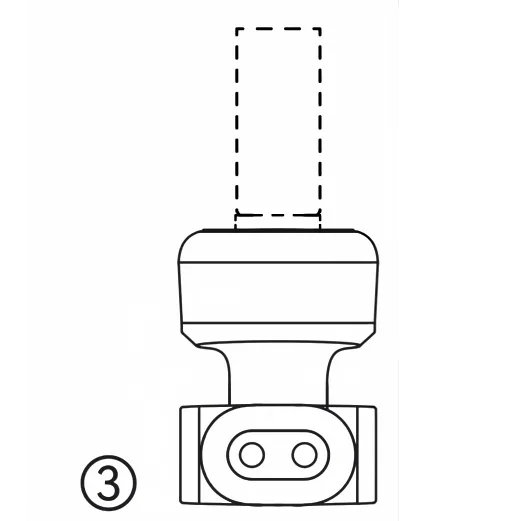 |
🚥 Indicator Light Status
| Device Status | Indicator |
|---|---|
| Normal Mode | Solid Green |
| Tracking Mode | Solid Blue |
| Privacy Mode | Light Off |
| Gesture Recognition | Blue Flashes Twice |
| Target Lost | Solid Yellow |
| Firmware Update | Solid Red |
| Device Error | Flashing Red |