Online Manual
tinyZ

3.4.4 3.4 streamZ + tinyZ Solution
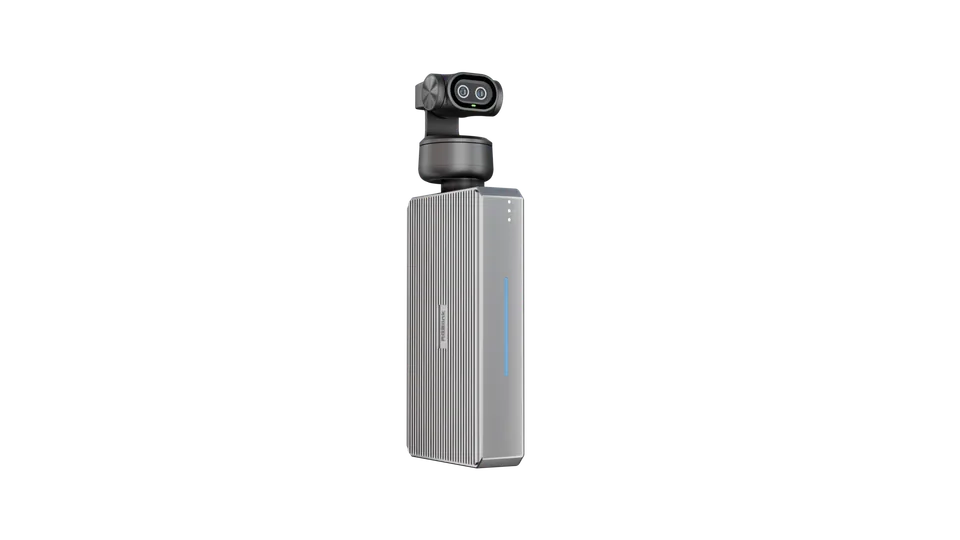 🔔 Learn more about streamZ
Visit streamZ product page on the official RGBlink website.
3.4.1 Using tinyZ in the streamZ Web Interface
Once connected to streamZ, tinyZ is recognized as a UVC video input.
Follow these steps to add it to a live-streaming room preset.
-
Navigate to My LIVE > Studio, go to Add Materials > Real-time Video and select UVC Input 1 or UVC Input 2 to add the tinyZ feed to the current scene.
-
Click Apply in the upper-right corner to apply the changes.
-
Select the UVC input assigned to tinyZ to access the FOV (Field of View) settings panel on the right.
-
You can switch between Auto Cruise, View Adjustment, and AI tracking directly from the web interface.
🚨 Important
-
When connected to streamZ, tinyZ defaults to Auto Cruise mode.
-
To use gesture control to enable AI tracking mode, first switch to View Adjustment or select AI tracking directly in the web interface.
-
Avoid sending conflicting commands simultaneously, as this may disrupt camera operation or damage the device.
📢  Notes

tinyZ supports UVC input resolutions up to 4K\@30fps.

Zoom In/Out via streamZ is unavailable when the input resolution exceeds 1080P\@30fps.
For more information about the FOV settings, please refer to streamZ User Manual, chapter FOV Mode
3.4.2 Operating tinyZ
After connecting tinyZ to streamZ, you can control it through the FOV settings panel in the web interface or by using gesture control.
Gesture control tips
- Hold the gesture for 2 seconds to allow recognition.
- Keep tinyZ upright and avoid tilting the device.
- Keep the subject centered in the frame.
- Do not cover your face when performing gestures.

Operating Modes
Standard Mode
tinyZ starts in Standard Mode when powered on, with the indicator solid green.
When connected to streamZ, it defaults to Auto Cruise mode.
Tracking Mode
Perform the supported gesture to enable AI Tracking.
The indicator flashes blue twice and then turns solid blue.
Perform the same gesture again to exit Tracking Mode; the indicator returns to solid green.
Privacy Mode
Manually tilt the gimbal downward until the indicator turns off. The camera stops capturing video.
Return the gimbal to its normal position to resume operation.
Privacy Mode can only be activated through physical operation, not through the web interface.
3.4.3 Recommended Use Cases
-
E-commerce and Product Live Streaming
Use tinyZ as the host camera and an HDMI-connected camera for product demonstrations.
Switch between the two camera angles using streamZ.
-
IRL/Solo Live Streaming
Mount tinyZ on streamZ to automatically track the host during a live stream, enabling one-person operation without a dedicated camera operator.
-
Trade Shows and Outdoor Presentations
Use tinyZ to track a moving presenter while mirroring presentation content from a mobile device.
Manage both video sources through streamZ.