Online Manual
Q16pro-Gen2-manual

3.4.2 XTOOL_Upgrade
Before You Upgrade
Upgrade Package
Before upgrading, download the following files from the RGBlink official website:
- XTOOL installation package
- Device firmware package
Upgrade Methods
XTOOL supports the following upgrade methods:
- Serial Upgrade: Connect the device to the computer using a serial cable.
- Network Upgrade: Connect the device to the computer using an Ethernet cable.
Using XTOOL
🚨  Warning
Do not disconnect the device or turn off its power during the firmware upgrade.
- Double-click the XTOOL icon to launch the software.
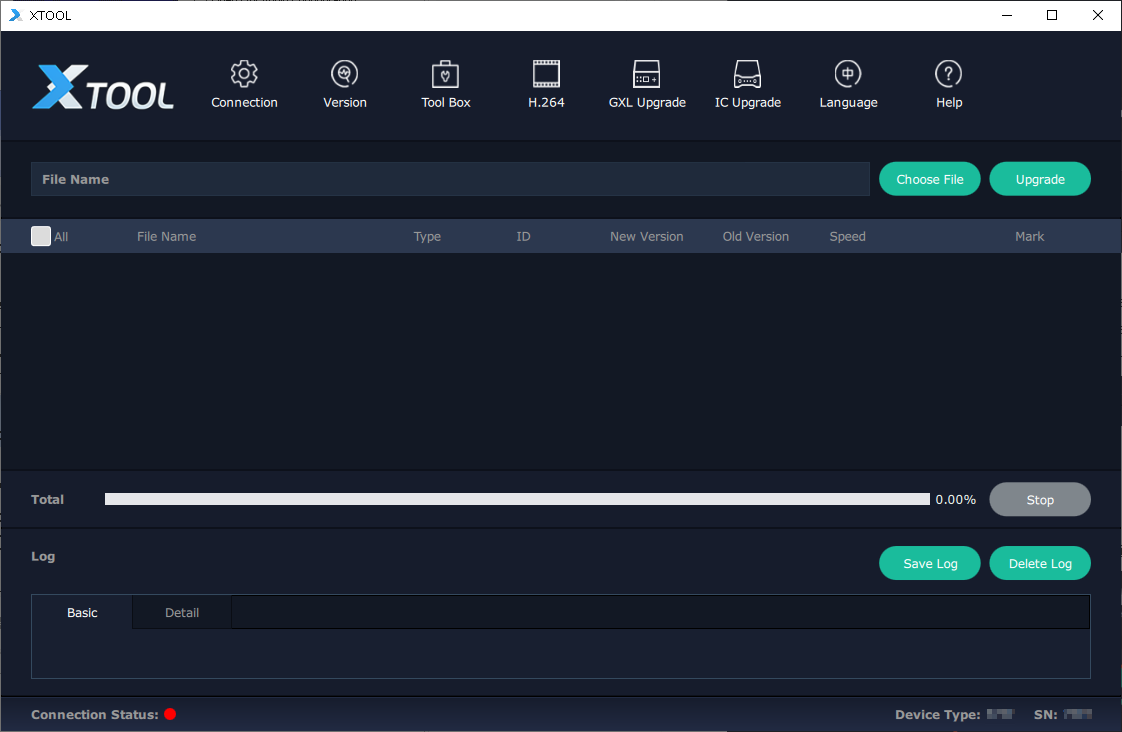
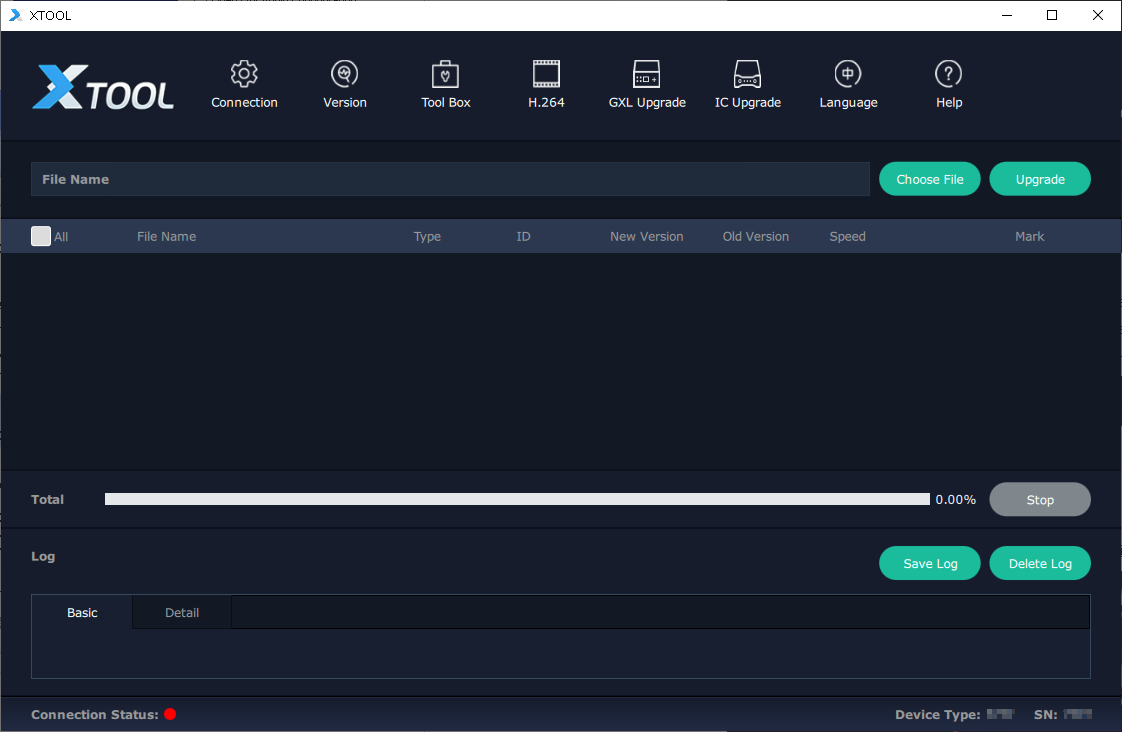
- Check the connection status in the lower-left corner of the main interface.
- Green indicates that the device is connected successfully.
- Red indicates that the device is disconnected or the connection has failed.
- Verify the device model and serial number in the lower-right corner of the main interface.
Serial Upgrade
- Connect the device to the computer using a serial cable.
- Click Connection. In the dialog box, select the Equipment series, choose Serial Comm, and then click Confirm.
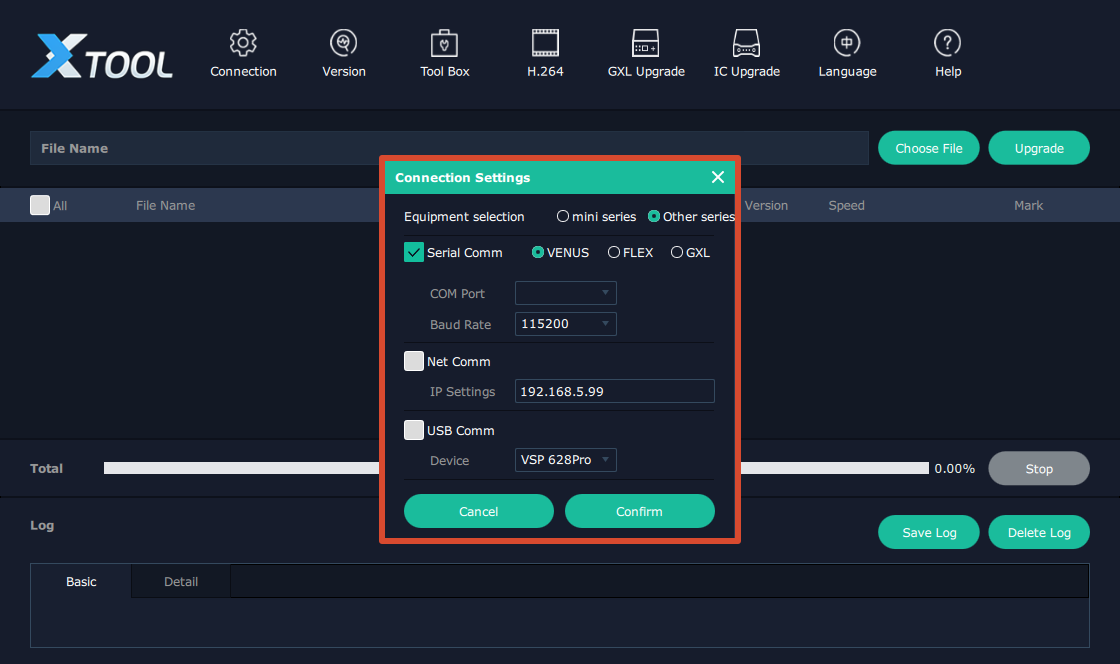
- After the device is connected successfully, click Choose File and select the .bin firmware file.

- Click All to select the firmware modules to be upgraded.

📢 Notes

After you click All, XTOOL automatically compares the firmware versions on the device with those in the upgrade package.

-  Files with the same version are not selected.
-  Files with different versions are selected automatically for upgrade.
- Click Upgrade. When the firmware upgrade confirmation dialog box appears, click Confirm to start the upgrade.
📢  Notes

During the upgrade, you can monitor both the individual module progress and the overall upgrade progress on this page.
- After the upgrade is complete, the firmware upgrade completed dialog box appears. Click Confirm.
- Power off the device, and then power it on again.
Network Upgrade
📢 Notes

Before upgrading over the network, make sure that the device and the computer are on the same local network and that their IP addresses are in the same subnet.
- Connect the device to the computer using an Ethernet cable.
- Click Connection. In the dialog box, select the Equipment series, choose Net Comm, and then click Confirm.
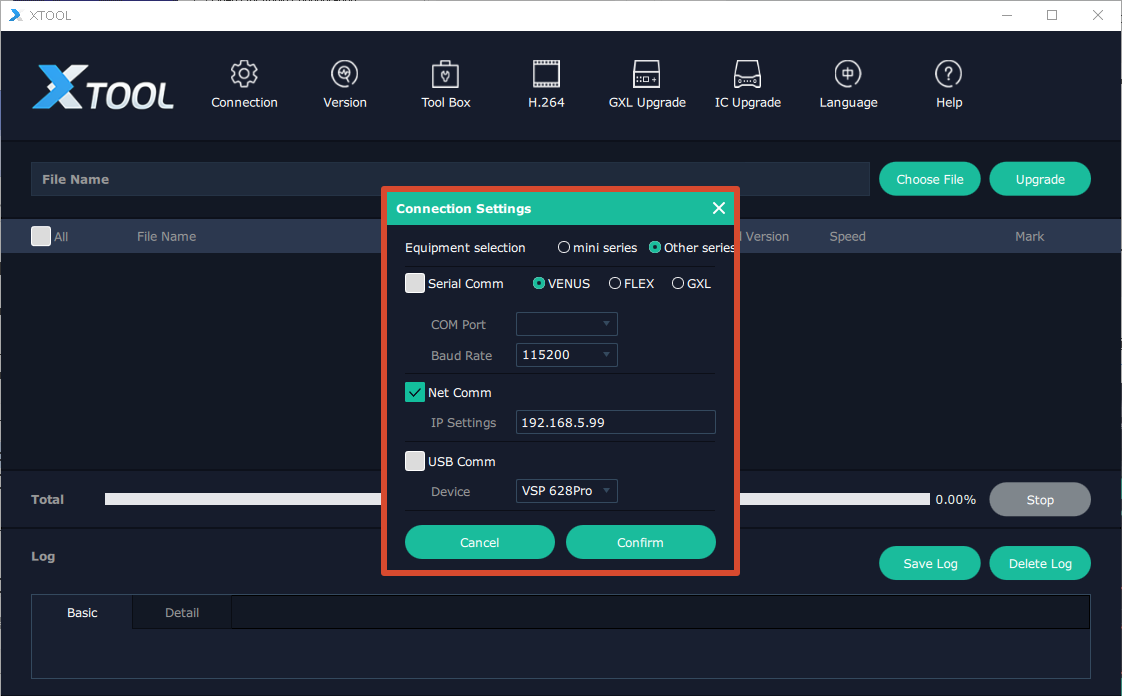
- After the device is connected successfully, click Choose File and select the .bin firmware file.

- Click All to select the firmware modules to be upgraded.

📢 Notes

After you click All, XTOOL automatically compares the firmware versions on the device with those in the upgrade package.

-  Files with the same version are not selected.
-  Files with different versions are selected automatically for upgrade.
- Click Upgrade. When the firmware upgrade confirmation dialog box appears, click Confirm to start the upgrade.
📢 Notes

During the upgrade, you can monitor both the individual module progress and the overall upgrade progress on this page.
- After the upgrade is complete, the Firmware Upgrade Completed dialog box appears. Click Confirm.
- Power off the device, and then power it on again.