Online Manual
streamZ User Guide

2.1.2 Web Interface
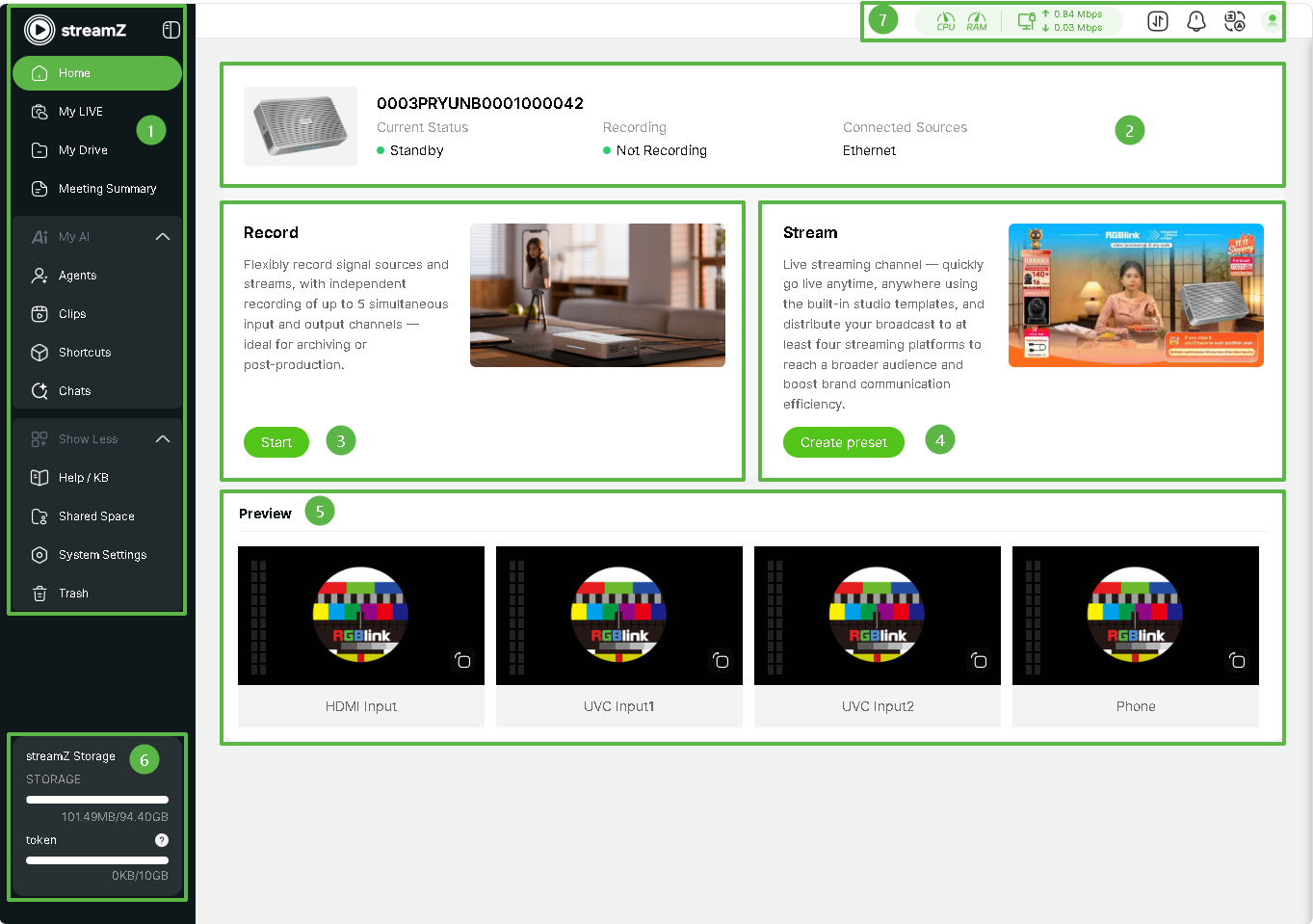
| NO. | Feature |
|---|---|
| ① Sidebar | Quickly switch between Home, My LIVE, My Drive, and Meeting Summary. AI Tools, Help, Settings and other entrances are located at the bottom. |
| ② Device Status | Monitor current device status, stream key, recording, and Wi-Fi connection. |
| ③ Record | Start recording. Supports independent recording for up to 4 inputs and 1 output. |
| ④ Stream | Create live scene presets and broadcast to multiple platforms simultaneously. |
| ⑤ Preview | Real-time monitoring for all connected input sources. |
| ⑥ Resource Stats | Displays storage and tokens status. SD card capacity and usage are shown in real time. |
| ⑦ Top Status Bar | Displays real-time CPU/RAM usage and network bandwidth (Upload/Download). Provides access to Task Center, Messages, Language, and Profile here. |
Update Notification
A yellow dot next to System Settings in the Sidebar indicates that a system update is available. Upgrade Steps:
- Click System Settings in the sidebar.Locate System Upgrade at the bottom right.
- Click Start Upgrade to download the installation package.
- After the download is complete, click Confirm in the pop-up window.The device will automatically restart and enter Upgrade Mode. Power: Stays solid.Others: Off.
📢 Important: Do NOT disconnect the power. After the indicators return to normal (Network blinking fast, Operation solid), refresh the web browser to synchromize the updated system.