Online Manual
streamZ User Guide

4.4.1 4.1 OpenClaw Configuration
Configuration Requirements
Power and Display
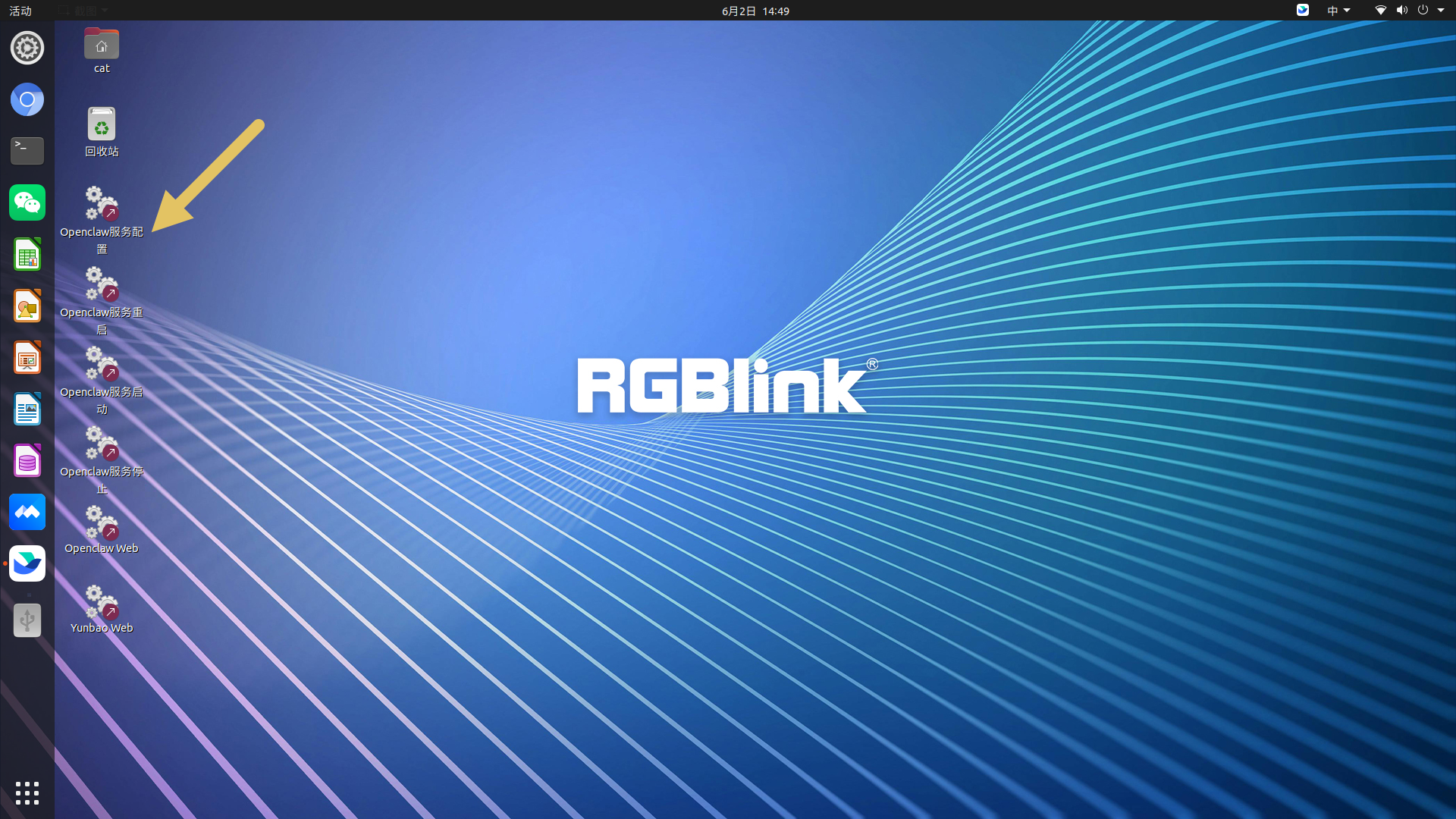
Once the agentZ is properly connected to power and a monitor, five installed OpenClaw applications will appear on the desktop.
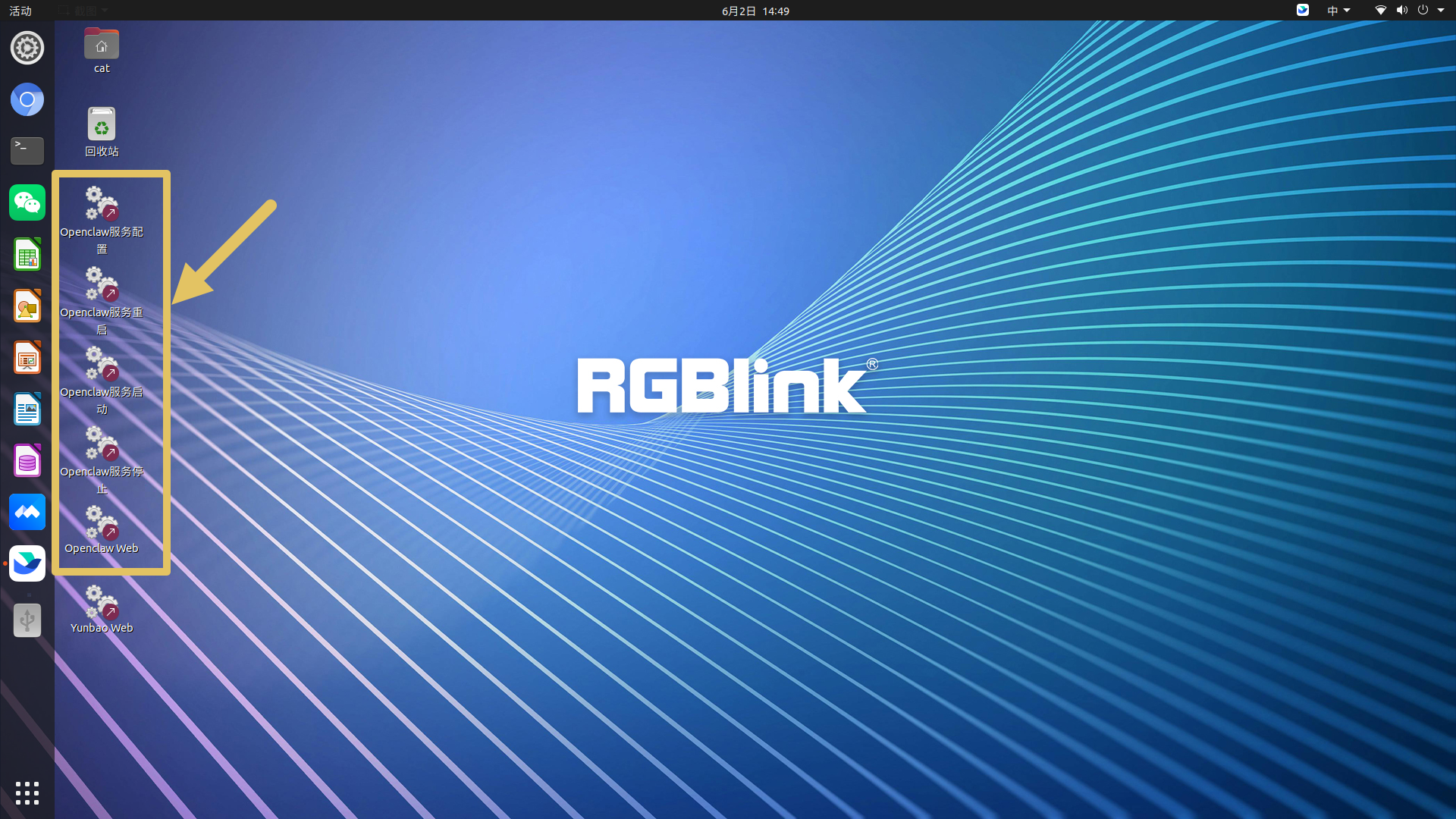
| Illustration | Description |
|---|---|
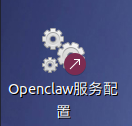 | openclaw_config |
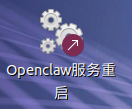 | openclaw_restart |
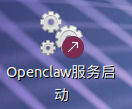 | openclaw_start |
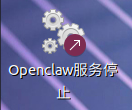 | openclaw_stop |
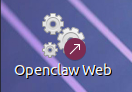 | openclaw_web |
Network Connection
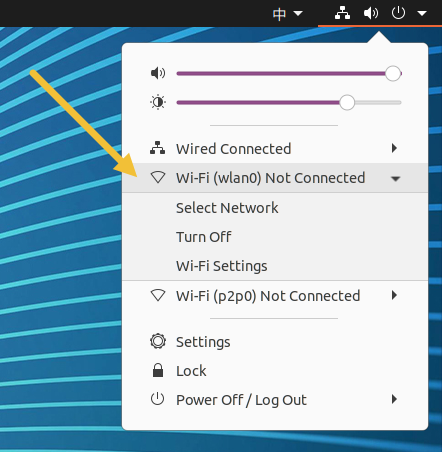
You may connect the device to the LAN port using an Ethernet cable (see section 4. agentZ, Ports), or click the network settings icon in the top-right corner of the system interface, select Wi-Fi (wlan0), and connect to a wireless network.
Start Configuration
Click the openclaw_config to begin your setup.
| openclaw_config |
|---|
Configuration Guide
After opening the openclaw_config, follow the on-screen instructions to complete your setup.
The screenshot and descriptions below are for reference only. The actual interface may vary depending on the current version.
 📢  Important

During the process, mouse input is not supported. Please use the keyboard for interaction (use the arrow keys to navigate and press Enter to select and proceed).
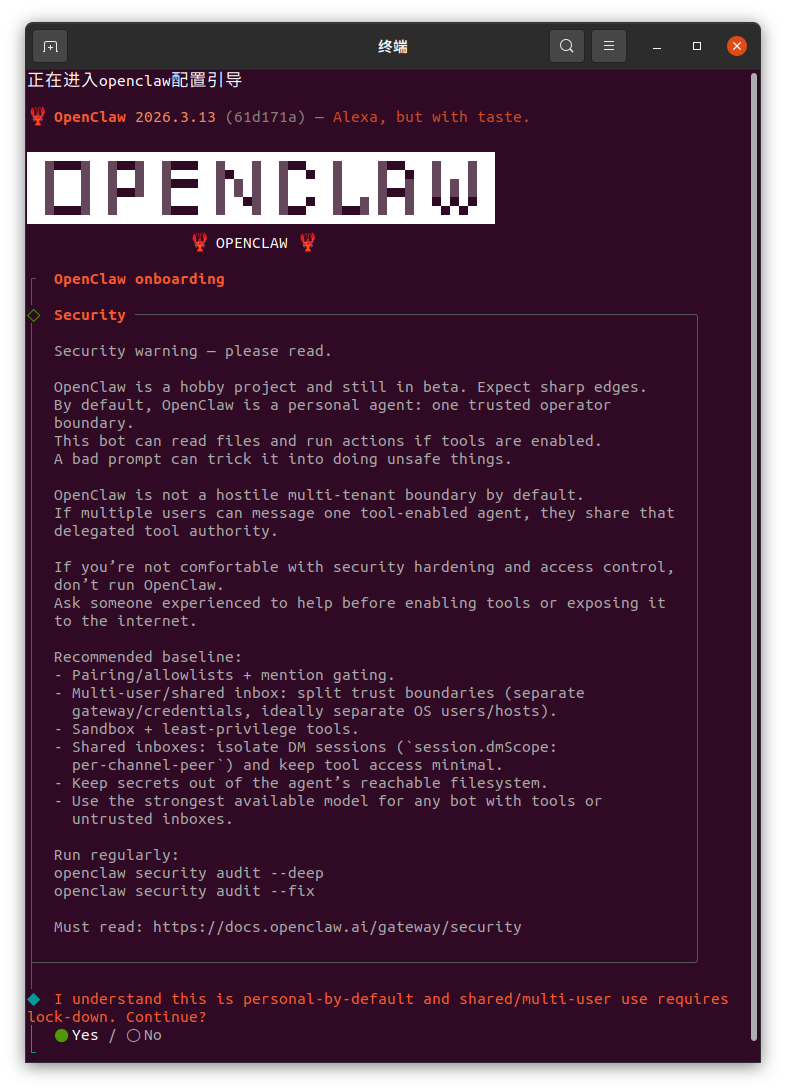
Quick Configuration
| Interface Screenshots | Option Tips |
|---|---|
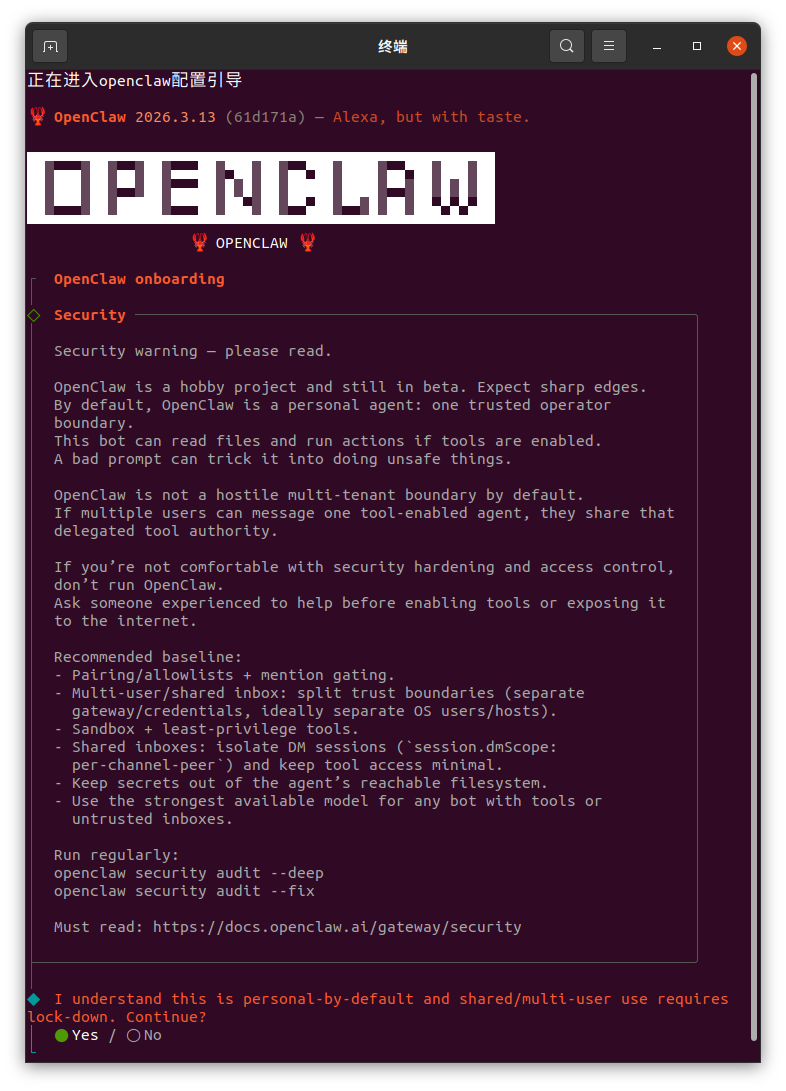 | Select YES to grant file access and command execution permissions (ensure a secure environment). |
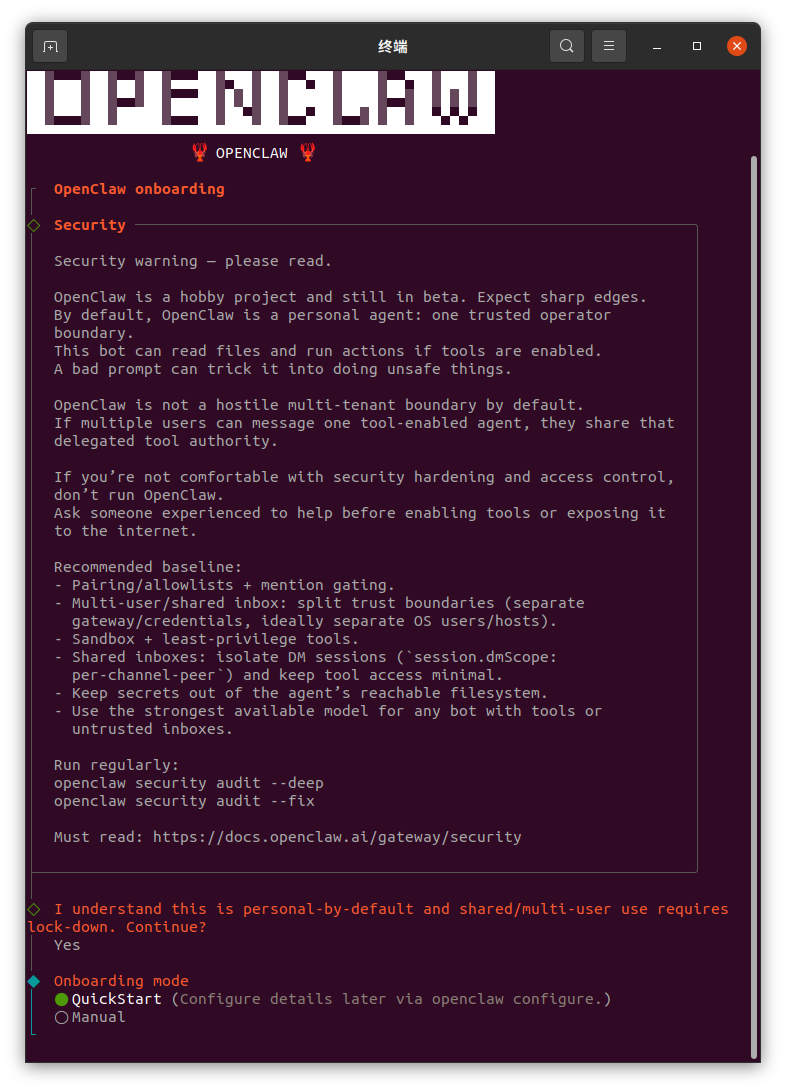 | Choose Quick Start to apply recommended default settings. |
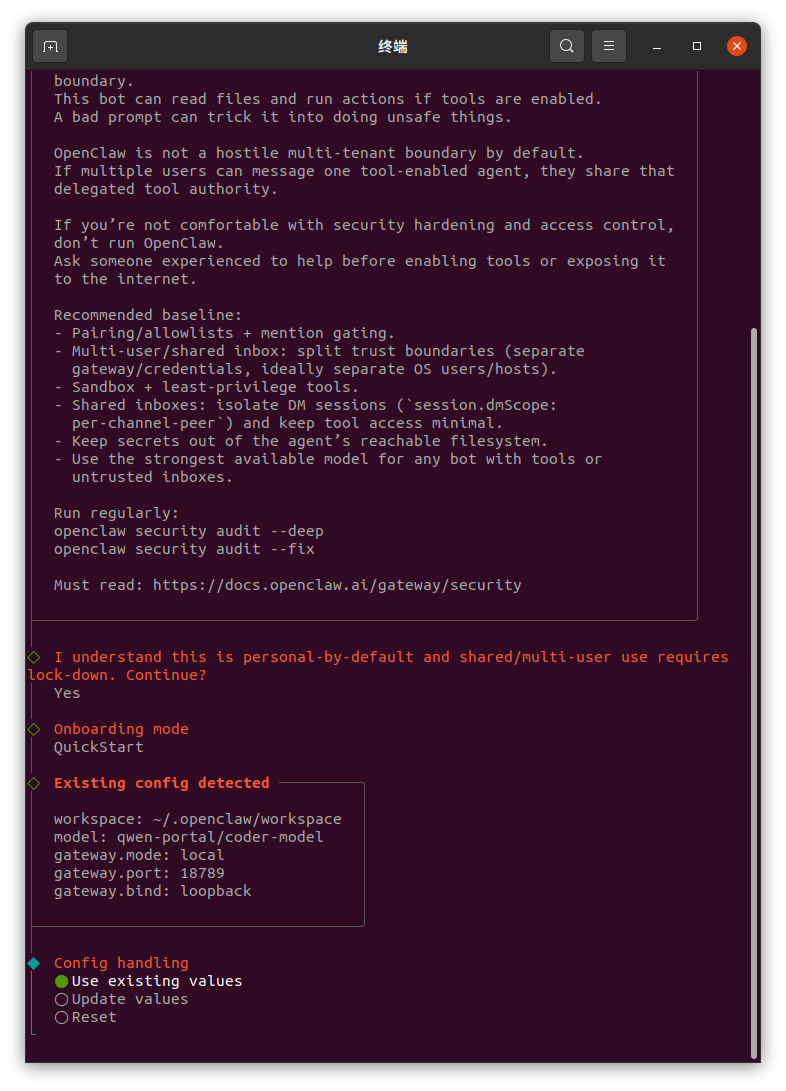 | Select Use existing values for config handling. |
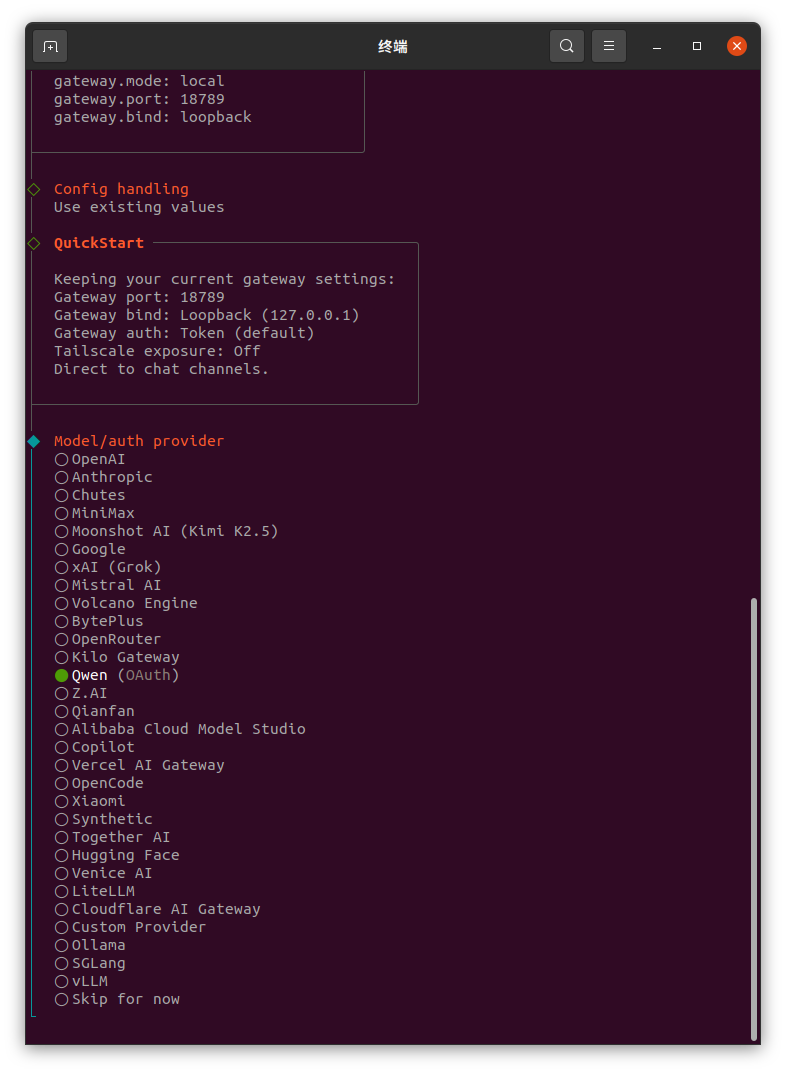 | Select a model provider based on network and cost. Results may vary by model. Example: Qwen. |
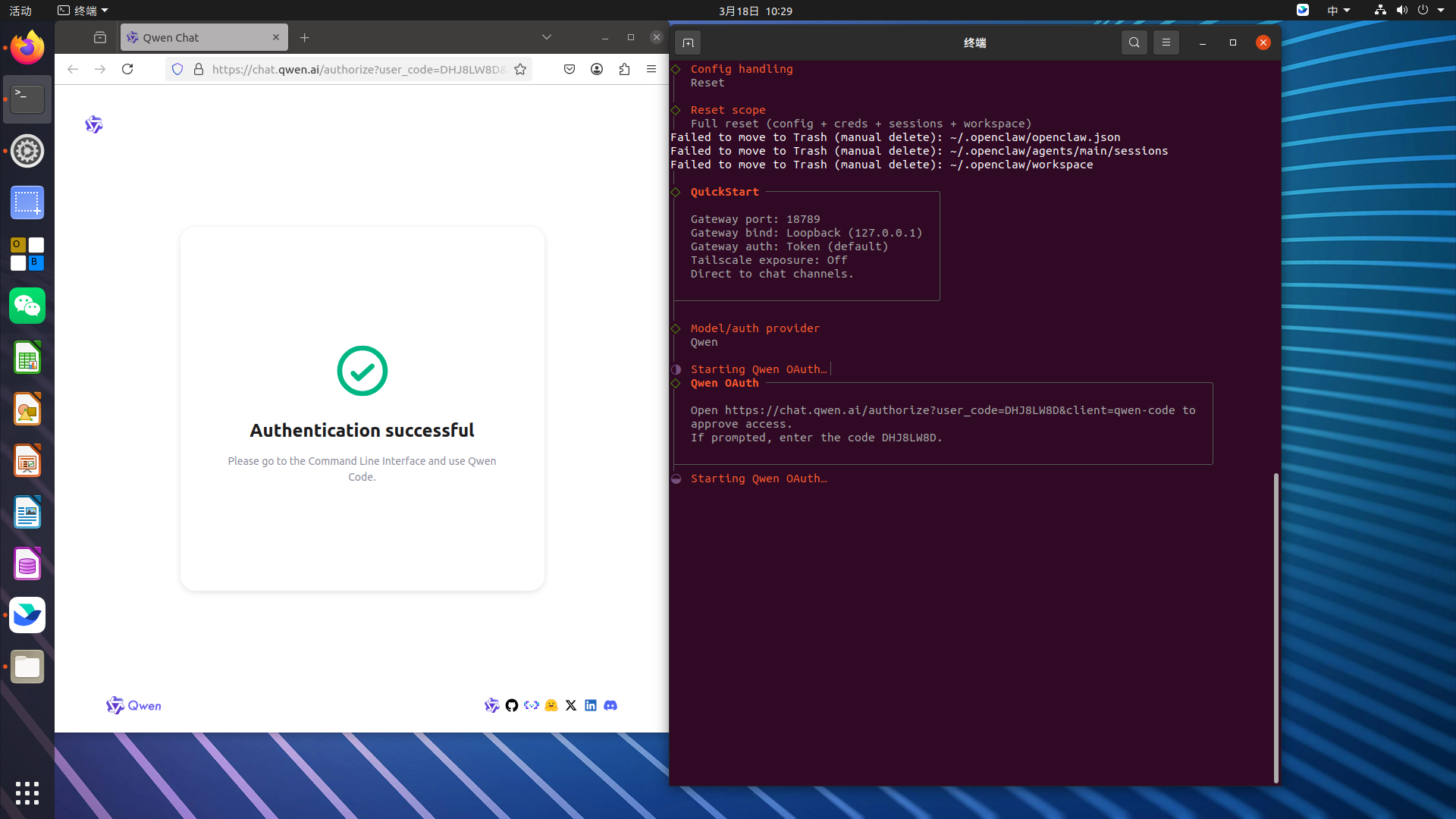 | Select Qwen and press Enter. |
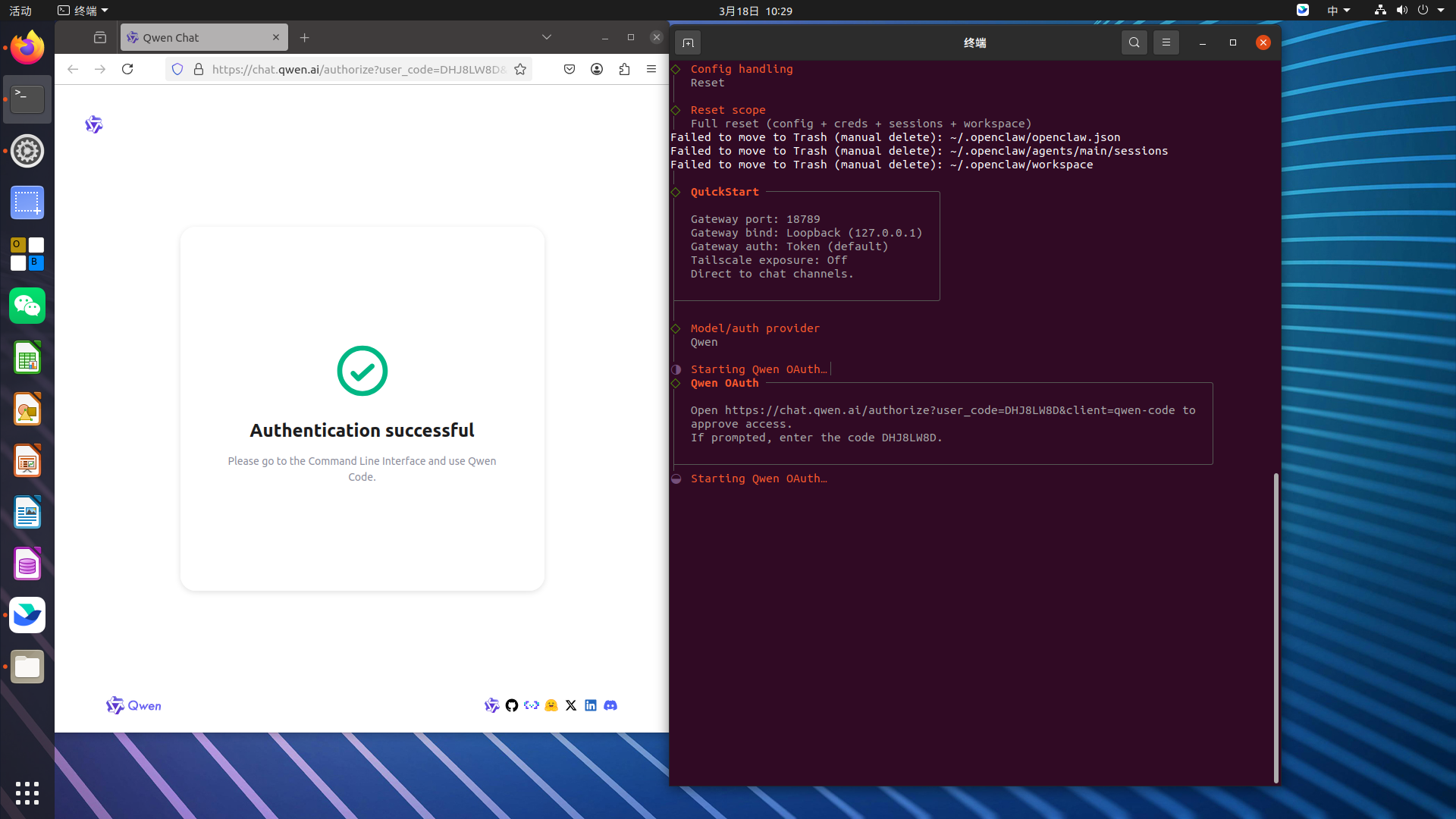
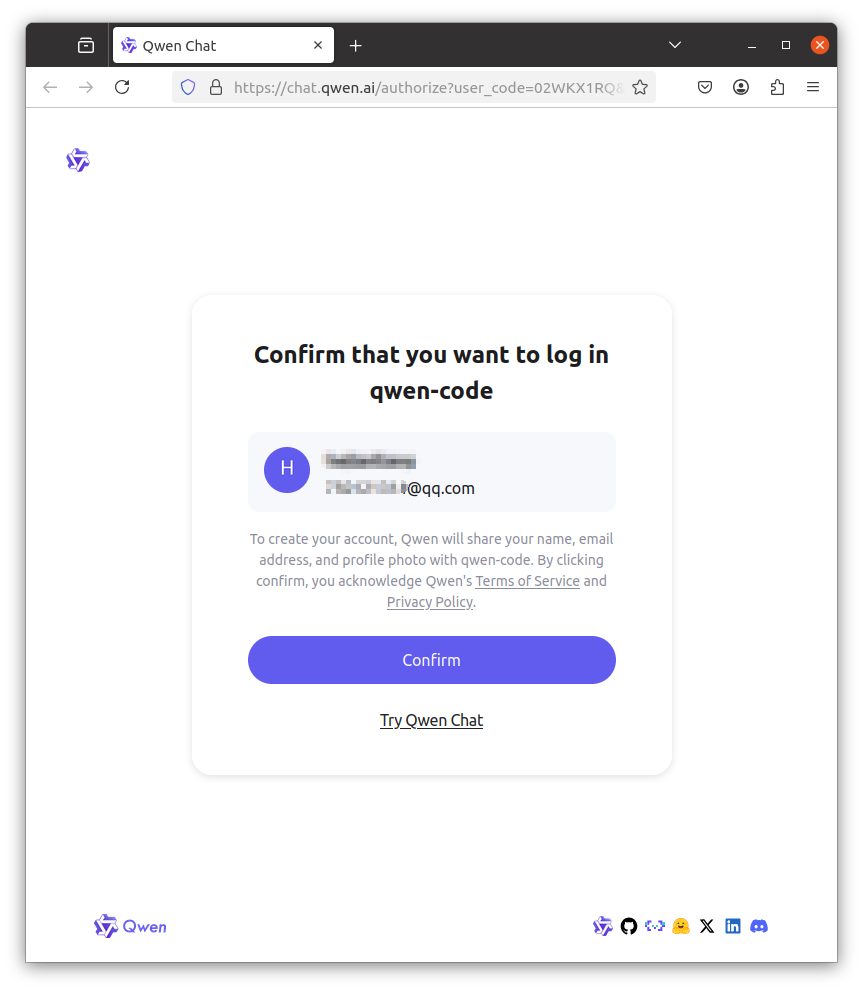 | Complete login, confirm authentication, then close the window to proceed. |
 | |
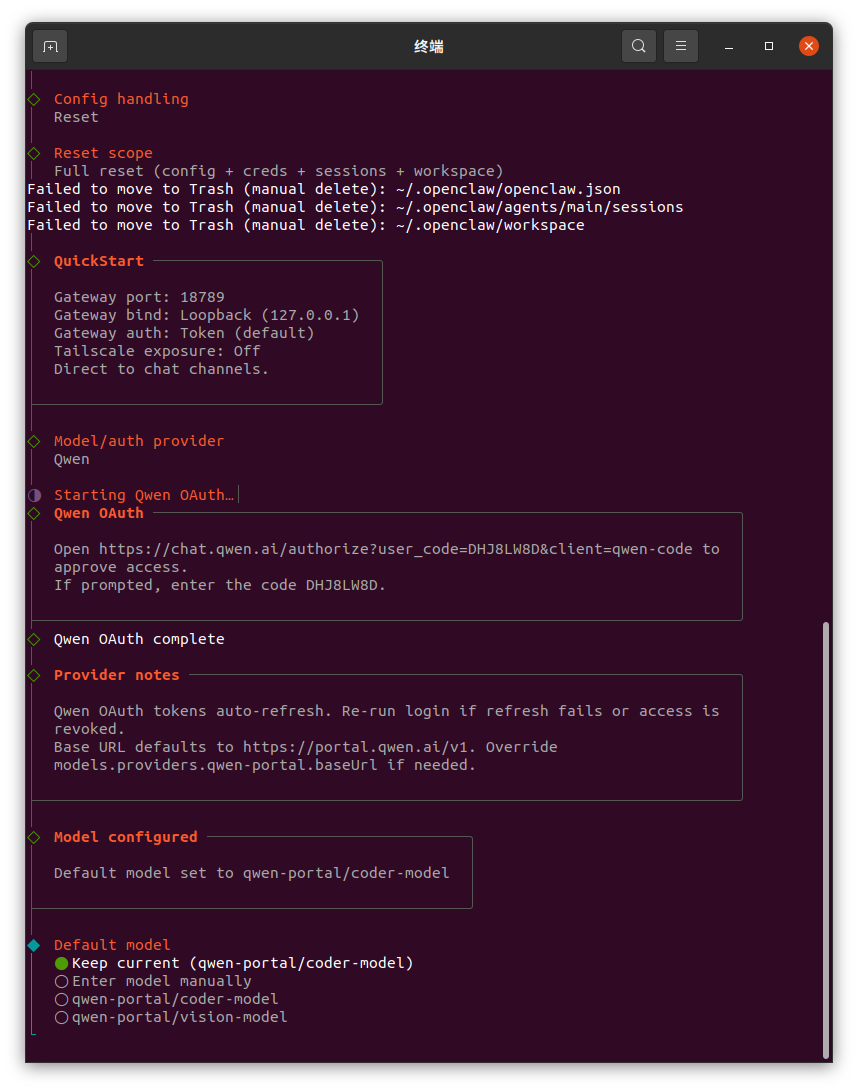 | Select Keep current for default model. |
Advanced Function Configuration
The following options are optional. You may select Skip for now without affecting basic functionality.
| Interface Screenshots | Option Tips |
|---|---|
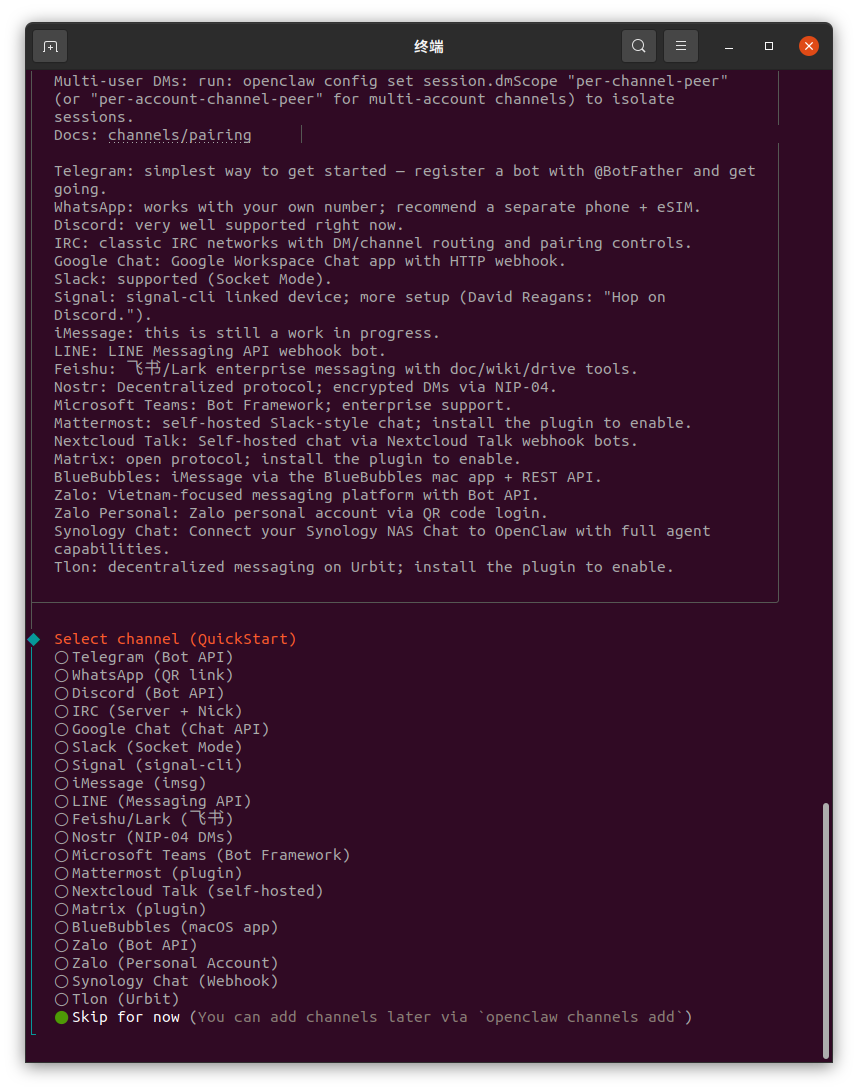 | Select channel, or skip and use the web interface for chat. |
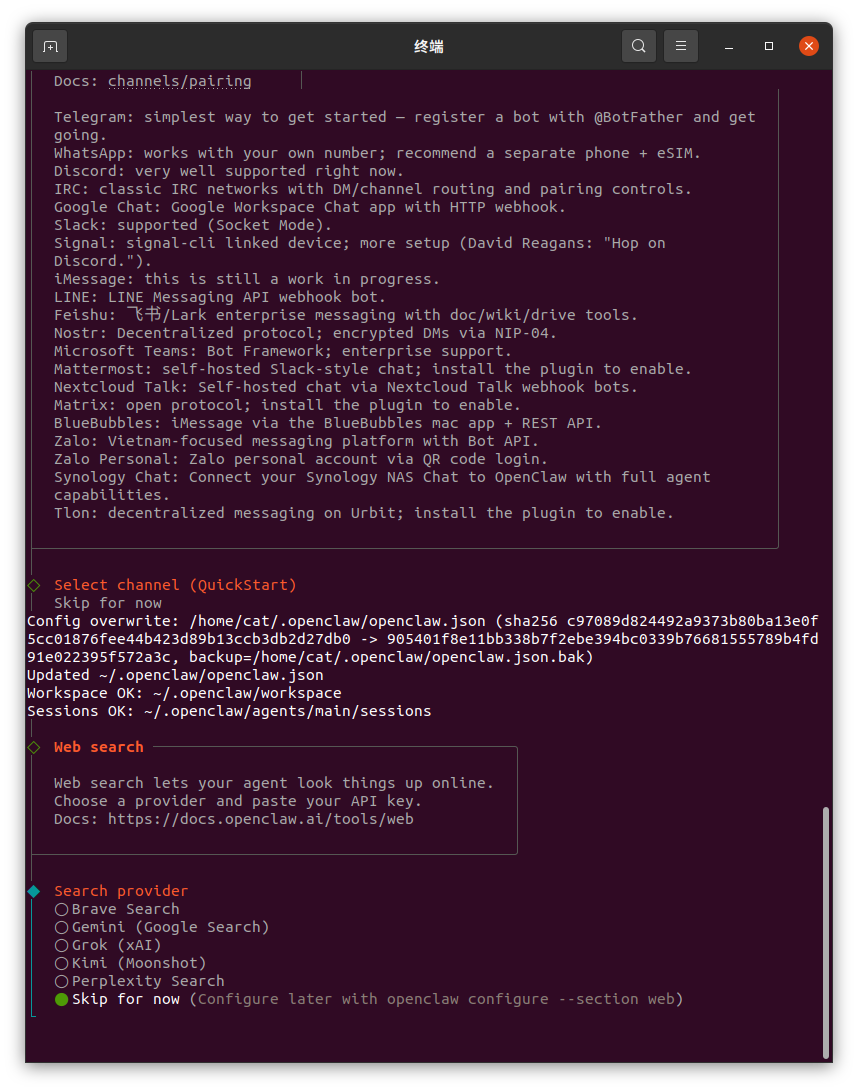 | Select a Search provider to enable online search. |
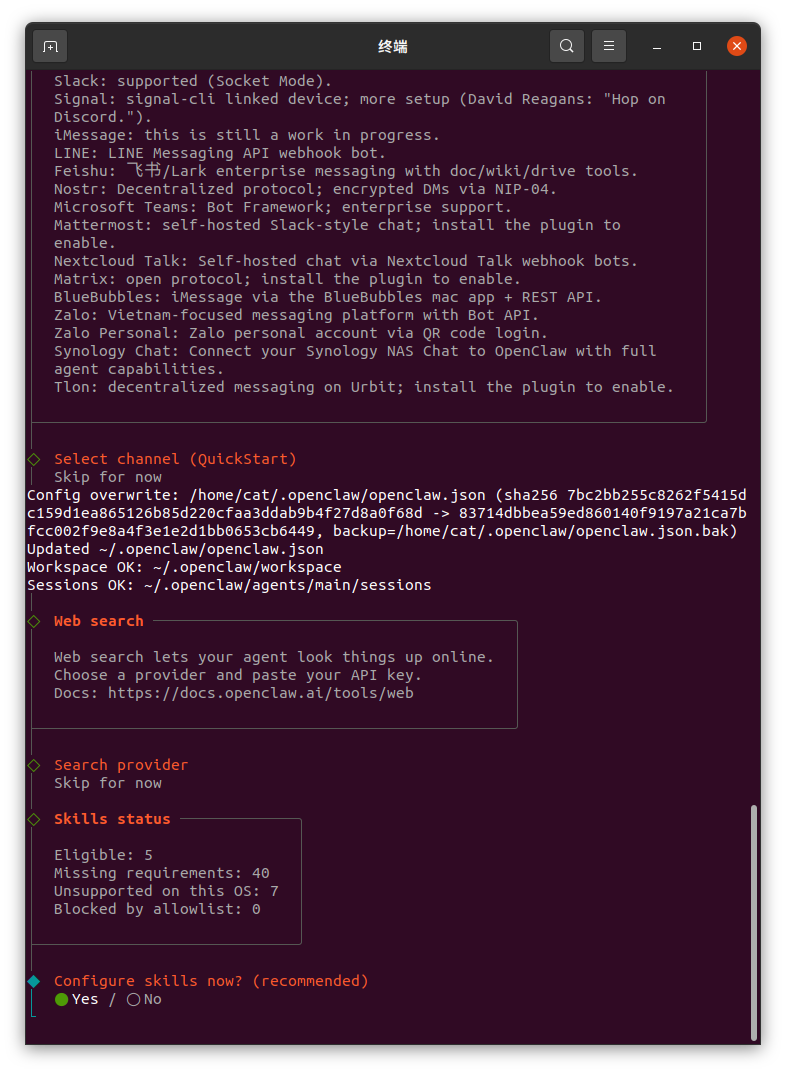 | Configure skills, select YES or NO. |
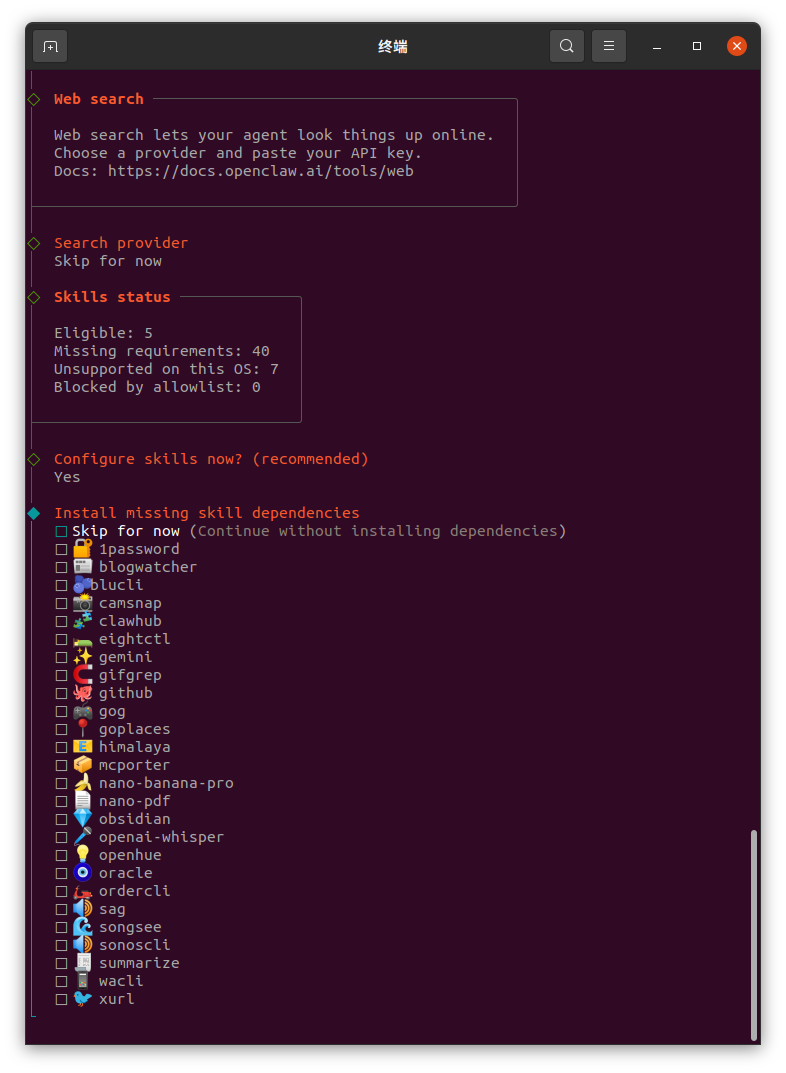 | If YES, select skills from the list (use Space to select, Enter to confirm; multiple selections supported). |
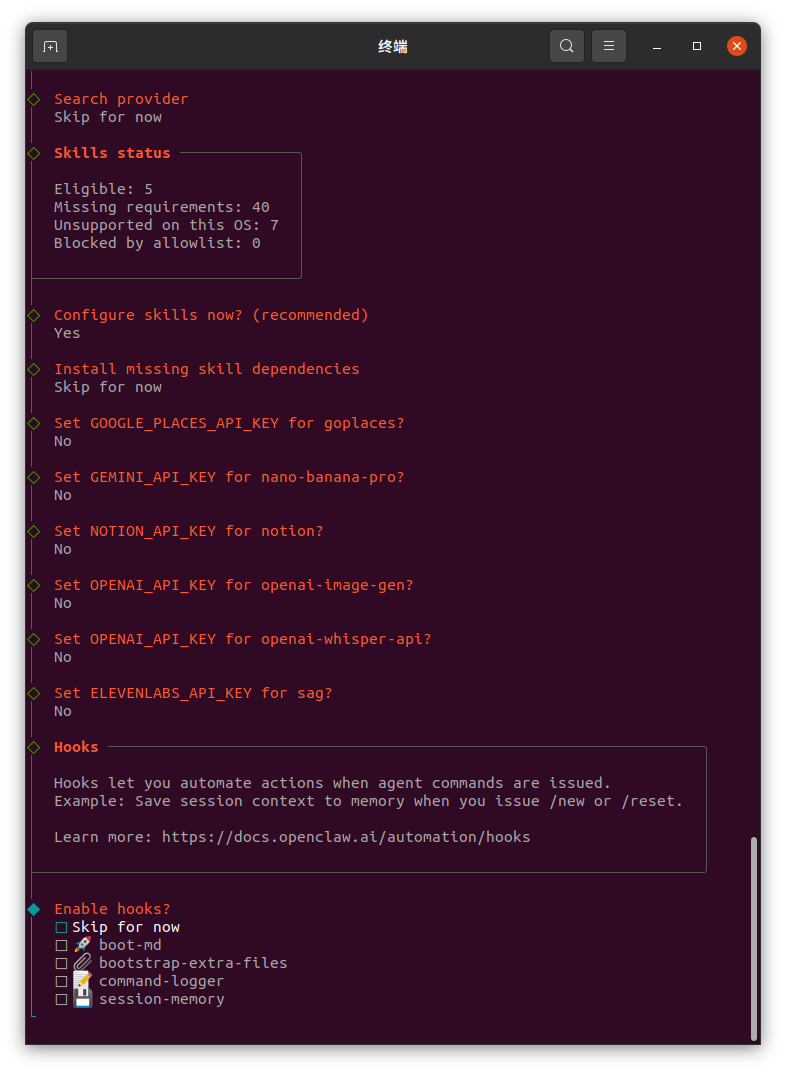 | Enable hooks for startup tasks. |
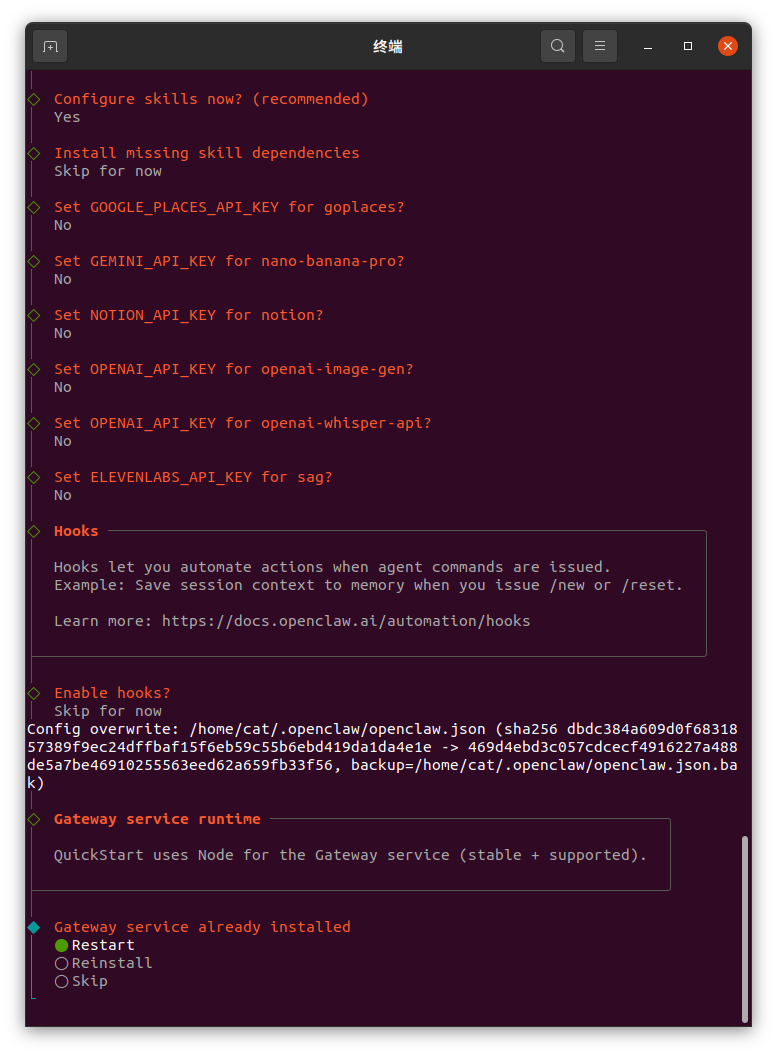 | Gateway service already installed. |
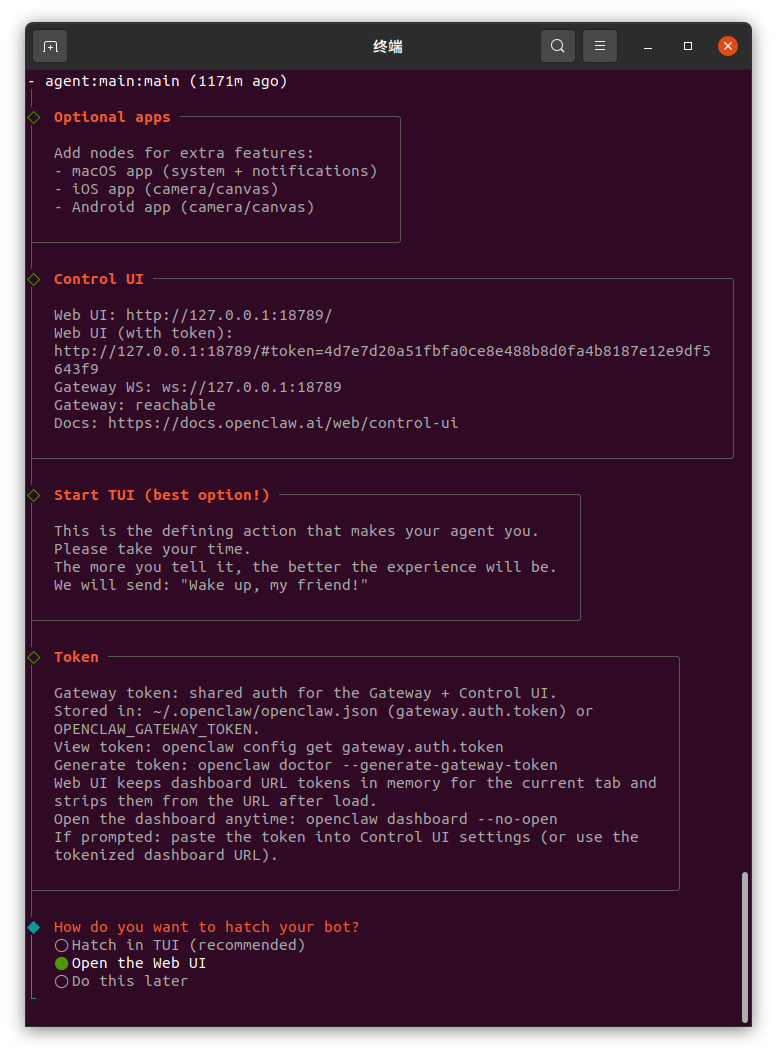 | Configuration complete. Select **Open the web UI **to finish. |
Web Interface
🚨  Attention

When the web interface displays a notification such as "Update Available", DO NOT click Update Now.

Performing the update may cause abnormal page behavior or prevent the web interface from being accessed properly. It is recommended to keep the current version and ignore the update notification.
| Interface Screenshots | Option Tips |
|---|---|
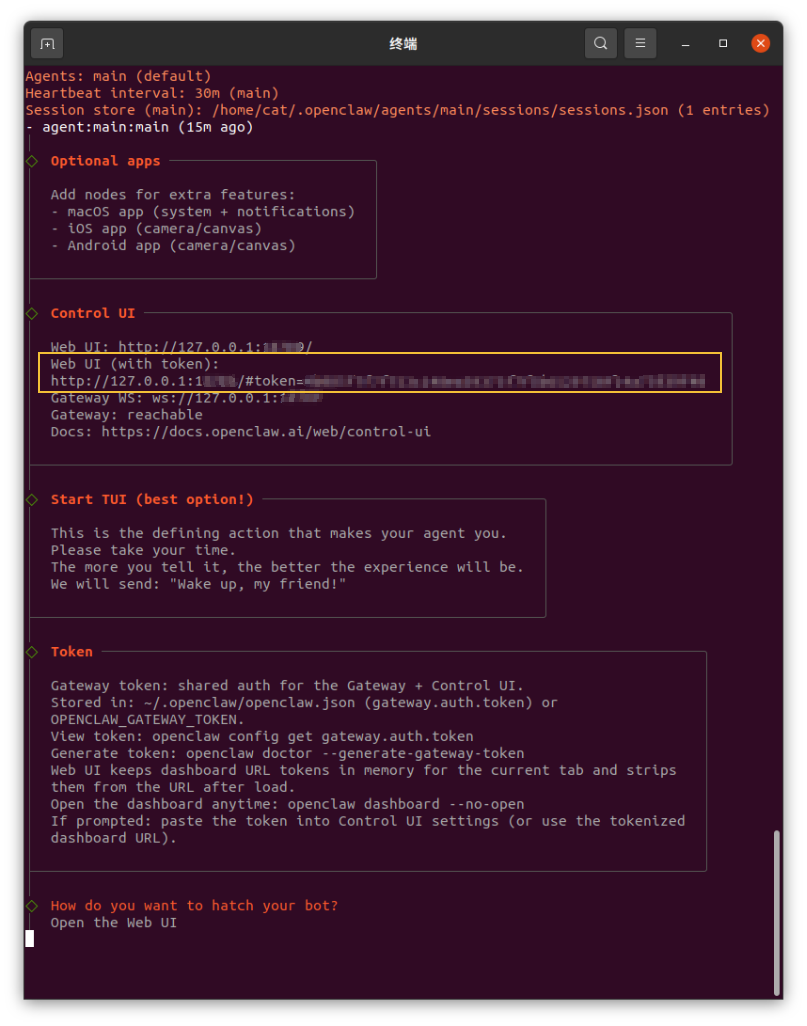 | Locate Control UI and copy the Web UI URL (with token) into a browser to access it. |
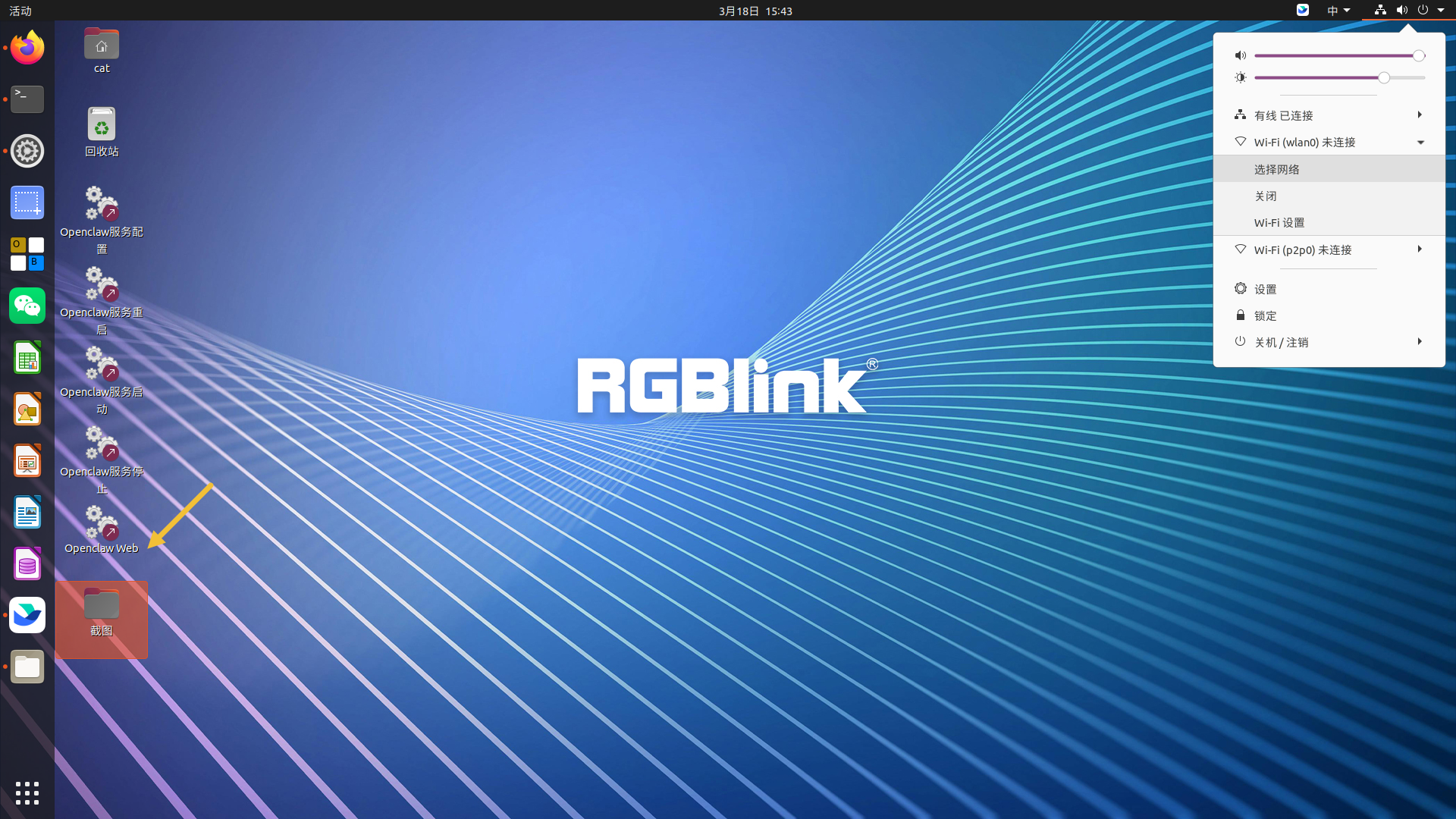 | Alternatively, open the OpenClaw Web on the desktop. |
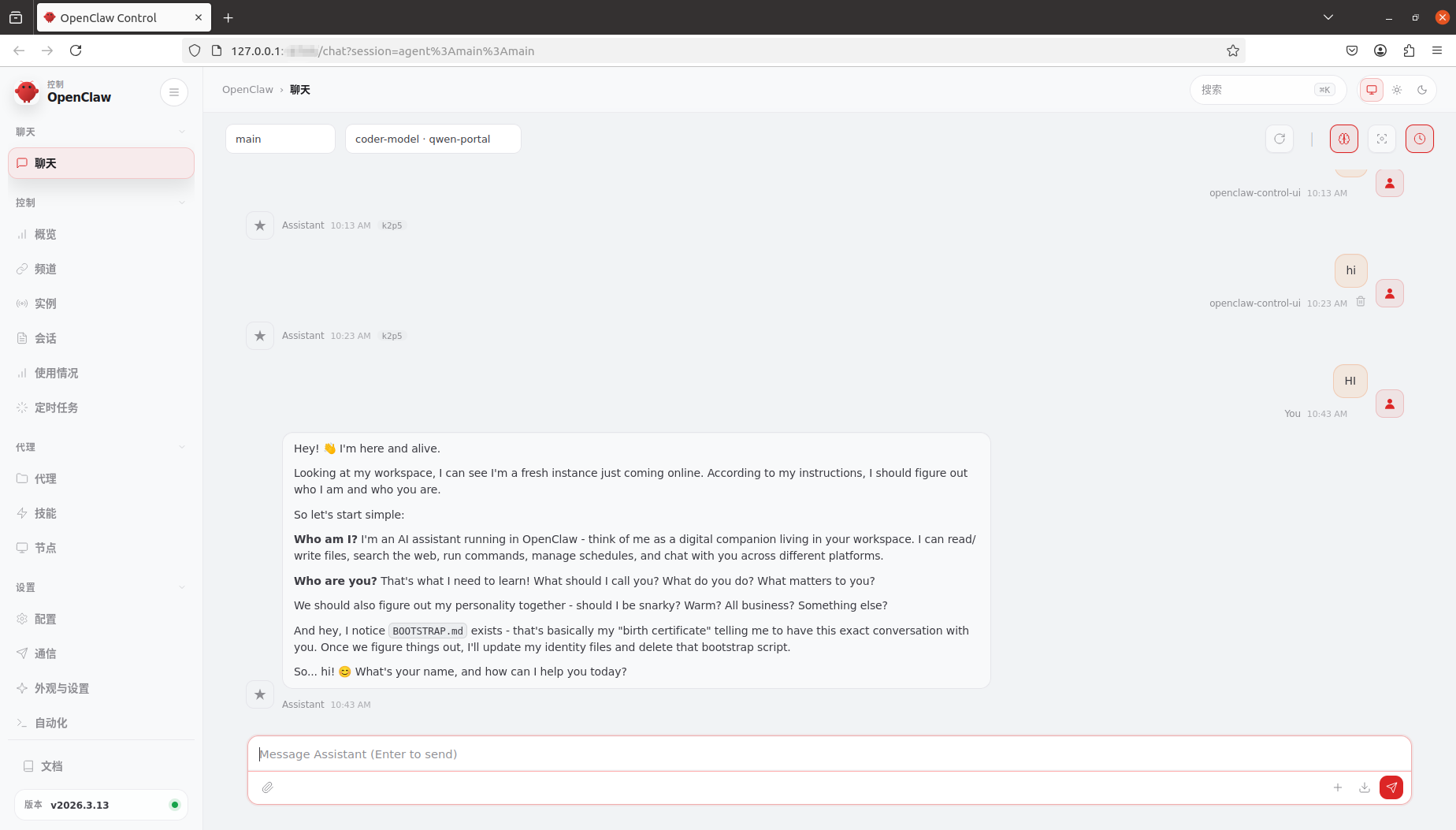 | Web interface overview. |
 | Chat example. |