Online Manual
streamZ User Guide

2.3.3 Shortcuts
🎉 streamZ now supports adding custom AI tools to the toolbox.
Update the system to version 3.0.8.0 or later to use this feature.
The Shortcuts feature provides centralized access to leading AI tools. It eliminates the need to search or bookmark individual platforms. Access it via Web Dashboard > My AI > Shortcuts
📢  Notes

When accessing third-party tools through streamZ, all token consumption, membership permissions, and billing follow the respective platform's terms of service.
Typical Use Cases and Recommended Workflow
- Content Creators → Record with streamZ+Generate scripts via AI writing+Create covers via AI image tools.
- Business Teams → Combine 2.3.1 Meeting Summary with AI office tools to expand your to-do lists.
- E-commerce → Combine 2.3.4 AI Avatar with AI Video tools to optimize marketing.
Add Tool
🔔 Update streamZ to the latest system version via System Settings in the web interface to use this feature.
Users can add custom AI tools, which are visible only to the user who added them.
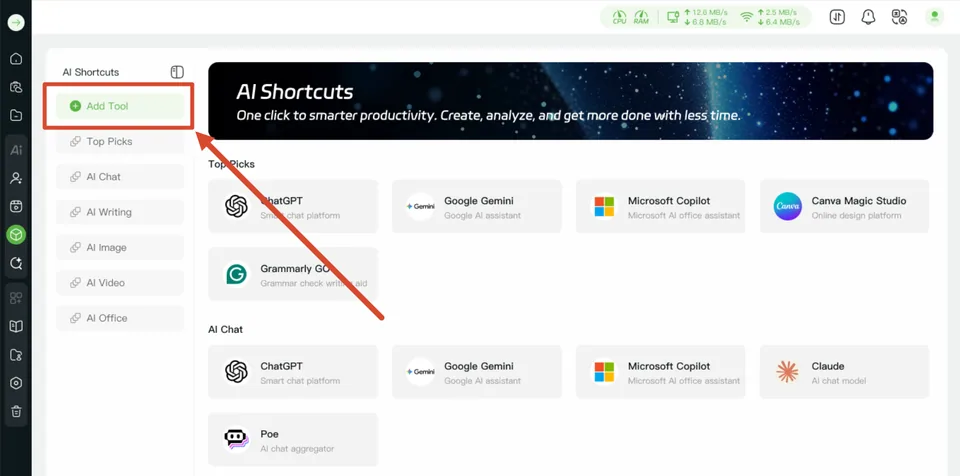
- Click Add Tool in the sidebar. In the pop-up window, enter the tool logo, language, tool type, URL, brief intro, and other details.
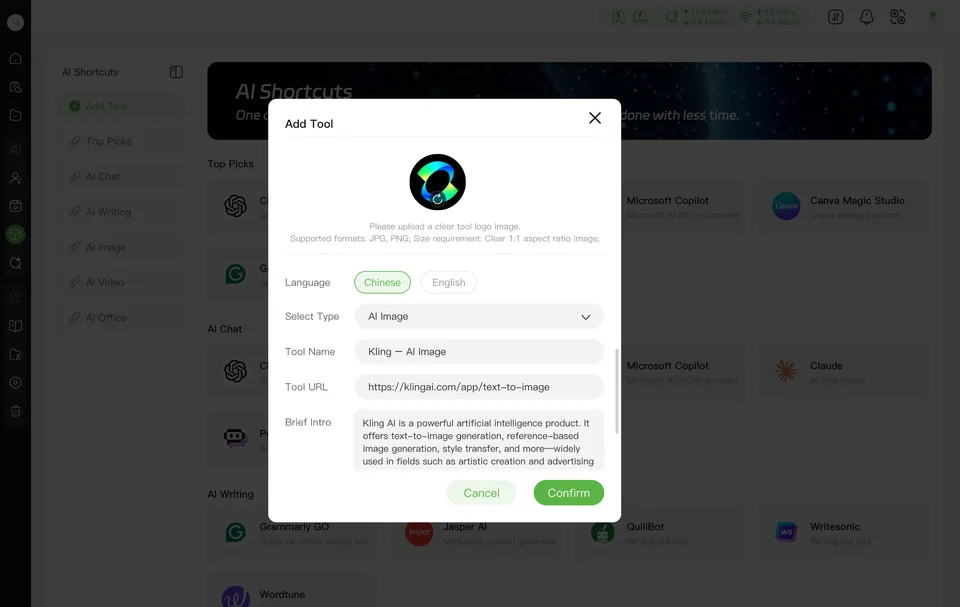
-
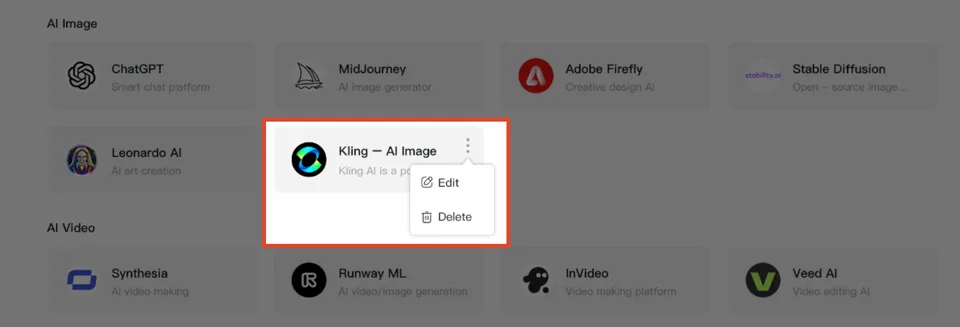
Click Confirm to add the tool. It will appear in the list under the corresponding category.
-
Click the icon in the upper-right corner of an AI tool to edit or delete it.
📢 Notes

Custom tools support language settings and are displayed only when the system language matches the language configured for the tool.

For example, tools set to Chinese appear only when the system language is Chinese, while tools set to English appear only when the system language is English.
Categories of AI Tools
| Category | Recommended Examples |
|---|---|
| Top Picks |  |
| AI Chat |  |
| AI Writing |  |
| AI Image |  |
| AI Video |  |
| AI Office |  |