Online Manual
stream-gO

2.7 Getting Started
Step 1: Plug in power and connect to network
Refer to Power Connection and Network Connection for setup instructions.
Step 2: Bind stream gO
- After powering on, swipe left or right on the screen to access the Menu.
Tap Settings, then go to Device Info to view the Device QR code.
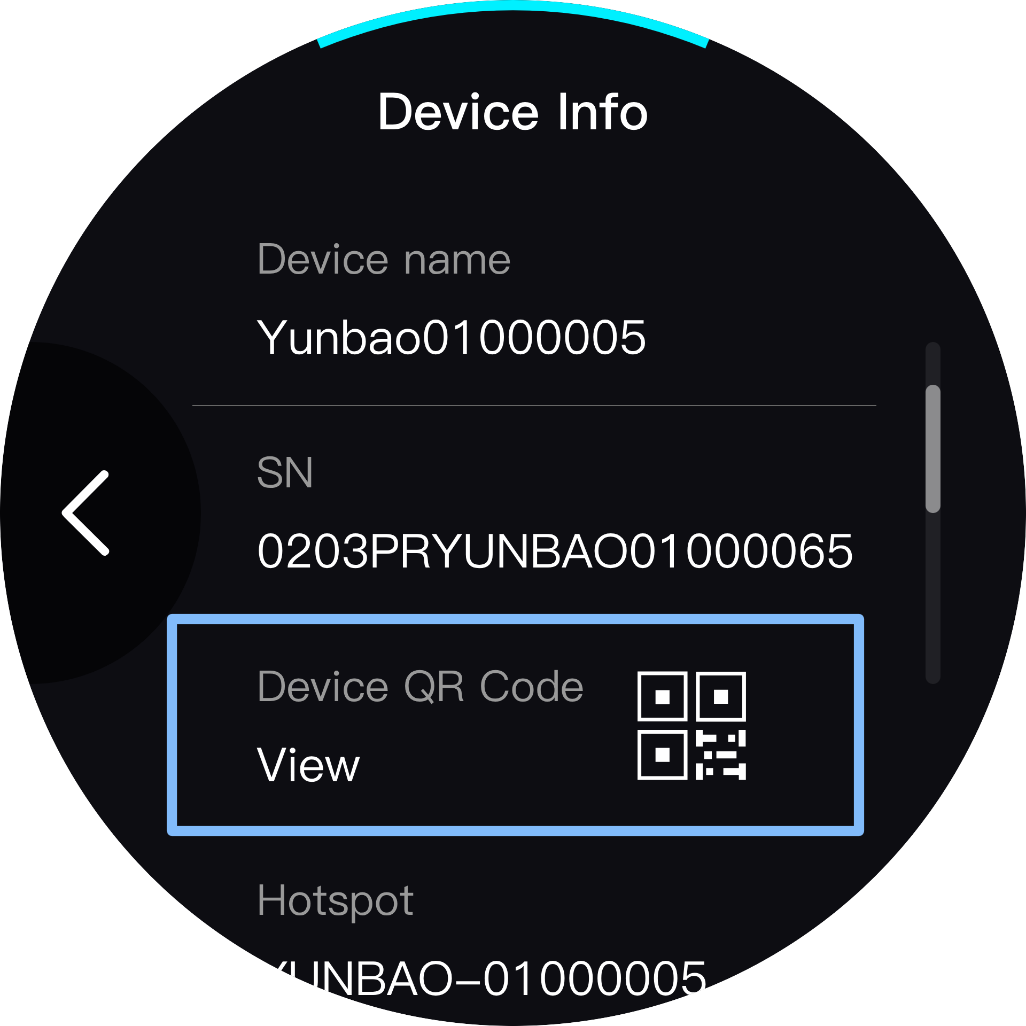 | → | 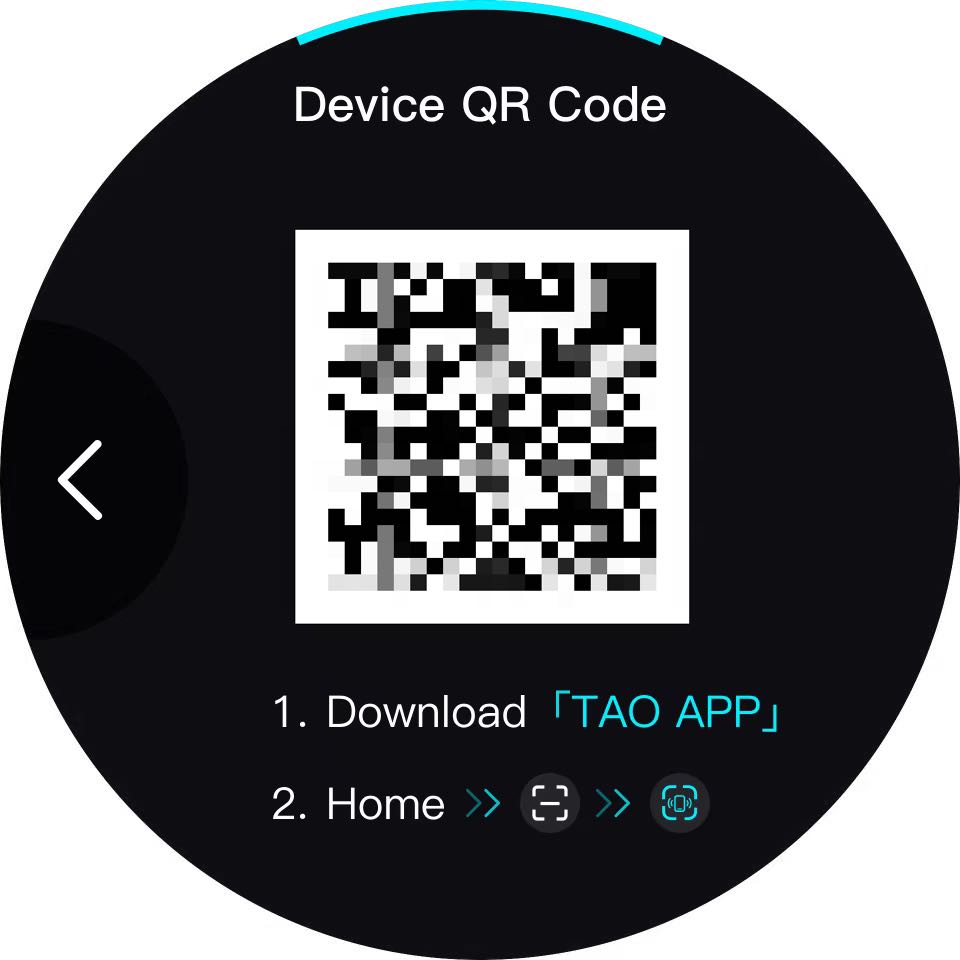 |
|---|
- Download the TAO APP.
- Scan the QR code to download.
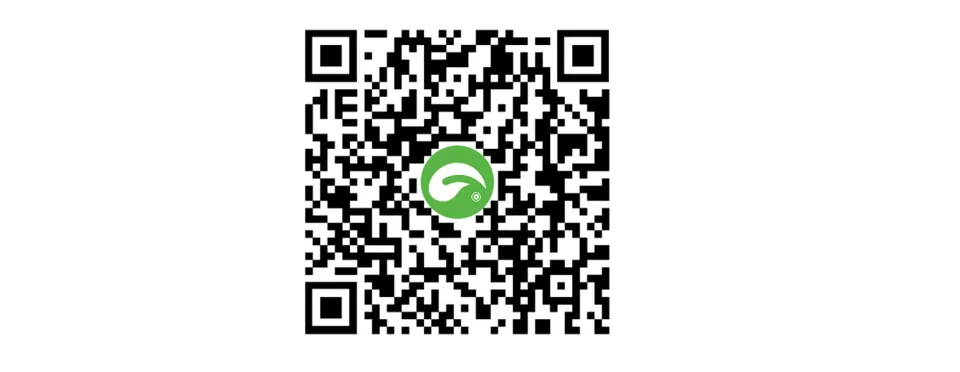
- Or search and download from the app store:
- Android: Search TAO
- iOS: Search TAO RGBlink
- Open the TAO APP→ Log in with your mobile number → Scan the stream gO Device QR code 。Follow the on-screen instructions in the app:
- Select Wi-Fi.
- Enter the Wi-Fi password.
- Ensure stream gO connects to the same Wi-Fi network as your phone.
- Once connected to the internet, the stream gO binding is complete.
- Enter the device IP address in a phone or computer browser, then click Login to access the stream gO Web interface.
Step 3: Connect input signal
Streaming via Smartphone
- Navigate in the TAO APP to Phone Casting > Cast Settings > Mode > Orientation > Preview.
- Press the preview page button to start.
View your mobile feed on the web interface under Home > Preview > Phone .
Streaming via Other Devices
- Connect one end of an HDMI cable to the HDMI output of a camera, game console, or other devices.
- Connect the other end to the HDMI IN port on stream gO.
- Optionally connect the HDMI OUT port of stream gO to a monitor using an HDMI cable to preview the signal.
Step 4: Scene creation and streaming to live platforms
- On the Web interface, click Create Preset to enter the setup page.
- Under Add Materials, select your connected signal sources and add additional materials, then click Apply.
- For quick setup, use Add Materials > Media Assets > Template Library.
- Supports layer ordering and source property editing.
- Configure Push Streaming Settings at the bottom of the page.
- Enter Description and Push Streaming Address (obtain from your streaming platform beforehand).
- Click Save and Enable after configuration.
Step 5: Go Live
- Click Go Chat Live Now on the Web Interface.
- You can also start or stop streaming directly from the stream gO touchscreen under Home > Go Live.