Online Manual
stream-gO

3.4.3.1.1 Streaming via Smartphone
Use your smartphone as a camera source for stream gO.
Choose Your Mode
- Camera: Switch between front and rear camera for live streaming.
- Screen Mirroring: monitor your mobile screen in real time for presentations or gaming.
Start Casting
① Network Check
Ensure that your smartphone, stream gO device, and computer are connected to the same Wi-Fi network.
② APP Operation
Navigate in the TAO App to Phone Casting > Cast Settings > Mode > Orientation > Preview .
③ Begin Casting
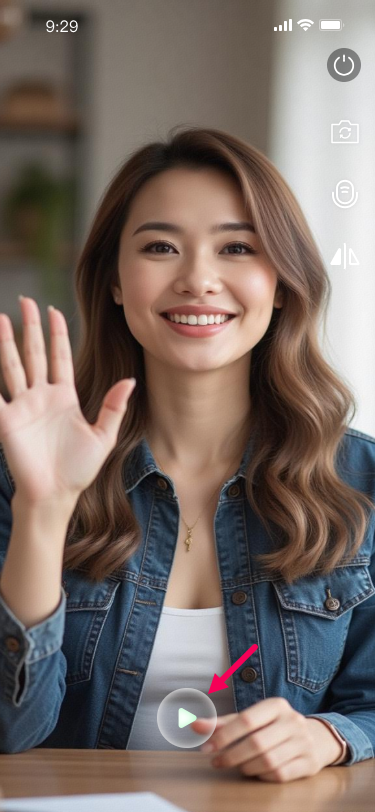
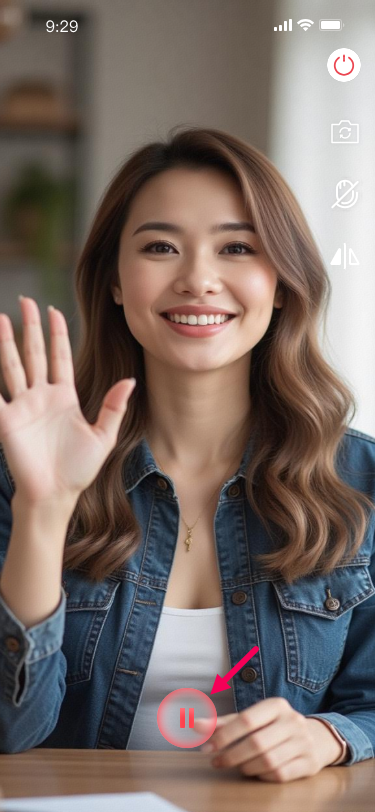
Press the preview page button to start.
Orientation is locked once casting begins; select Landscape or Portrait layout before starting.
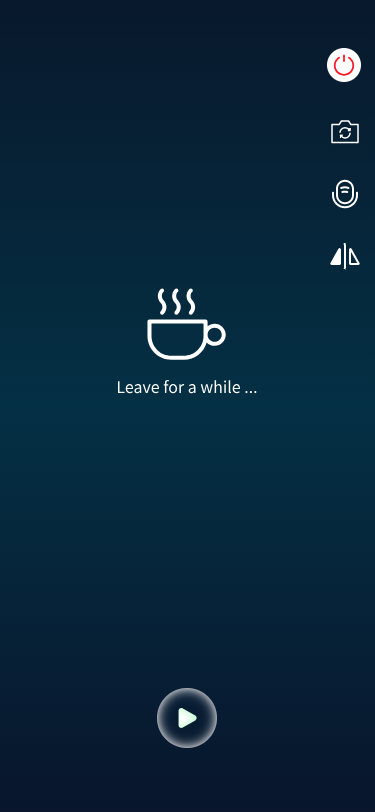
| Start | Pause | Pause Interface |
|---|---|---|
 |  |  |
④ Interface Guide
| Icon | Function |
|---|---|
| ⏹️ | Stop the current stream. |
| 📷 | Switch between front and rear cameras. |
| 🎤 | Turn microphone on/off. |
| 🔺 | Flip image horizontally. |
Web Interface View and Application
① Live Preview
View your mobile feed under Home > Preview > Phone .
② Add as Source
Go to Home > Create preset > Add Materials > Real-time Video > Phone to add and adjust the mobile feed in the scene.
For more details, see Section 3.3.2 Scene Creation and Usage.
📢 Note

- Privacy: Some apps may activate built-in privacy protection during screen mirroring, which can mosaic the feed. This is a standard security feature.
- APP Activity: The camera signal is interrupted if the TAO app is not active during casting. Other mobile activities are not recorded. If casting stops manually, the stream will display a color bar test pattern.
- Storage Path: Screen casting recordings are saved by default in `Yunbao/Record`.