Online Manual
stream-gO

3.1.1 System Settings
📢 Note

The actual interface may vary slightly depending on the software version. Screenshots are for reference only.
Click the outline on the right to quickly navigate to the corresponding settings description.
Device Information
View detailed information such as device details.
You can also bind/rebind the device to TAO Cloud here.

Network
Enable DHCP: The device automatically obtains an IP address.
Disable DHCP: Manually configure the IP address.
After making changes, click Save in the upper-right corner.

Wi-Fi
View details about the wireless network currently connected to stream gO.

Time Setting
Enable Automatic Time Setting: The device automatically synchronizes with the local network time.
Disable Automatic Time Setting: Manually configure the time and time zone.
We recommend enabling automatic time setting to ensure accurate timestamps for recordings and logs.

Storage Settings
Click Browse next to the storage path to view or modify the location for recorded files and generated digital human videos.
Before modifying the storage path, ensure sufficient storage space is available.

Live Encoding Settings
View the encoding format (H.264) and adjust resolution and bitrate to match different scenarios and network conditions.
Generally, a higher bitrate provides better image quality but requires more storage and bandwidth.
If the selected bitrate is too high for the device performance, it may cause issues such as lag, frame drops, or increased latency.
Adjust the bitrate based on network conditions and device performance.

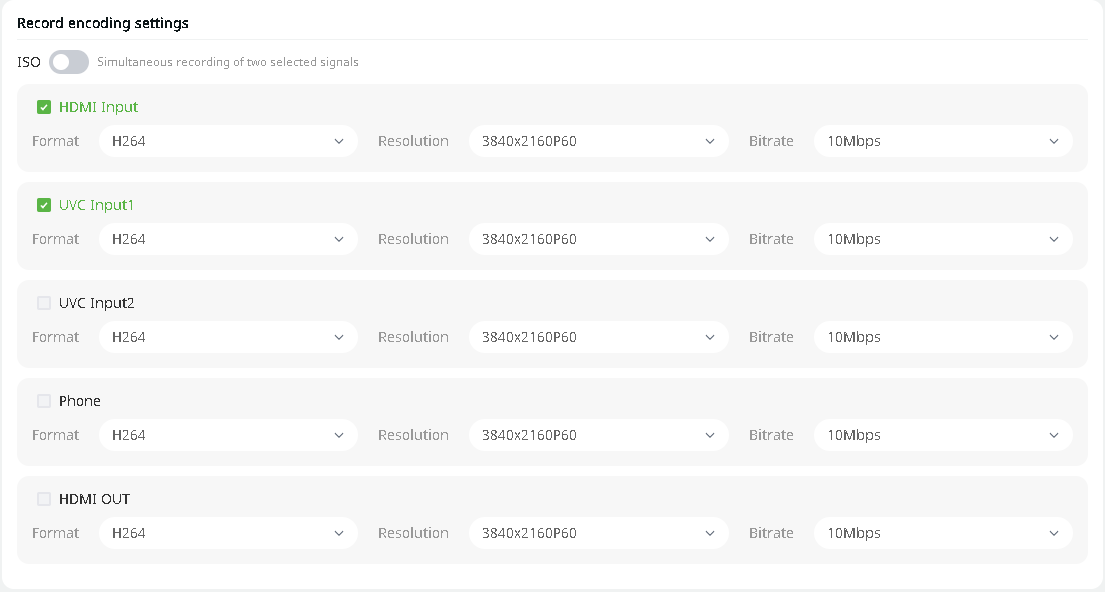
Record Encoding Settings
Choose whether to enable ISO mode.
View the encoding format (H.264) for input/output signals and adjust resolution and bitrate.
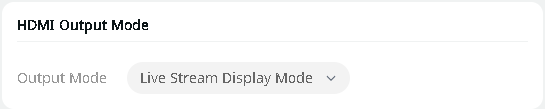
HDMI Output Mode
Two output modes are available: Live Stream Display Mode and Browser Mode.
Select the appropriate mode based on your usage scenario.
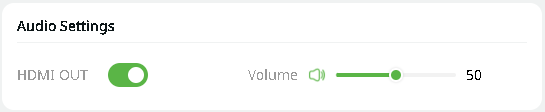
Audio Settings
Adjust the volume of the HDMI output signal to control audio output for connected display or capture devices.
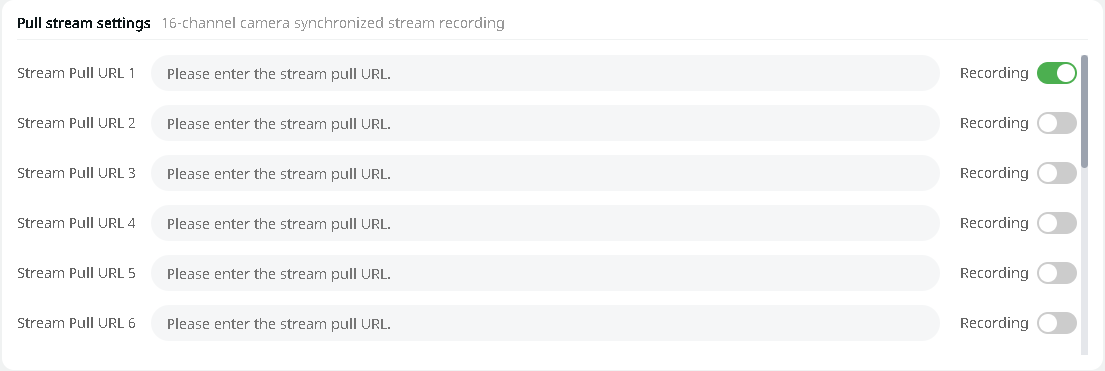
Pull Stream Settings
Supports synchronous stream pulling and recording for up to 16 cameras:
● Manually enter the camera stream URL
● Enable the corresponding stream channel using the toggle switch
Once enabled, the device will pull and record streams simultaneously.
Fan
Supports fan speed adjustment (Levels 1–5 and Auto).
Increasing the fan speed improves cooling performance, which is recommended for long-duration streaming, high-bitrate recording, or high-temperature environments.

Factory Settings
Restoring factory settings will unbind the device and reset all user configurations. This action is irreversible.
Please back up important data before proceeding.
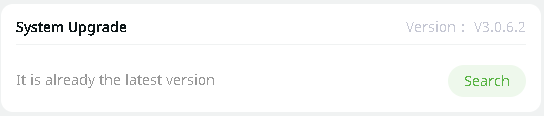
System Upgrade
Click Check for Updates to determine whether the device is running the latest version.
If not, the system will prompt you to download the update package.
The device will be unavailable during the upgrade process. Ensure a stable network connection during installation.