Online Manual
stream-gO

3.5.2 Clips
The stream gO Clips feature is designed for short-form content. It uses raw footage stored on the device to quickly generate edited videos with templates.
📢 Note

streamgO does not currently support saving drafts. Ensure your assets are uploaded to the folder before starting.

Do not exit or close the interface during editing, as actions cannot be undone.
Auto Edit
The AI merges selected clips into a cohesive, ready-to-post video using script-based logic.
- Click Auto Edit.
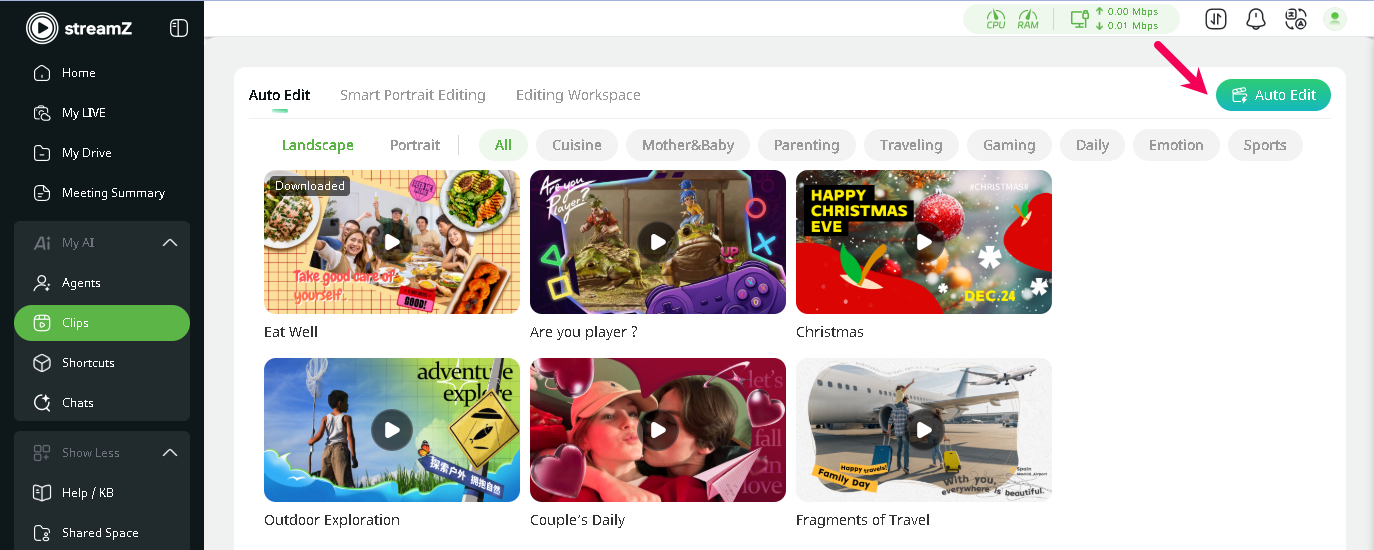
- Enter a content description of the scene. The AI will generate several suggested scripts.
- Select a template suitable for the content (e.g., gaming, daily or traveling).
- Choose at least three clips from the storage path for a single edit.
- Enable or disable Backgroud Music (Template Music or Customize).
- Click Export and wait for stream gO to generate the video.
- The system generates multiple short videos based on the script. Preview the results and download the preferred version to local storage.
- Find all your completed videos in Editing Workspace.
Smart Portrait Editing
Designed for single-subject content, this AI function automatically detects and crops the frame to keep the subject centered.
Web Interface
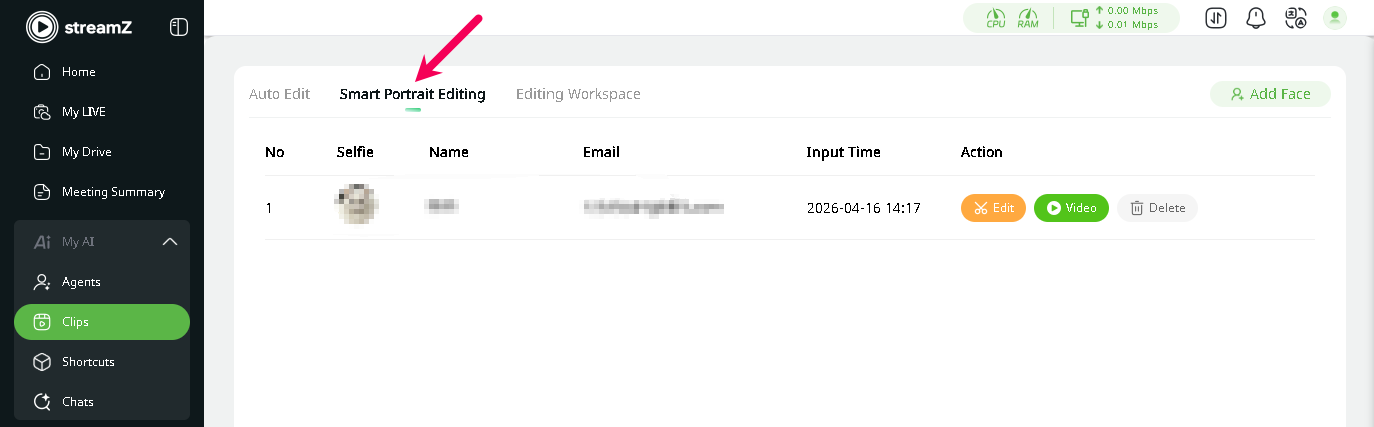
Add Face
- Select Smart Portrait Editing, click Add Face .
- Follow the instruction, upload a clear portrait photo.
- Enter name and email, click Sure to add the portrait.
The added portrait will appear in the Selfie list, where you can perform Edit, view Video and **Delete **actions.
Edit
- Click Edit for the corresponding face in the Selfie list.
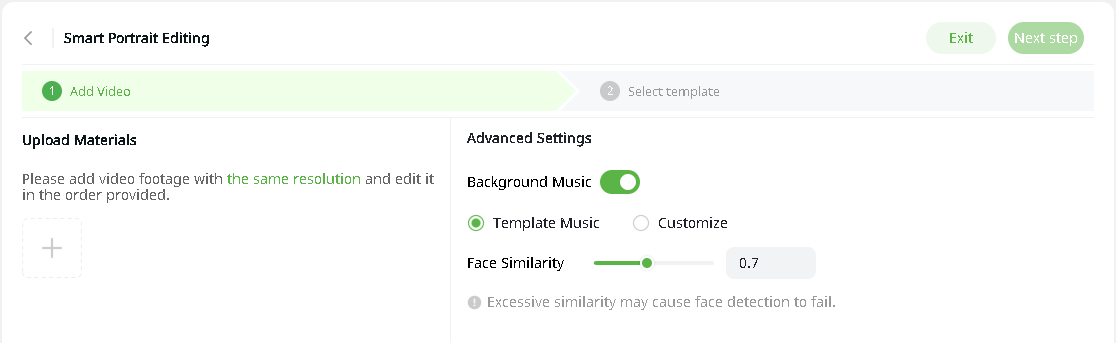
- In ① Add Video, click + to upload materials from
STORAGE, then click Confirm. Please add video footage with the same resolution. You can filter resolution when selecting the files. - Configure advanced settings as needed.
- Enable or disable Backgroud Music (Template Music or Customize).
- Adjust Face Similarity.
- Click Next step to Select template.
- Select a landscape or portrait template based on your video (download template first).
- Click Export and wait for stream gO to generate the video.
View Generated Videos
- Click Video for the corresponding face in the Selfie list.
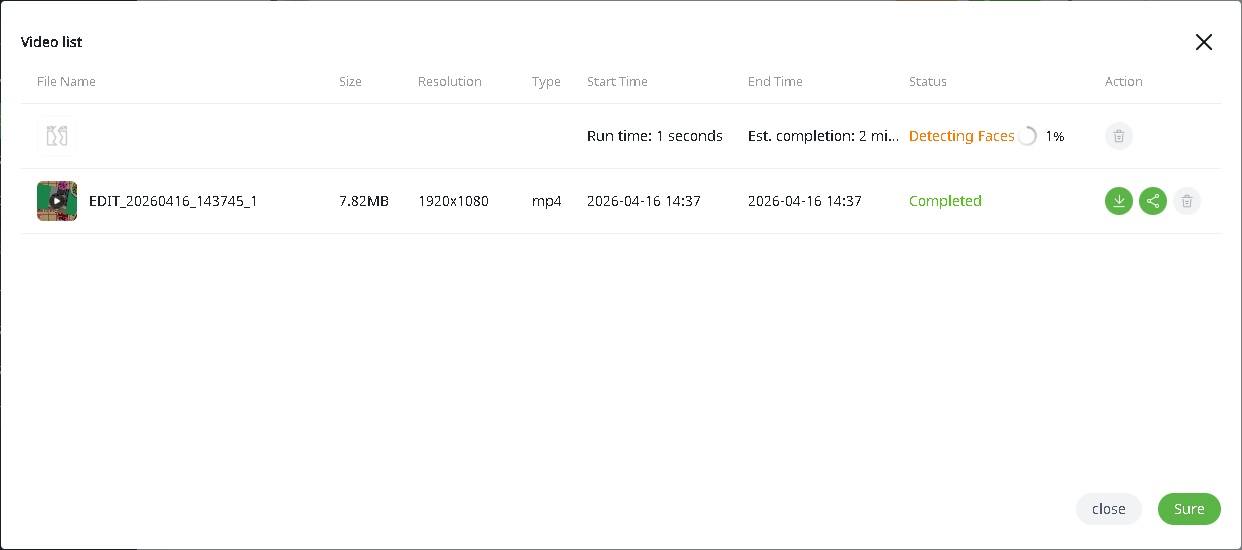
- Check status
- Download
- Share (to TAO cloud/Baidu cloud/Dropbox)
- Delete
APP Interface
- Android Users: Tap Selfie Check-in on the App home page to register the portrait and begin editing.
- iOS Users: This feature is currently unavailable. Future updates may support this function.