Online Manual
streamZ User Guide

3.3 Cloud Broadcast Center
📖 Cloud Broadcast Function
The Cloud Broadcast (Digital Signage) function allows users to distribute video content to multiple streamZ devices with one click for synchronized playback. It is ideal for scenarios requiring centralized content management across multiple displays, such as exhibition halls, retail stores, and trade shows. This function is managed through the TAO Cloud Platform. streamZ devices serve as endpoints that receive and execute playback commands. If you have not yet linked your TAO Cloud account, follow the First-Time Login Notes chapter to complete the setup.
Log in to the TAO Cloud Platform and select Cloud Broadcast Center from the sidebar on the home page.
🎬 Playback Settings
Step 1: Select Content
Select the videos to play from the playlist. To upload local media files, click Local Upload in the upper-right corner.
Step 2: Select Target Devices
Select the target device group from the list.
If the target device is not in an existing group, create a new group and select the devices to receive the content.
Terminal devices are managed by group. All devices in the same group share the same publishing status and playback progress.
Step 3: Configure Playback Parameters
Configure the following settings at the bottom of the page:

| Setting | Description |
|---|---|
| Play Type | Loop, Shuffle, or Scheduled Interrupt. When Scheduled Interrupt is selected, only the playback date needs to be set. |
| Start Date | Sets the date when the content becomes active. |
| Publish Mode | Append: Adds new content to the end of the existing playlist without changing existing content or its order. Overwrite: Replaces the current playlist entirely. All existing content and its order are cleared. |
| End Date | Sets the date when playback stops. |
Step 4: Confirm and Publish
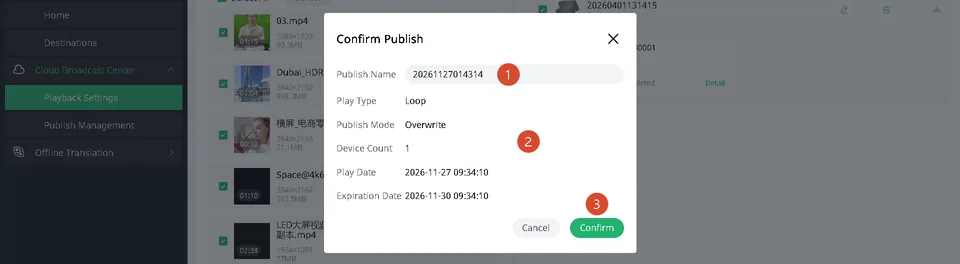
Click Publish after configuring the settings. Enter a publishing name in the pop-up window. Verify that all settings are correct, then click Confirm.
📢 Notes

After publishing is submitted, the selected playlist, terminal devices, publish mode, and other selections are not retained. Reconfigure these settings for each new publishing task.
After confirmation, the page automatically redirects to Publish Management.
📩 Publishing Management
Click a device group to view its publishing tasks, including their activation status. You can terminate tasks or view their details.
Click a task to view its Details, including Content Info, Terminal Devices list, and the Playlist.
Tasks with Pending or Active status can be Terminated. Tasks with Terminated or Completed status can be Deleted.