Online Manual
TAO-1tiny-2

2.2.4 Network Input
TAO 1tiny 2 supports network video sources via RTMP, RTSP, and NDI streaming protocols. Enter the corresponding stream URL to receive the video feed.
Viewing a PTZ Camera Feed
Ensure that TAO 1tiny 2 and the PTZ camera are on the same subnet (i.e., the first three octets of their IP addresses match).
- Configure IP Addresses on the Same Subnet
- Connect the PTZ camera directly to TAO 1tiny 2 using an Ethernet cable.
- Obtain the PTZ camera's IP address from its user manual or device panel.
- Log in to the web management interface and go to Options. Disable DHCP, manually configure the device IP address to match the first three octets of the PTZ camera's IP address, and click Save.
- Add and Enable the Stream URL
- Go to Stream Pulling and enter the stream URL using the appropriate format, such as
rtsp://[ip_address]:[port]/[path], replacing the variables with the corresponding values. - Enter a descriptive name in the channel field and enable the corresponding stream URL.
- Go to Stream Pulling and enter the stream URL using the appropriate format, such as
- Switch and Output the Video Feed
- Go to Signal Switching and select IP1.
- The PTZ camera's live video feed will appear on the HDMI output monitor.
Phone Casting
Currently, only Android phones are supported, and screen mirroring is available in landscape mode only.
- Install the TAO App
- Scan the QR code to download the app.
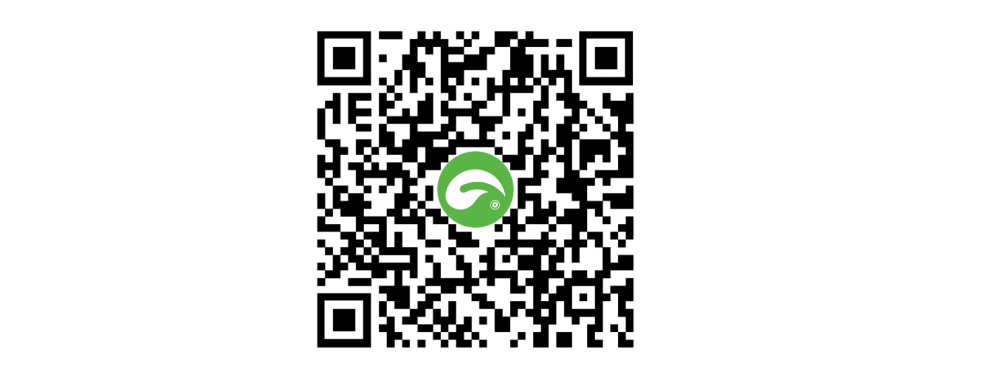
- Download from an app store: The TAO App is available on major mobile app platforms. Search for TAO or TAO RGBlink to download it.
- Connect the Devices to the Same Network
Ensure that TAO 1tiny 2, the mobile phone, and the wireless router are connected to the same network and that the network has internet access.
- Select the IP1 Input
Open the TAO 1tiny 2 web management interface and go to Signal Switching. Switch the input source to IP1.
- Enable the RTMP Stream
Go to Stream Pulling page, locate the RTMP stream URL (fixed and not editable), and enable the corresponding stream.
- Configure Wireless Screen Mirroring
Open the TAO App and navigate to Me > Wireless Casting. Enter the device IP address, select Landscape as the orientation, and choose either Camera or Mirroring as the mode.
- Start Casting
Tap Preview to open the preview screen, then tap the play icon to start.
Once mirroring starts, check the HDMI output monitor to verify that the output matches the current camera view on the mobile phone.