Online Manual
TAO-1tiny-2

2.3.1 Access the Device Management Page
The device management page for TAO 1tiny 2 is accessed via the device's IP address. Its default factory IP is 192.168.5.100.
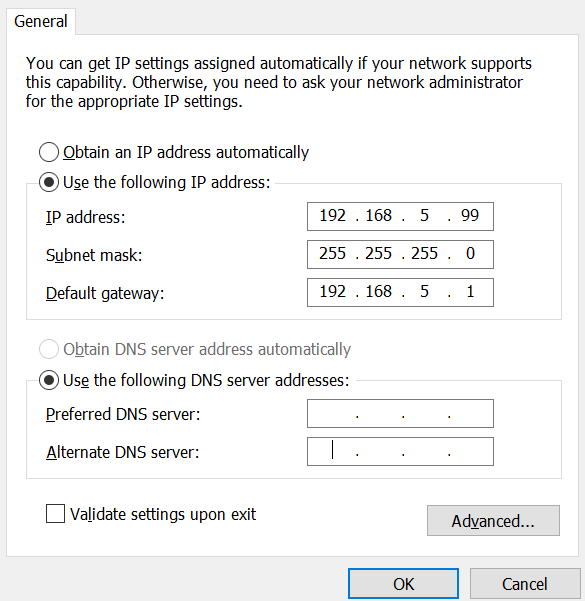
For initial setup, you need to set the IP address of your management computer (e.g., PC) to be in the same LAN as the TAO 1tiny 2's fixed IP, i.e., 192.168.5.x (the first three segments of the IP must match, x can be any number from 0 to 254).
Proceed as follows:
- After powering on the TAO 1tiny 2, connect it to a display's HDMI port using an HDMI cable. The display should show the TAO 1tiny 2's fixed IP address: ETH: 192.168.5.100
- Disconnect the computer from other networks and set a static IP address on the computer that is in the same LAN as the TAO 1tiny 2.
-
Configure the computer's network settings: Go to System Settings > Network & Internet > Network and Sharing Center .
-
Click Change adapter settings > Right-click Ethernet > Properties > Select Internet Protocol Version 4 (TCP/IPv4) > Click Properties .
-
Select Use the following IP address . Enter an IP address (first three segments matching the TAO 1tiny 2's IP, e.g., 192.168.5.x), mask (255.255.255.0), and Default gateway (usually the router's IP, e.g., 192.168.5.1).
After confirming the settings, the computer and TAO 1tiny 2 will be on the same LAN.
-
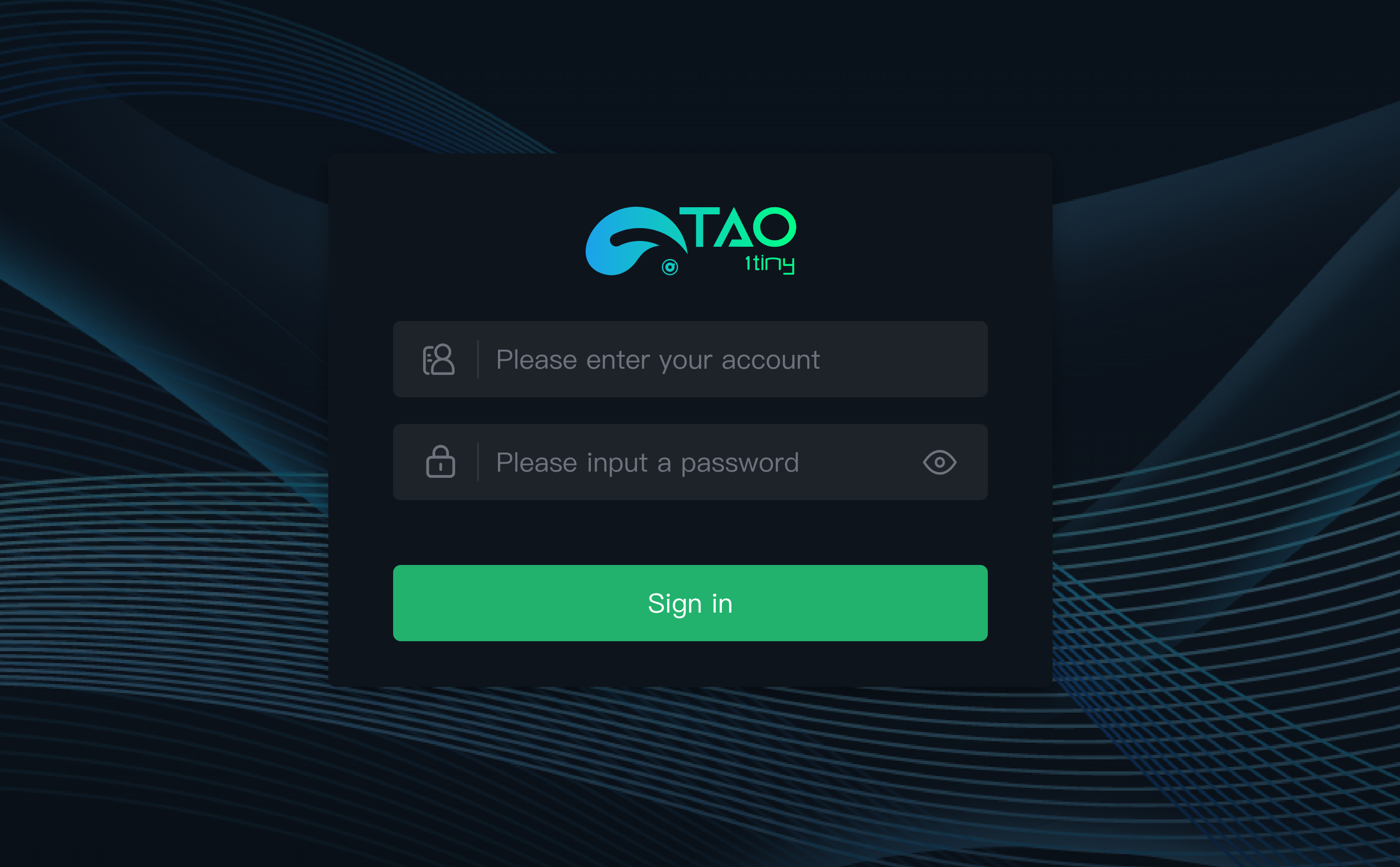
- Open a web browser, access the web management page using the IP address (192.168.5.100). The default username and password are both: admin.
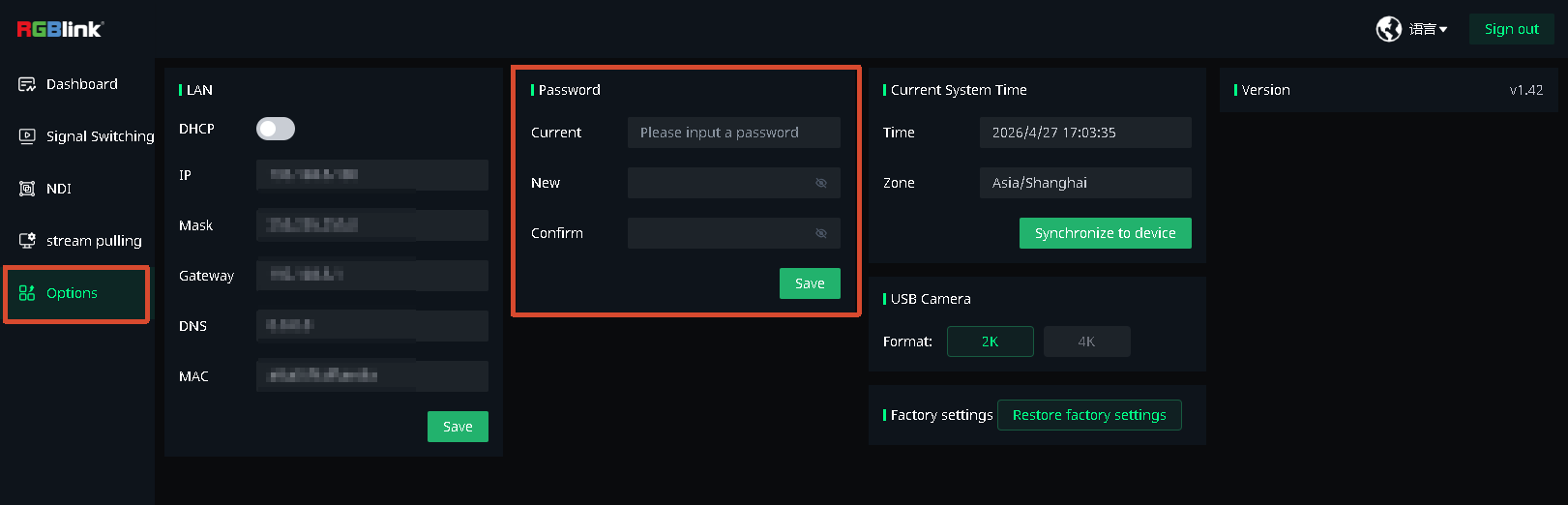
- It is recommended to change the password after first login to enhance security.
📢  Notes

During device management, ensure the network connection is stable and do not disconnect the router from the TAO 1tiny 2.