Online Manual
msp-325n-v2

2.1 Log into the Device Management Page
2.1.1 Logging in via Device Static IP
The device management page address of the MSP 325N V2 is its IP address.
Its factory default static IP is 192.168.5.100.
For first-time use, you need to set the IP of the login device (e.g., computer) to an IP in the same LAN as the MSP 325N V2's static IP, i.e., 192.168.5.x (the first three digits of the IP are the same, x is any number from 0 to 254).
Please proceed as follows:
- Use an Ethernet cable to connect the computer and the MSP 325N V2 (if the computer lacks an Ethernet port, use a USB to Gigabit Ethernet adapter).
- Disable the computer's current network to set a static IP address.
- Configure the computer's network settings: Go to System Settings > Network & Internet Settings > Network and Sharing Center .
- Change adapter settings > Ethernet > Internet Protocol Version 4 (TCP/IPv4)
- Select Use the following IP address, enter the IP address (first three digits same as MSP 325N V2's static IP, i.e., 192.168.5.x) and subnet mask (set to 255.255.255.0).
The default gateway should also be set to 192.168.5.x. After confirming the settings, the computer and MSP 325N V2 will be on the same LAN.
- Open a browser, enter the MSP 325N V2's static IP (192.168.5.100). The default login username and password are both admin .
- After logging in, you will enter the device management page.
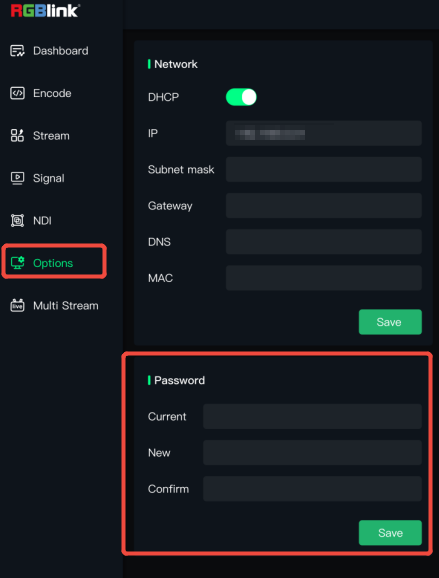
It is recommended to change the account password after the first login to ensure device management security.
2.1.2 Connect the MSP 325N V2 to the Network
The MSP 325N V2's DHCP function (automatically receiving assigned IP address) is disabled by default.
After the first login using the static IP, you need to go to Network in Options to enable DHCP. This allows the device to obtain an IP address assigned by the router and access the network.
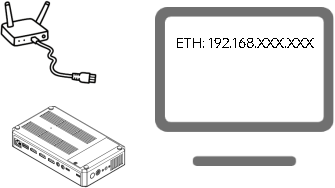
- Power on the MSP 325N V2 and connect it to the router using an Ethernet cable.
- Use an HDMI cable to connect the HDMI OUT interface on the right panel of the device to a display.
The display will show the IP address assigned to the device by the router .
The URL in the example below is for illustration only; please use the actual IP address assigned by your router).