Online Manual
msp-325n-v2

2.9.4 Using TAO Cloud for Multi-Platform Streaming
Becoming a TAO Cloud member also breaks through the quantity limit of local multi-platform streaming, allowing streaming to 30+ mainstream platforms globally.
- Create a Cloud Live Room on TAO Cloud
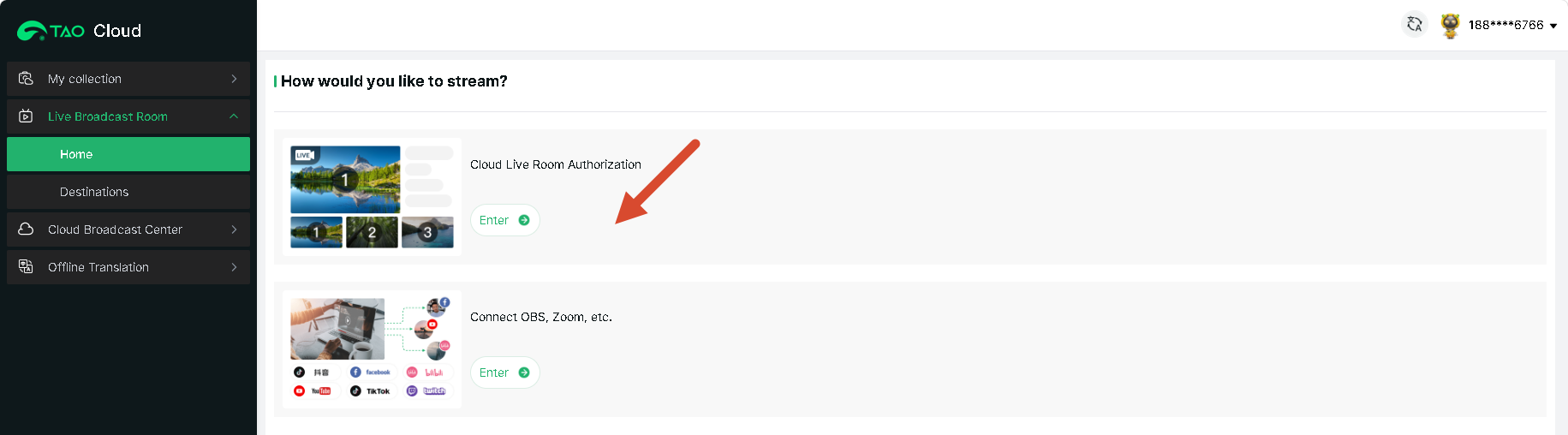
- Log in to TAO Cloud (same account as TAO App registration). In the navigation bar, select Live Broadcast Room > Cloud Live Room Authorization.
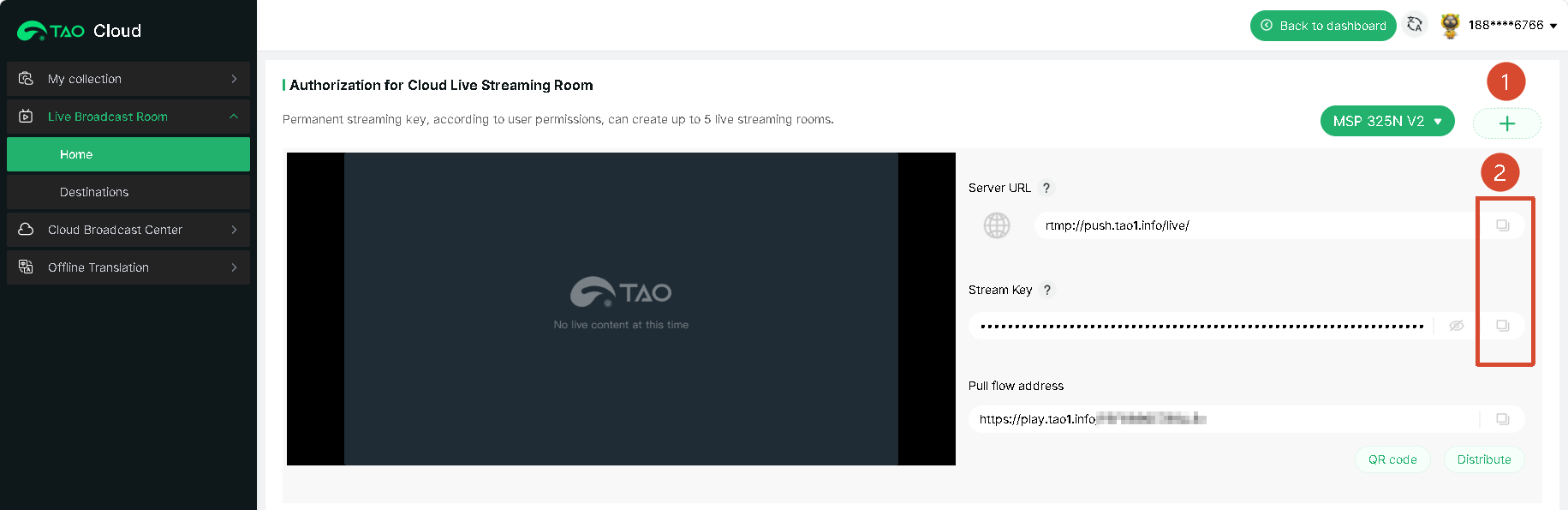
- Click the + sign to create a live room. Copy the server address and stream key to the streaming address field. The format for copying the TAO Cloud streaming address to the MSP 325N V2 is: server address directly followed by the stream key.
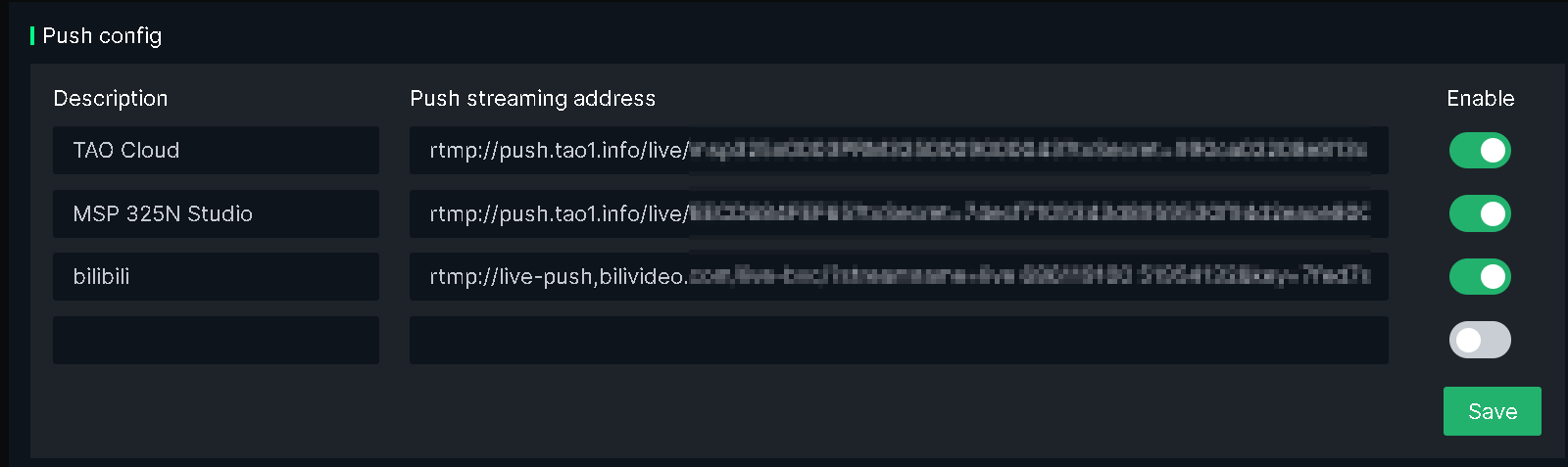
- Click Save, then click Enable for this streaming address.
- The video preview window will now display the picture from the TAO Cloud live room.
- Log in to TAO Cloud (same account as TAO App registration). In the navigation bar, select Live Broadcast Room > Cloud Live Room Authorization.
- Set Up Live Rooms on the TAO Cloud Platform
After enabling the TAO Cloud platform's live room address, to use this address to stream to multiple live streaming platforms, you need to set up the live room information for different platforms on TAO Cloud.
The operation is as follows:
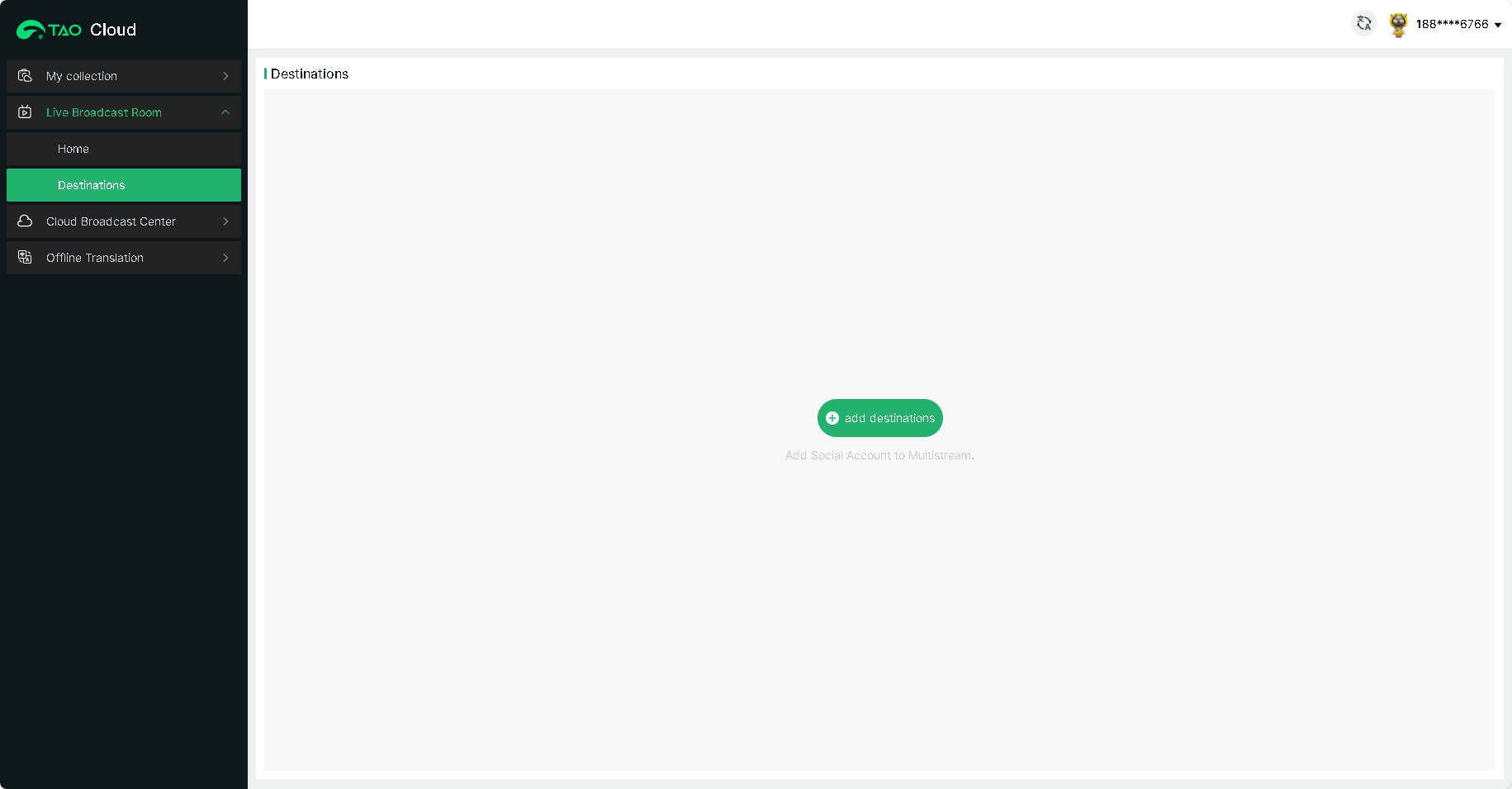
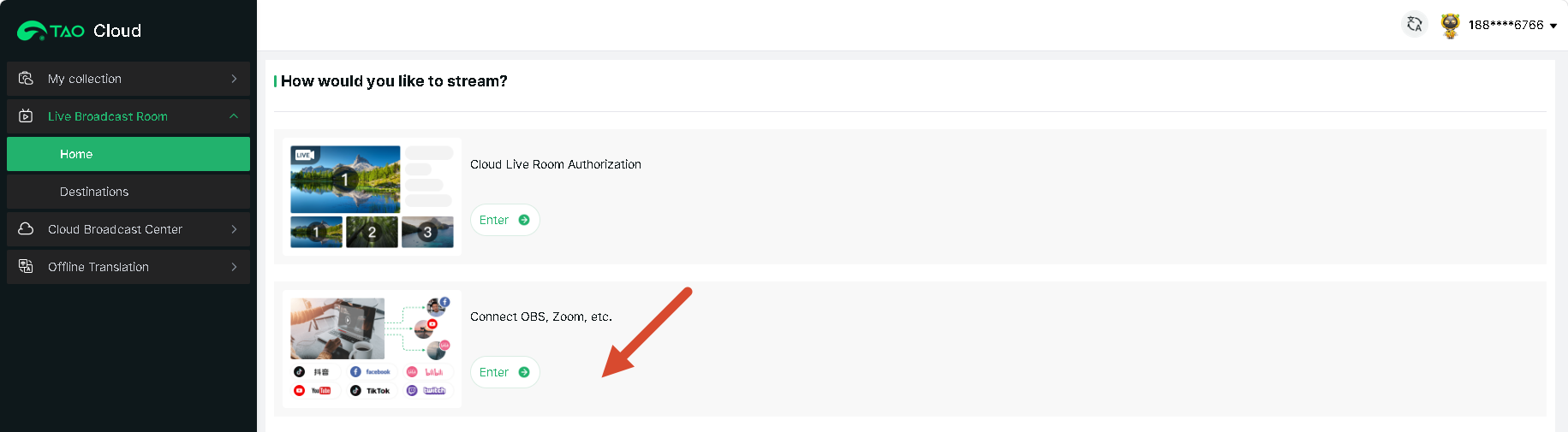
- In the TAO Cloud navigation bar, select Live Broadcast Room, enter Connect OBS, Zoom, etc..
 2. TAO Cloud comes pre-equipped with mainstream streaming platforms at home and abroad. Directly click on the platform you want to stream to and complete the information setup. Or click Other to add a new platform.
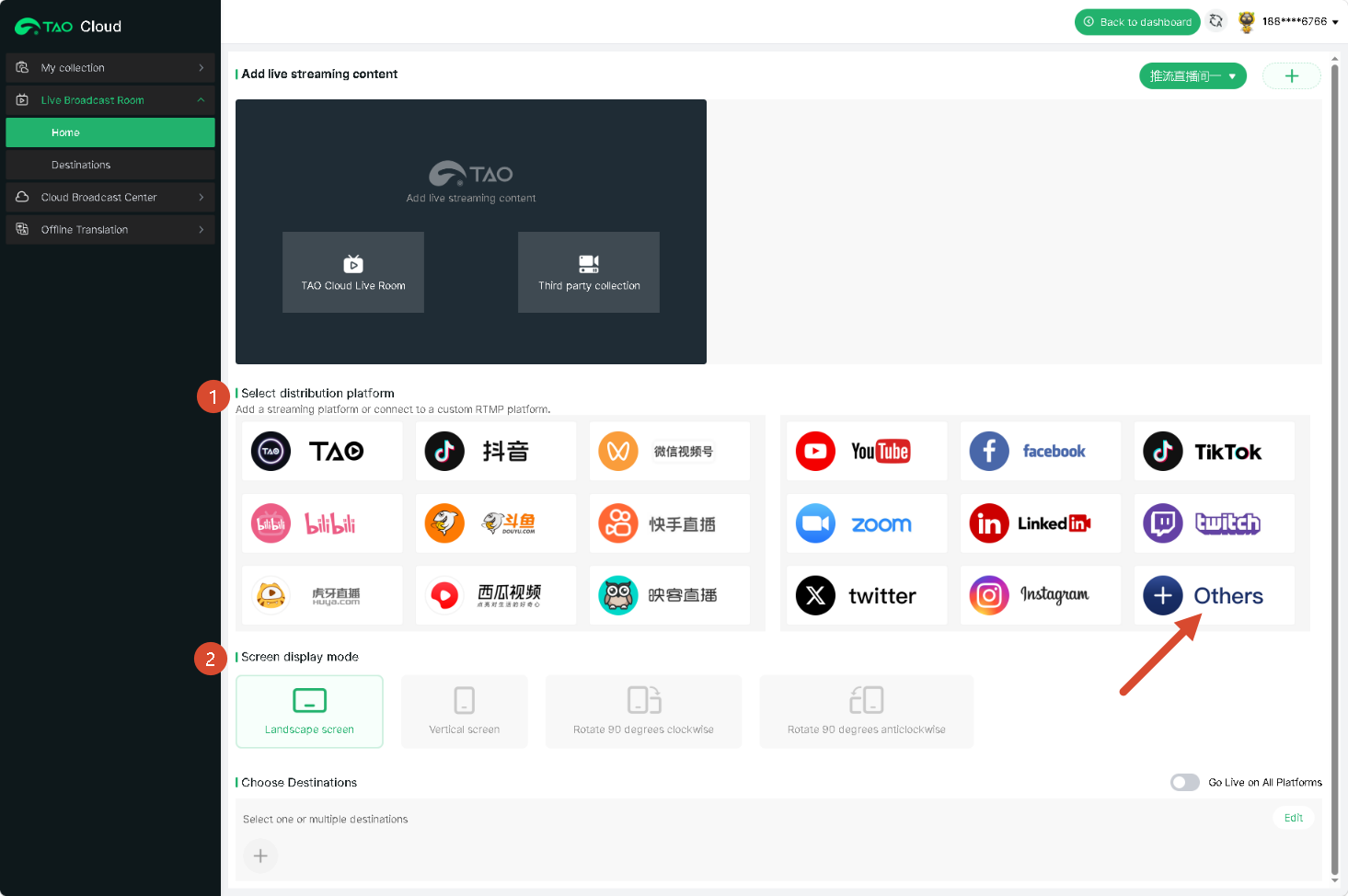 3. Distribution bar: Click the + sign to add the already set up distribution platforms. After successful addition, you can click the icons individually to start streaming, or turn on All Platforms Online to achieve multi-platform streaming with one click.
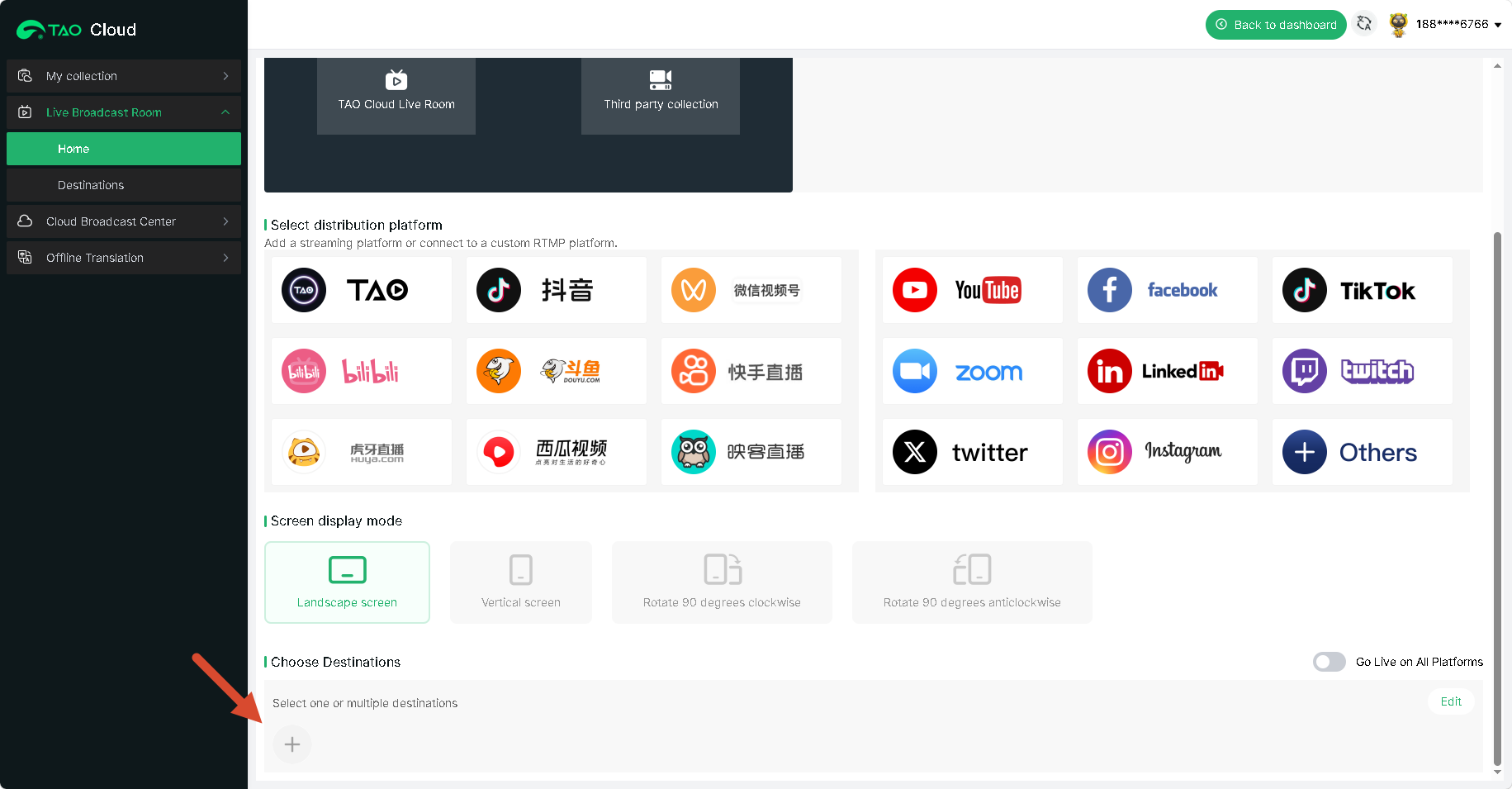 4. After achieving multi-platform streaming, if you want to modify the live room information, you can do so on the TAO Cloud Video Matrix management page.