Online Manual
msp-325n-v2

2.5 Output Settings
2.5.1 Global Configuration
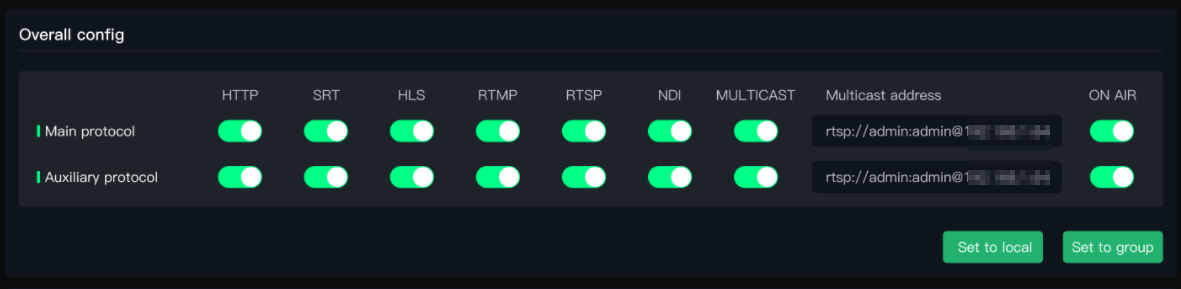
In Global Configuration, you can choose the streaming protocol for the Main Stream or Sub Stream as HTTP/SRT/HLS/RTMP/RTSP/NDI/Multicast protocol.
- Select Apply to Local to save the settings to this machine.
- Select Apply to Group to synchronize the settings to other MSP 325N V2 devices found on the LAN.
2.5.2 Playback Address
- The Main Stream and Sub Stream code identifiers can be modified; however, the supported playback formats of the Main Stream and Sub Stream addresses are fixed and cannot be changed.
The Main Stream supports playback in multiple formats including HTTP, RTMP, RTSP, and SRT. You can select the appropriate Main Stream URL format based on compatibility with your player, platform, or network requirements — all formats provide access to the same Main Stream video output.
The Sub Stream, however, only supports RTSP format.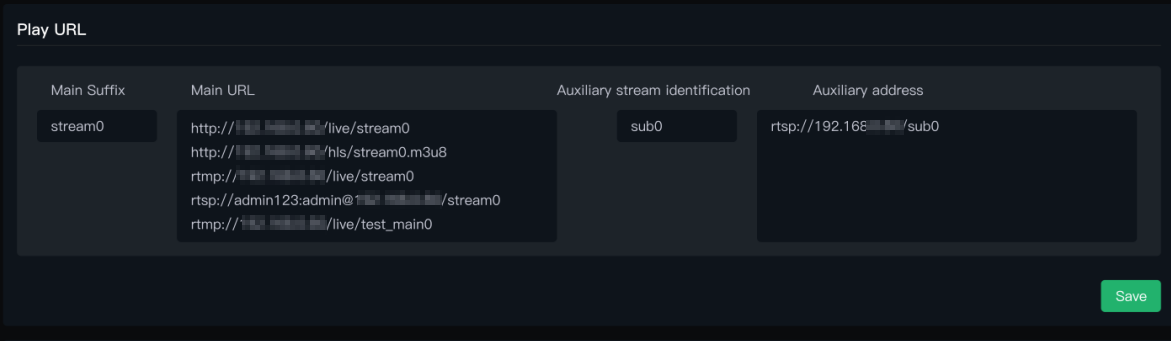
- For the different protocols in the Main and Sub Stream address formats, a simple summary is as follows:
| Protocol | Features | Scenarios |
|---|---|---|
| RTMP | Very low delay (usually 1-3 seconds), very stable. | Streaming to live platforms (Douyu, Twitch, etc.), professional live production. |
| RTSP | Designed for streaming control (e.g., play, pause). Needs specialized players (like VLC). | Surveillance cameras, video conferencing systems, embedded devices. |
| HTTP | HTTP-based. Can cut the stream into small files for download and playback. | Web live streaming (Bilibili, YouTube). |
| SRT | Targets unstable network environments, low latency. | Remote production, high-quality low-latency transmission across public networks. |
- VLC software supports playing all the Main Stream address formats above. You can consider downloading VLC Media Player (https://soft.ljdwl.cn/vlc/bFqbx37.html).
- Open VLC Player, click Media on the top menu bar. In the dropdown menu, select Open Network Stream....
- An input box will pop up. Copy and paste the complete address you see into it, then click Play .
2.5.3 Recording
The MSP 325N V2 supports recording the Main Output picture after inserting a USB drive or solid-state drive into the USB-A interface of the MSP 325N V2.
- The maximum supported capacity for USB drives is 128GB, for SSDs it is 2TB.
- The supported format is exFAT.
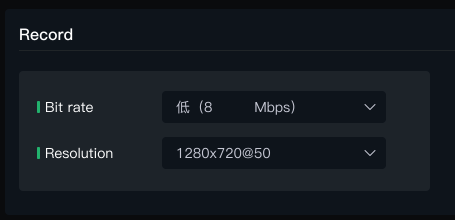
- Set the recording bitrate and resolution.
- Low quality recording bitrate is 4Mbps; Medium quality recording bitrate is 8Mbps; High quality recording bitrate is 16Mbps.
- Supports up to 4K resolution.
- Insert the USB drive. On the Recording interface, the MSP 325N V2 will automatically read the used capacity and free capacity of the USB drive. Click the recording switch, and the MSP 325N V2 will start recording and display the total recording duration and recording progress.

- During recording, you can view the recording dynamics and time on the Operation Status page.

- After turning off the recording button, the recording content is automatically saved, and the inserted USB drive or portable hard drive is automatically ejected from the device.
- Insert the USB drive or portable hard drive into a computer to view the recording files. The file format is MP4.

📢  Note

- The supported format for USB drives is exFAT. If the drive is not formatted correctly, please reformat it: On a Windows computer, select "exFAT" as the file system and set the allocation unit size to 128KB.
- Video recordings are automatically segmented into 4GB files. Recording will stop automatically when the disk is full. To avoid interruptions, regularly check the remaining space of the USB drive in the recording menu.
2.5.4 Volume Adjustment
You can adjust the volume of the Main Output picture here, or enable "Mute" to mute the Main Output.
