Online Manual
Ystreamer

3.3.3.1 3.3.1 TAO APP Configuration
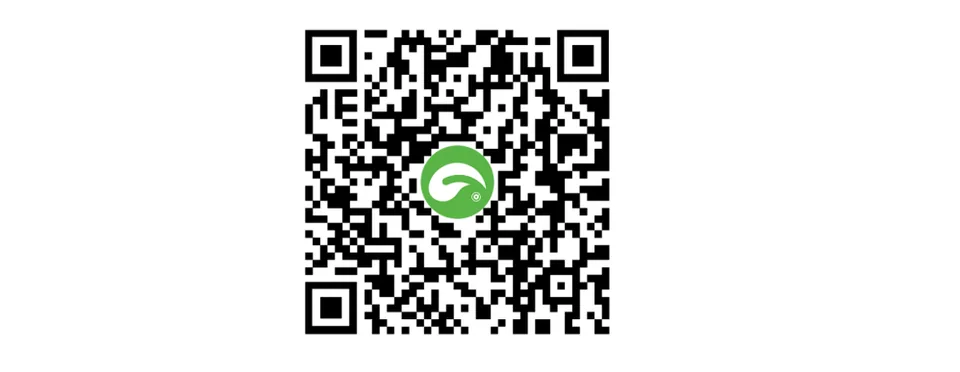
Download the TAO APP
Option 1: Scan the QR code
Option 2: Download from an app store
For the latest version and the best security, download TAO from an official app store.
🔔 Ystreamer is currently supported on TAO for Android 2.10.6 or later. Support for iOS will be available in a future release.
Supported App Stores:
- Huawei: AppGallery
- Xiaomi: GetApps
- OPPO: OPPO App Market
- VIVO: V-Appstore
- HONOR: HONOR App Market
- Google: Pixel Google Play
- ...
📢  Notes
If the TAO APP cannot be found or installed, update your phone's operating system and try again.
Sign Up and Log In
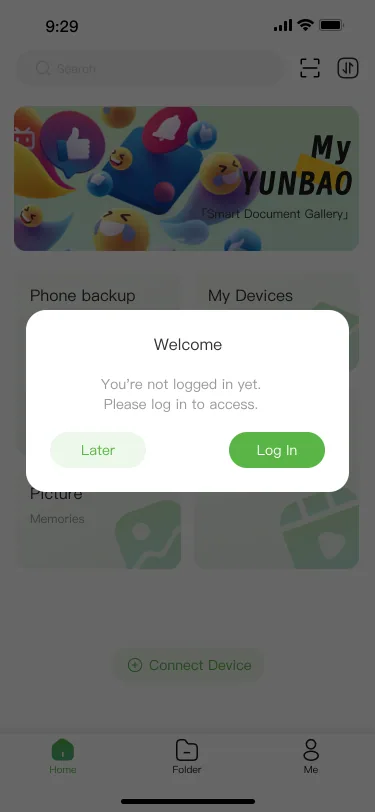
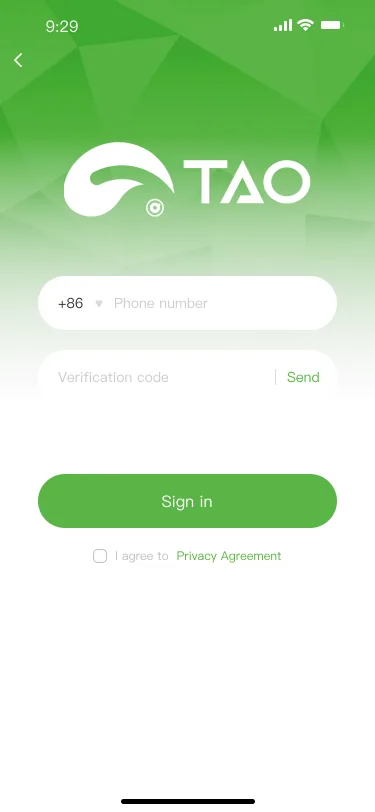
- Launch the TAO APP and sign in with your mobile phone number.
- Enter your phone number.
- Tap Send Verification Code.
- Enter the verification code.
- Accept the Privacy Policy and complete sign-in.
| ① | ② | ③ |
|---|---|---|
 |  |  |
Powering On
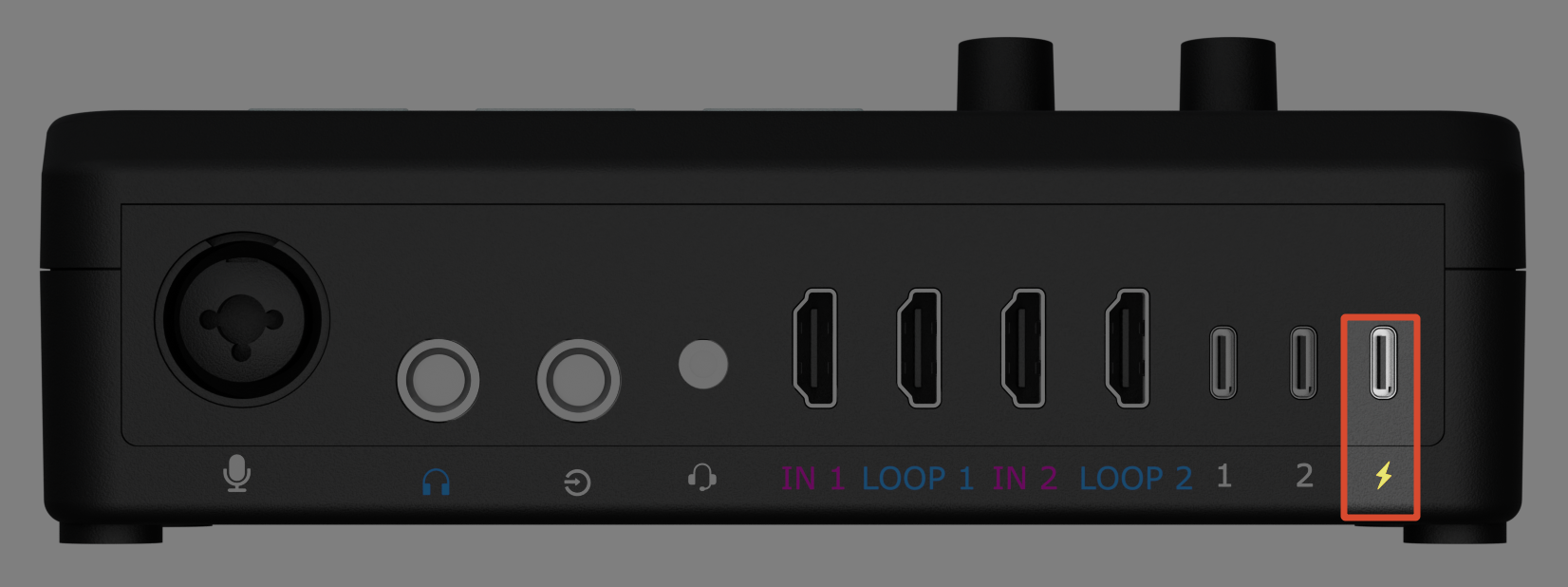
- Connect the supplied USB-C cable to the power input.
- Connect the supplied PD power adapter.
- Plug the adapter into an AC outlet.
Pairing Ystreamer
| ① | ② | ③ | ④ |
|---|---|---|---|
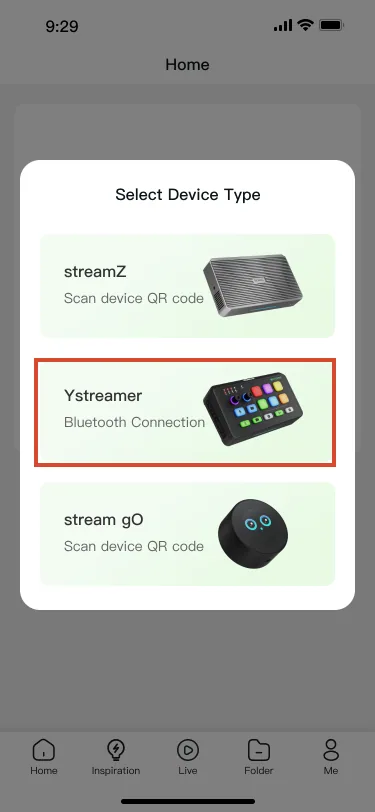
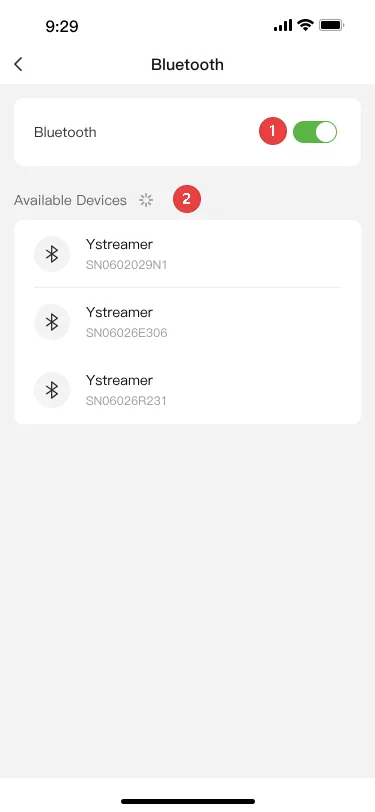
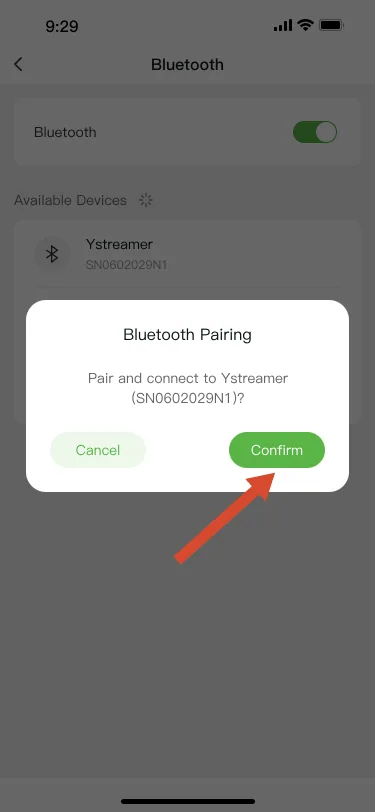
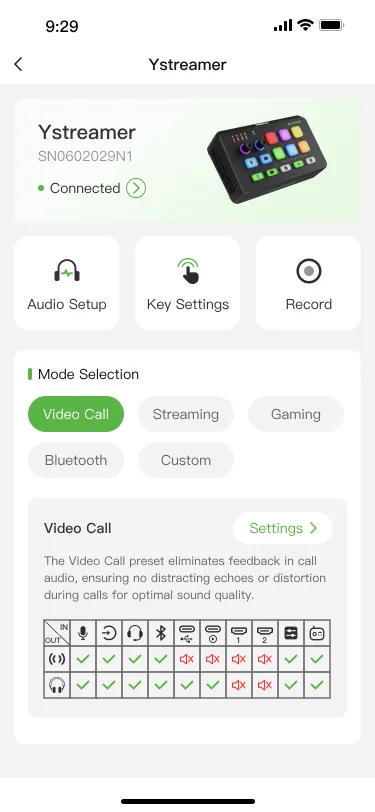
| In the home page, select a device type. | Enable Bluetooth, select Ystreamer from the list. | Verify the device serial number (SN), then tap Confirm. | After pairing, APP will opens the device control page in Video Call Mode. |
 |  |  |  |