Online Manual
Ystreamer

3.3.3.3 3.3.3 Advanced Audio Settings
🔔  TAO APP(Android) must be updated to version 2.10.11 or later to use the Advanced Audio Settings feature.
The iOS version will be available in future updates.
Ystreamer provides various audio processing features, allowing users to fine-tune different audio input channels and optimize sound quality for scenarios such as live streaming and conferencing.
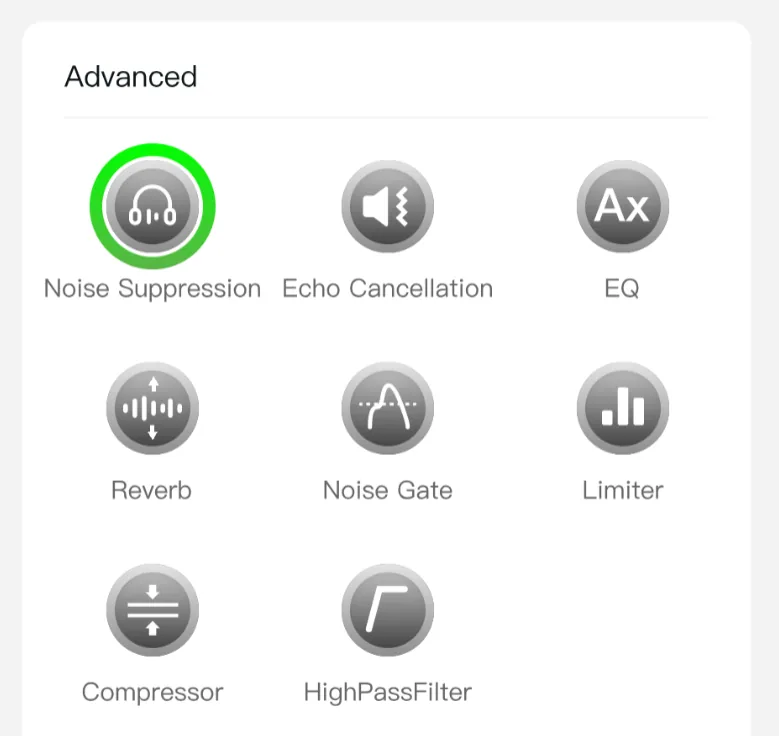
Users can configure audio effects for each audio input, including Noise Suppression, Echo Cancellation, Equalizer, Reverb, Noise Gate, Limiter, Compressor, and HighPass Filter.
| Interfaces for reference |
|---|
 |
📢  Notes

The available audio processing features vary depending on the audio input. The actual adjustable parameters are subject to the device operation page.
The following section uses XLR port as an example to introduce the Advanced Audio Settings.
1. Access Audio Settings
- On the device operation page, tap Audio Setup, or select a mode in the Mode Selection section and tap Settings.
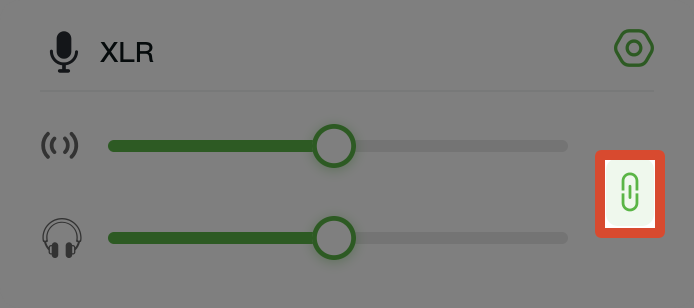
- Tap the link icon in the audio input section to enable or disable parameter linking. When enabled, changing one parameter will automatically synchronize the corresponding parameter.
2. Configure Audio Effects
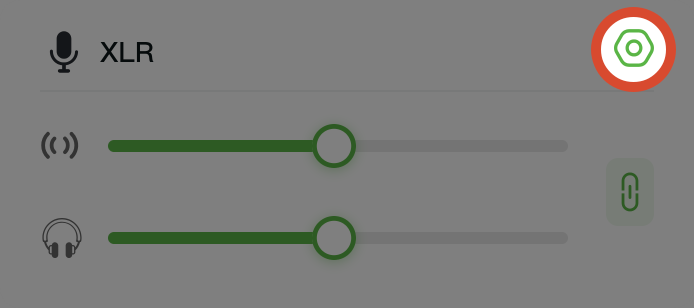
- Tap the settings icon ⚙ in the upper-right corner of the audio input section.
- Enable the required audio effects.
- Adjust the corresponding parameters.
- Tap the Reset button to restore default parameters.
3. Audio Processing Features
1) Noise Suppression
Noise suppression reduces background noise and improves vocal clarity.
Enable the Noise Suppression switch to activate this feature.
2) Echo Cancellation
Echo cancellation reduces echo caused by speaker audio being picked up by the microphone.
Enable the Echo Cancellation switch to activate this feature.
3) EQ: Equalizer
The Equalizer adjusts the sound characteristics of different frequency bands.
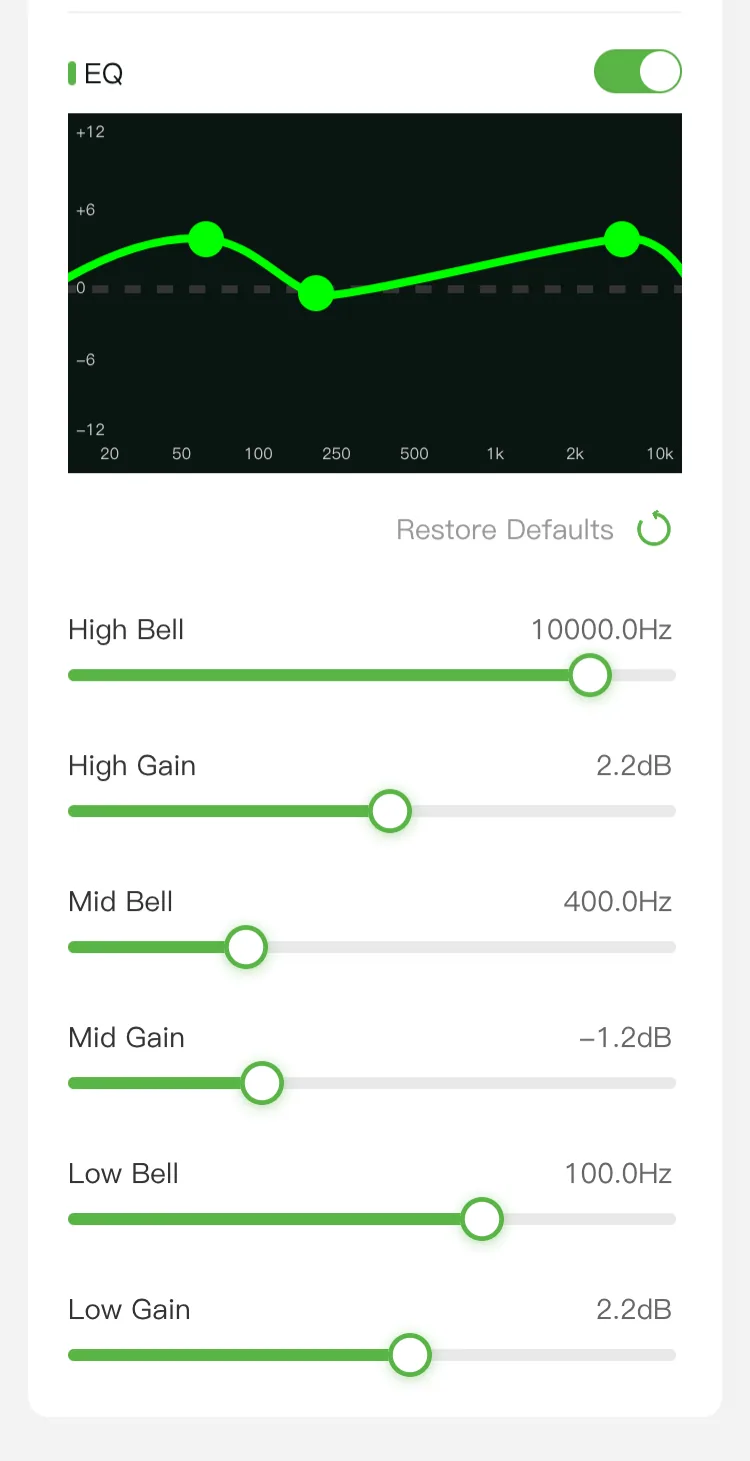
After enabling the EQ switch, users can adjust the bell filter frequency and gain for high, mid, and low frequencies.
The corresponding frequency curve is displayed in real time.
| Interfaces for reference |
|---|
 |
4) Reverb
Reverb simulates sound effects in different acoustic environments.
After enabling the Reverb switch, users can adjust room size, high-frequency damping, and the dry/wet signal ratio.
5) Noise Gate
Noise gate reduces background noise below a set threshold, prevents audio crosstalk, and optimizes audio dynamics.
After enabling the Noise Gate switch, users can adjust parameters including threshold, attack time, hold time, release time, range, and hysteresis.
6) Limiter
Limiter limits audio peaks to prevent distortion.
After enabling the Limiter switch, users can adjust parameters including threshold, attack time, hold time, release time, and lookahead time.
7) Compressor
Compressor adjusts the audio dynamic range to provide more stable and clearer sound.
After enabling the Compressor switch, users can adjust parameters including threshold, ratio, attack time, release time, and gain.
8) HighPass Filter
The high-pass filter removes low-frequency noise and prevents low-frequency overload.
After enabling the HighPass Filter switch, users can adjust frequency and slope parameters