| ① | ② |
|---|
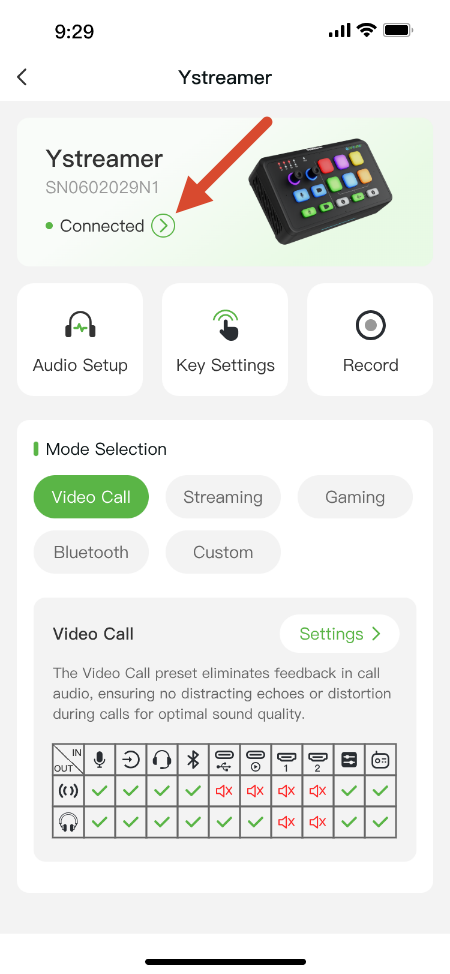
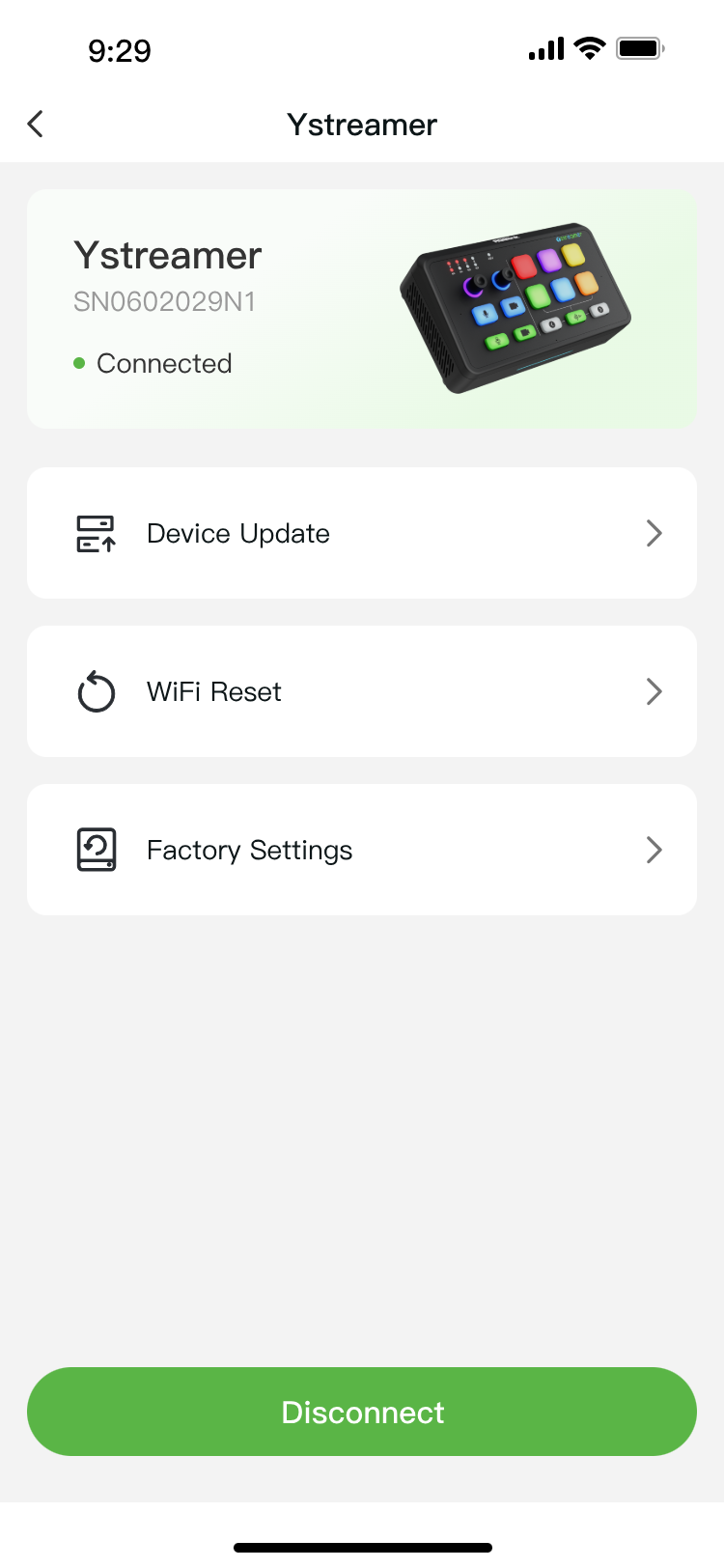
| Tap Right Arrow to open the Device Information page. | From this page, you can: + Device Update + Wi-Fi Reset + Factory Settings + Disconnect the device |
 |  |
1) Device Update
| ① | ② | ③ |
|---|
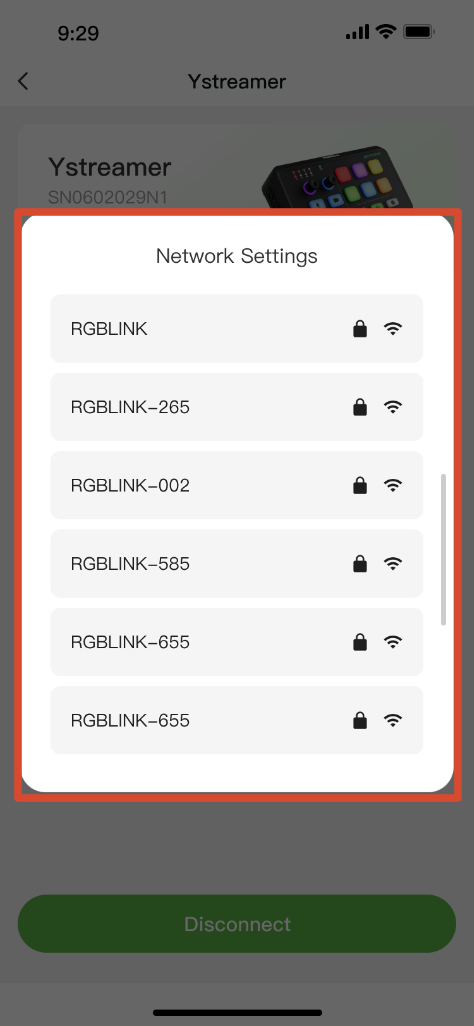
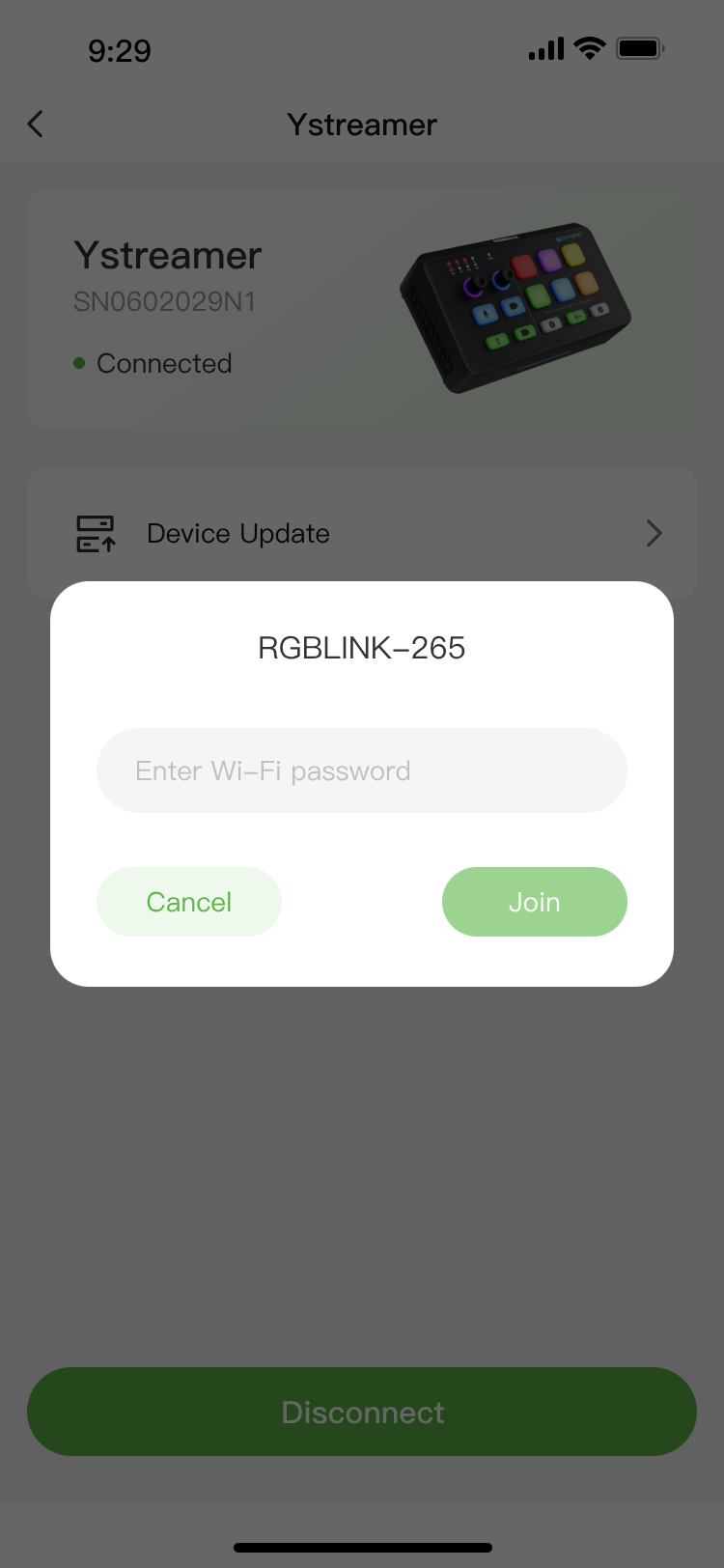
| Tap Device Update. If the device is not connected to Wi-Fi, the Network Settings page appears automatically. | Select a Wi-Fi network, enter the password, then tap Join. | Wait until the device connects to the network. |
 |  | 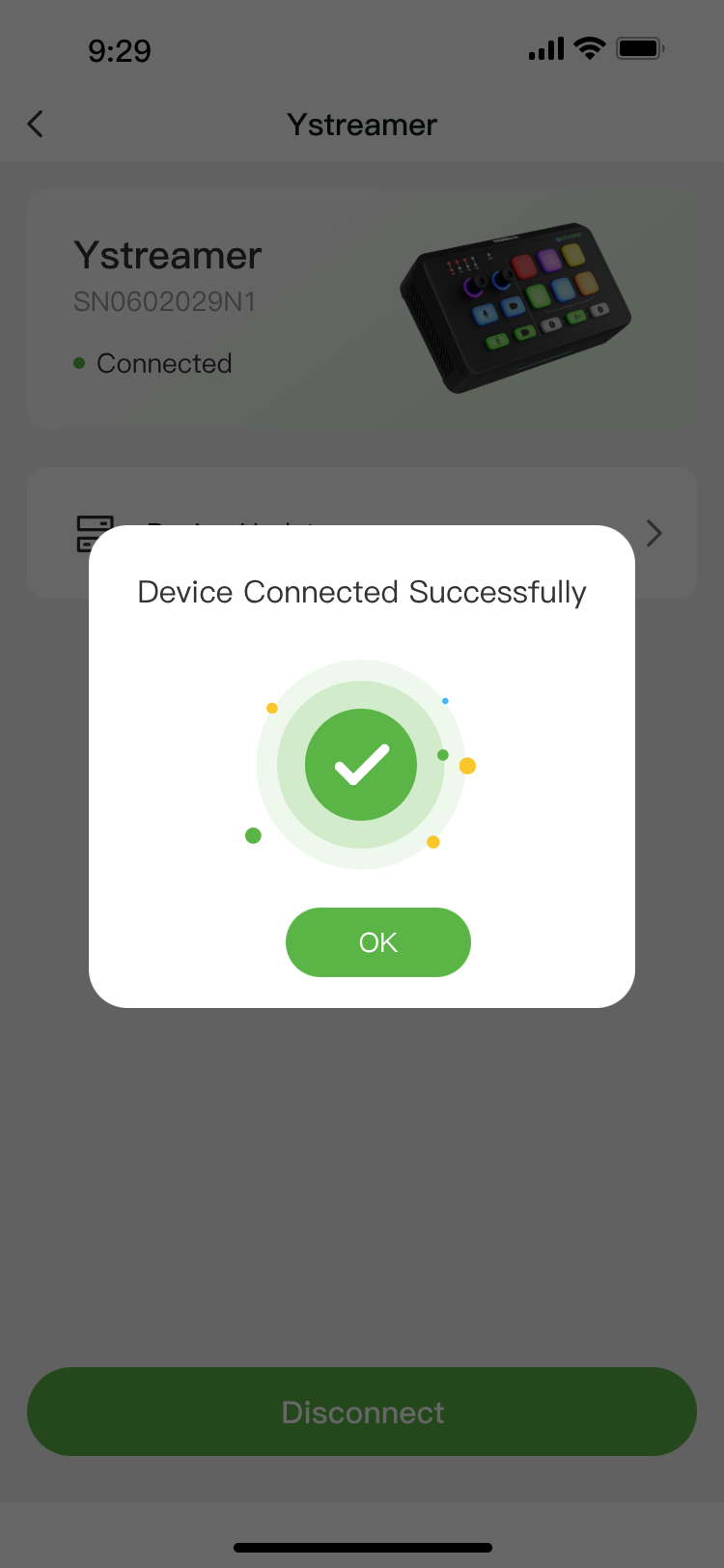 |
After connecting to Wi-Fi, the device automatically checks for the latest firmware.
| ① | ② | ③ |
|---|
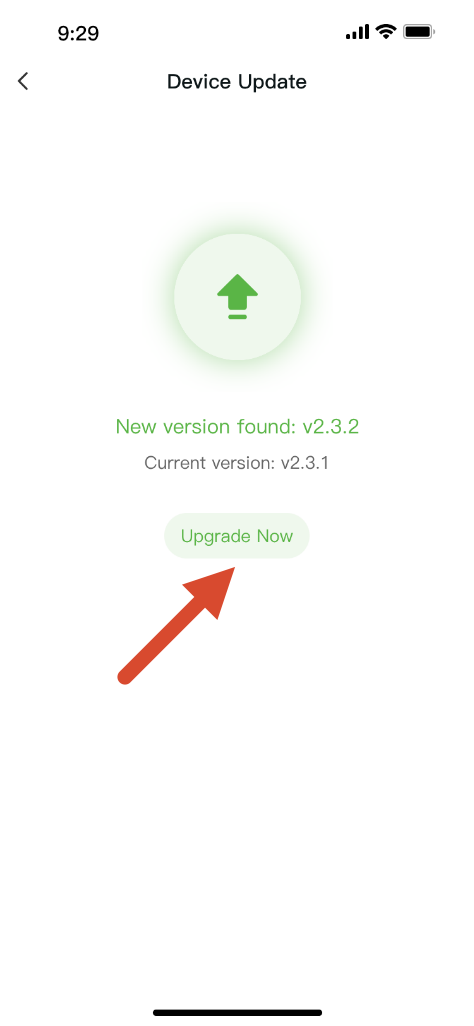
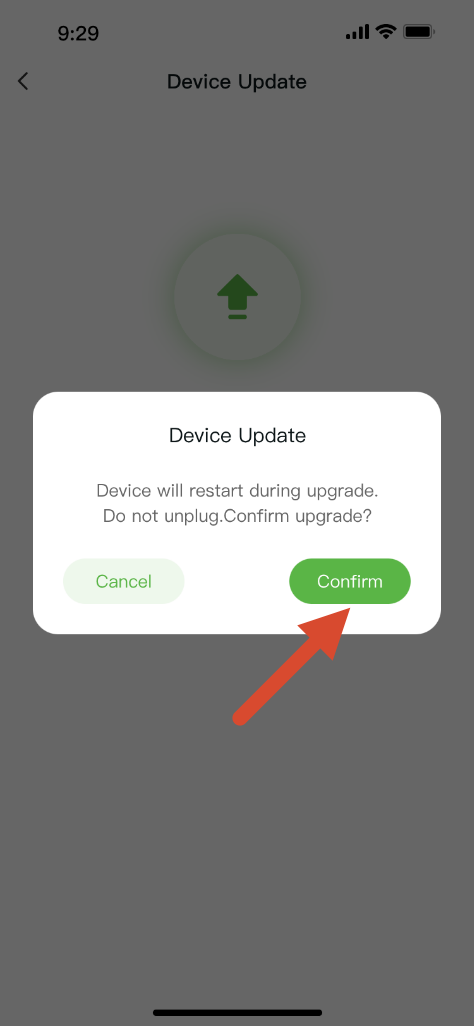
| If a new version is available, tap Update Now. | Tap Confirm to start the update. | Wait for the download and installation to complete. |
 |  | 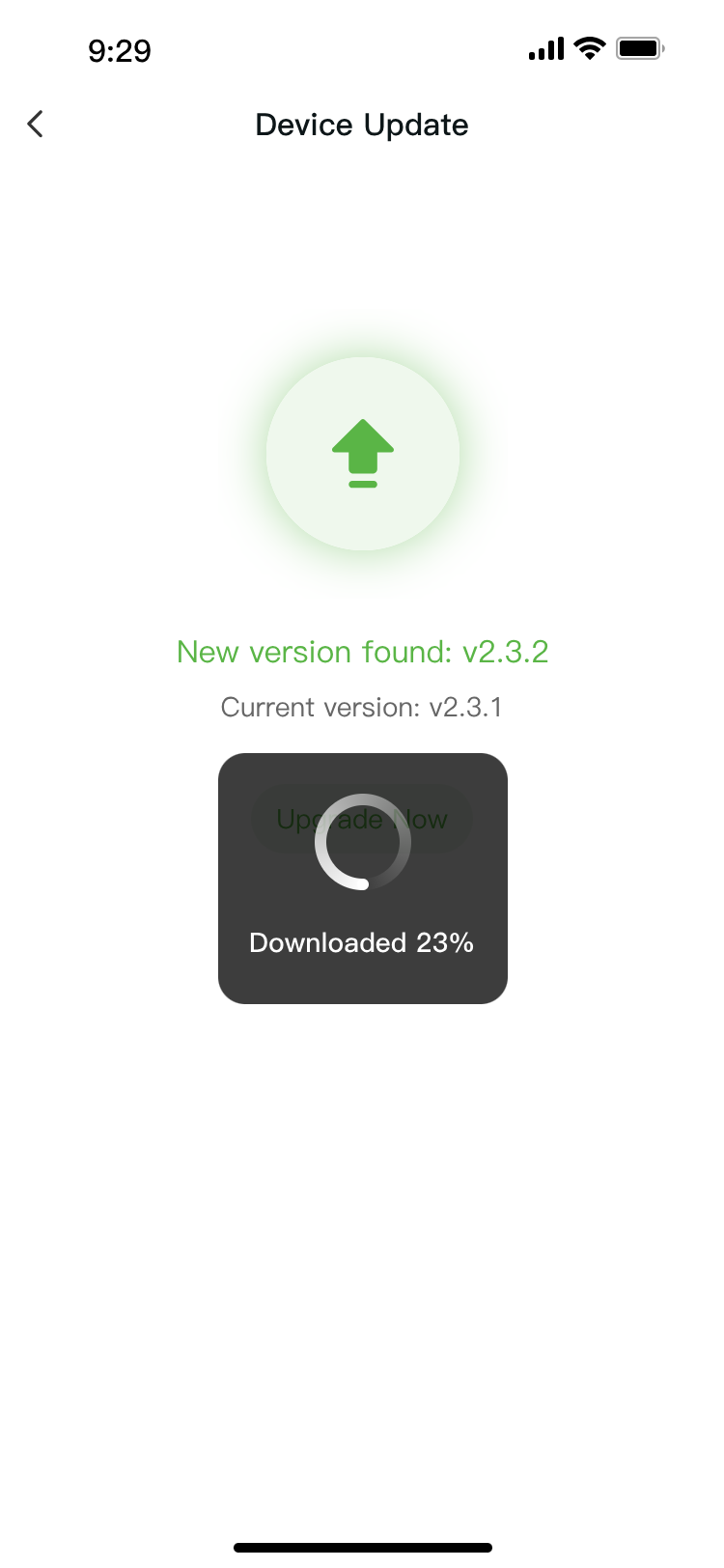 |
- After the update finishes, the latest firmware version is displayed on the Device Information page.
2) Wi-Fi Reset
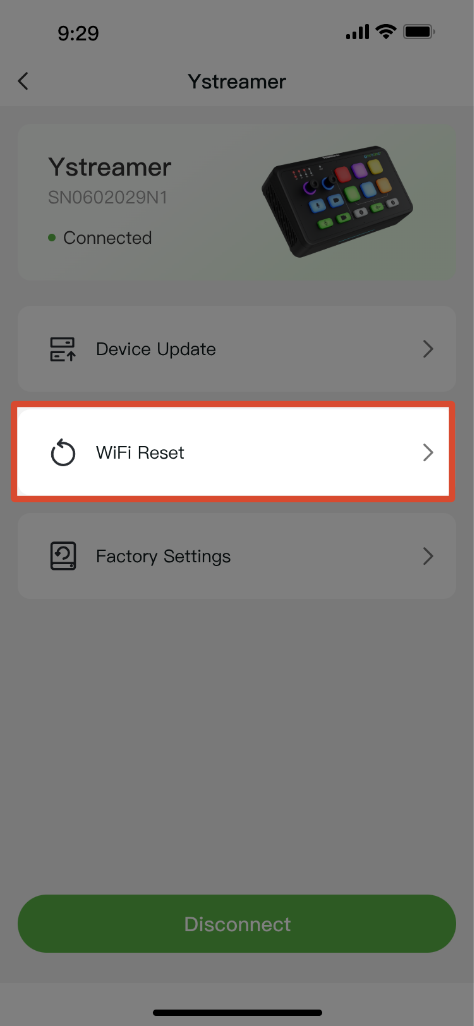
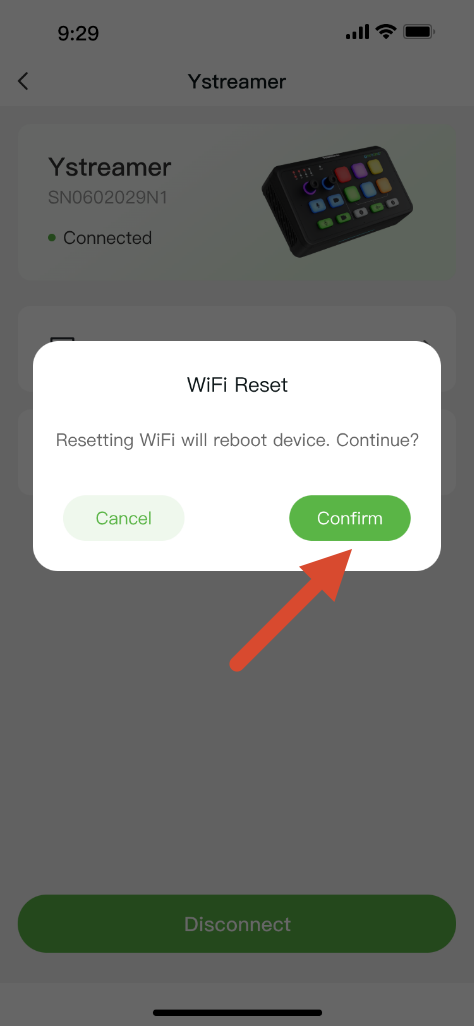
Reset the Wi-Fi connection if you need to connect the device to a different network or troubleshoot network issues.
| ① | ② | ③ |
|---|
| Tap Wi-Fi Reset. | Tap Confirm. | Select a Wi-Fi network and complete the setup again. The device restarts automatically after the reset. |
 |  | |
📢  Notes

- Do not disconnect the power, Wi-Fi, or Bluetooth connection during a update. Interrupting the update may prevent the device from starting properly.
- If the update fails, restart the device and try again. If the problem persists, contact RGBlink Technical Support.
- If Bluetooth pairing fails after a restart, restart Ystreamer and pair the device again.
3) Factory Settings
🚨  Warning: This action cannot be undone.

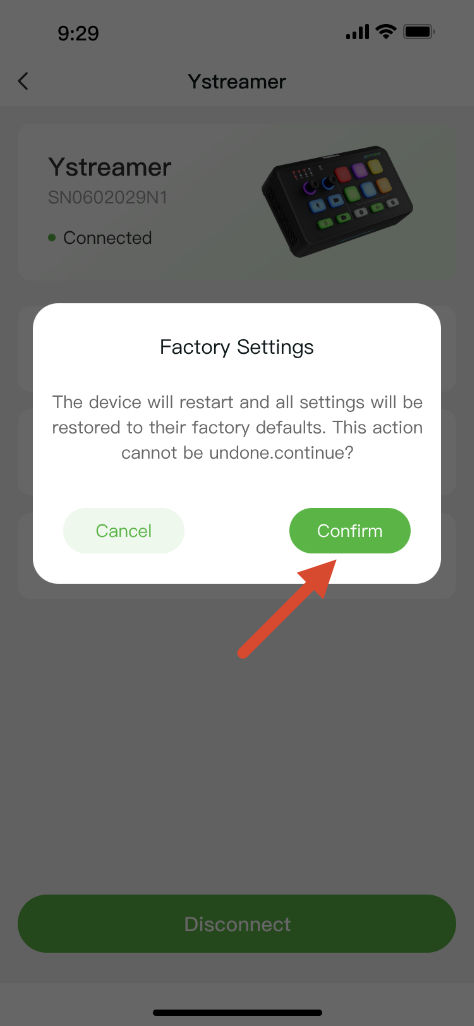
After confirming the factory reset, all device settings will be restored to their defaults. This action cannot be undone.
| Tap Factory Settings, then tap Confirm in the pop-up window to complete the operation. |
|---|
 |
2. Quick Actions
| Interfaces for reference |
|---|
 |
| Icon | Description |
|---|
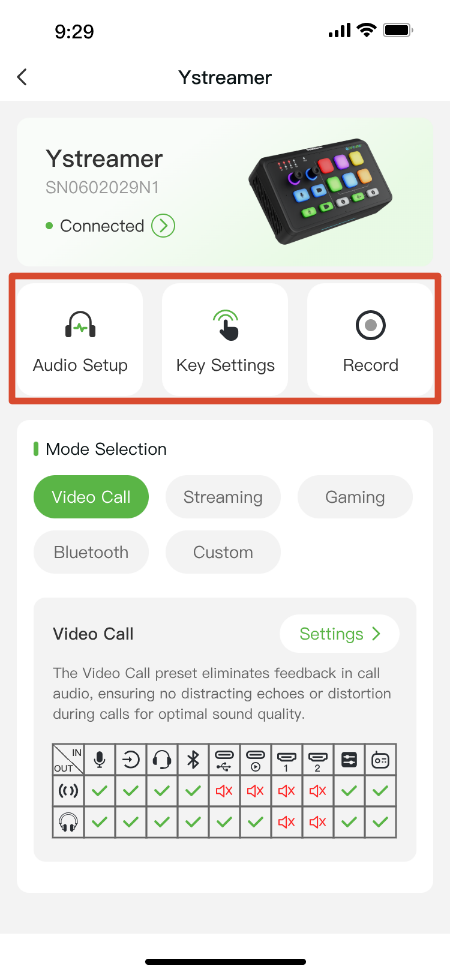
 | Audio Setup + Adjust the volume of each audio input. + Enable or disable the speaker independently. + Controls are unavailable when displayed in light gray. |
 | Key Settings Customizable button is currently supported on TAO for Android 2.10.11 or later. Support for iOS will be available in a future release. |
 | Record + Tap the Record icon to start recording. + The recording duration is displayed while recording. + Tap the icon again to stop recording. + Recordings are saved in WAV format. |
3. Mode Selection
| Interfaces for reference |
|---|
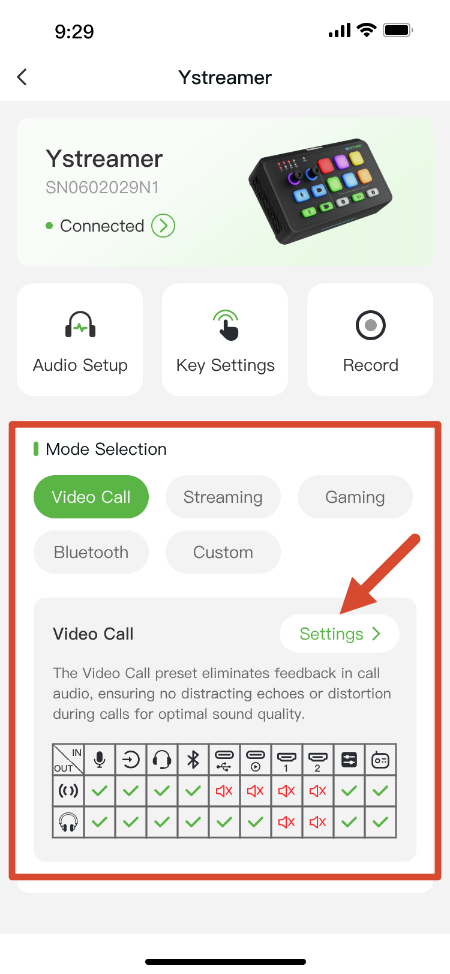 |
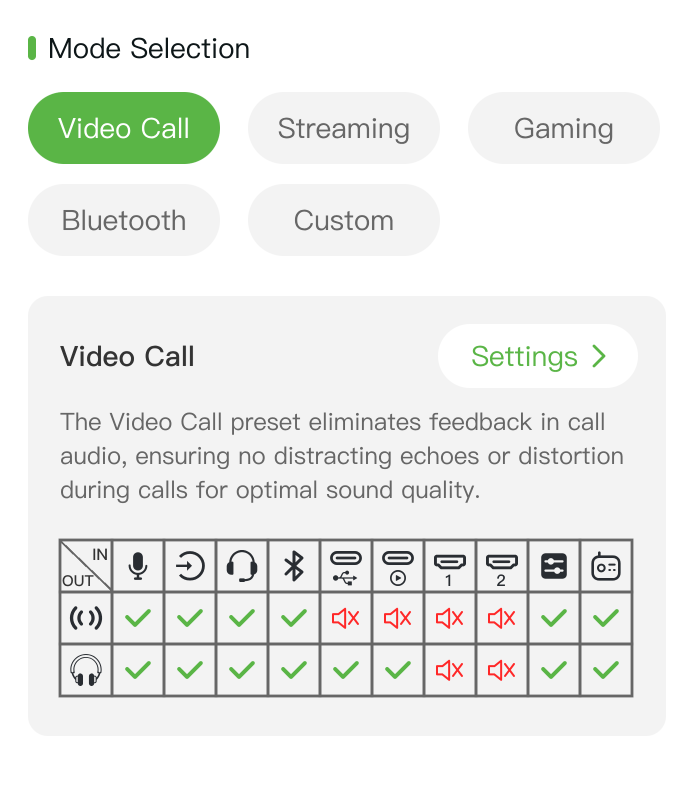
| Video Call | Optimized for video conferencing by reducing audio feedback and echo during calls. |
|---|
| Streaming | Provides full audio routing for Ystreamer inputs and connected monitoring devices, ideal for live streaming. |
| Gaming | Reduces audio feedback and unwanted game audio to provide clear communication during in-game chat and voice calls. |
| Bluetooth | Bluetooth speaker mode is currently supported on TAO for Android 2.10.11 or later. Support for iOS will be available in a future release. |
| Custom | Allows users to create custom audio routing presets for Ystreamer inputs and connected monitoring devices. |
**4. Audio Routing Matrix (IN/OUT) **
1) Icon Description
| IN |  |  |  |  |  |  |  |  |  |  |
|---|
| XLR | TRS | TRRS | BLUETOOTH | UAC 1 | UAC 2 | HDMI 1 | HDMI 2 | CLIP | MIC |
| | | | | USB audio | | | | Audio clip | Built-in microphone |
| OUT |  |  |
|---|
| Streaming Mixer | Monitoring Mixer |
2) Audio Routing Matrix by Mode
The mode matrix is displayed in real time based on the device return status. The following section provides an example of the Video Call mode.
| Interfaces for reference |
|---|
 |
