Online Manual
Ystreamer

3.3.3.4 3.3.4 Custom Key Functions
🔔 TAO APP (Android) must be updated to version 2.10.11 or later to use the Custom Key Functions feature. The iOS version will be available in future updates.
Ystreamer supports customizable shortcut keys, allowing users to assign frequently used functions based on scenarios such as live streaming, gaming, and conferencing, improving operation efficiency.
Each key supports custom colors and can be assigned functions such as input switching, mute control, sound effect , and mode switching.
1. Configure Key Functions
| ① | ② | ③ | ④ |
|---|---|---|---|
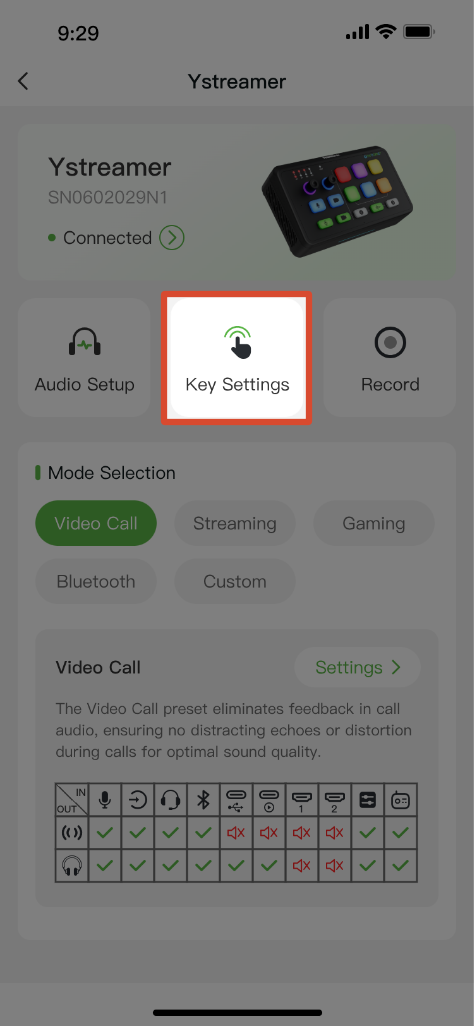
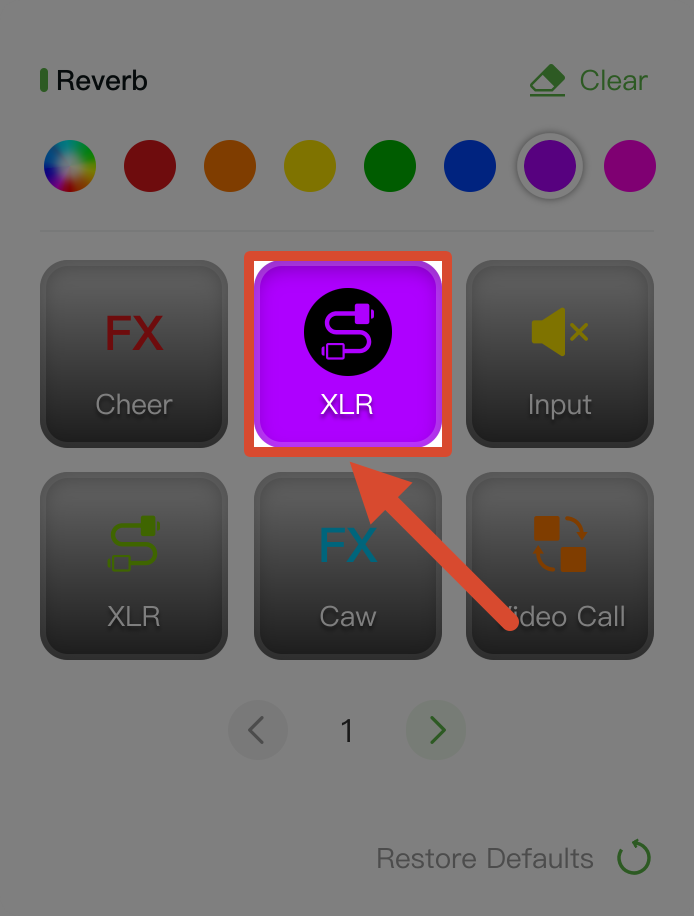
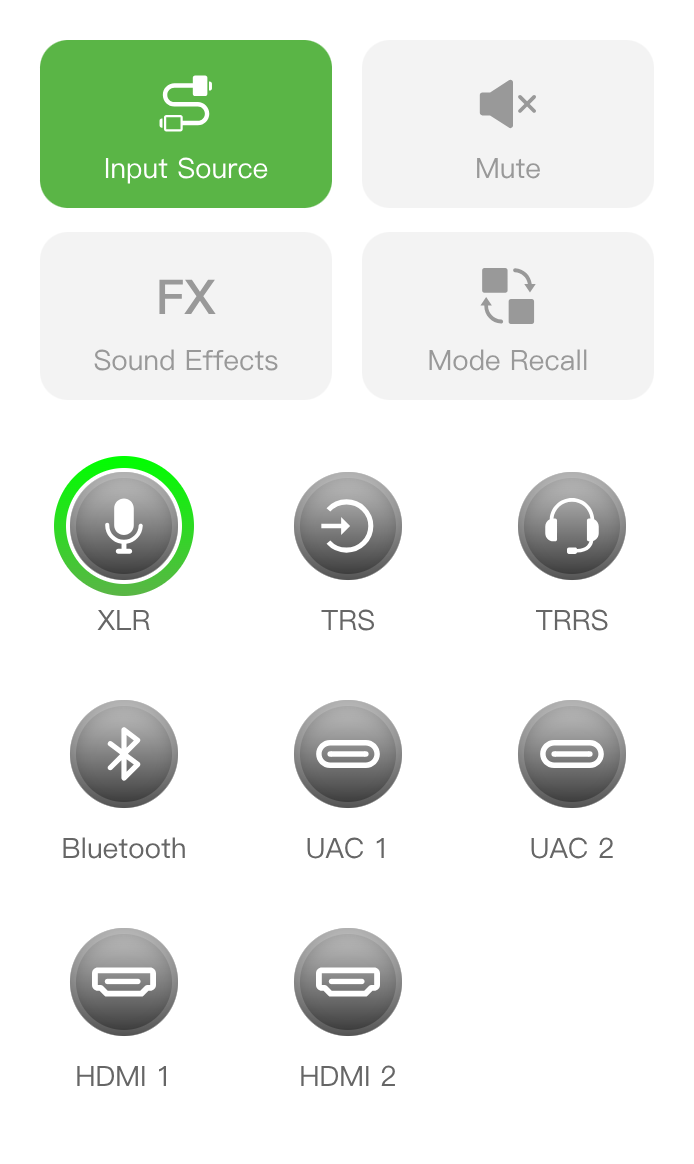
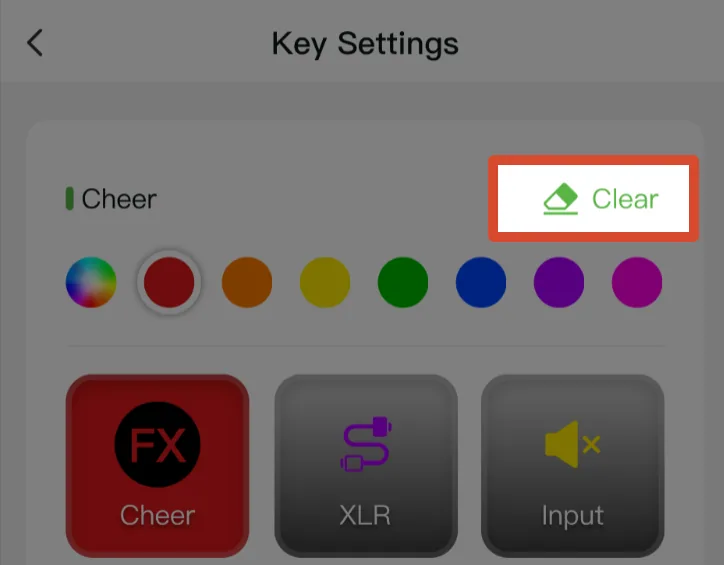
| On the device operation page, tap Key Settings | Select the key to configure | Select a function from the list (Image below takes Input Source as an example) | Tap Clear in the upper-right corner to remove the current assignment. |
 |  |  |  |
2. Configure Key Colors
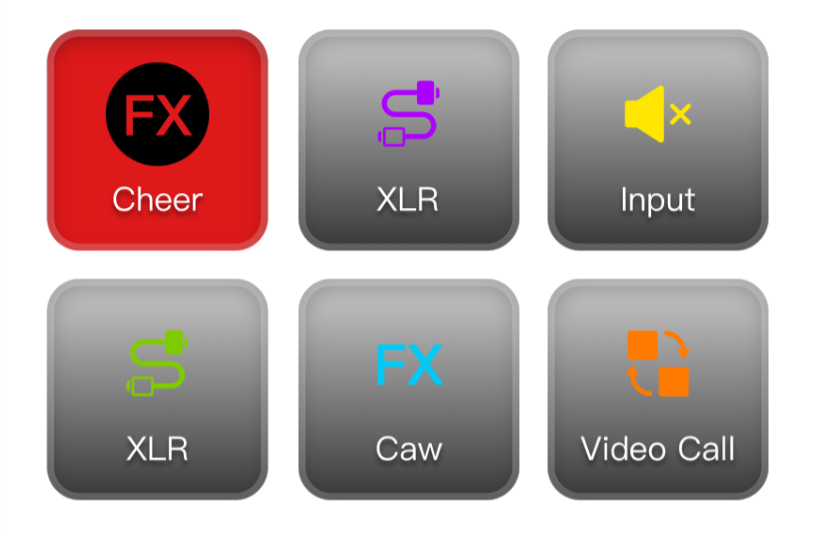
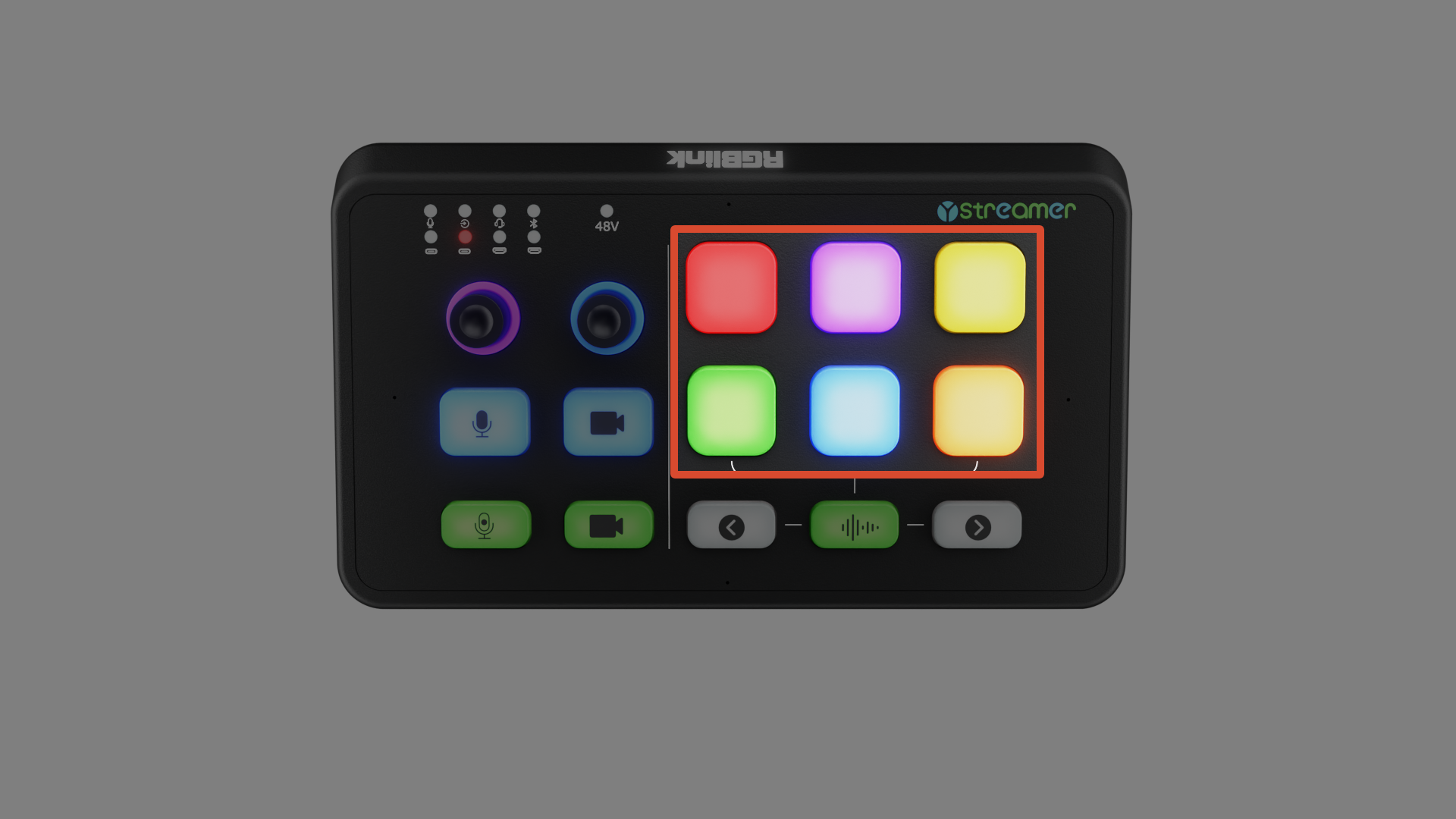
The device provides three pages of key settings, with six keys on each page.
Users can tap the color bar to customize colors. When switching between setting pages, the device keys display the color configuration of the corresponding page, as shown below.
| APP Interface | Device | |
|---|---|---|
 | 👉 |  |
3. Key Functions
1) Input Source
Assign a key to switch to a specified audio input.
2) Mute
Assign a key for mute control. Supports:
- Input Mute
- Output Mute
3) FX: Sound Effects
Assign a key to play sound effects. Supports:
- Selecting six default sound effects
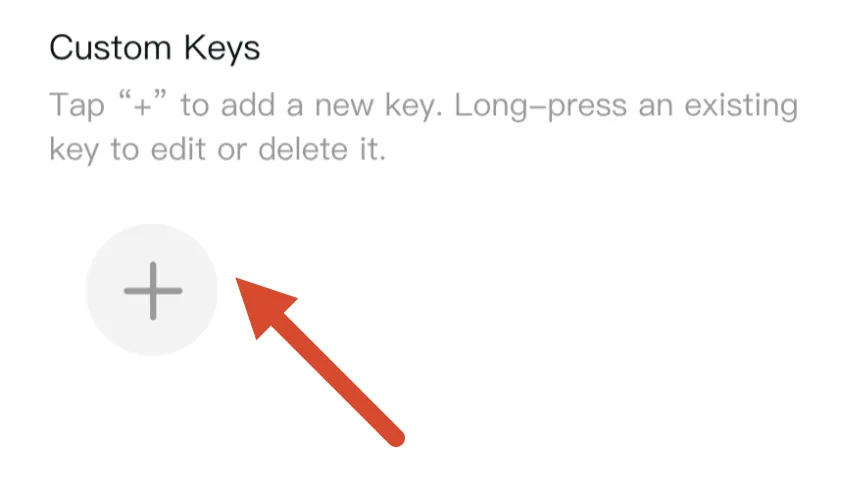
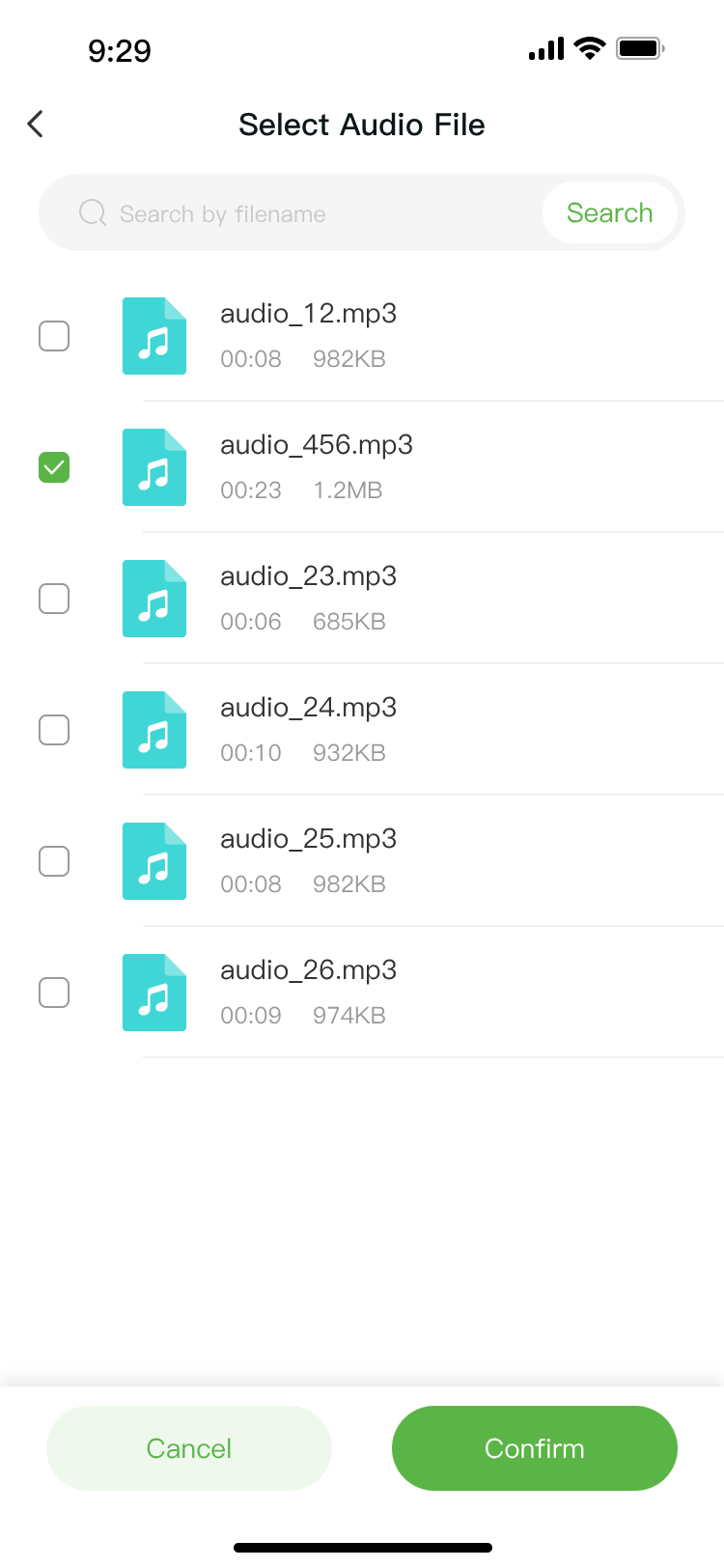
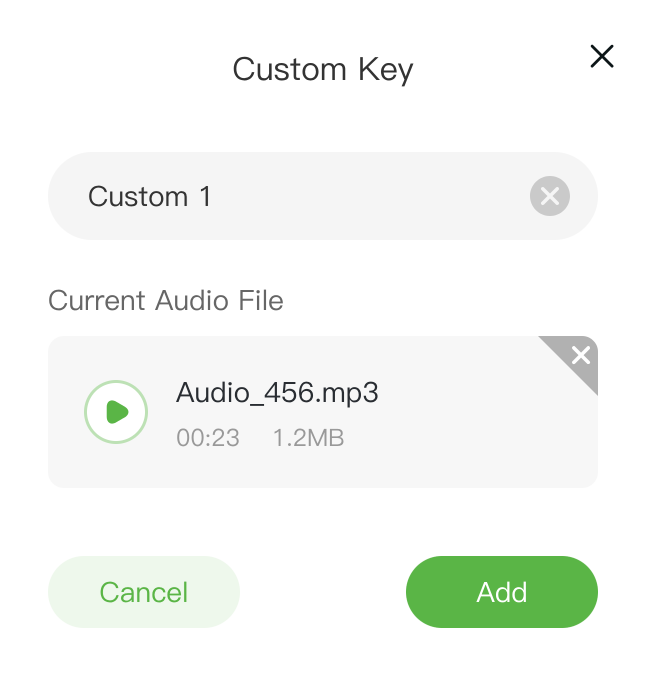
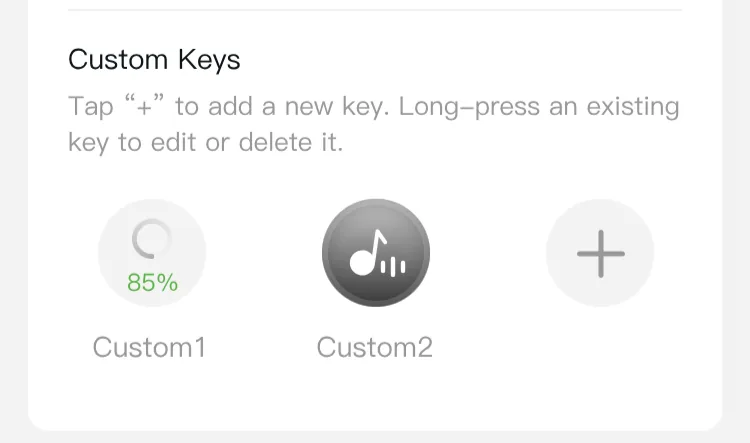
- Tapping + to import custom audio files
| ① | ② | ③ | ④ |
|---|---|---|---|
| Tap + on the Sound Effects setting page | Select an audio file from the file list and tap Confirm | Customize the key name in the pop-up window and tap Add to complete the process | After adding, press and hold the key to edit or delete the sound effect. |
 |  |  |  |
4) Mode Recall
Assign a key for quick mode switching, including Video Call mode, Streaming mode, Gaming mode, Bluetooth mode, and Custom mode.