Online Manual
Ystreamer

3.3.4 3.4 Audio Recording
Audio Recording
Ystreamer records audio inputs and the UAC mixed output as WAV files for storage and post-production.
🔔 Ystreamer supports multichannel audio recording, including nine audio inputs and one UAC mixed output.
The available recording channels depend on the connected audio sources.
Update the device to firmware V1.0.18 or later. See section 4. Upgrade.
3.4.1 Before Recording
Connect an external storage device to the UAC 1 port on Ystreamer, as shown below.
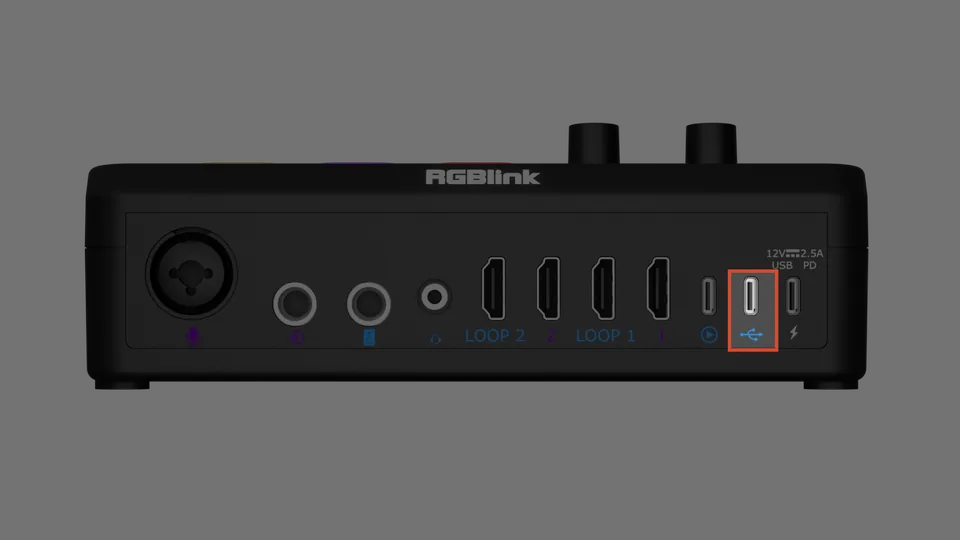
📢 Notes

If UAC 1 is also needed for audio input during recording, connect a USB hub with a USB-C port. Due to compatibility requirements, this setup is not recommended.
Ystreamer supports the following external storage devices:
- Unpartitioned USB drives formatted as FAT32 or exFAT.
- Externally powered hard drives. Use a separate power supply to avoid interrupting UVC 2 output when connecting or disconnecting cables.
3.4.2 Record Button Indicator
The Record button indicator shows the following states:
| Indicator | Description |
|---|---|
| Blue | Default state when powered on |
| Red | Recording |
| Flashes red three times, then turns blue | No external storage device detected; recording does not start |
3.4.3 Start Recording
🚨 Caution

DO NOT disconnect the storage device during recording. Doing so may damage or delete the recording files.
Using the Device Panel
- Make sure an external storage device is connected.
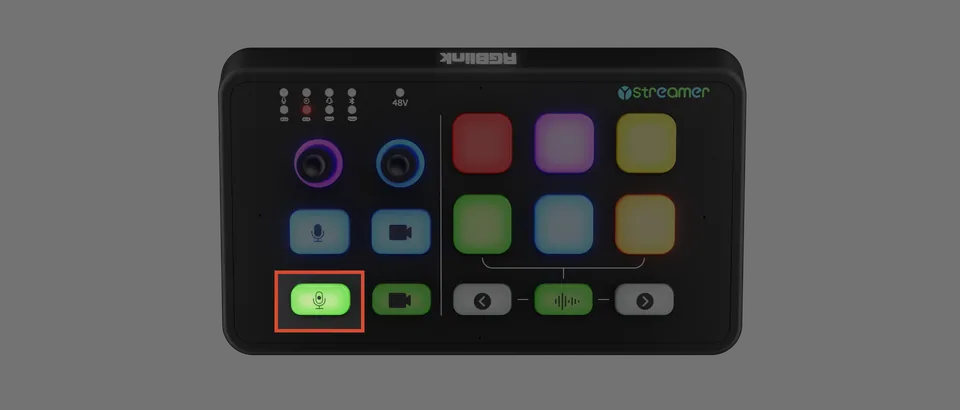
- Press the Record button on the device panel.
- Confirm that the indicator turns red.
- Refresh the TAO App manually to check the recording status.
- Press the Record button again to stop recording.
Using the TAO App
- Make sure an external storage device is connected.
- Open the TAO App and connect to Ystreamer.
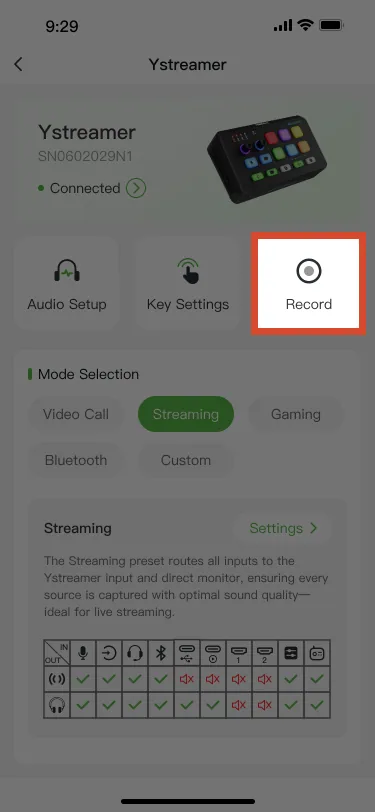
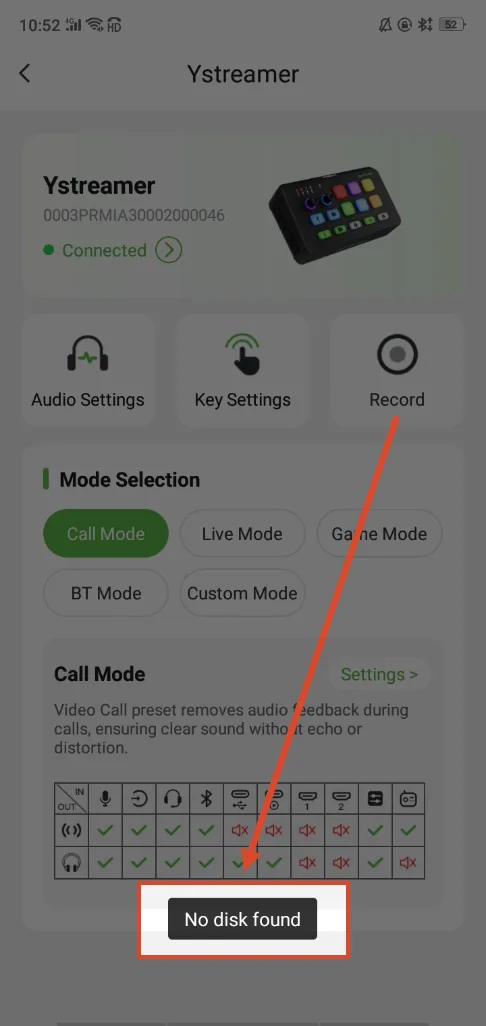
- Tap the Record icon to start recording.
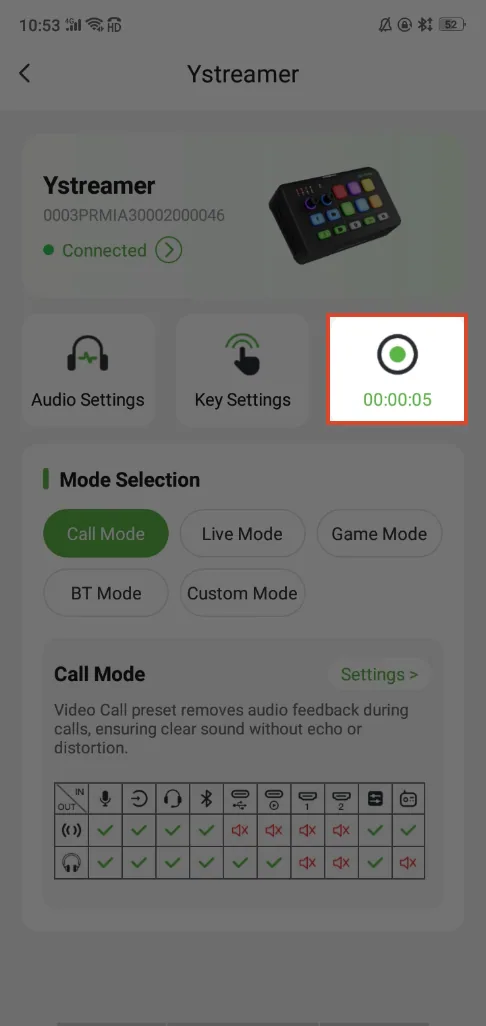
- Check the recording status in the TAO App.
- Tap the Record icon again to stop recording.
| Record icon | Recording timer | No storage device warning |
|---|---|---|
 |  |  |
📢 Tip

Wait a few moments after stopping recording before disconnecting the external storage device to avoid file corruption.
3.4.4 Record the Mixed Output
The computer must first capture the mixed audio output before it can be recorded.
In OBS and other software that supports audio capture, the audio signal appears as Capture Input terminal (Source/Sink). Add it as an audio source.
For setup instructions, see section 3.2 Video Capture and Streaming, which covers dual-channel capture configuration.
3.4.5 Recording Files
Recording Bitrates
The following table lists the recording bitrates for each input source and the mixed output.
| Recording Source | Icon | Bitrate (kbps) |
|---|---|---|
| Bluetooth |  | 1411 |
| HDMI 1 |  | 1536 |
| HDMI 2 |  | 1536 |
| MIC |  | 1536 |
| TRRS |  | 768 |
| TRS |  | 1536 |
| XLR |  | 768 |
| UAC 1 |  | 768 |
| UAC 2 |  | 1536 |
| UAC 2 Mixed Output | | 1536 |
File Size
Each recording file can be up to 3.7 GB. When a file reaches this limit, Ystreamer automatically creates a new file and continues recording.
Recording stops automatically when the external storage device runs out of space.
Folder Structure
WAV files are saved in the Audio folder in the root directory of the external storage device. Ystreamer automatically creates a subfolder for each date.
Example:
Audio/
└── 20260929/
    ├── MIC_IN_20260929.wav
    ├── UAC2_OUT_20260929.wav
    └── ...
File Date and Time
Recording file dates and times are based on the device's system clock.
If the timestamps are incorrect, connect the device to a network and synchronize its clock through NTP.