Online Manual
mini-iso-manual

3.1 Operation
3.1.1 Buttons and Touchscreen
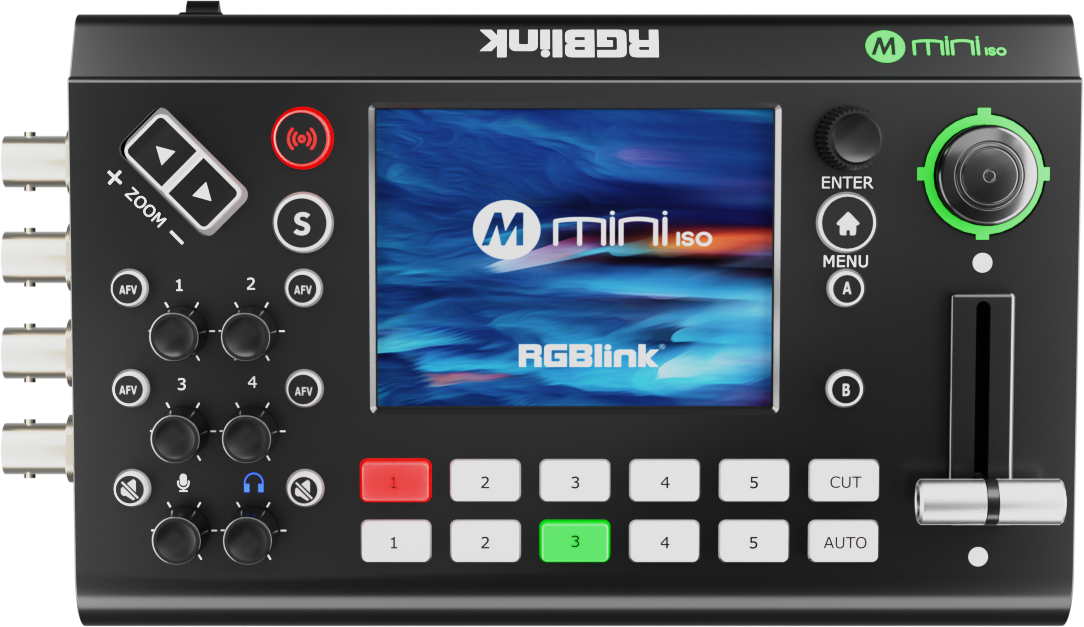
mini-ISO front panel features a 3.5-inch full-color display for menu navigation and device status monitoring, and buttons for quick access to commonly used functions.
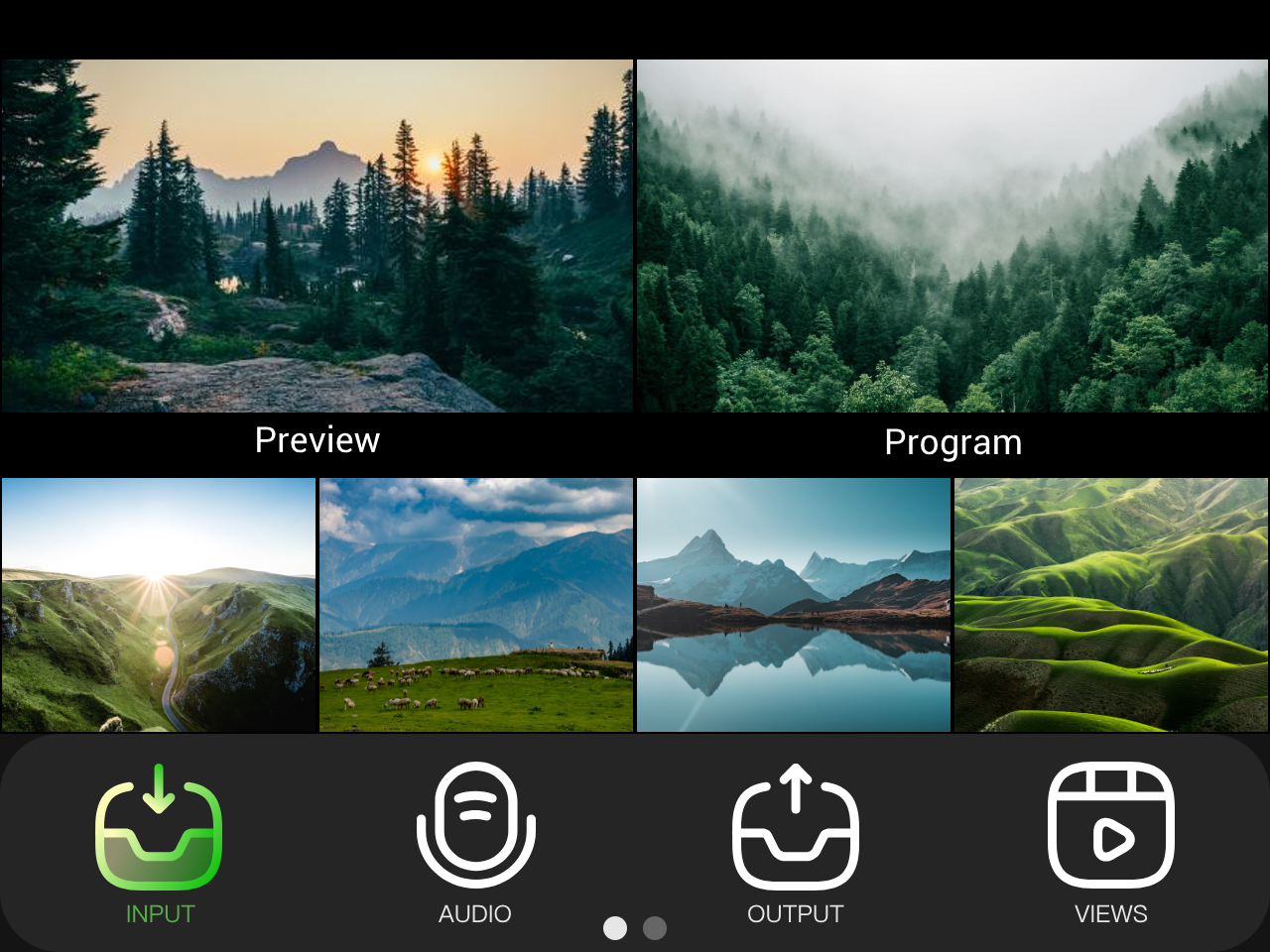
From the main interface, press MENU to enter the menu screen.
The menu system uses an icon-based interface similar to a smartphone operating system.
All primary menu items are displayed as icons. You can tap or rotate ENTER to navigate, select, and confirm menu options, then enter the corresponding function page for configuration and operation.
3.1.2 Web App
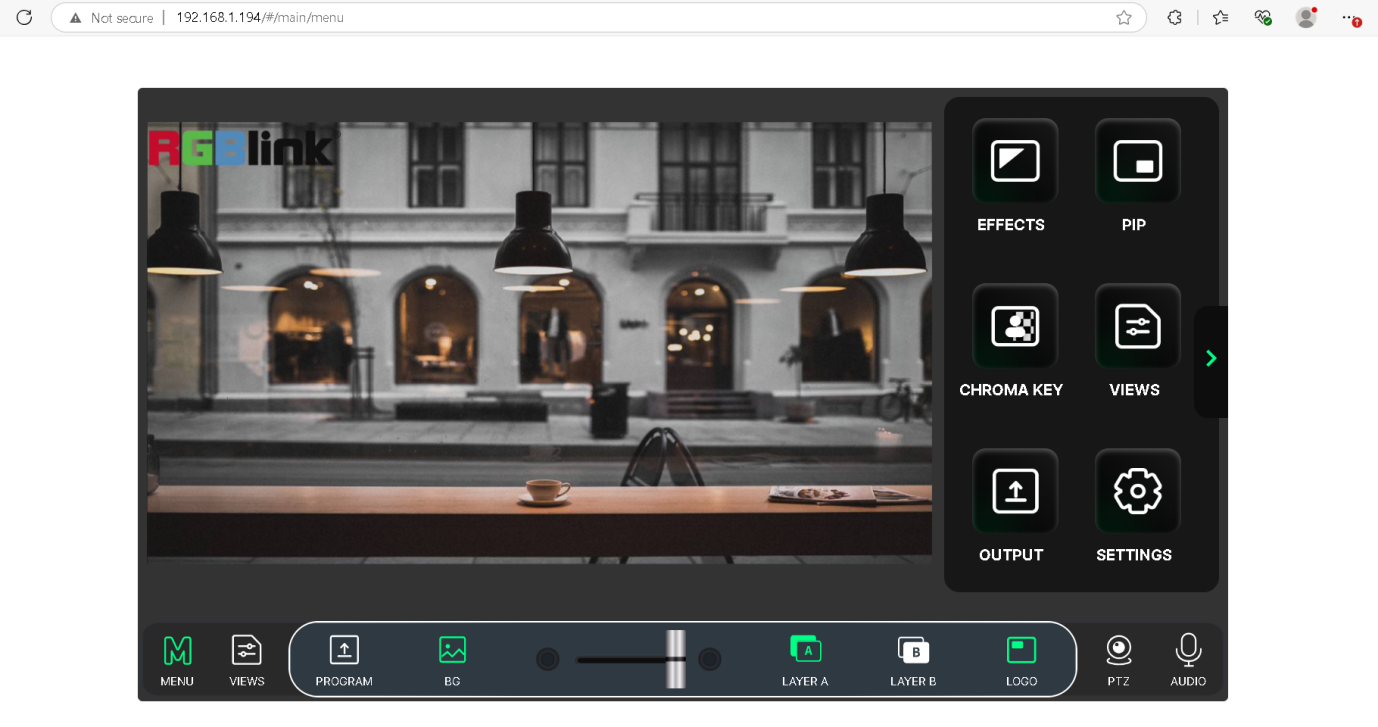
mini-ISO supports browser-based control through Web App, with no software installation required.
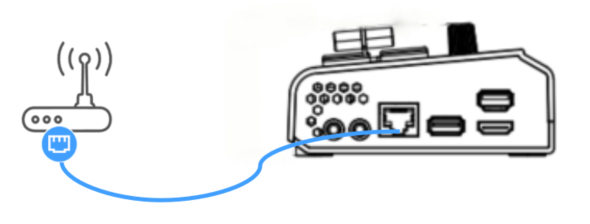
- Connect the** **Ethernet port of mini-ISO to a router using a CAT6 Ethernet cable.
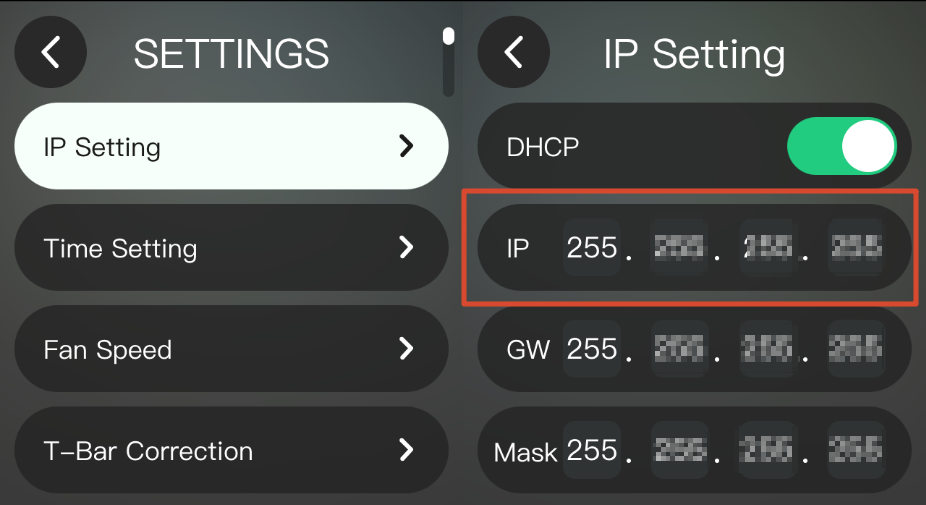
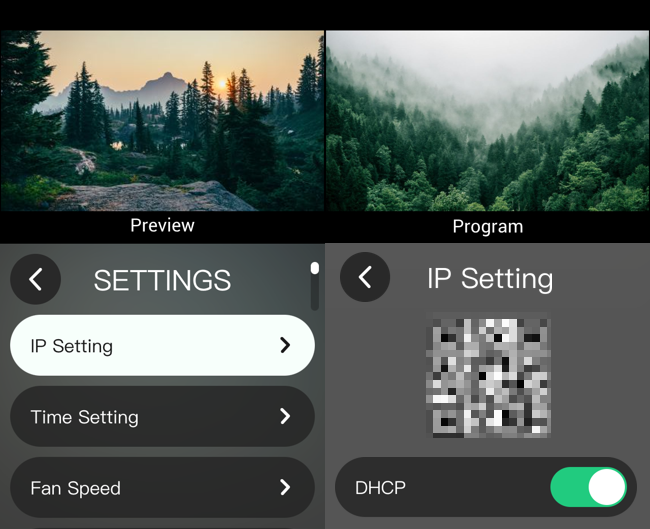
- Go to SETTINGS >IP Setting
- Enable DHCP to obtain an IP address automatically.
On a computer connected to the same network:
- Open a web browser and enter the device IP address in the address bar.
- Press Enter.
- The Web App interface will open. You can switch sources, configure settings, and perform other remote operations.
- You can also scan the QR code on the IP Setting page with a mobile phone on the same network to access the web control interface.
3.1.3 TAO Cloud Remote Control
See section 3.12 TAO Cloud for details.