Online Manual
mini-iso-manual

3.4 Audio
3.4.1 Adjusting Audio Volume
mini-ISO supports independent volume adjustment for input, microphone, and output audio. You can adjust audio levels using the audio knob on the front panel or the touchscreen interface.
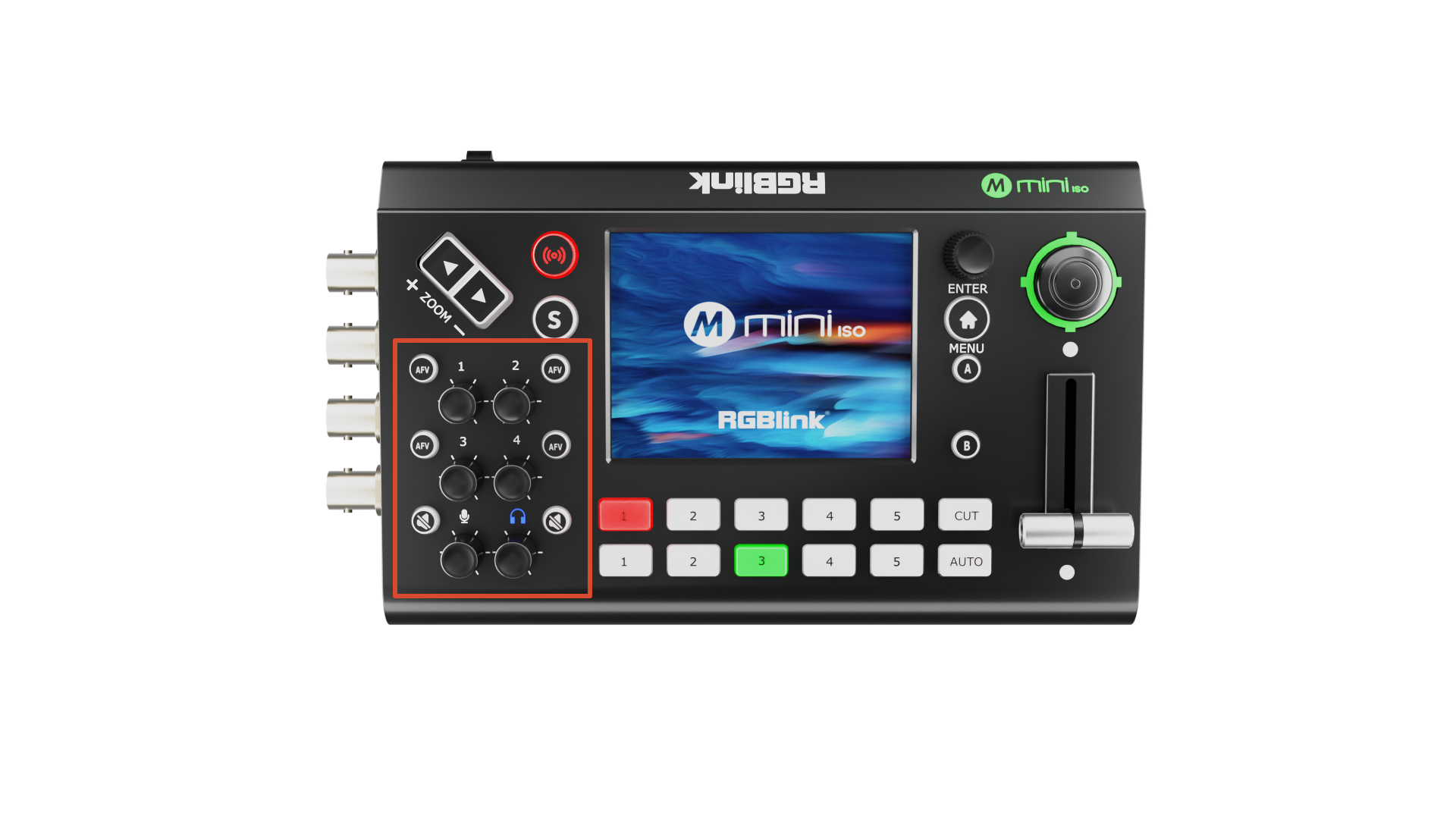
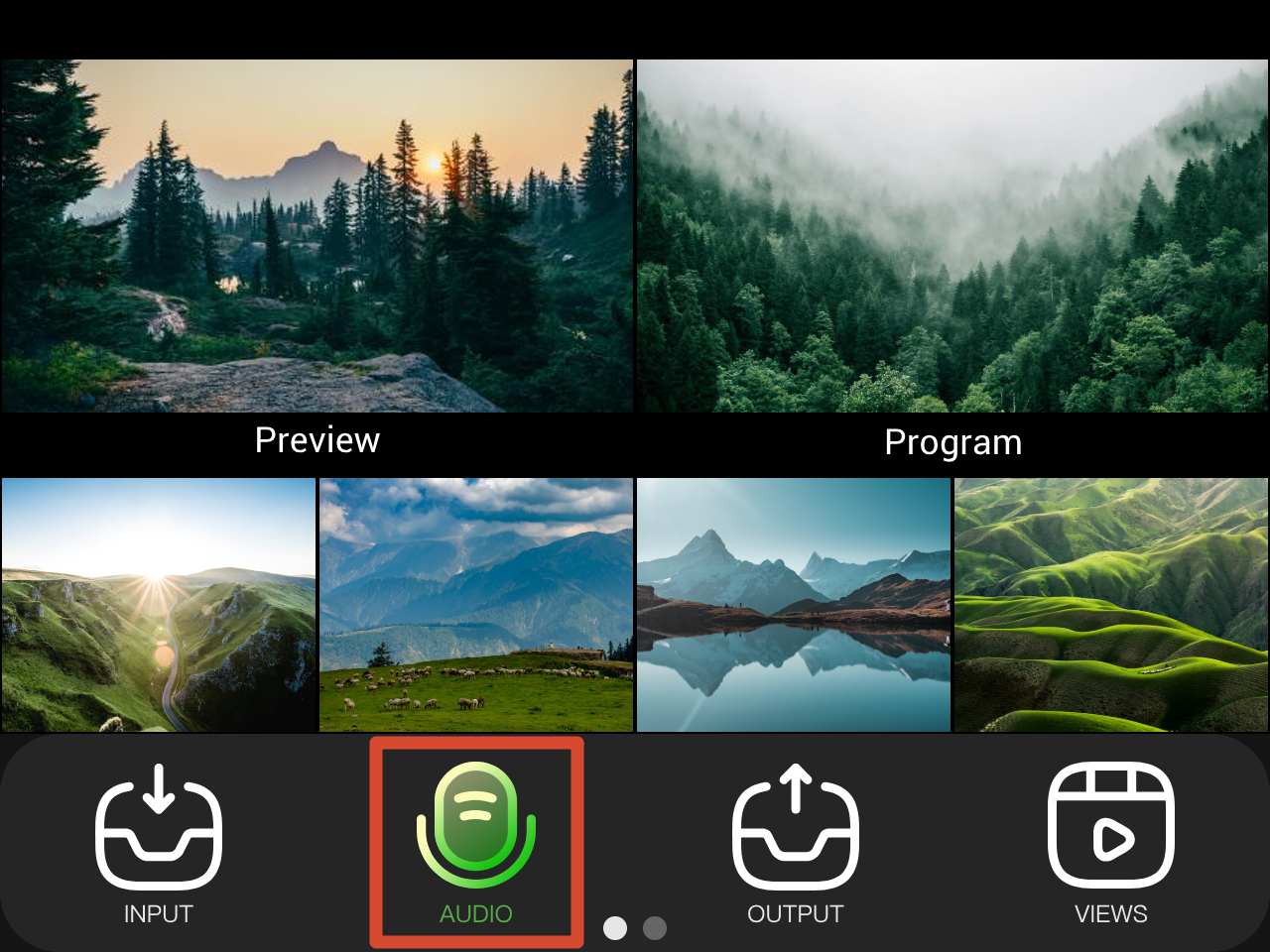 | 👉 | 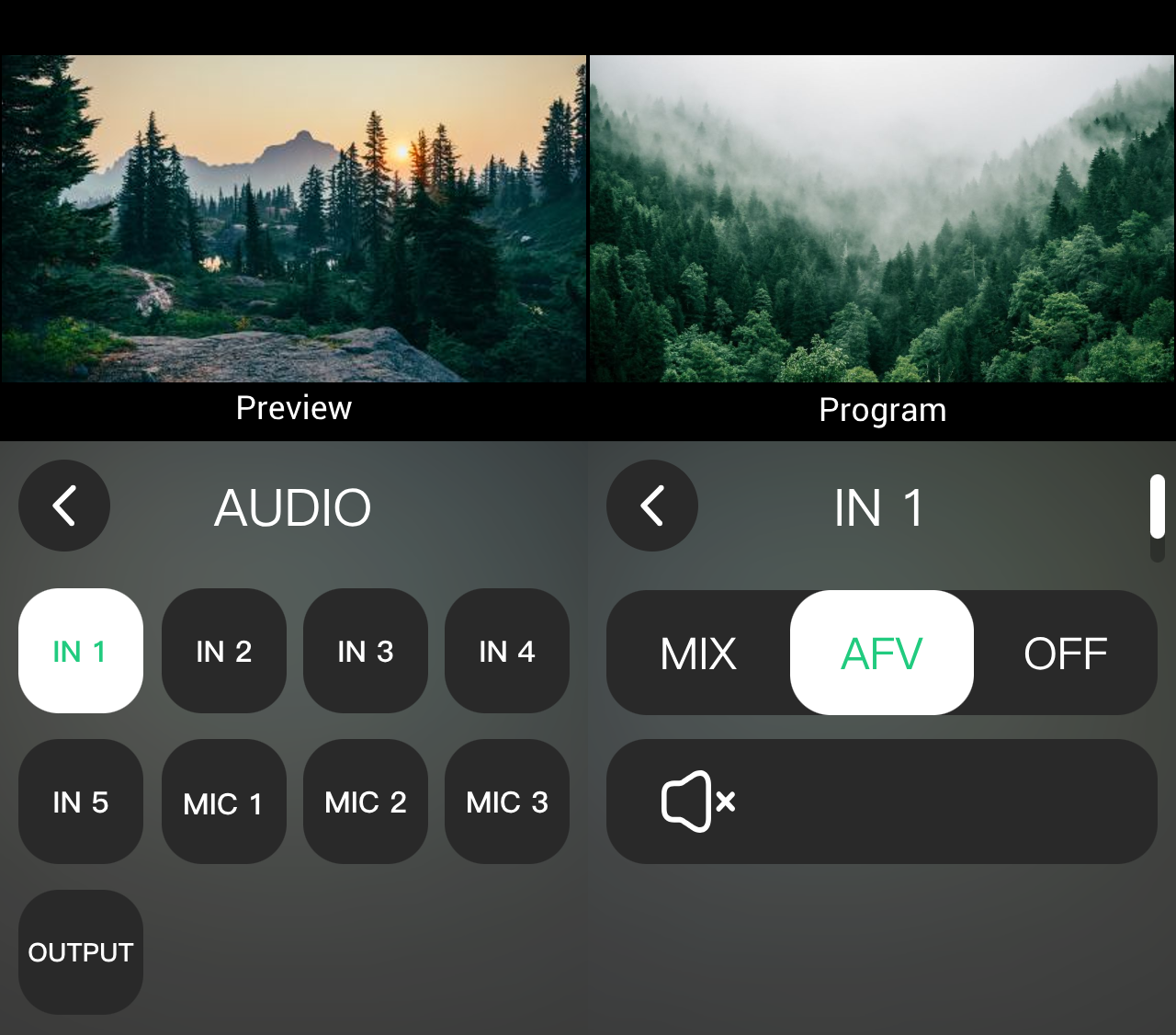 |
|---|
- Select Audio from the main menu to enter the audio settings.
- Select the audio channel to adjust.
- Enable or disable the corresponding audio output.
- Drag the volume slider to adjust the volume.
3.4.2 Input Audio Settings
IN1-4
All four HDMI inputs and four SDI inputs on mini-ISO support embedded audio. You can adjust the HDMI/SDI input audio volume in the audio settings.
| Icon | Description |
|---|---|
| IN 1 | HDMI 1 or SDI 1 |
| IN 2 | HDMI 2 or SDI 2 |
| IN 3 | HDMI 3 or SDI 3 |
| IN 4 | HDMI 4 or SDI 4 |
IN 5
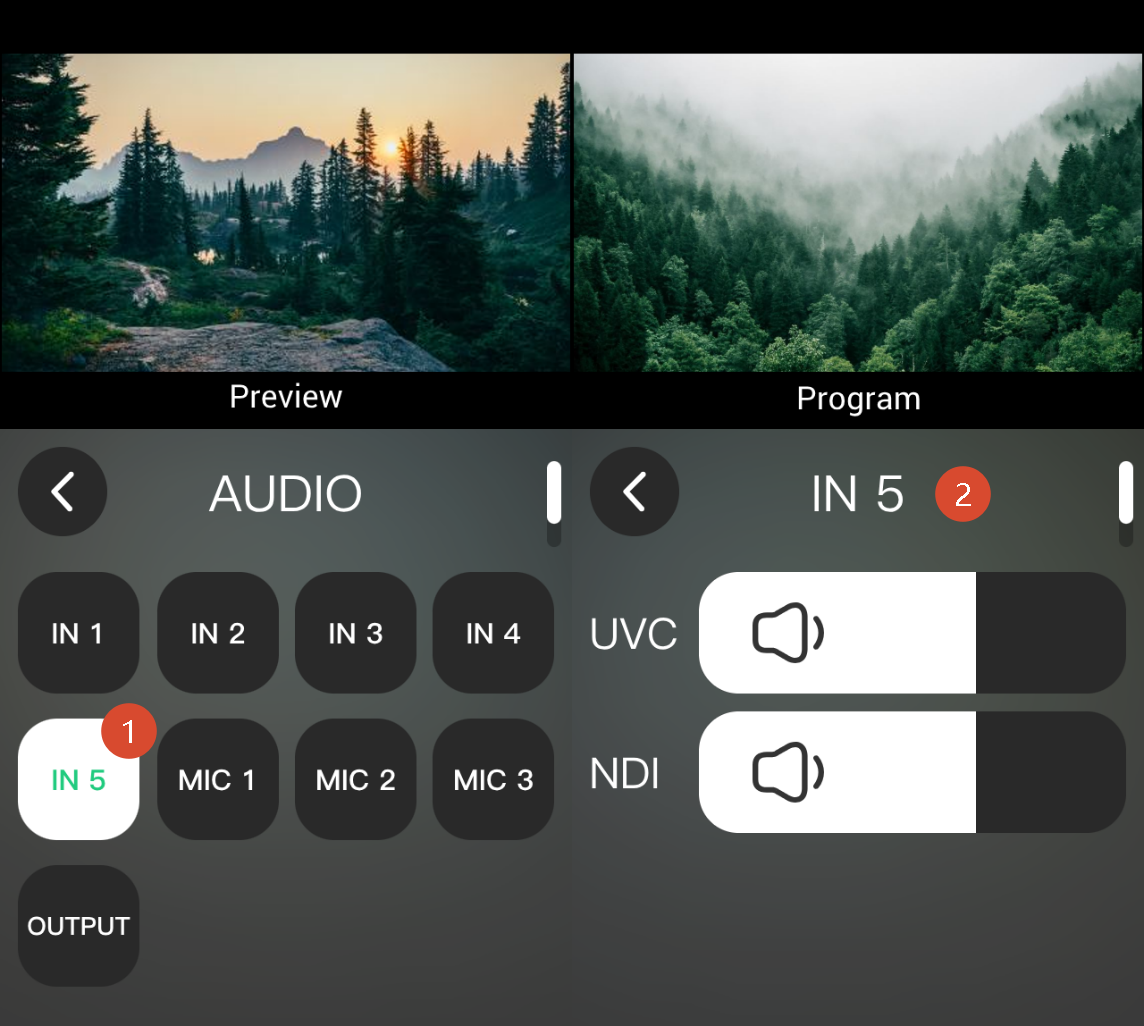
mini-ISO supports audio input from USB or NDI sources.
Select IN 5 and adjust the volume according to the connected input source.
MIC 1-2
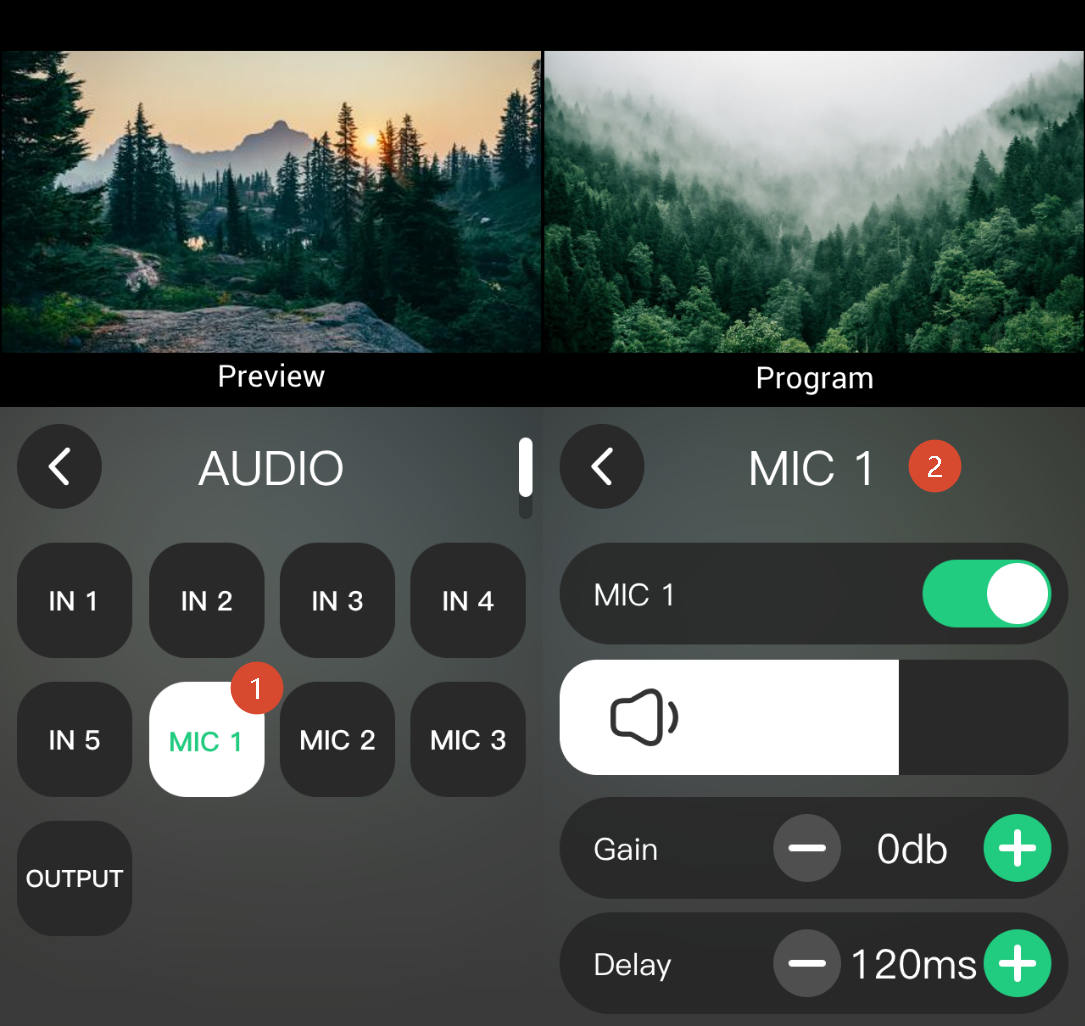
mini-ISO supports two microphone inputs, MIC 1 and MIC 2.
Users can perform the following operations in the settings interface:
- Enable or disable MIC 1/2 input.
- Adjust the audio volume, gain (db) and delay (ms).
MIC 3
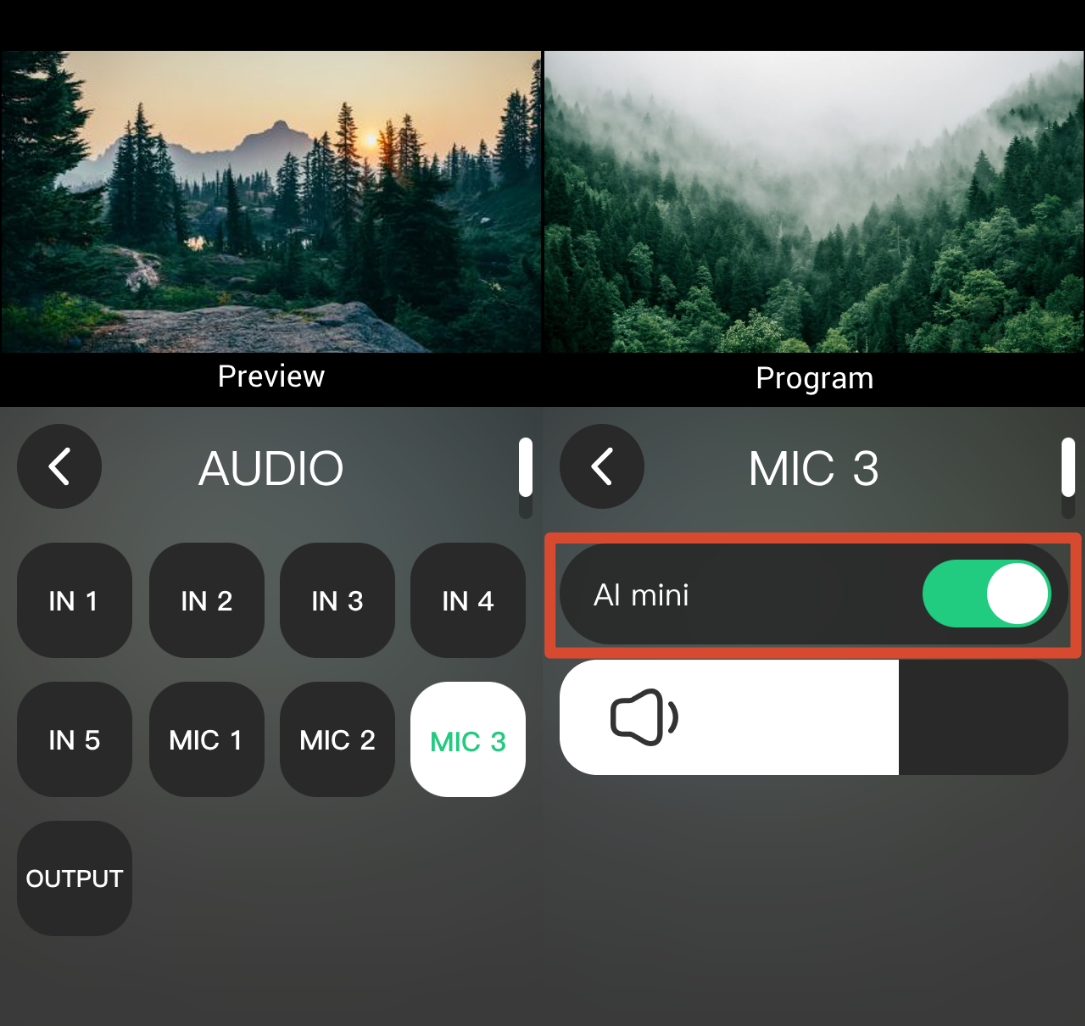
mini-ISO supports audio input from a camera or AI mini receiver.
- When an AI mini receiver is connected, the device automatically detects it and displays** AI mini**.
- When another camera is connected, MIC 3 is displayed as MIC 3.
3.4.3 Audio Modes
MIX
mini-ISO supports multichannel audio mixing.
When** MIX **mode is enabled, the selected audio channels are continuously output to the main output.
- Enter the AUDIO settings.
- Select the audio channels to mix.
- Enable MIX mode.
- Adjust the volume of each channel.
📢  Notes

When MIX mode is enabled, the audio from the selected channel remains on even when the video source is switched.
AFV
mini-ISO supports AFV (Audio Follow Video) mode, which synchronizes audio output with the video source selected for the PGM main output.
When AFV mode is enabled, only the audio from the video channel currently selected for PGM is output. When the video source is switched, the audio transitions accordingly.
📢  Notes

Follow mode applies only to HDMI/SDI inputs IN1–4.
- Enter the AUDIO settings.
- Select an audio input.
- Enable AFV mode.
3.4.4 Output Audio Settings
Select OUTPUT to adjust the main output volume.