Online Manual
mini-iso-manual

3.6 PTZ Control
mini-ISO supports PTZ camera control via IP VISCA and NDI protocols.
Control PTZ camera pan, tilt, zoom, and focus from mini-ISO. Save frequently used positions for quick recall.
📢 Notes

The following protocols are not currently supported:
-  CGI
-  HTTP
-  Pelco-D
-  Pelco-P
3.6.1 Enable PTZ
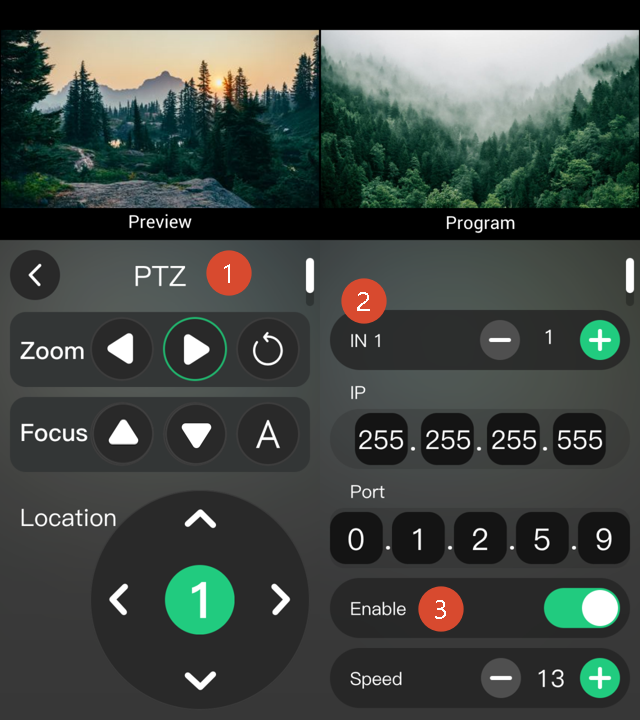
Select and Enable a PTZ Input
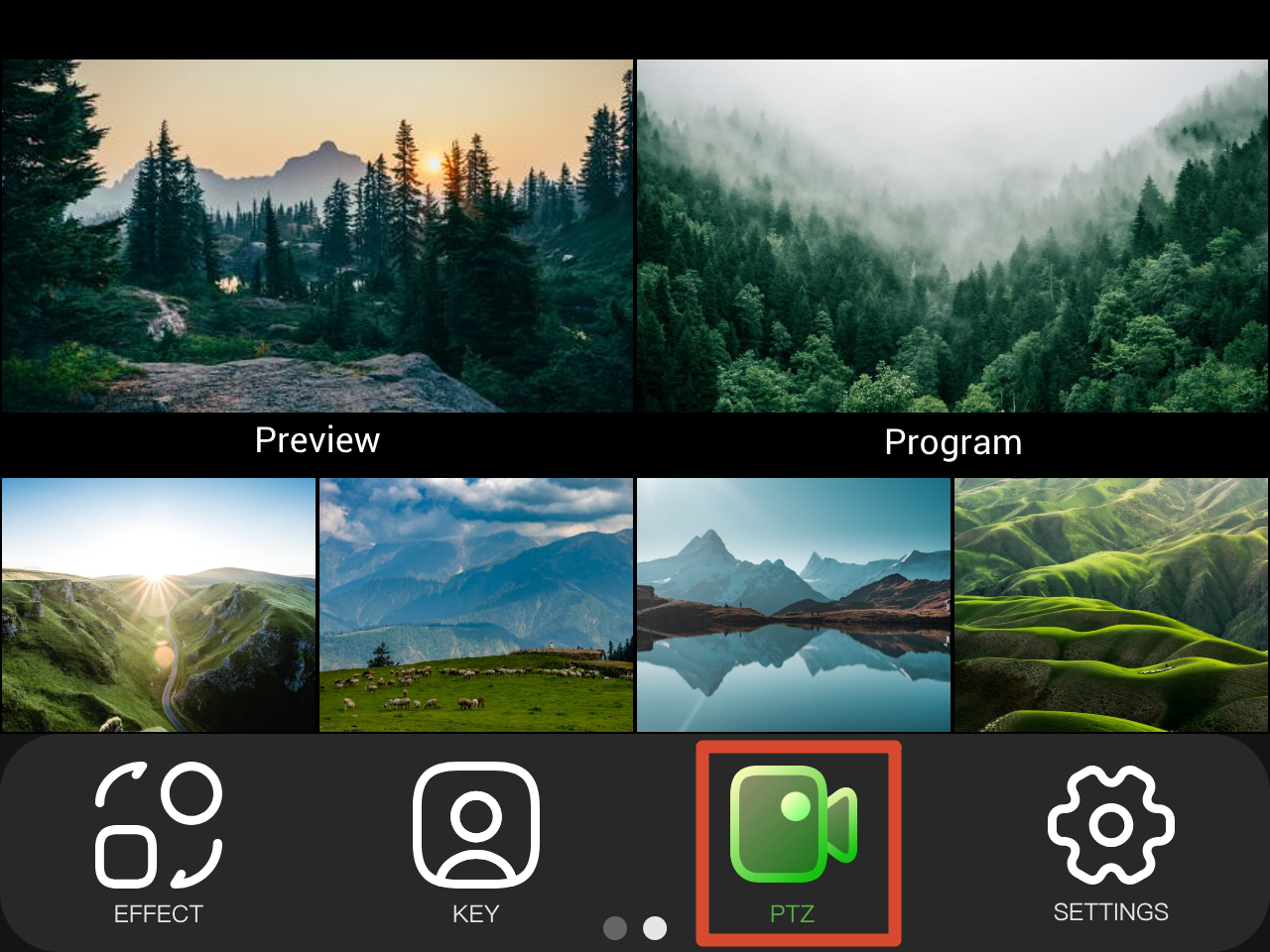
- Select PTZ from the main menu to enter the PTZ control page.
- Tap + or - in the IN section to switch between input sources. The following inputs are available:
- IN1–4
- IN5: PTZ cameras controlled via NDI
- Open the Enable switch to activate PTZ control for the selected input.
 | 👉 |  |
|---|
Set the IP Address
mini-ISO and the camera must be on the same subnet. The first three segments of the mini-ISO IP address must match those of the PTZ camera.
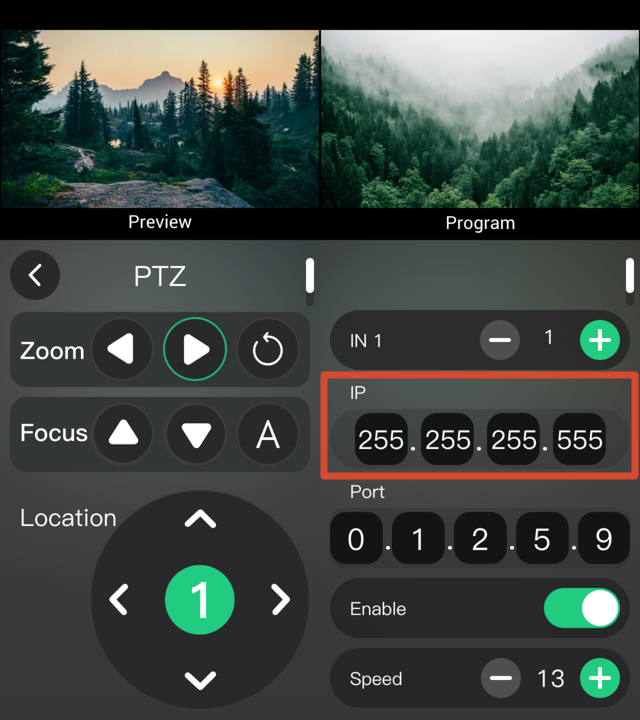
Set the Camera IP Address
- Tap the corresponding field in the IP section.
- Rotate the ENTER knob to adjust the value.
- Press the ENTER knob to confirm.
Set mini-ISO IP Address
- On the main menu, go to SETTINGS > IP Setting.
- Obtain IP Automatically: Enable DHCP to allow the device to obtain an IP address automatically.
- Set IP Manually: Disable DHCP and manually enter the IP address. Follow the same procedure as setting the camera IP address.
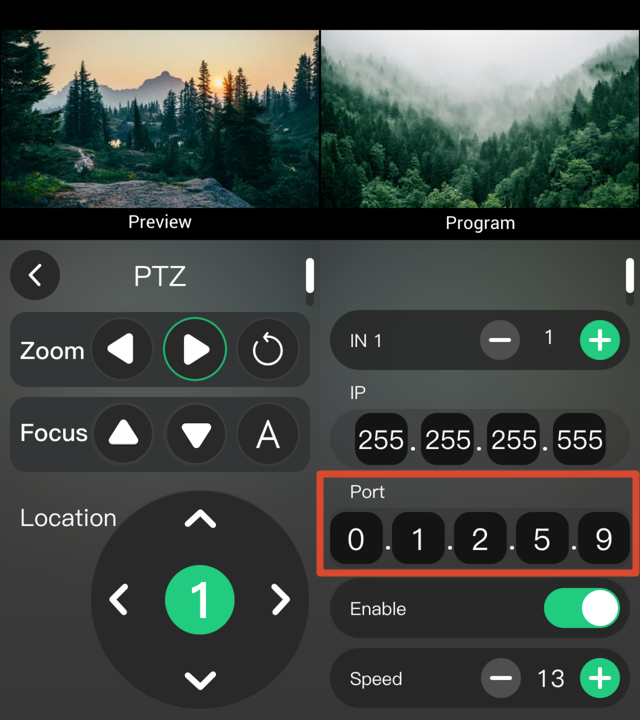
Set the Port Number
mini-ISO communicates with the camera through a network port.
- Tap the field to be modified in the Port section.
- Rotate the ENTER knob to adjust the value.
- Press the ENTER knob to confirm.
📢 Notes

mini-ISO communicates with cameras through ports.

RGBlink Vue series broadcast cameras use port 1259 by default. For other camera brands, check the camera manual and enter the correct port number.
NDI Authorization
To connect to a PTZ camera via NDI requires TAO Cloud binding and authorization. See section 3.2.1 IN 5, NDI Decoder for more details.
3.6.2 PTZ Control
Pan/Tilt/Location
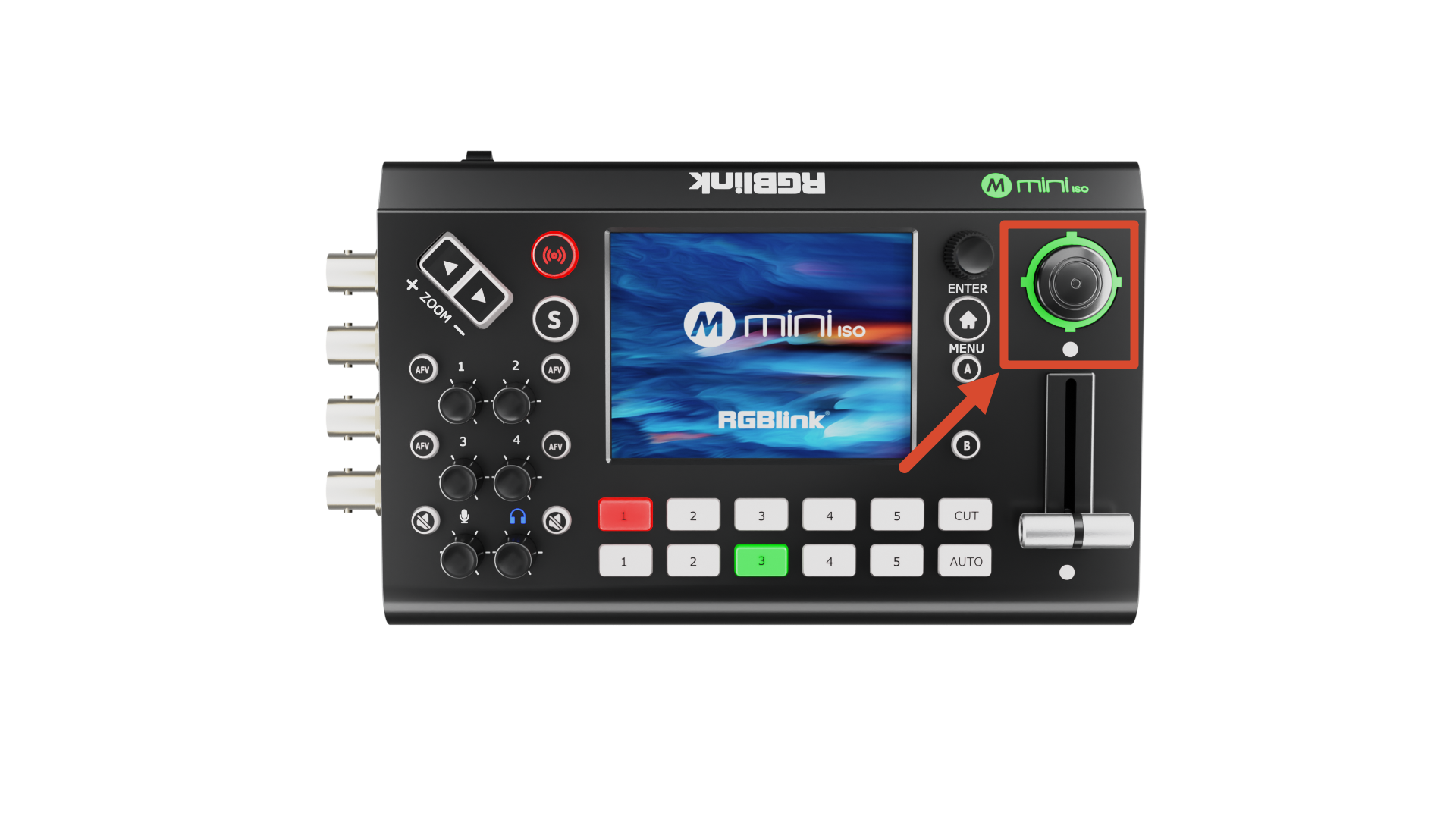
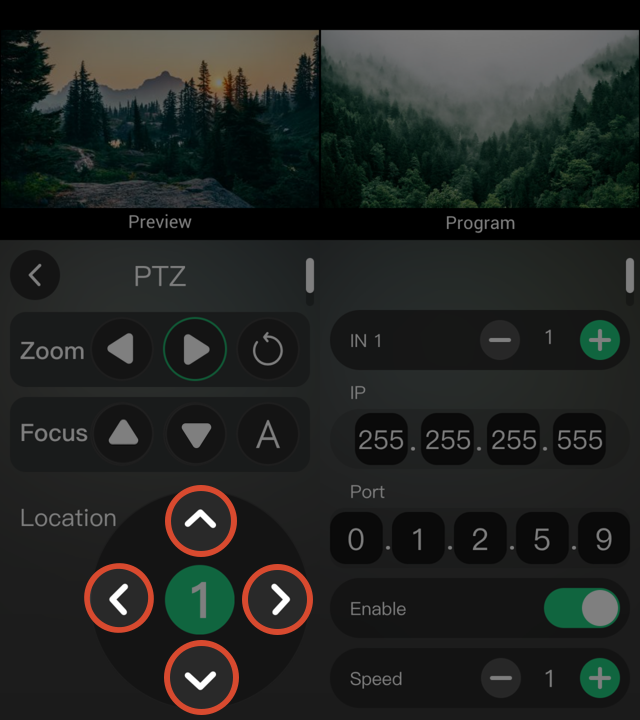
mini-ISO supports pan and tilt control of PTZ cameras. Users can control the camera direction in either of the following ways:
- Use the five-direction joystick on the front panel.
- Tap the directional buttons in the Location section of the PTZ menu.
Zoom
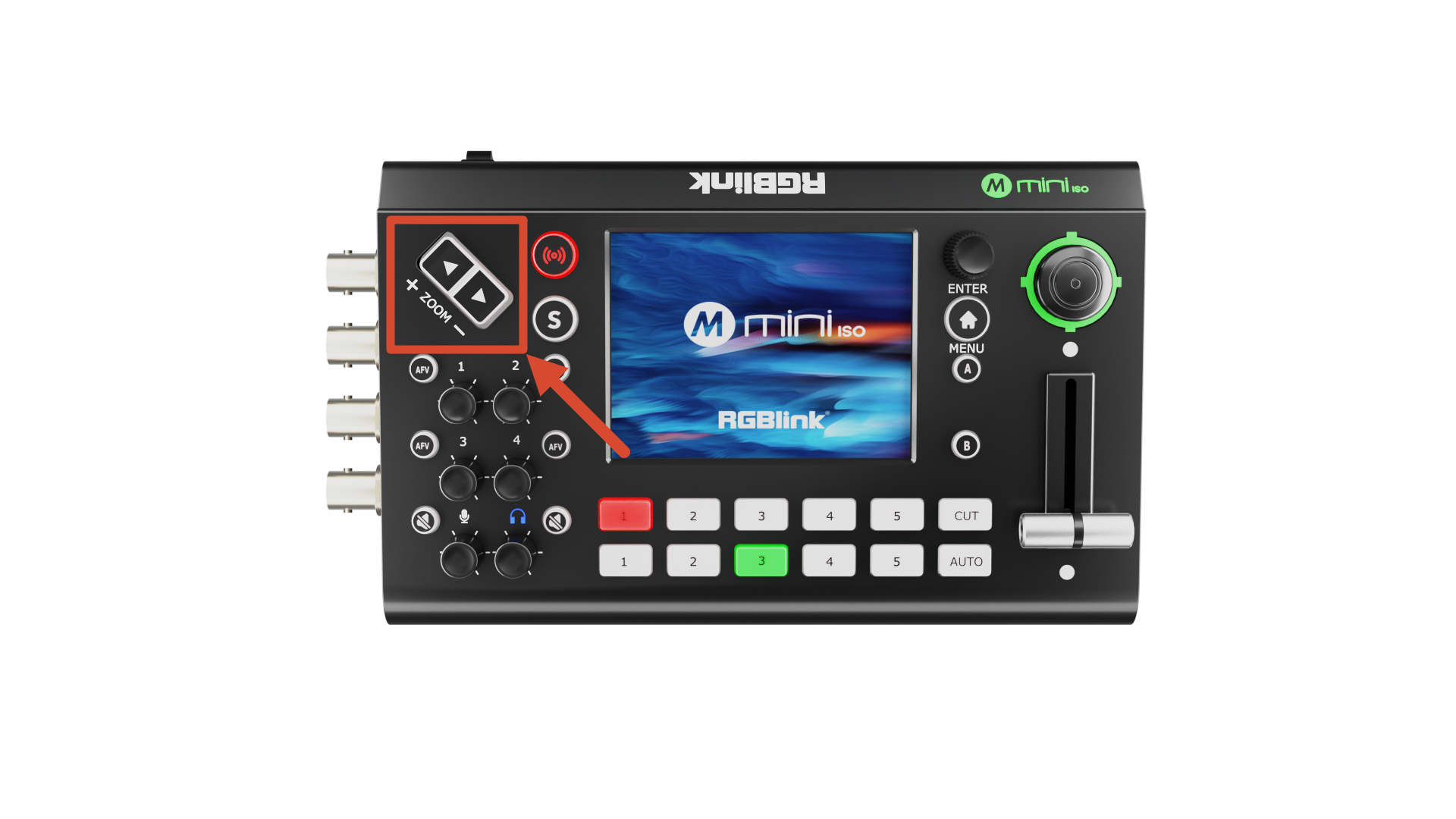
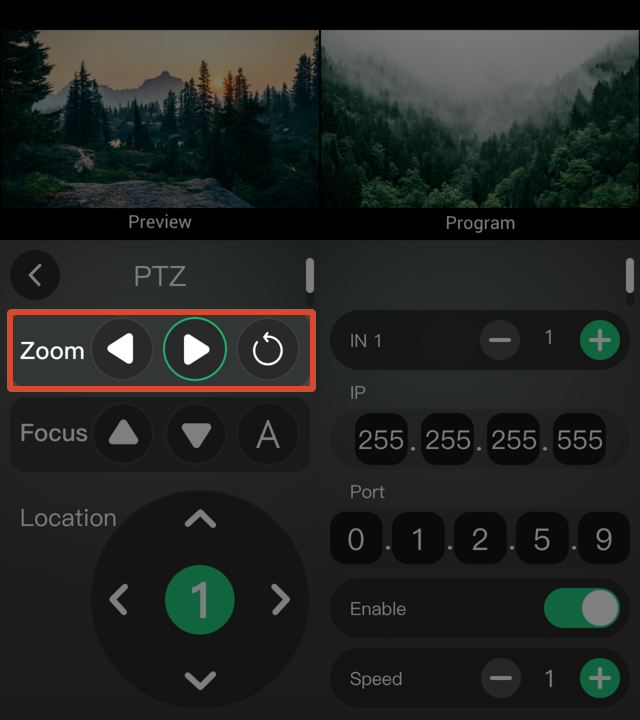
mini-ISO supports lens zoom control for PTZ cameras. Users can adjust the zoom in the following ways:
- Use the ZOOM IN/OUT buttons on the front panel.
- In the PTZ settings menu, tap in the Zoom section to adjust the zoom.
- Tap the reset button in the Zoom section to restore the default setting.
Focus
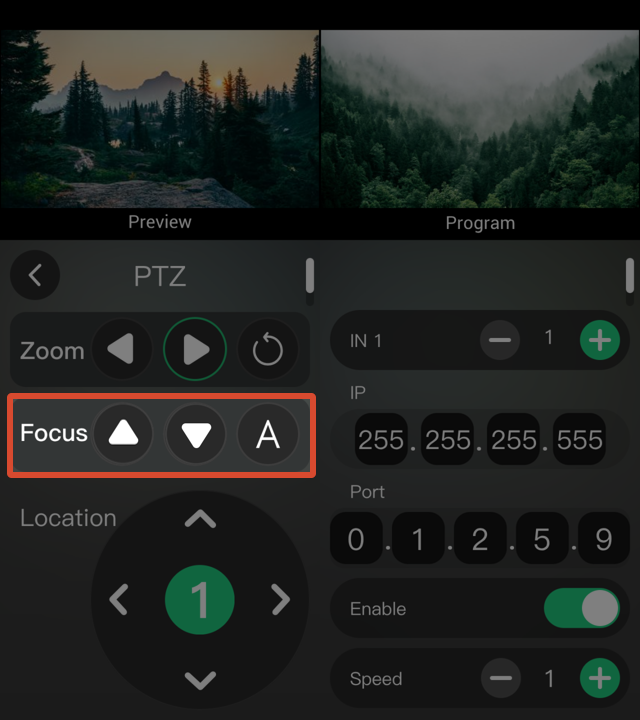
mini-ISO supports both autofocus and manual focus.
- In the PTZ settings menu, tap ↑ or ↓ in the Focus section to adjust the focus.
- Choose A to enable autofocus.
- Tap A to switch to M for manual focus.
Speed
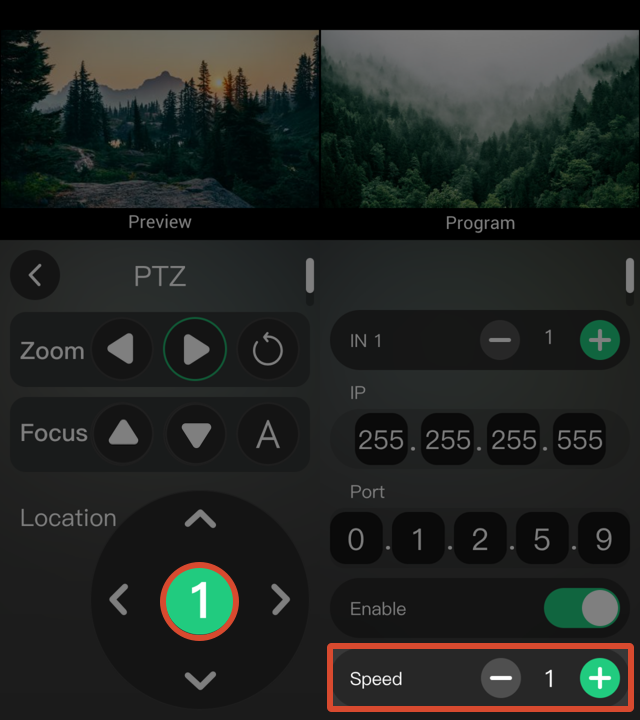
17 speed levels are available, from 1 to 17. The default speed is 13.
- In the Speed section, tap the number button in the center to cycle through the speed levels: 1/3/5/7/9/11/13/15/17.
- In the Speed section on the right, tap + or - to adjust the speed.