Online Manual
mini-iso-manual

3.10 Recording
mini-ISO supports recording the program output via USB for backup, archiving, and further editing.
Users can connect a USB flash drive or portable SSD. FAT32 and exFAT formats are supported. Recording files are automatically split into 4 GB segments.
📢  mini-ISO Recoding Notes

ISO (Independent Source Output) recording for inputs is not supported.
3.10.1 Connect a Storage Device
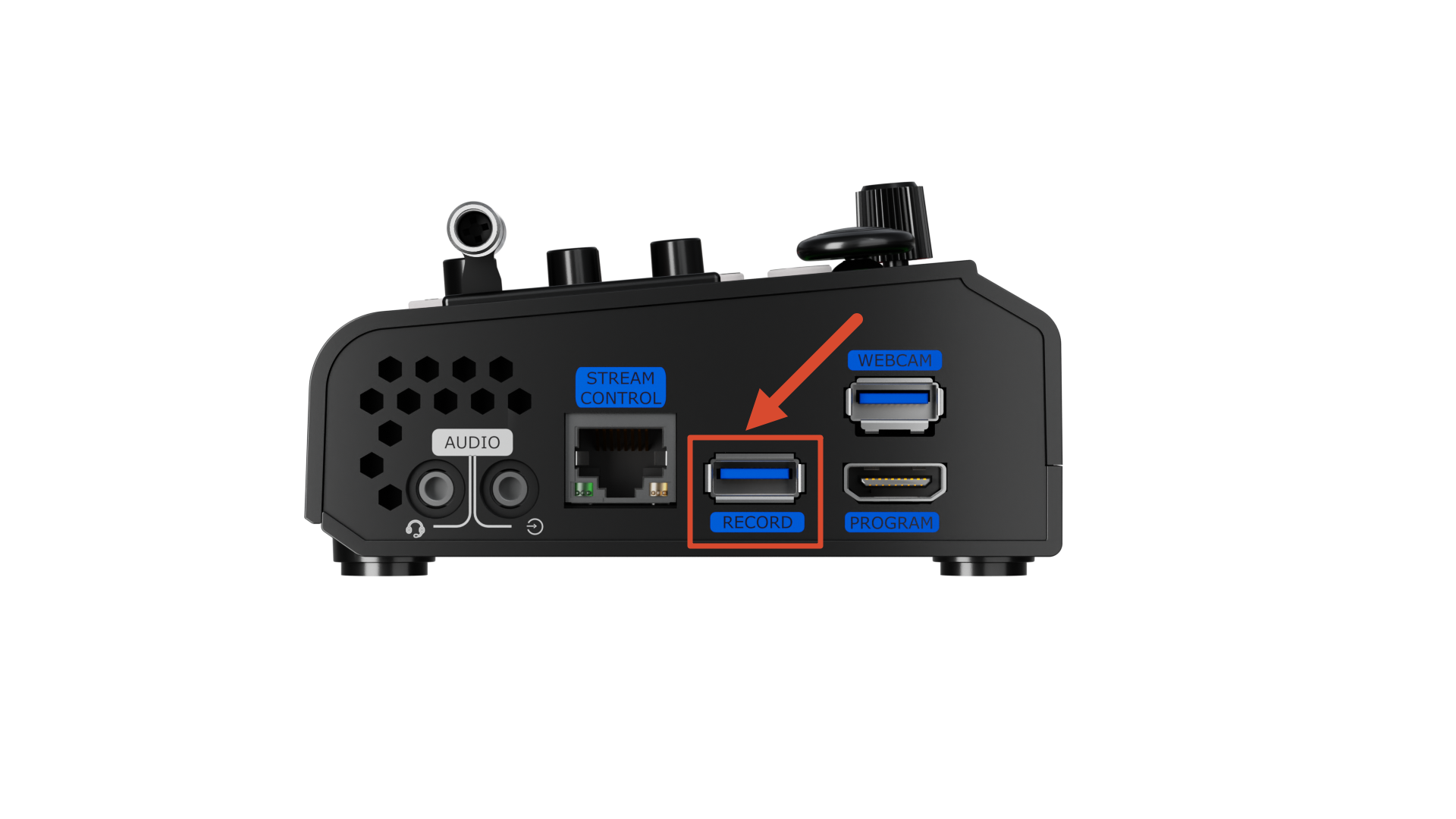
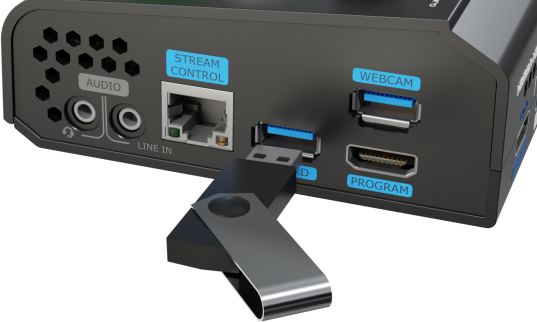
- Connect a USB flash drive or SSD to the USB port labeled RECORD.
 | 👉 |  |
|---|
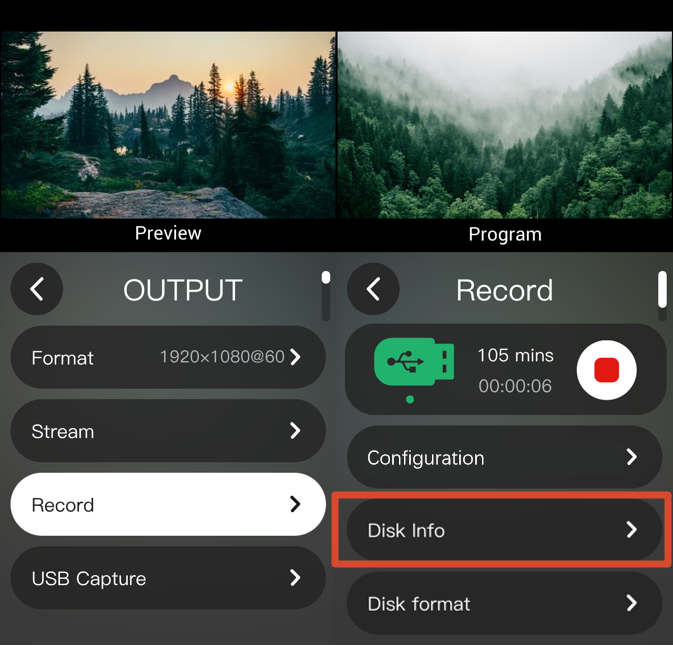
- Select OUTPUT > Record from the main menu to enter the recording settings page.
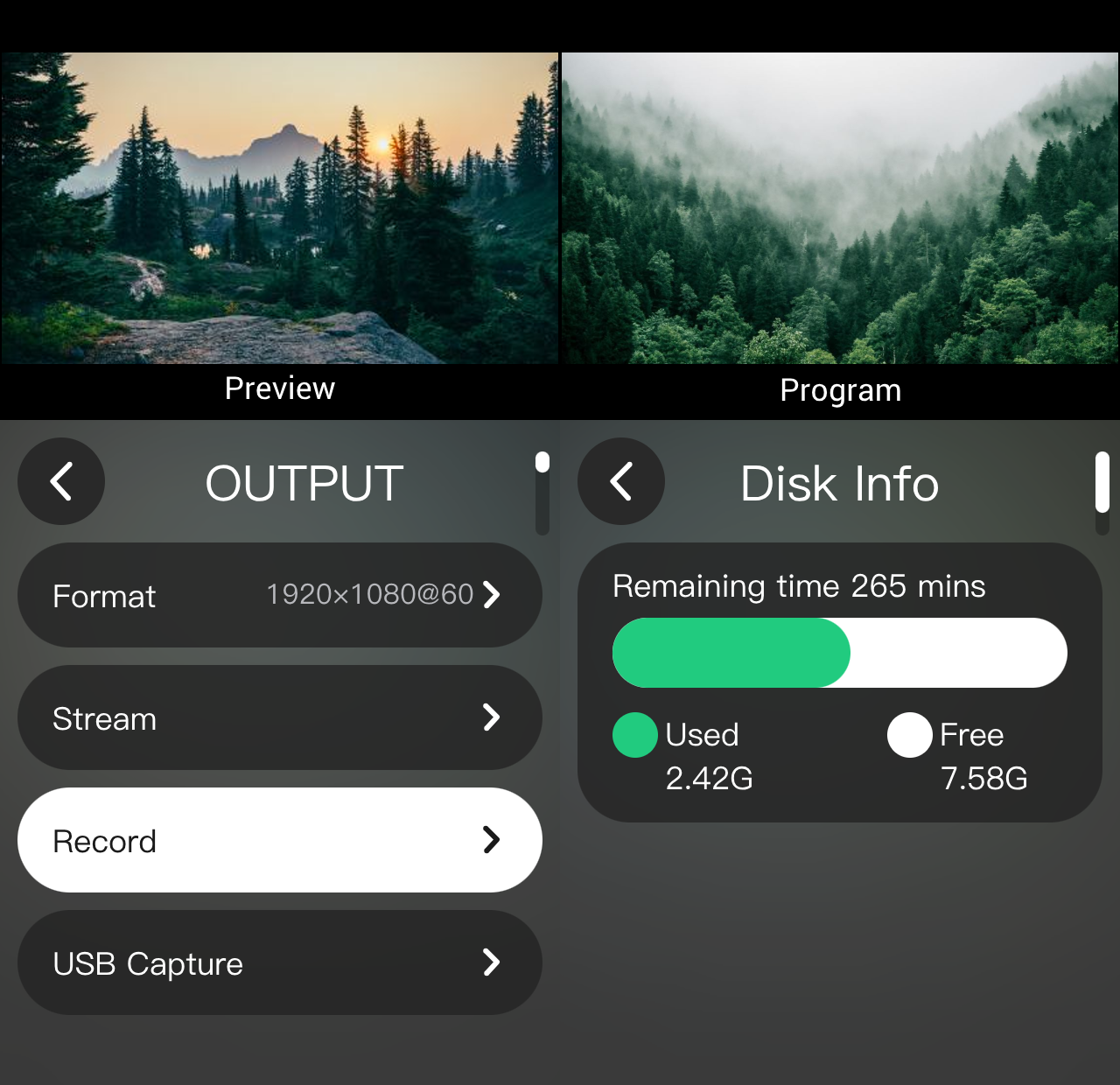
- View the used and available storage capacity in Disk Info.
 | 👉 |  |
|---|
3.10.2 Recording Settings
Select Configuration on the recording settings page to set the recording bitrate.
| Quality | Bitrate |
|---|---|
| Low | 2 Mbps |
| Middle | 4 Mbps |
| High | 8 Mbps |
| Best | 16 Mbps |
3.10.3 Start/Stop Recording
📢  Recording Notes
Wait until the recording file is saved before disconnecting the storage device.
Disconnecting the storage device during recording may cause file corruption or recording failure.
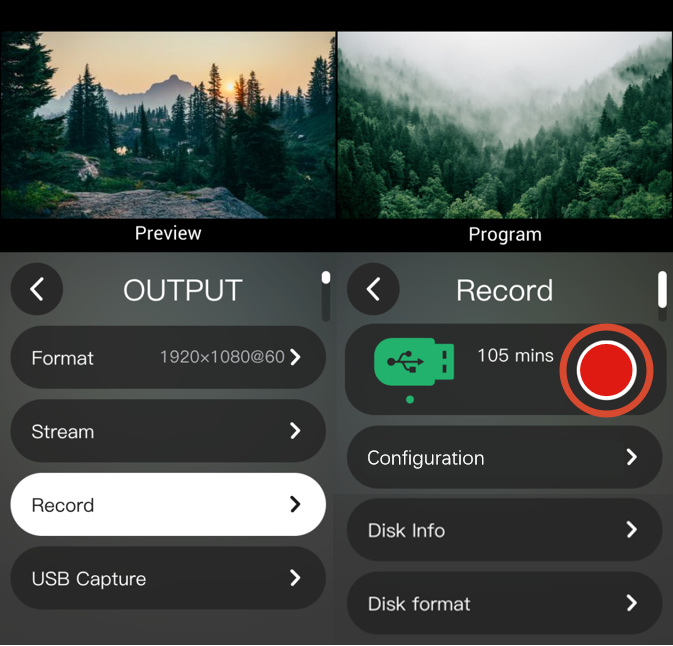
- Tap the record icon to start recording.
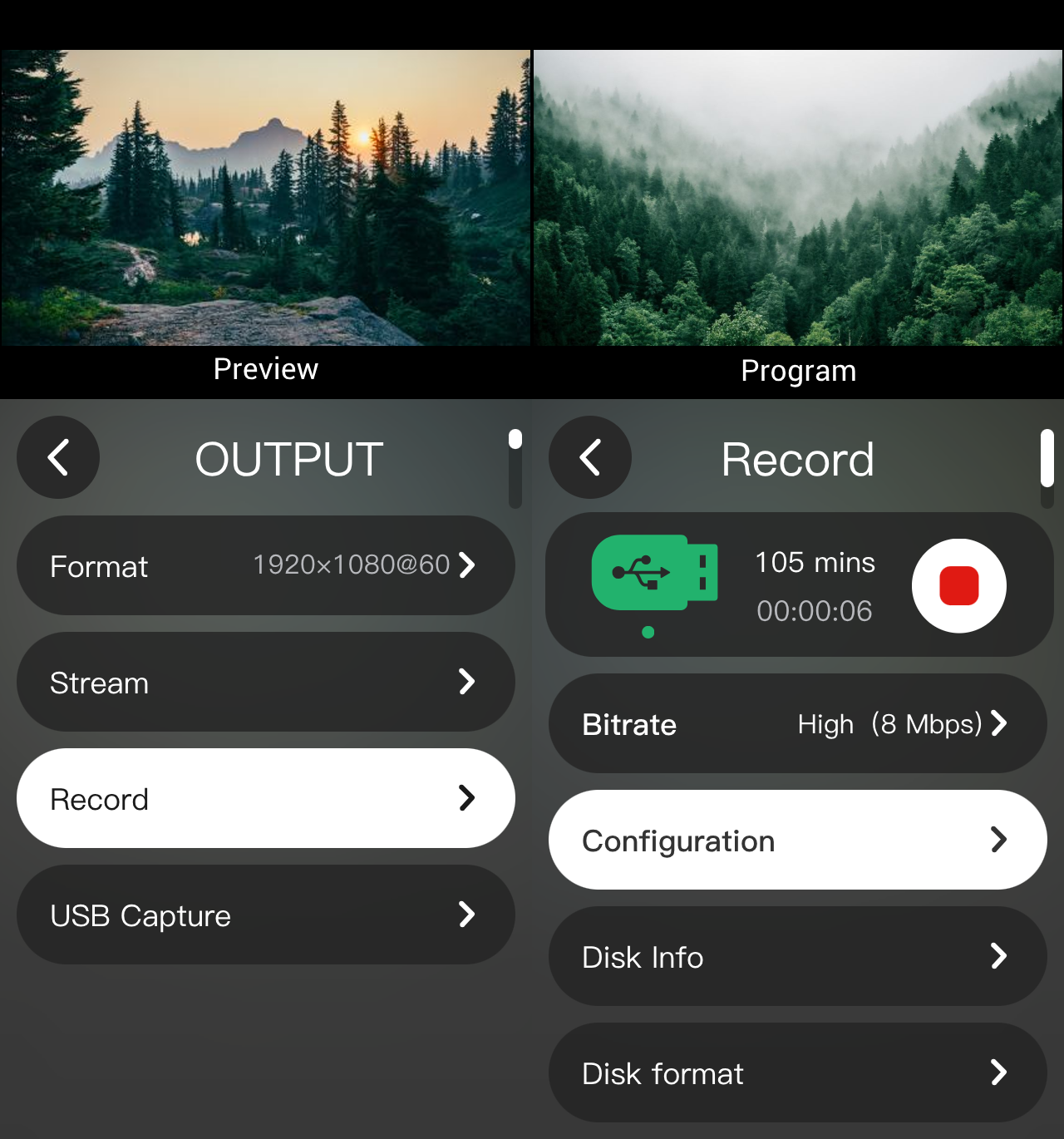
- During recording, the interface displays the elapsed time and remaining recording time. The REC indicator on the main interface is highlighted with a red border.
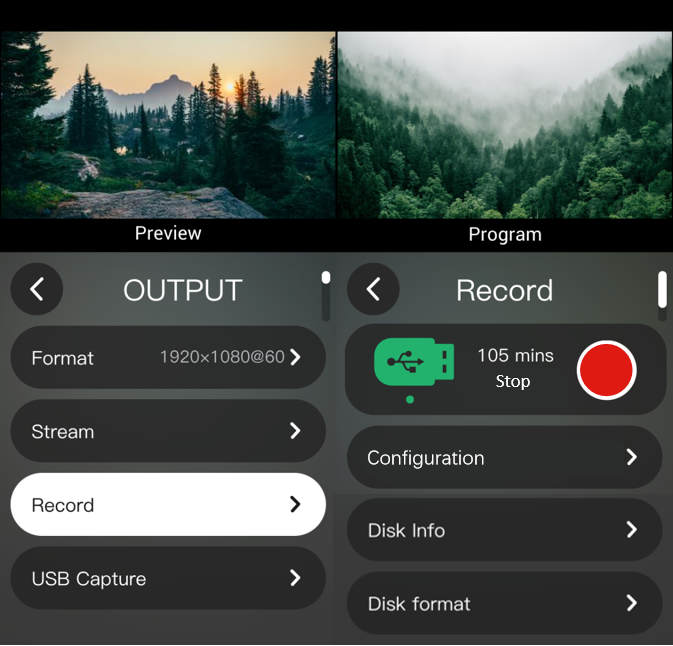
- Tap the record icon again to stop recording. The file is saved when the stop prompt appears.
| The record icon | During recording | Recording stopped |
|---|---|---|
 |  |  |
3.10.4 View Recoding Files
Connect the storage device to a computer and open the Product Name folder > record folder to view recording files.
When the device is connected to the network during recording, file names display the correct recording time. When recording offline, file names may not display the correct date.
For network connection instructions, see section 2. Install Your Product.
- Recording with Network Connection: Correct Recording Date Display

- Recording Without Network Connection: File Name Example

3.10.5 Format a Storage Device
Recording requires an exFAT-formatted storage device. If the format is incompatible, format the device on a Windows computer first:
- File system: exFAT
- Allocation unit size: 128 KB
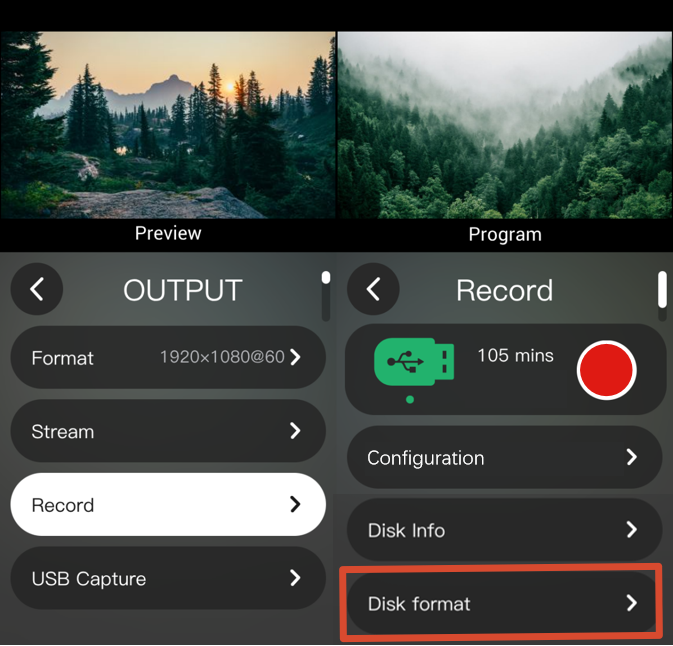
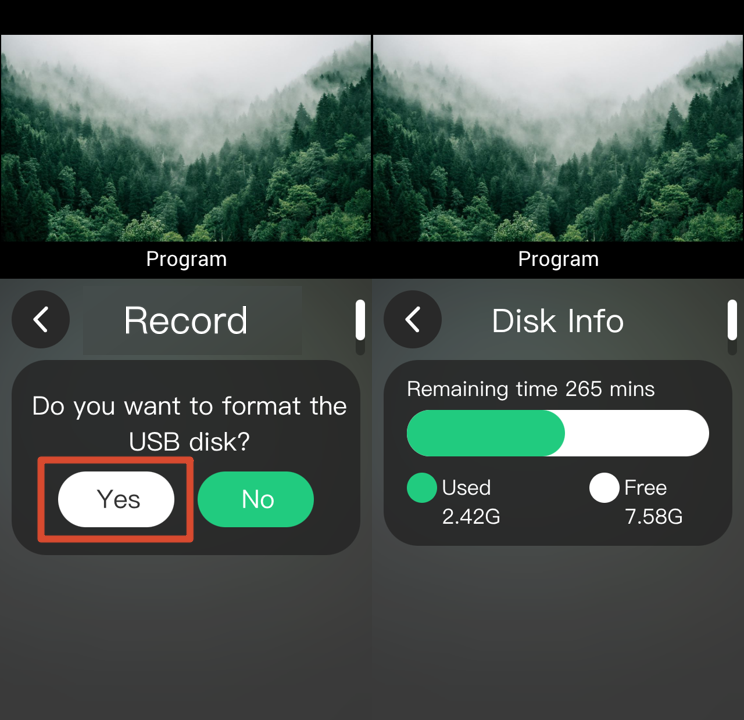
After formatting, go to OUTPUT > Record > Disk Format and select Yes in the confirmation dialog.
 | 👉 |  |
|---|
📢  Notes
If the USB flash drive is not recognized by the computer after connection, use a dual-ended USB cable to provide additional power.