Online Manual
mini-pro v3 User Manual

3.4 PiP (Picture in Picture)
The PiP layout defines the preset scene structure.
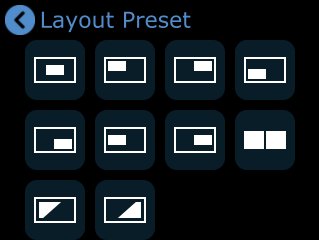
Tap the arrow on the right side of the Layout Preset option to open the PiP quick layout selection menu, where you can choose a layout based on your needs.
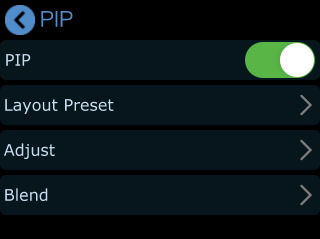
PiP Layer Settings
- Tap Adjust in the PiP menu to enter the layer adjustment interface.
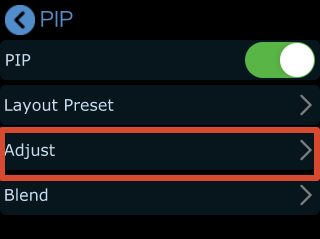
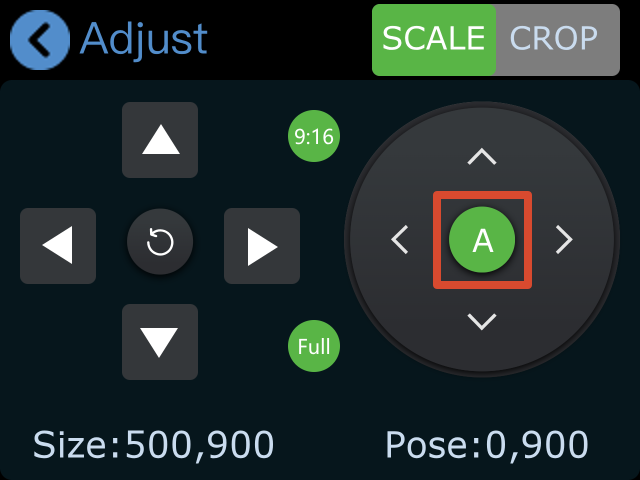
- Select Main/Sub Layer
- Tap A/B to select the main or sub layer.
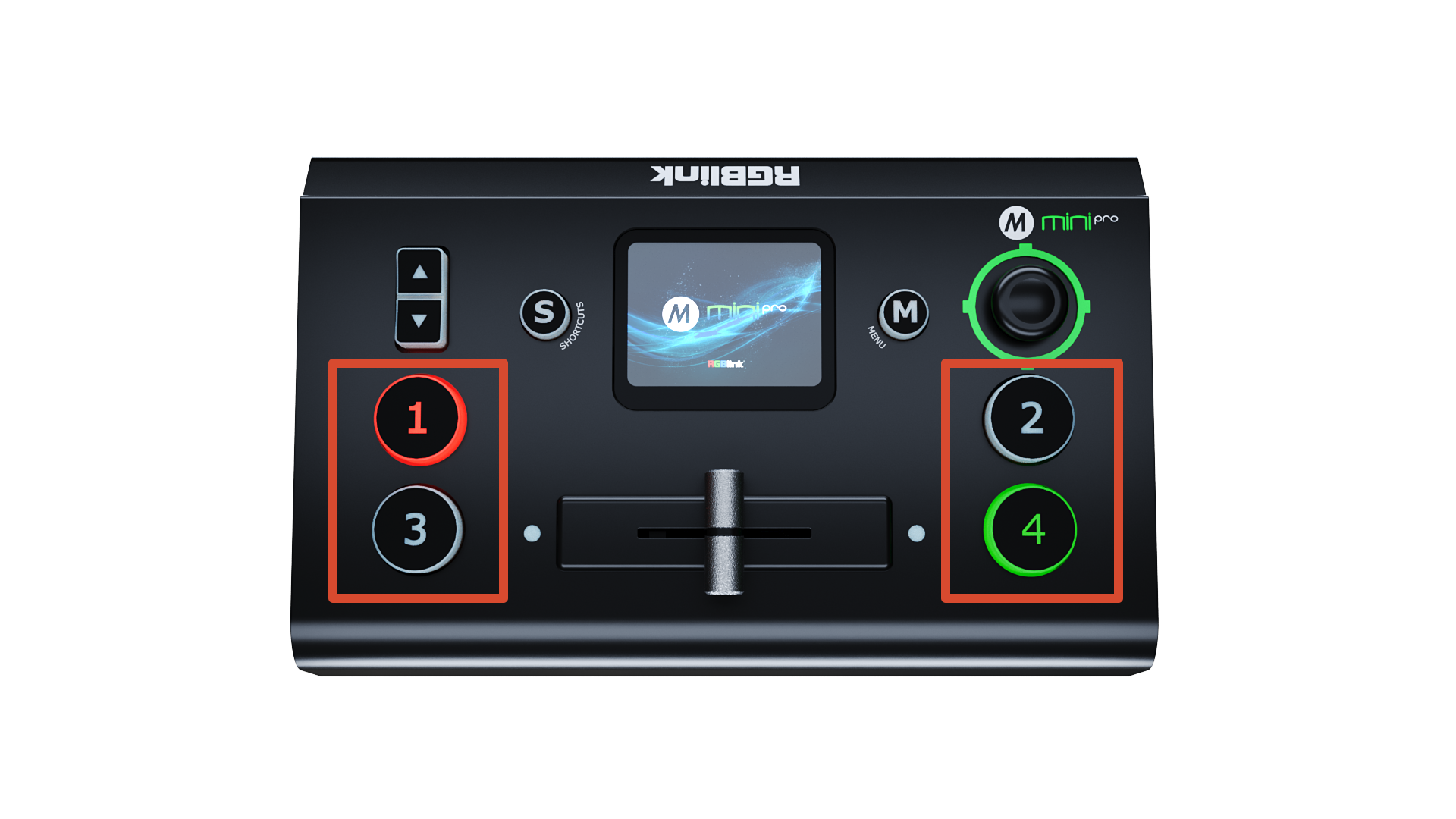
- Press 1/2/3/4 to select the input source for each layer.
- Layer Adjustment
After selecting layer A or B, you will enter the edit mode for that layer.
You can adjust the image using the following methods:
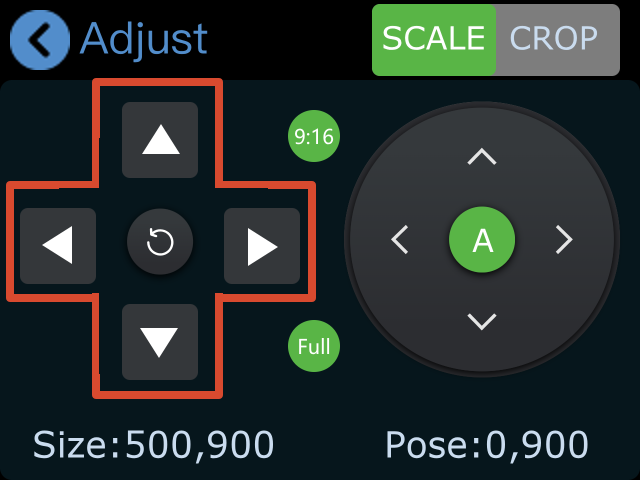
- Use the directional icons on the left to adjust the image size. Click reset icon to restore the default settings.
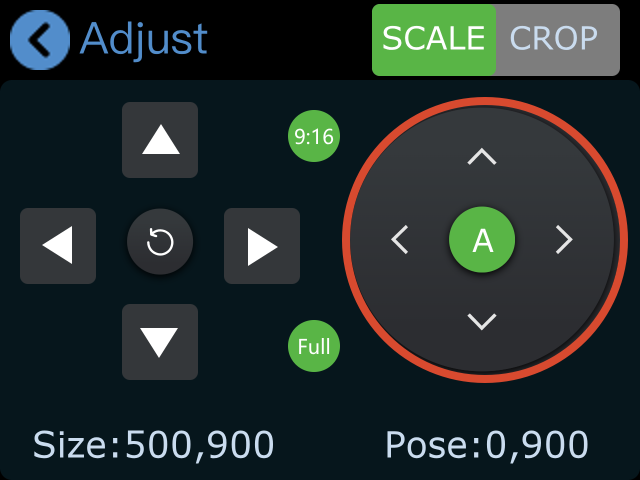
- Use the directional icons on the right to adjust the image position.
- All changes are saved in real time to the current scene.
- If aspect ratio lock is enabled, width and height will scale proportionally when adjusted.
- Aspect Ratio Adjustment
The default display mode is full screen.
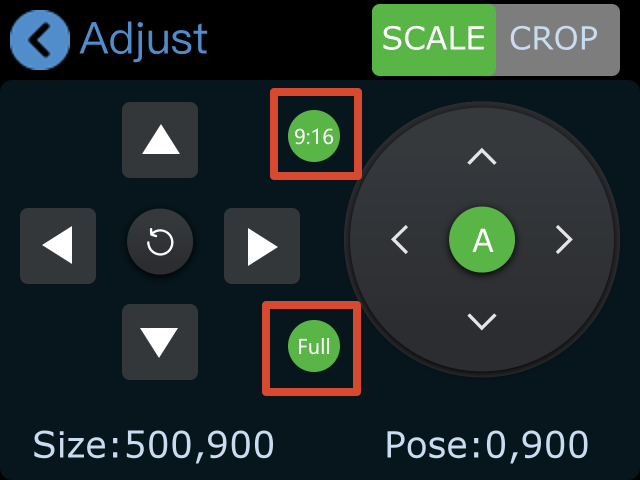
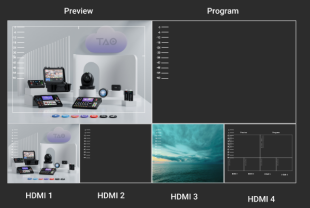
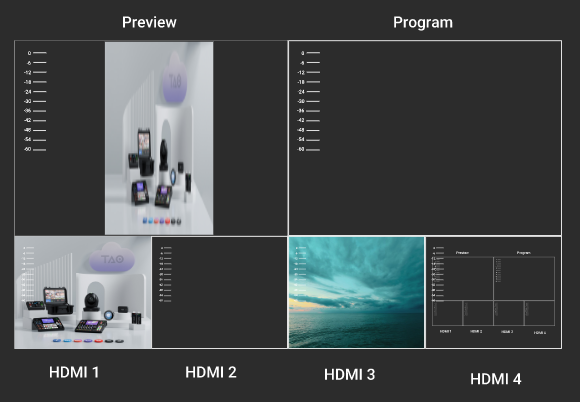
To support vertical video production, mini supports a 9:16 aspect ratio:
- Tap 9:16 to switch to vertical mode
- Tap Full to restore full screen
 | 👉 |  |
|---|
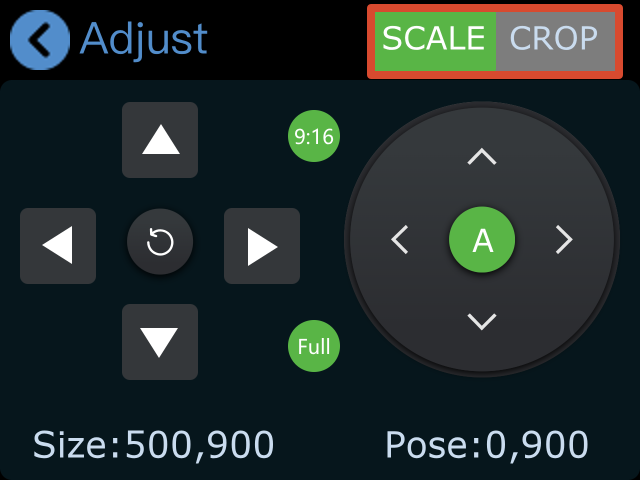
- Scale and Crop
Scale and Crop share the same control logic as image adjustment. Refer to the section above.
Blend
The Blend function creates a soft transition between two input sources by feathering the boundary area for a more natural composite effect.
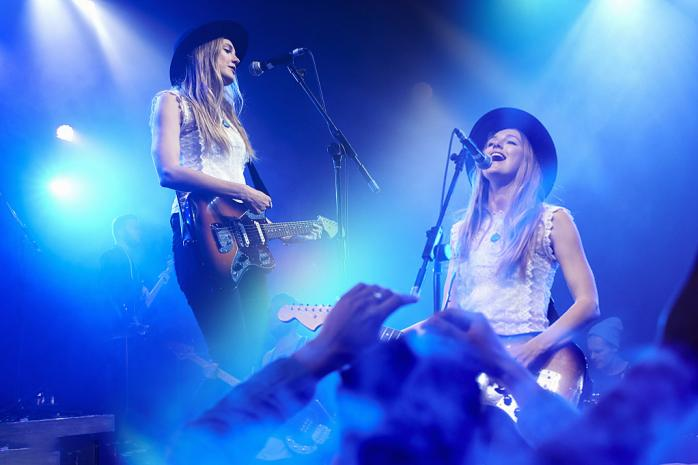
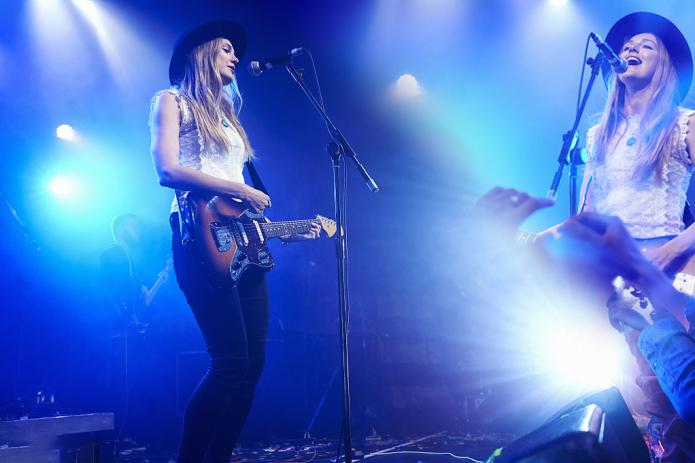
- Go to the PiP menu and select Blend to enter the configuration page.
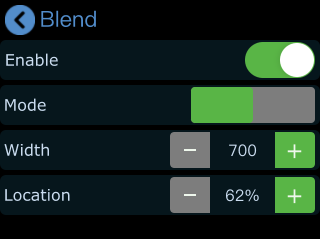
- Turn on the Enable switch to activate the blend effect.
- Parameters
Blend modes:
- Left blend
- Right blend
Adjustable parameters:
- Width (default: 700)
- Higher values increase the blur range and soften the edge
- Lower values create a sharper boundary
- Position
- Controls the proportion of the blending area
- Higher values expand the blend region
Blend settings can be saved to View 1–8 for quick recall.
Following is the illustration of Blend effect.

Display 4 Inputs on PGM
PiP supports up to two input sources in a left-right layout.
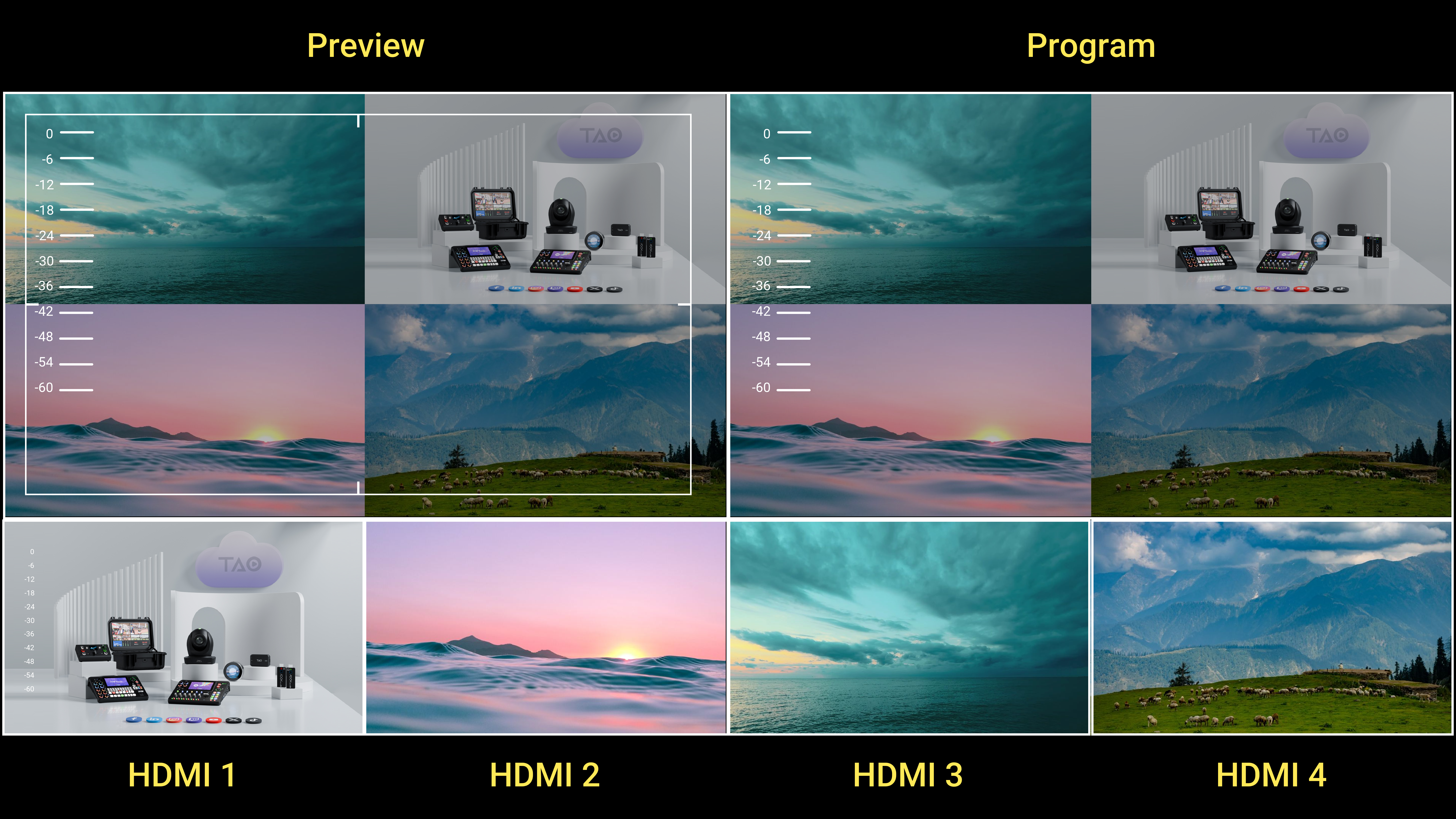
To display all four input sources simultaneously on the main output, combine PiP layout with T-Bar switching:
- Set both preview and program outputs to PiP layout.
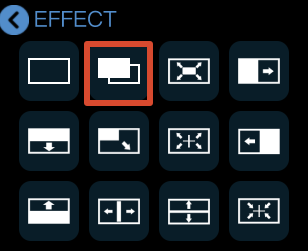
- Set transition mode to T-Bar and select Fade effect.
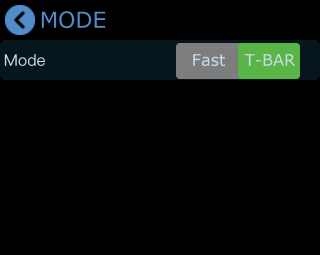
- When the T-Bar is positioned in the middle, both preview and program windows will display all four input sources.
📢  Notes

Since this display method uses a fade transition effect, the image may appear darker when the T-Bar is centered. You may adjust brightness as needed.