Online Manual
mini-pro v3 User Manual

3.11 USB Port Capture and Output
📢  Notes

The screenshots in this document may differ from the current software version.

Actual interface layout and wording may vary, but the operation flow remains the same.

Please refer to the version currently in use.
The USB port labeled WEBCAM supports USB video capture.
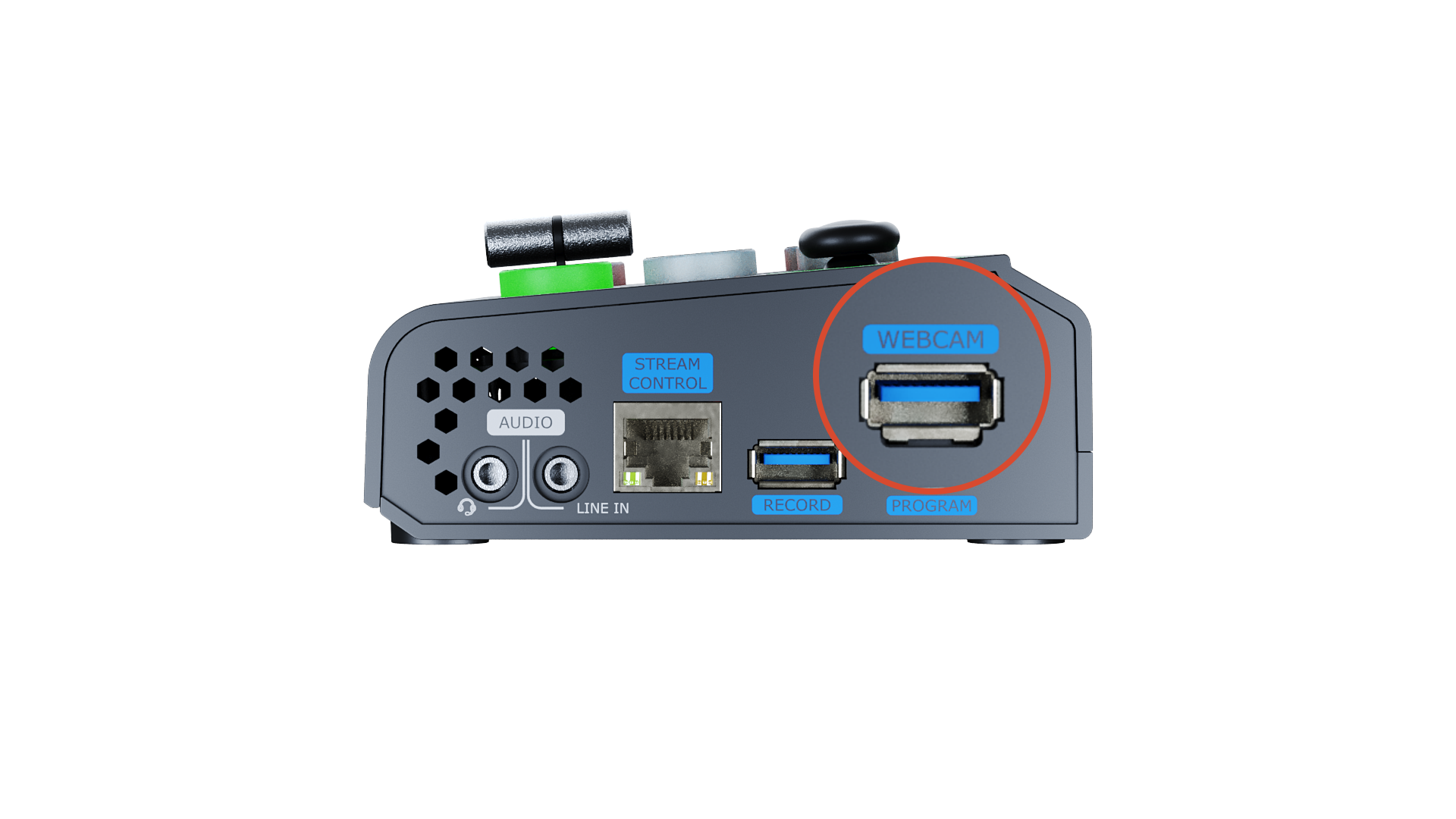
Users can capture video from mini-pro to a computer and stream through third-party software such as OBS to platforms including:
- YouTube
- Zoom
- Twitter/X
- Other streaming platforms
OBS Streaming
mini-pro is compatible with various third-party streaming applications. We recommend using OBS.
Download OBS from: OBS Studio
Install the software and update it to the latest version before use.
Add Video Capture Device
- Click the + icon in the Sources panel.
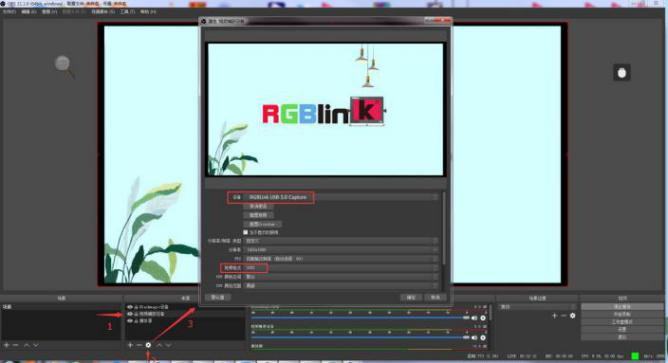
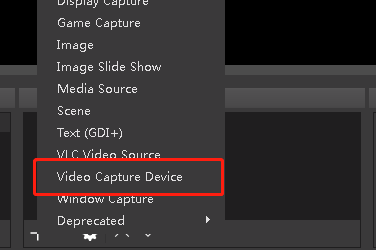
- Select Video Capture Device.
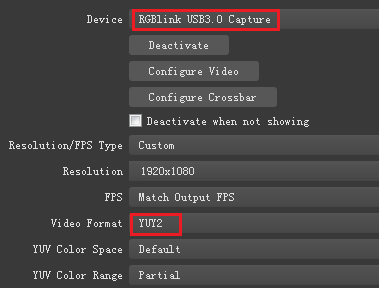
- Select RGBlink USB 3.0 Capture as the capture device.
- Set Video Format > YUY2.
📢  Notes

If the YUY2 format is unavailable, check the USB connection:

- Ensure the device is connected to a USB 3.0 port
- Use a USB 3.0 cable
- USB 3.0 ports are typically blue, while USB 2.0 ports are usually black
Audio Settings
If no audio is detected during streaming:
- Confirm the audio source on the device is configured correctly (Set Default).
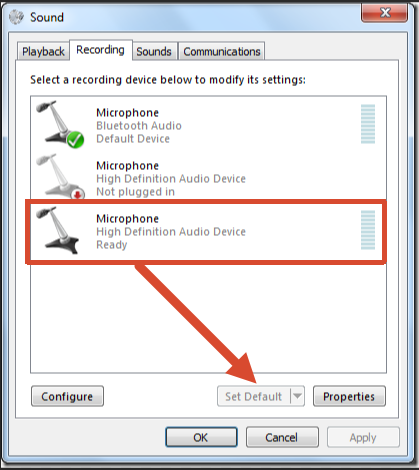
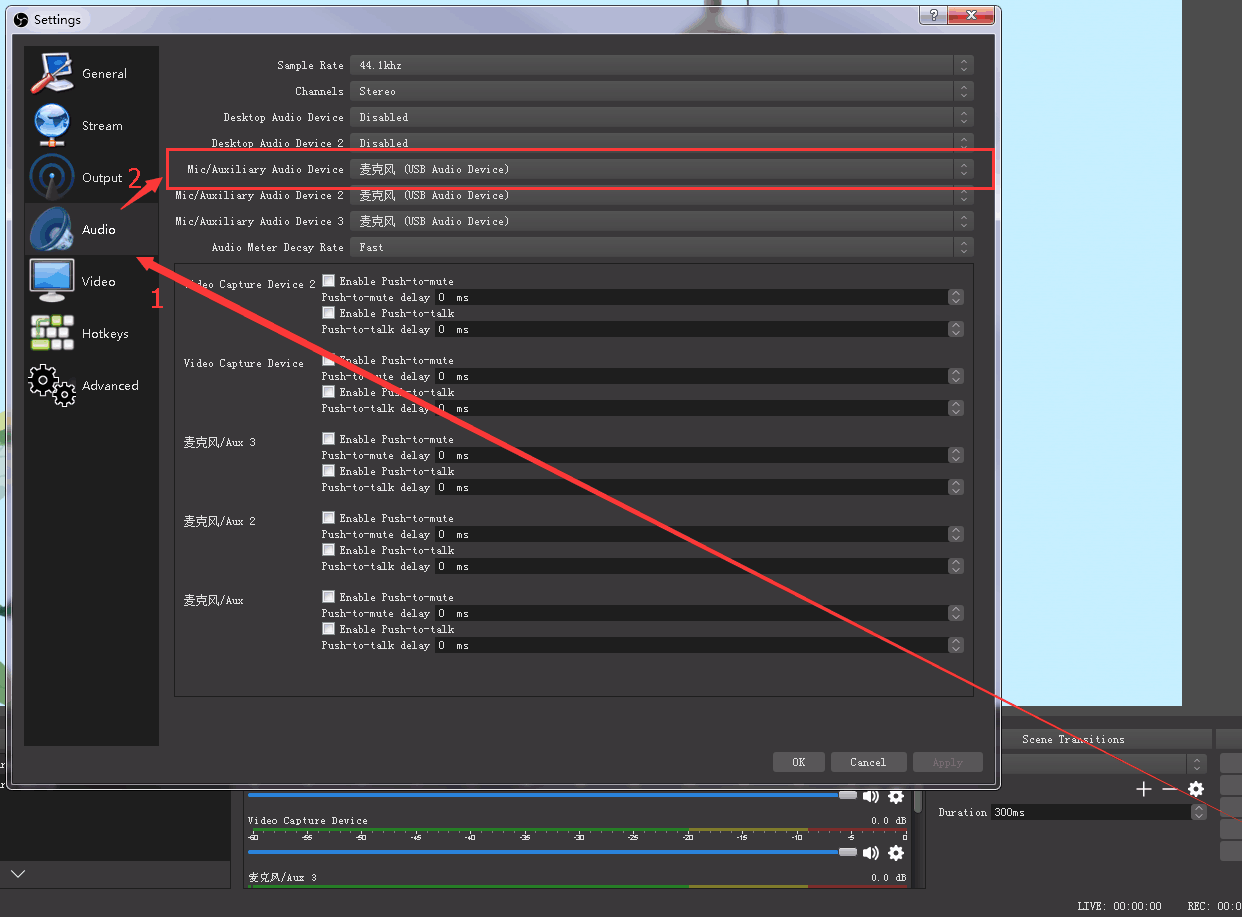
- In OBS, go to Settings > Audio. Select the correct device Mic/Auxiliary Audio Device.
Synchronize Video with External Audio
If the video source does not contain embedded audio and external audio is used separately, synchronize the audio and video using the following steps.
- Go to Settings > Audio > Mic/Auxiliary Audio Device and select the audio source.
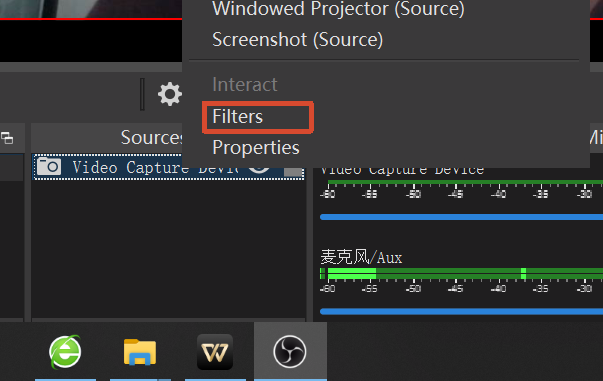
- In the Sources panel, right-click Video Capture Device, then select Filters.
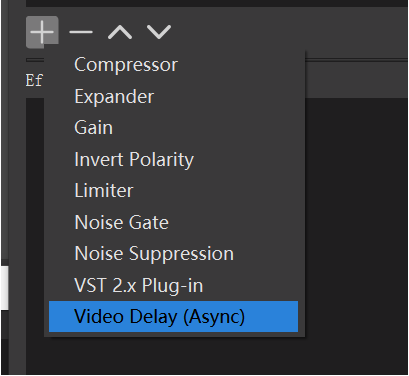
- Under Audio/Video Filters, click + and select Video Delay (Async).
- Enter a filter name if needed, then click OK.
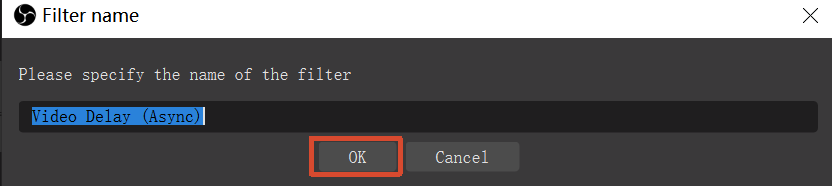
- Enter the delay value in milliseconds (ms).
Adjust the value until the audio and video are synchronized.

Streaming Settings
- Obtain the RTMP URL and Stream Key from the streaming platform.
- Copy the RTMP URL and Stream Key.
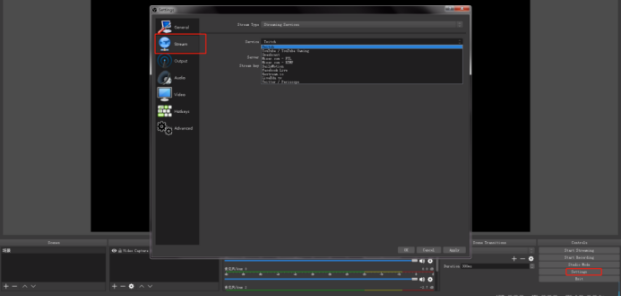
- In OBS, go to Settings > Stream.
- Select the streaming type:
- Streaming Service
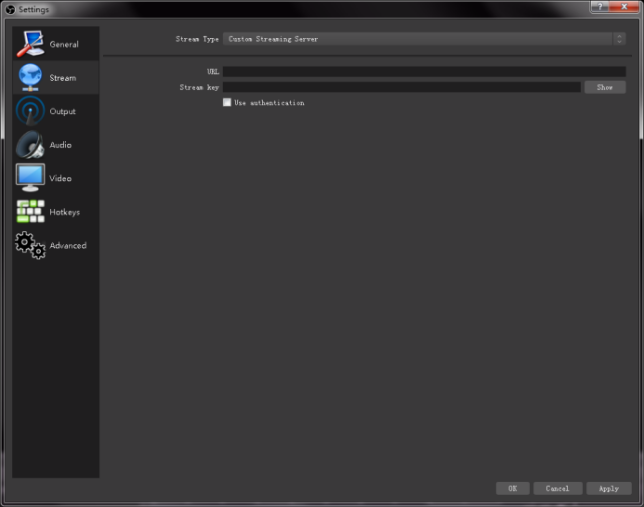
- Custom Streaming Server
If the platform is listed under Service, select it directly.
If using a custom server:
- Enter the RTMP URL in Server/URL
- Enter the Stream Key in Stream Key
- Click Start Streaming.
- Return to the streaming platform and confirm the live stream is active.
vMix Streaming
 📢  Notes

vMix cannot automatically detect the output resolution of mini-pro.
Each time the output resolution of mini-pro is changed, the video preview in vMix may freeze. Re-select **RGBlink USB3.0 Capture** and manually set the current output resolution of mini-pro to restore normal video display.
- Click an empty input area, then click Add Input.
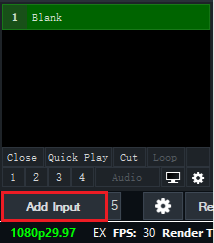
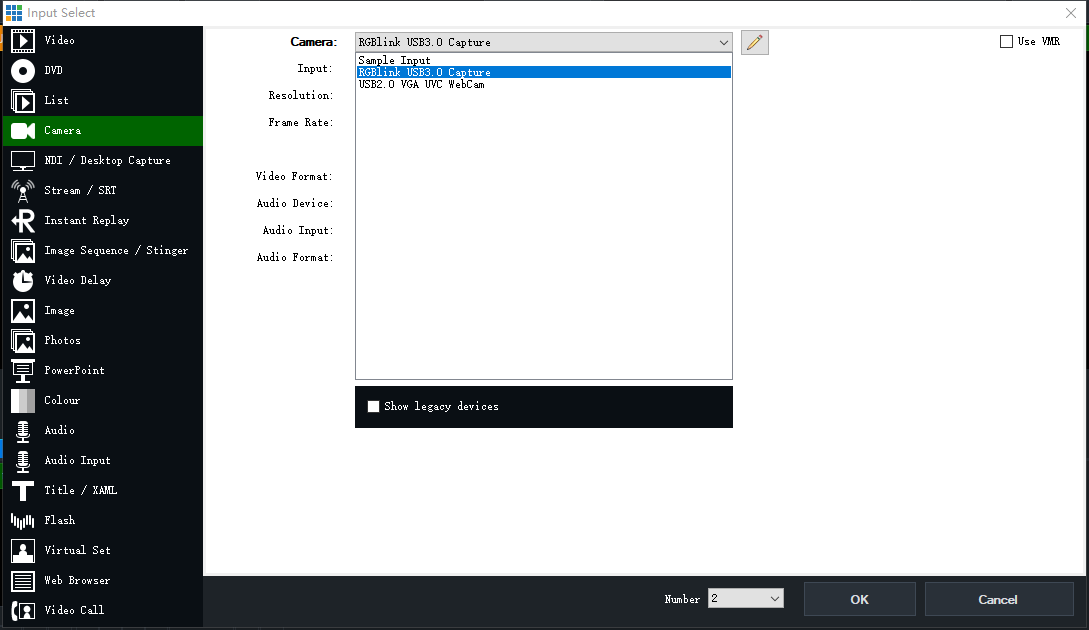
- Select Camera > Camera > RGBlink USB3.0 Capture.
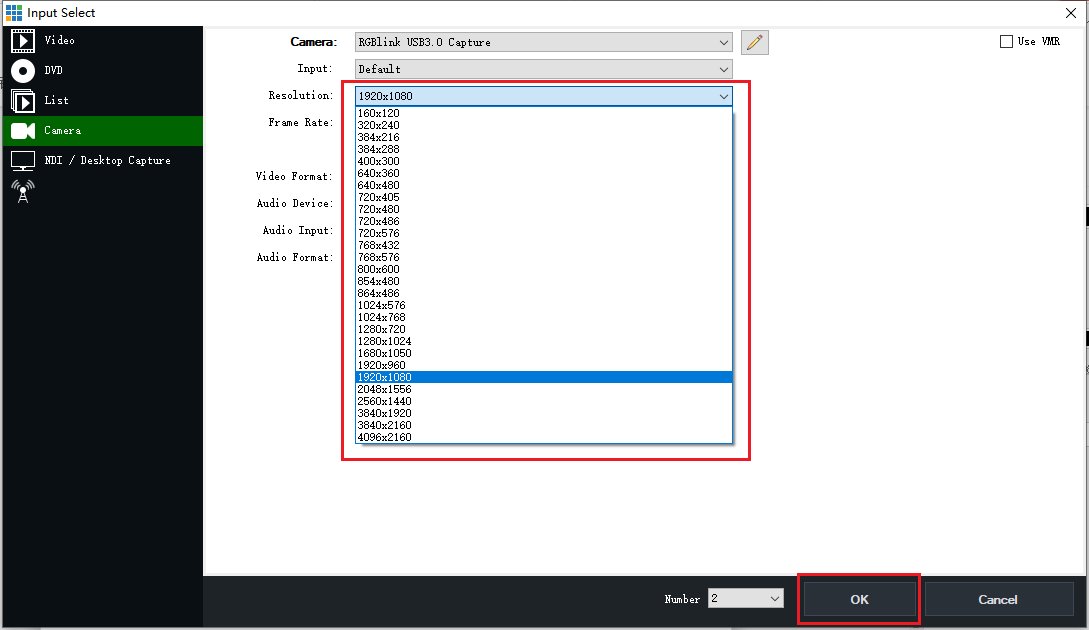
- Select the same resolution as the mini-pro output resolution, then click OK.
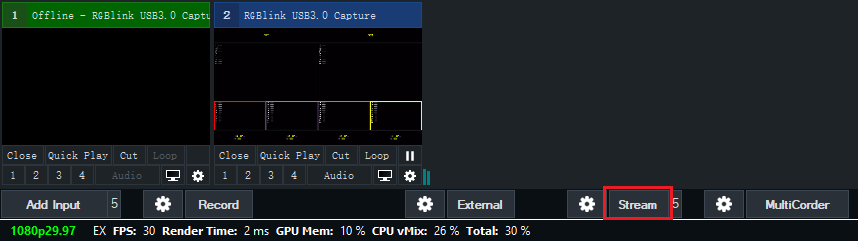
- Click the stream settings button.
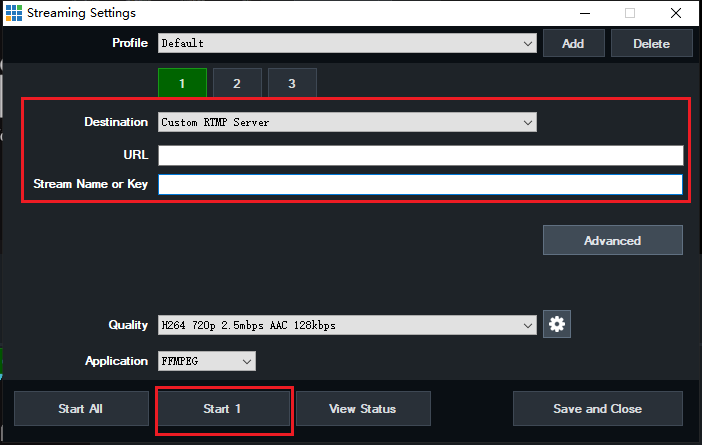
- Enter the streaming URL and Stream Key.
- Click Start 1 to begin streaming.
Facebook Streaming
Refer to the actual Facebook Live interface for streaming setup.
Official Guide link: https://www.facebook.com/business/help/165076674943644?id=1123223941353904
Zoom Streaming
Refer to the actual Zoom interface for streaming setup.
Official Guide link: https://support.zoom.com/hc/en/article?id=zm_kb&sysparm_article=KB0064210