Online Manual
mini-pro v3 User Manual

3.12 Record
mini supports recording video to an external SSD or USB drive through the USB port, providing local recording for live streaming and content creation.
Supported Specifications
- External SSDs up to 2 TB are supported
- USB drives up to 64 GB are supported
- Supported file systems: FAT32 and exFAT
When a recording file reaches 2 GB, the system automatically saves the recording as a new segment. Each recording segment is approximately 60 minutes long.
Connect a Storage Device
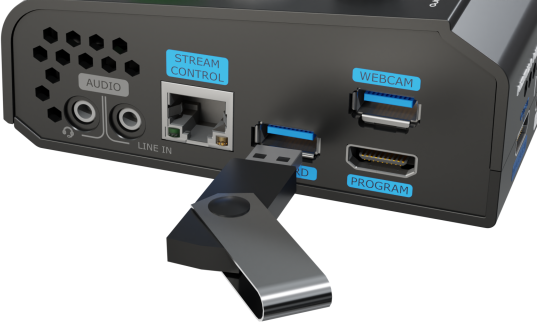
Insert the USB drive or external SSD into the USB recording port labeled RECORD on the mini panel.
Format the Storage Device
Before using the recording function, format the USB drive or external SSD first.
- Press the M button to return to the main menu.
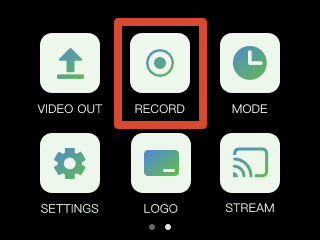
- Tap RECORD to enter the recording settings page. The system will display the current disk status and related settings.
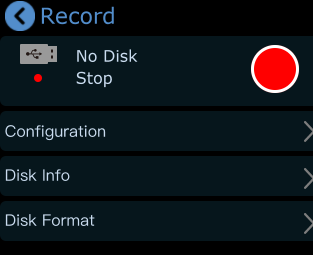
- mini automatically detects whether a storage device is connected. Recording is unavailable if no disk is detected.
- Format the disk on the computer. On Windows:
- Insert the USB drive or external SSD
- Right-click the target disk partition and select Format
- Select exFAT as the file system
- Set Allocation Unit Size to 128 KB
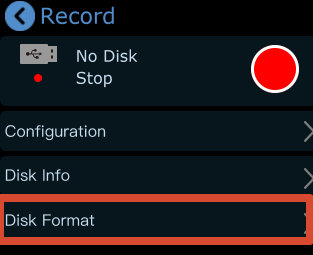
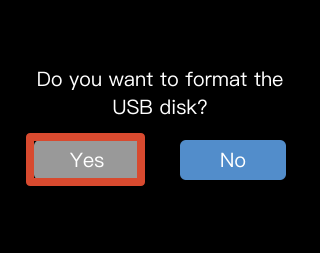
e. On the RECORD page, tap Disk Format > Yes to complete disk formatting.
📢  Tips

If the computer cannot recognize the external SSD after connection, use a dual-USB power cable to provide additional power.
Recording Configuration
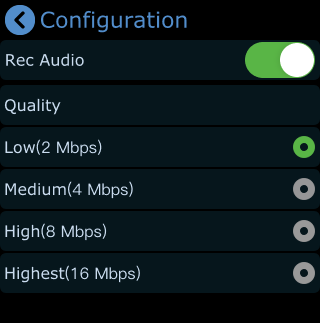
After formatting the disk, tap RECORD > Configure to set:
- Audio recording on/off
- Recording quality level
View Disk Information
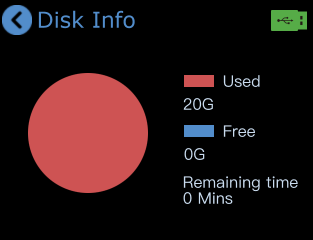
Tap Record > Disk Info to view:
- Used disk space
- Remaining available space
- Remaining time for recording
Start Recording
Recording can be started from either of the following locations:
- The recording switch on the RECORD page
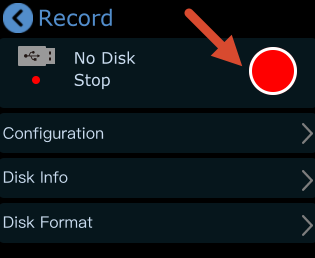
- The recording icon on the Preset Recall Menu page
After recording starts, the Record page displays:
- Total recording duration
- Recording progress