Online Manual
mini-pro v3 User Manual

3.8 Chroma Key
mini-pro supports chroma keying, allowing solid-color backgrounds to be removed and composited with other video sources for virtual scenes and similar applications.
Chroma key parameters can be configured through the desktop control software for advanced adjustments or directly on the device for quick setup.
Enable Chroma Key
- Press the M button to return to the main menu.
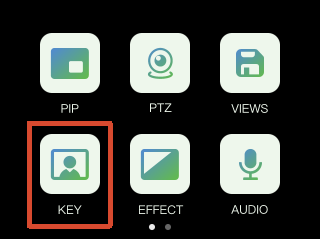
- Tap the KEY icon to enter the chroma key settings page.
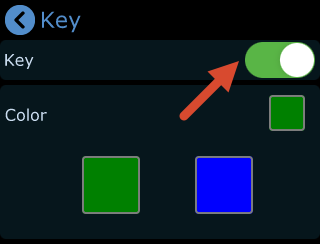
- Select On or Off.
Adjust Chroma Key Parameters
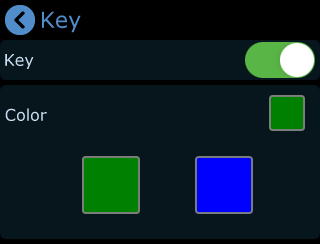
- The default chroma key color is green (green screen). Different color options can be selected on the touchscreen.
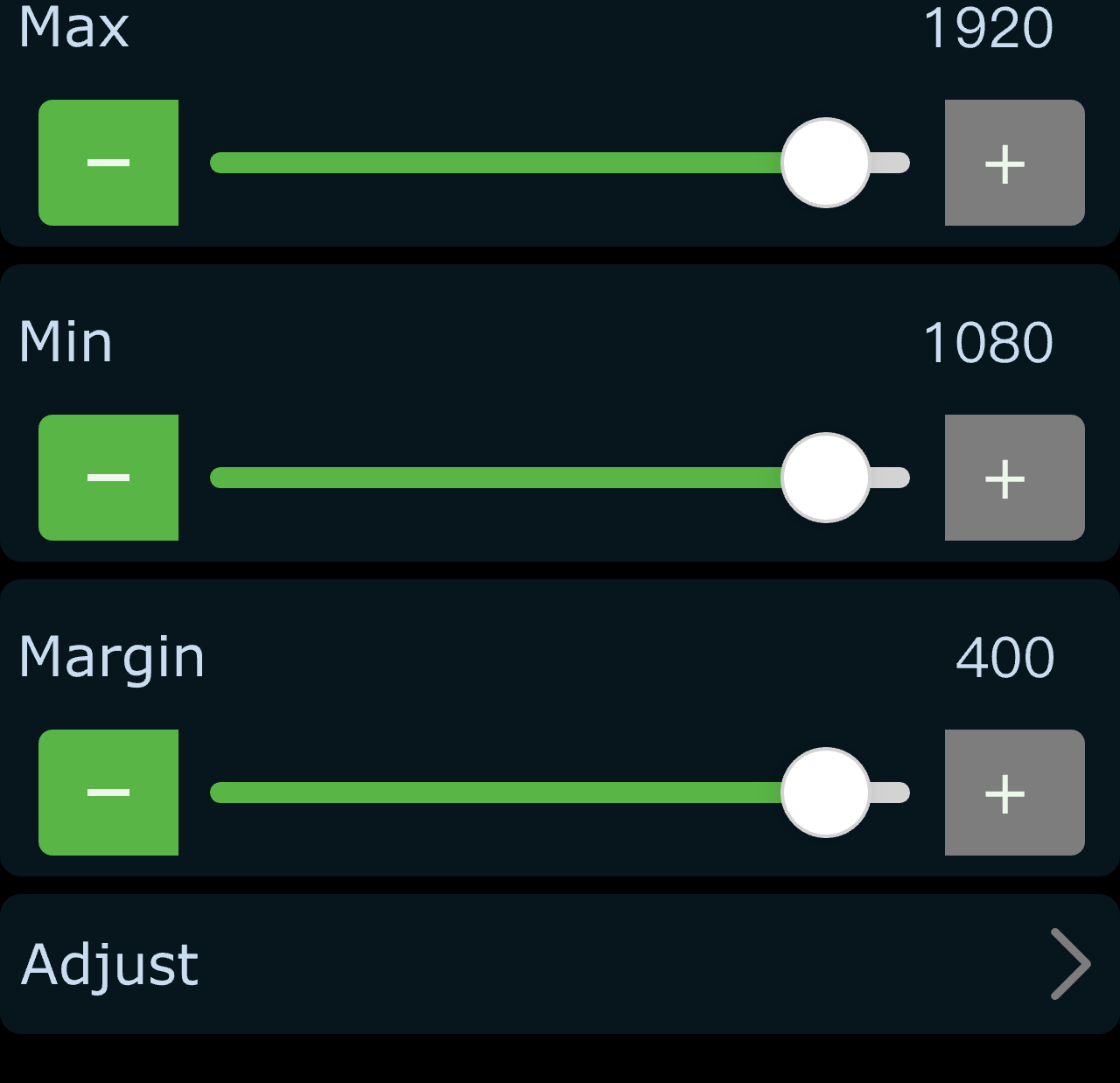
- Tap the - or + buttons to fine-tune the chroma key parameters.
Default parameter values:
- Max Limit: 1232
- Min Limit: 560
- Margin: 602
Adjust the Layout
Tap Adjust to enter the layout settings page.
On this page:
- Tap A/B to select the main screen or PiP screen
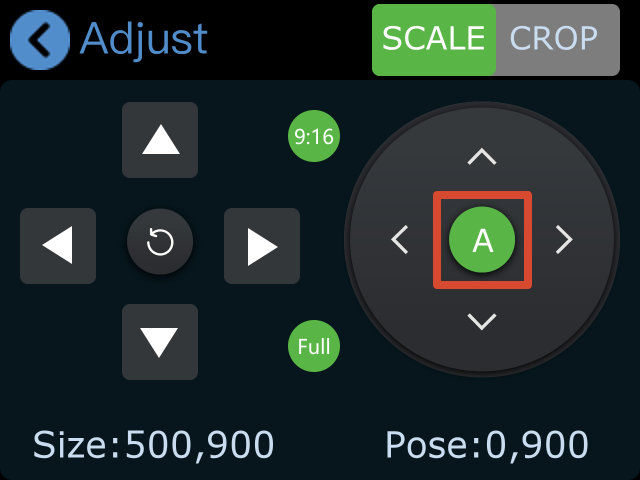
- Press 1, 2, 3, or 4 on the main panel to switch input sources
Default configuration:
- PiP screen: Input 4
- Main screen: Input 1
Input sources can be changed based on actual requirements.
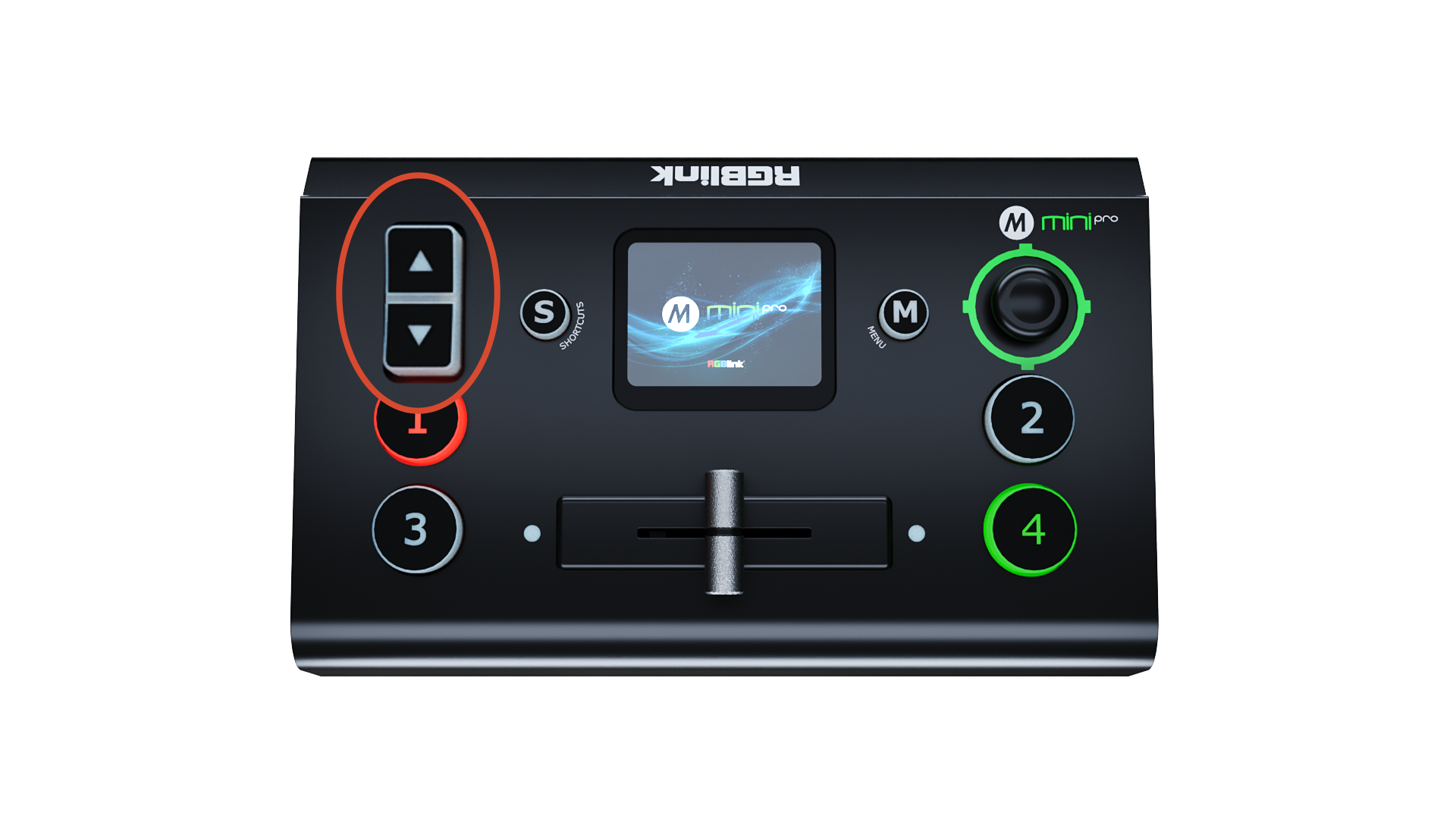
- Use the toggle to adjust the screen size.
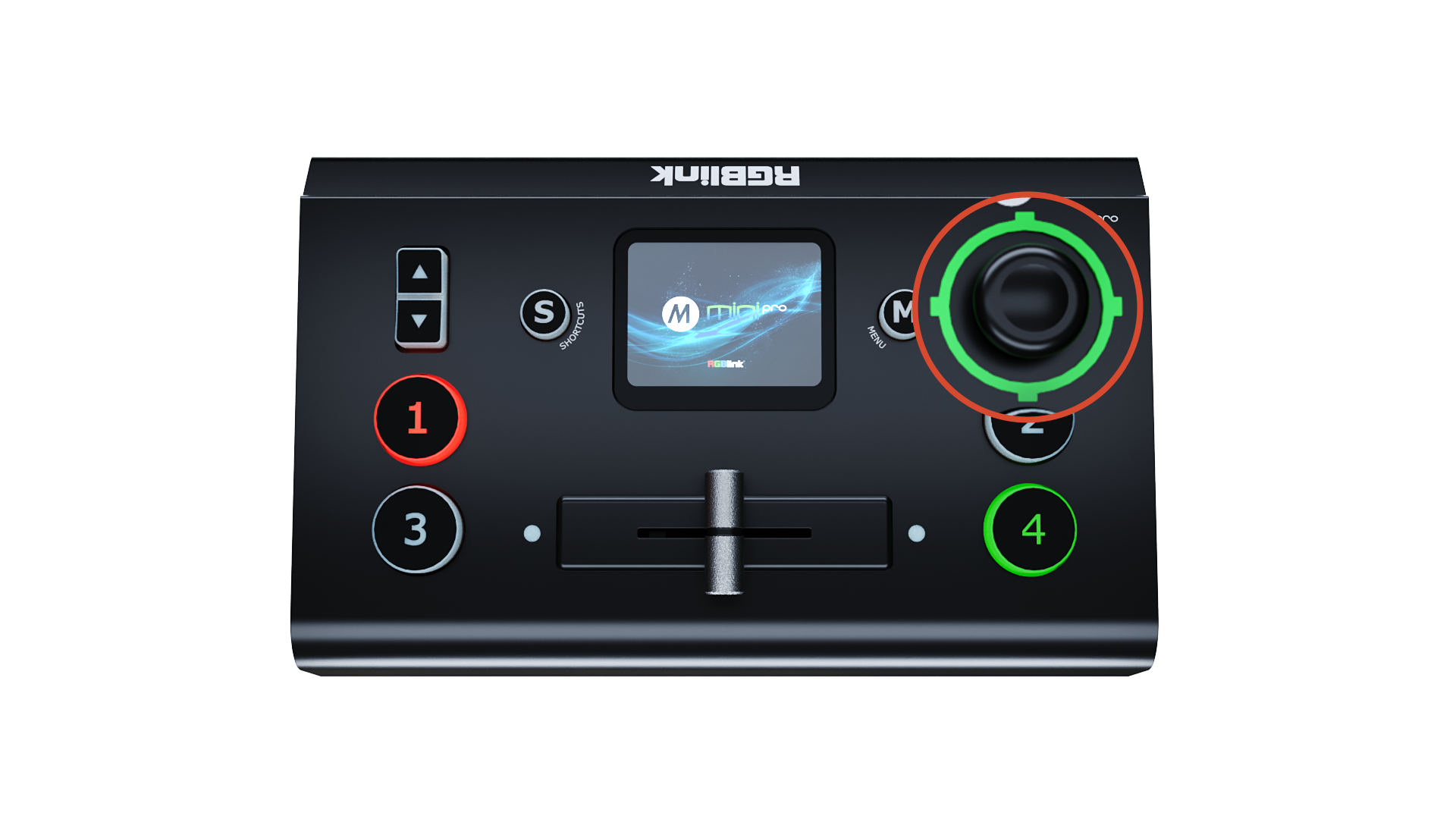
- Use 5-Direction Joystick to adjust the screen position.
All changes are saved automatically to the current scene in real time.
Save Chroma Key Settings
Chroma key settings can be saved directly on the device.
The next time chroma key is enabled through:
- Desktop control software
- The device itself
the previously saved parameter settings can be recalled automatically.