Online Manual
mini User Manual

1.2.1 Device Control
Touchscreen Operation
mini features a 2-inch full-color touchscreen, and most device operations are performed through this display.
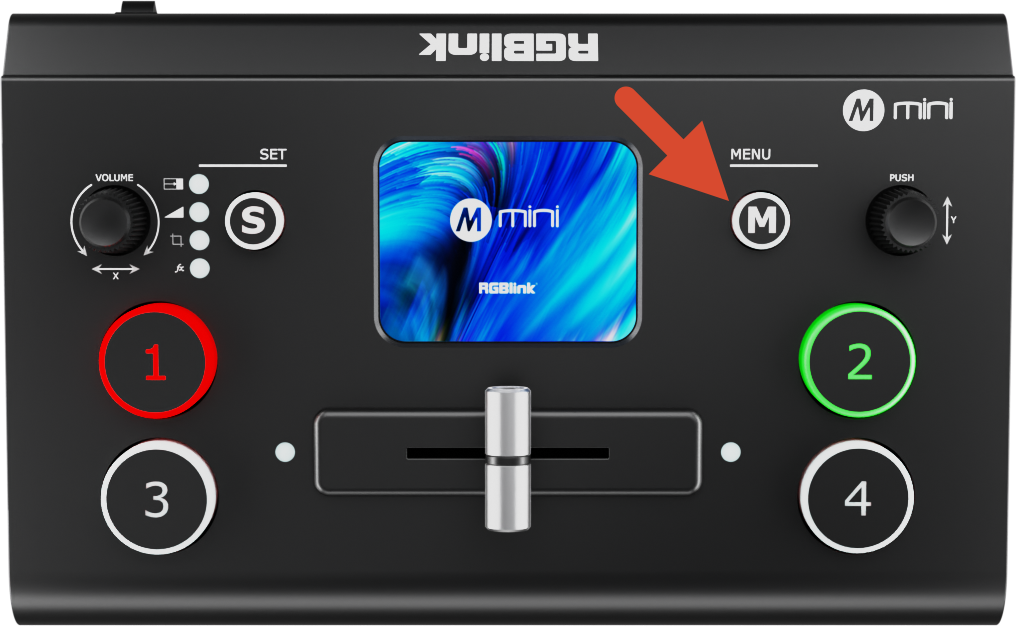
Before using the touchscreen, first familiarize yourself with the [M] button:
The [M] button is the MENU button. Press it once to quickly return to the main menu.
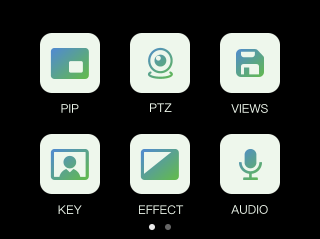
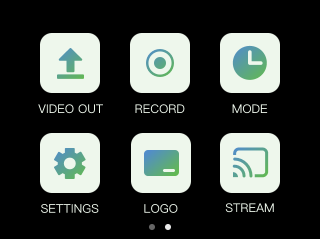
The touchscreen interface of mini is similar to that of modern smartphones. Main menu items are displayed as icons, and you can tap an icon to quickly access the corresponding function page.
Swipe Gestures
mini supports several touchscreen swipe gestures:
- Swipe left or right to switch between menu pages
- In adjustment interfaces such as time settings, you can drag the on-screen slider or use the knobs on both sides of the panel for adjustment
Preset Menu
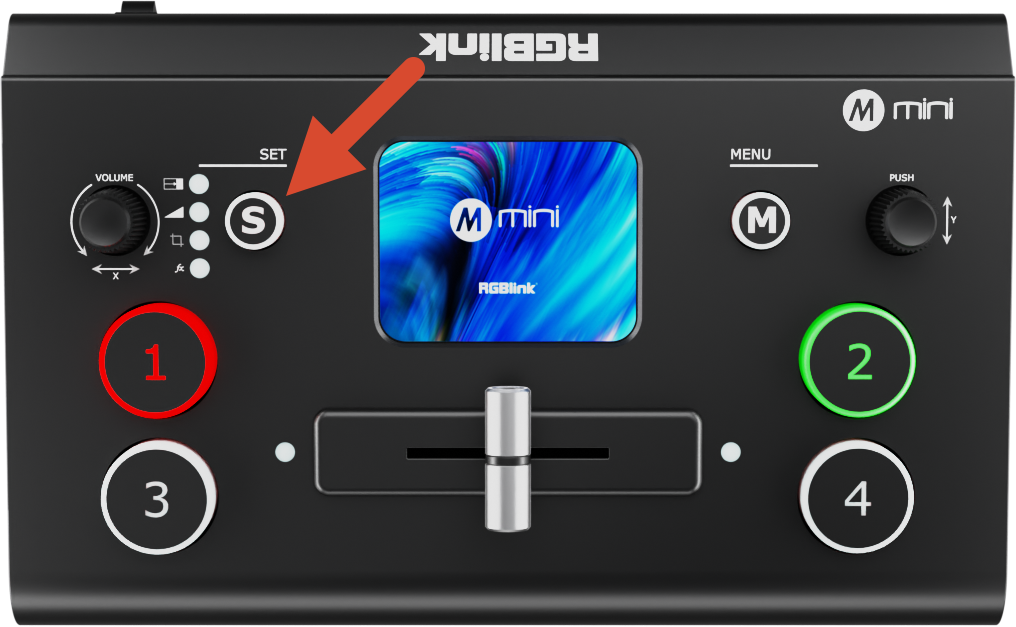
Press the [S] button to enter the preset menu. Press [S] repeatedly to switch between functions.
In this menu, icons on the screen are dimmed by default to indicate inactive status.
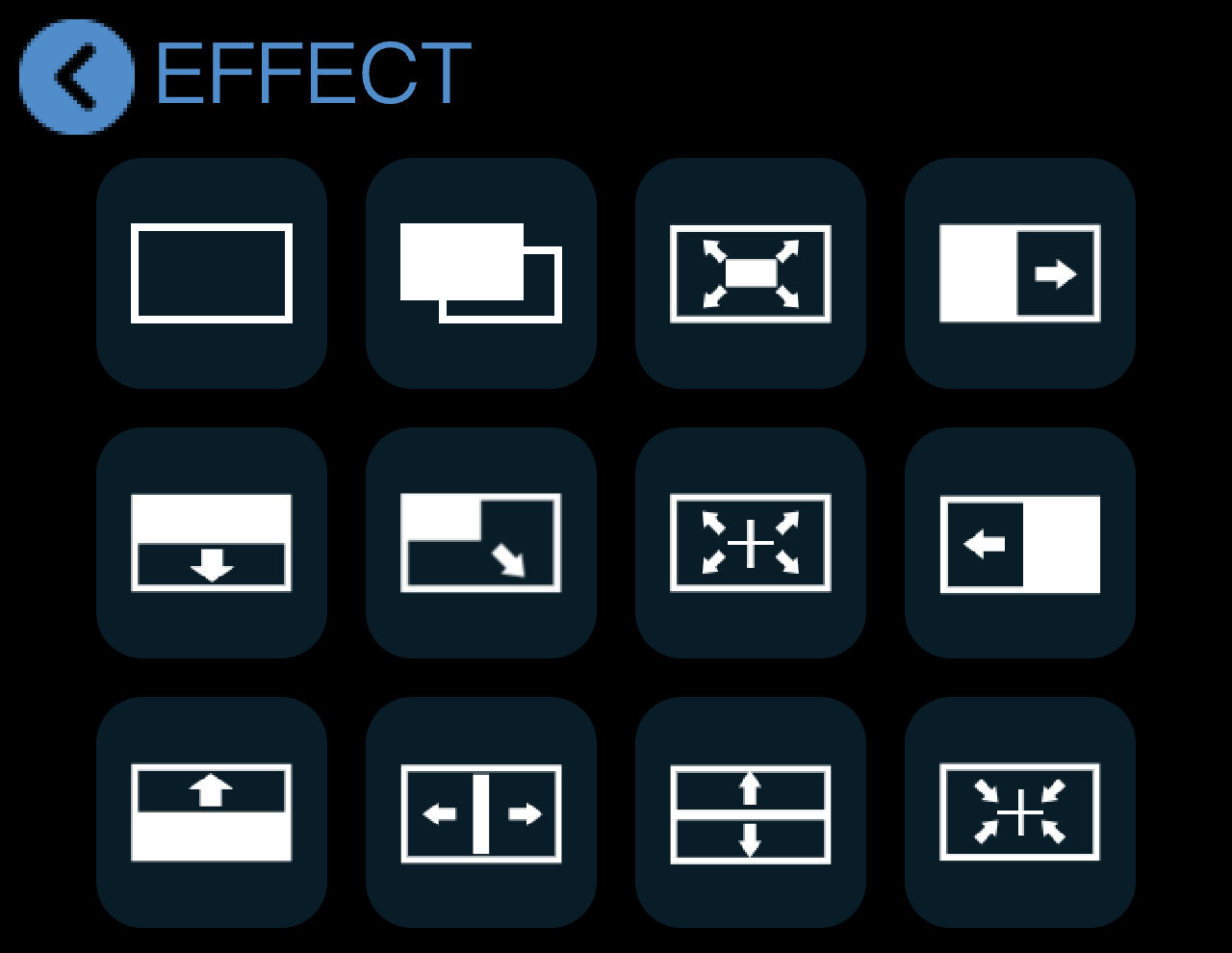
The preset recall menu includes:
- Effects
- Modes
- Presets 1–8
- ...
Web App
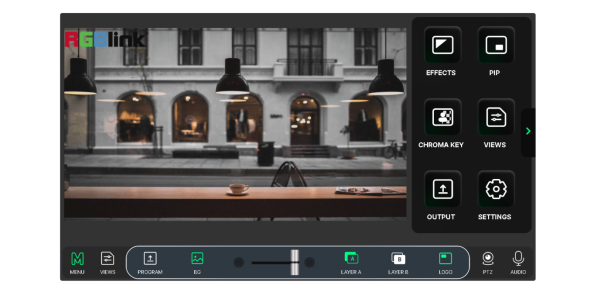
You can also remotely control mini through the Web App.
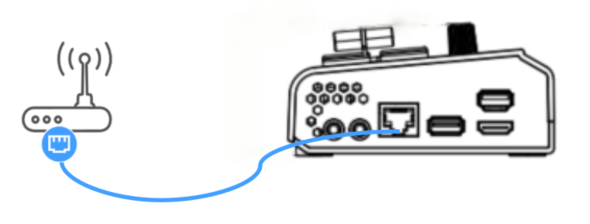
- Connect mini to the router using an Ethernet cable
- Go to [Settings] > [IP Setting], enable DHCP, and check the device IP address
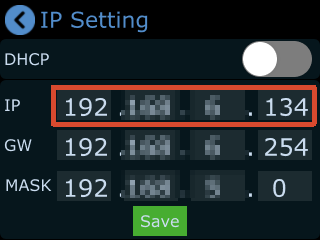
- Enter the device IP address in your browser's address bar to access the web control interface