Online Manual
mini User Manual

2.1.3 Network Streaming
**💎 **The features described in this chapter are licensed features. Please refer to [Activate TAO Cloud Benefits](https://www.yuque.com/rgblink-kb/rlueug/vg2nb6zdh9ylbe45) to unlock them before use.
```Users
can bind RGBlink devices such as mini to TAO Cloud for efficient content production and live streaming management.
TAO Cloud provides a streamlined streaming platform designed for fast live setup and operation.
mini supports **simultaneous streaming** to up to** 4 platforms**.
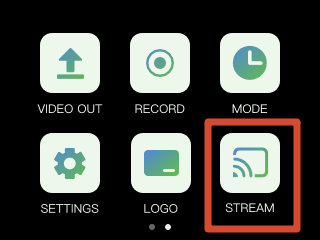
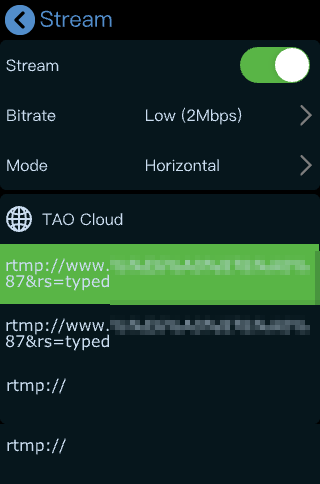
Press the [M] button to return to the main menu, then tap [STREAM] to open the streaming configuration page.
#### Network Connection
Before using the streaming function, make sure mini is connected to the network.
Supported connection methods:
- Wired Ethernet connection
- Mobile network sharing
##### Wired Ethernet Connection
Connect mini to a router or network switch using an Ethernet cable.
RGBlink CAT6 Ethernet cable (Product Code No. 940-0001-00-11-0) is recommended.
##### Mobile Network Sharing
```tips
📢 **Notes**
Due to ongoing updates to third-party operating systems, the interface layouts and navigation paths described below may differ slightly from the actual interface.
Please refer to the actual version in use.
iPhone Network Sharing
Follow these steps:
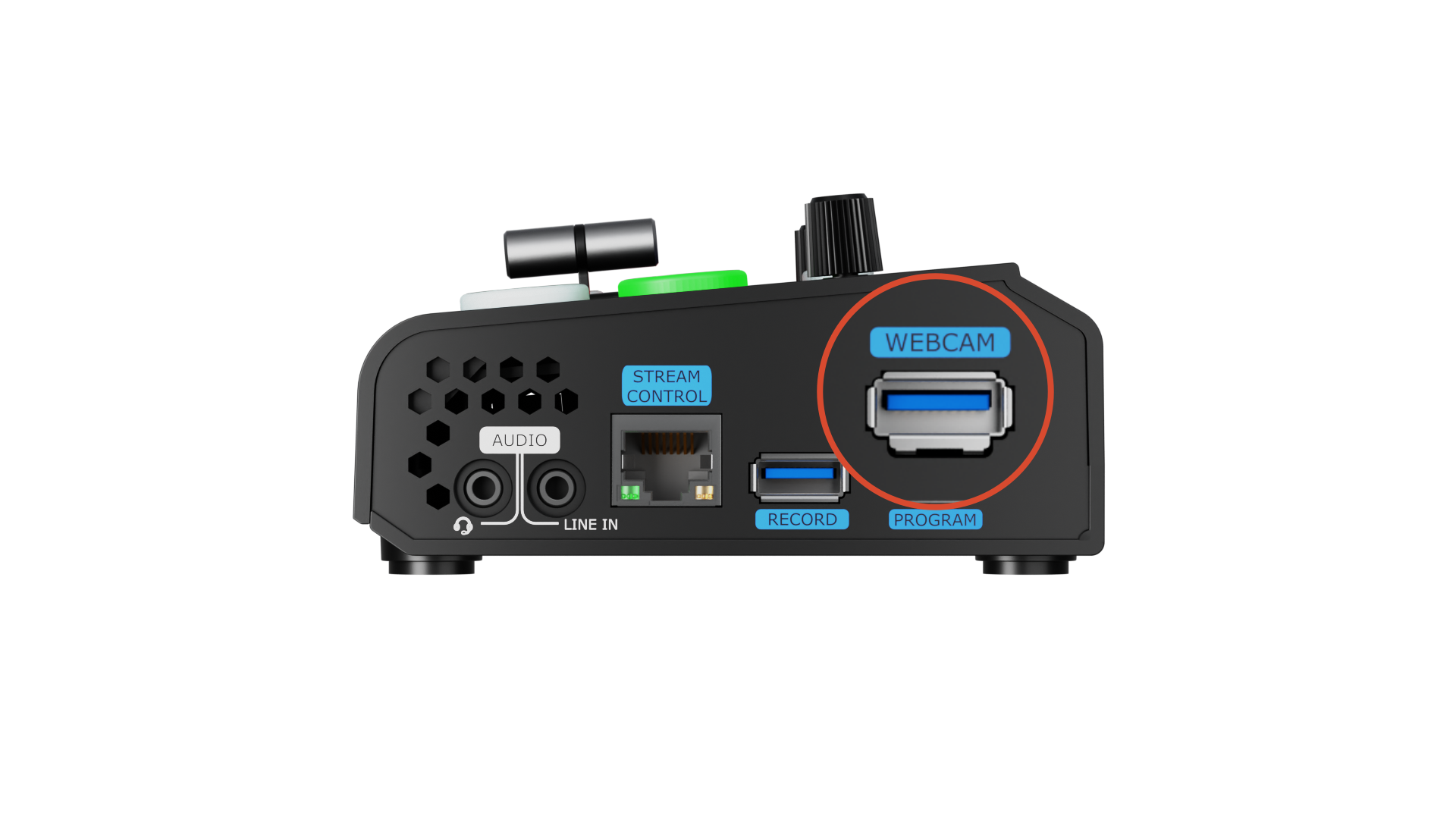
- Connect the iPhone to mini using a standard USB cable through the USB streaming port (labeled WEBCAM)
- When the "Trust This Device" prompt appears, tap [Trust]
- Open [Settings] > [Personal Hotspot]
- Set the Wi-Fi password and enable [Personal Hotspot]
- Open Control Center and press the network panel in the upper-left corner
- When the hotspot status changes to "Connected", mini has successfully connected to the network.
Android Network Sharing
Follow these steps:
- Open [Settings] > [More Settings] > [Developer Options]
- Enable [USB Debugging]
- Connect the phone to mini using a standard USB cable through the USB streaming port (labeled WEBCAM)
- Open [Settings] > [Mobile Network] > [Personal Hotspot] > [Other Sharing Mode]
- Enable [Share phone network via USB]
Platform Streaming Setup
This section uses **YouTube **as an example for configuring a streaming destination.
Get the Streaming Address
- Go to YouTube Studio.
- Click** Create > Go live**.
- Copy the Stream key and Stream URL from the stream settings tab.
🚨 ** Risk Warning**
**Do not share your stream key with anyone or display it during a live stream.** Doing so may result in unauthorized account access, stream hijacking, or other potential risks and losses.
If your stream key is exposed:
- Immediately reset the stream key on the corresponding platform.
- Stop the current live stream.
- Restart streaming using the new stream key.
```View
[2.4.2 Streaming to Live Platforms](https://www.yuque.com/rgblink-kb/hycqsg/nw1w4iphsnfdzgh9#PtM8f) to check how to get stream key from other platforms.
##### Bind the Device to TAO Cloud
Log in to TAO Cloud and complete device binding.
Make sure the network connection remains stable while receiving the verification code.
##### Import Streaming Information
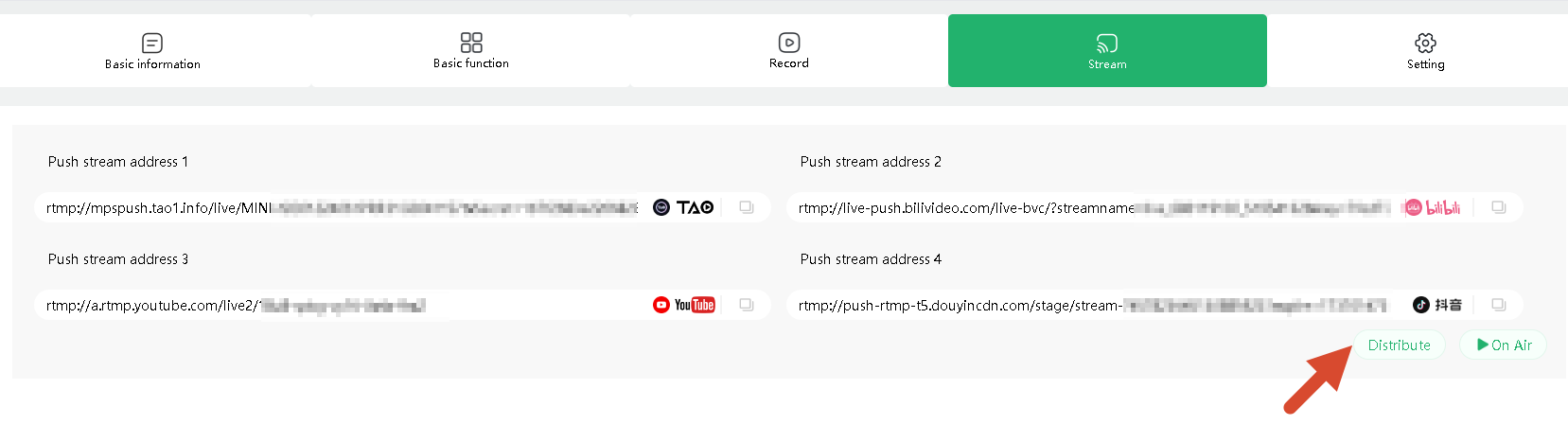
Paste the streaming address and stream key into TAO Cloud, then click [Distribute].
##### Start Streaming
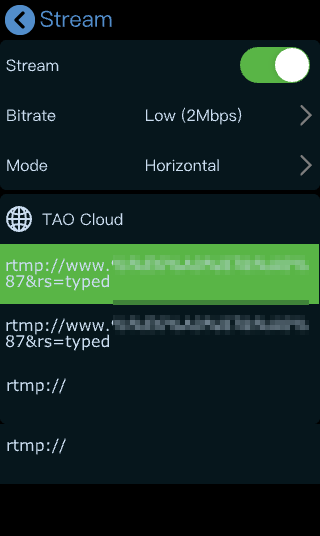
Enable the streaming switch from the streaming page or shortcut menu to start streaming.
During streaming, individual platform outputs can be enabled or disabled independently.
Status indicators:
- Solid green: Streaming successfully
- Blinking green: Streaming failed or connection abnormal
#### Streaming Quality Settings
To achieve smoother and more stable streaming performance, mini supports bitrate adjustment.
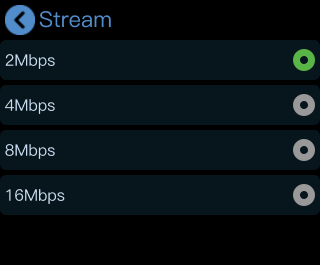
If the network connection is unstable or bandwidth is limited, reducing the bitrate is recommended.
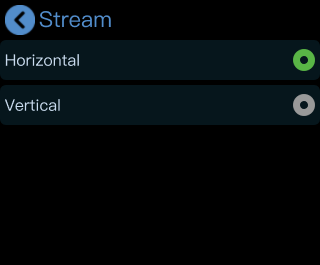
mini also supports:
- Horizontal: Landscape streaming
- Vertical: Portrait streaming
for different platforms and streaming scenarios.
#### PTZ Control During Streaming
To use PTZ control and live streaming simultaneously, ensure that:
- The PTZ camera
- mini device
- The network
are all on the same subnet.
Enabling DHCP on mini is recommended.
If static IP addresses are used, streaming will still function normally as long as there are no IP conflicts.
##### IP Settings
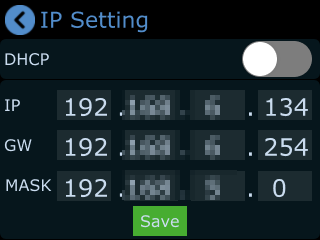
Tap [Settings] > [IP Settings] to open the network configuration page.
mini supports two IP assignment methods:
##### Dynamic IP (DHCP)
Connect mini to a DHCP-enabled router, then:
- Enable DHCP on the router
- Enable DHCP on mini
mini will automatically obtain an IP address.
##### Static IP
If DHCP is not used:
Disable the DHCP option and manually configure:
- IP address
- MASK: Subnet mask
- GW: Gateway