Online Manual
mini User Manual

2.1.4 Record
**💎 **The features described in this chapter are licensed features. Please refer to [Activate TAO Cloud Benefits](https://www.yuque.com/rgblink-kb/rlueug/vg2nb6zdh9ylbe45) to unlock them before use.
```mini
supports recording video to an external SSD or USB drive through the USB port, providing local recording for live streaming and content creation.
Supported Specifications
- External SSDs up to 2 TB are supported
- USB drives up to 64 GB are supported
- Supported file systems: FAT32 and exFAT
When a recording file reaches 2 GB, the system automatically saves the recording as a new segment. Each recording segment is approximately 60 minutes long.
#### Connect a Storage Device
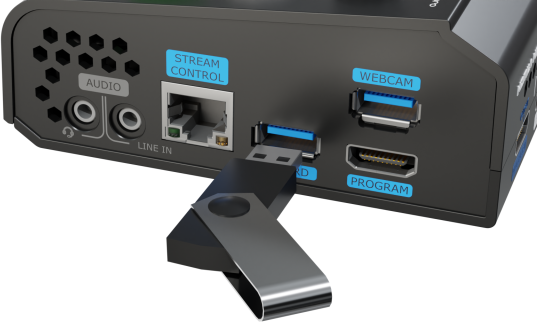
Insert the USB drive or external SSD into the USB recording port labeled [RECORD] on the mini panel.
#### Format the Storage Device
Before using the recording function, format the USB drive or external SSD first.
1. Press the [M] button to return to the main menu.
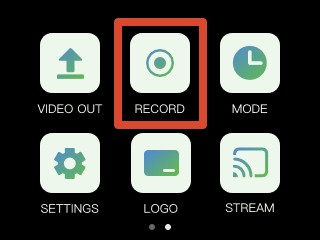
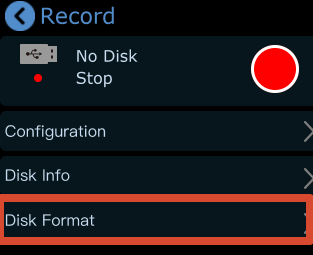
2. Tap [RECORD] to enter the recording settings page. The system will display the current disk status and related settings.
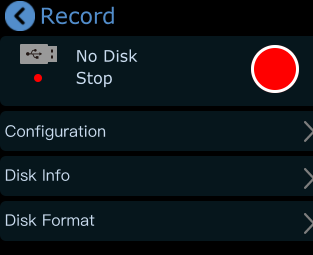
3. mini automatically detects whether a storage device is connected. Recording is unavailable if no disk is detected.
4. Format the disk on the computer. On Windows:
- Insert the USB drive or external SSD
- Right-click the target disk partition and select [Format]
- Select [exFAT] as the file system
- Set [Allocation Unit Size] to [128 KB]
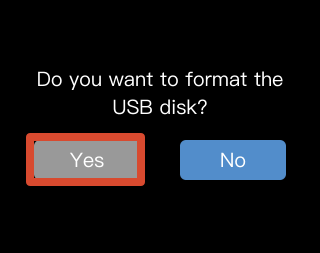
e. On the [RECORD] page, tap [Disk Format] > [Yes] to complete disk formatting.
```tips
📢 **Tips**
If the computer cannot recognize the external SSD after connection, use a dual-USB power cable to provide additional power.
Recording Configuration
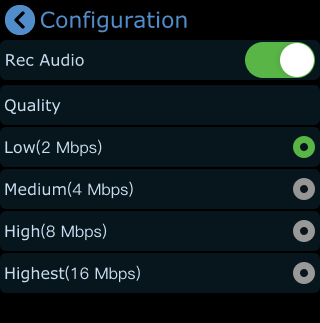
After formatting the disk, tap [RECORD] > [Configure] to set:
- Audio recording on/off
- Recording quality level
View Disk Information
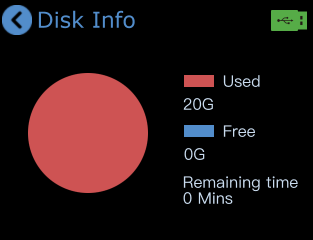
Tap [Record] > [Disk Info] to view:
- Used disk space
- Remaining available space
- Remaining time for recording
Start Recording
Recording can be started from either of the following locations:
- The recording switch on the [RECORD] page
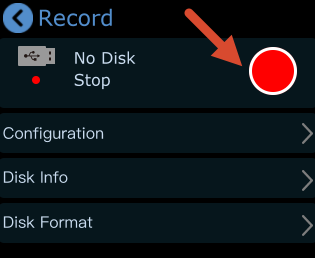
- The recording icon on the [Preset Recall Menu] page
After recording starts, the [Record] page displays:
- Total recording duration
- Recording progress