Online Manual
mini User Manual

1.2.5 Save and Load Views
mini supports real-time view preset saving.
To quickly load your setup the next time the device is powered on, save the current configuration as a view preset.
View presets store all current parameters, including:
- Picture-in-picture settings
- Chroma key settings
- Input source assignments
- PTZ scene settings
- Other current configuration parameters
Once saved, views can be recalled instantly using the [S] button.
- Save a View Preset
After completing your setup, press the [M] button and open the [VIEWS] menu.
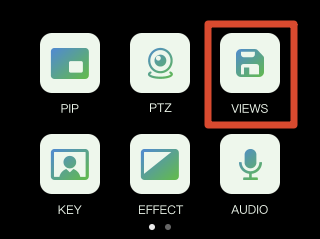
Tap a VIEW icon to save the current configuration to VIEW 1–8.
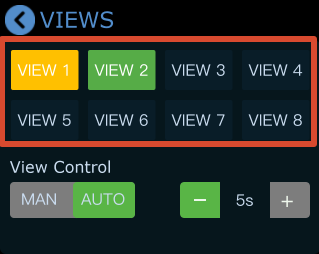
- Status Indicators
- Yellow Icon: view that being used
- Green Icon: saved views
- Grey Icon: blank view
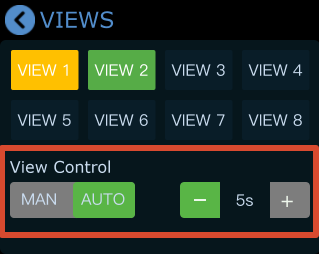
- View Control
- [MAN]: Manual switching
- [AUTO]: Automatic switching
- Scene transition interval settings
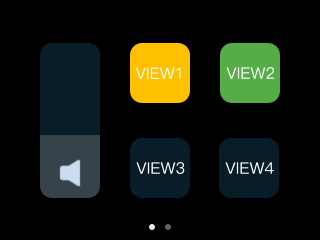
- Load a View Preset
Press the [S] button to open the recall interface. From this menu, you can quickly access VIEW 1–8.
- Modify a Loaded View Preset
After recalling a scene, you can still adjust the layout if needed:
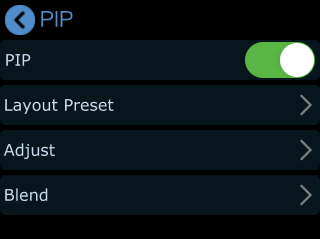
- Tap [PiP] on the touchscreen.
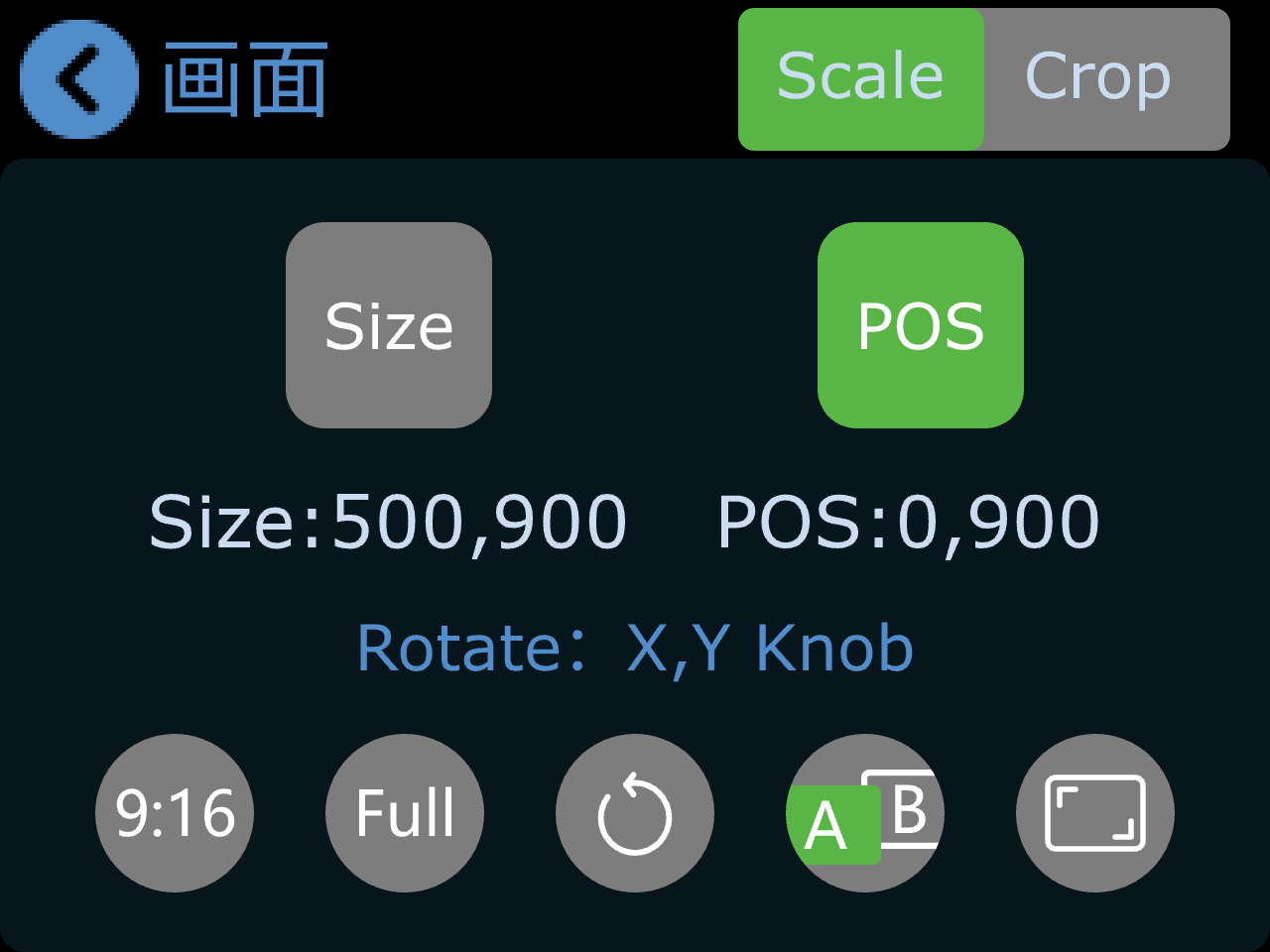
- Select the main or sub layer.
- Use the [1][2][3][4] buttons to switch inputs.
- Use the X/Y knobs to adjust image size and position.
All changes are saved to the current working state in real time.
- Re-save a View Preset
To make updated settings available for future load, the view must be saved again.
- You can:
Overwrite the current scene.
Or save the configuration as a new scene.
Repeat the save steps above to complete the update.