Online Manual
mini User Manual

1.2.7 Video Output
mini provides two independent video outputs:
- PROGRAM (PGM) output
- MULTI-VIEW (PVW) output
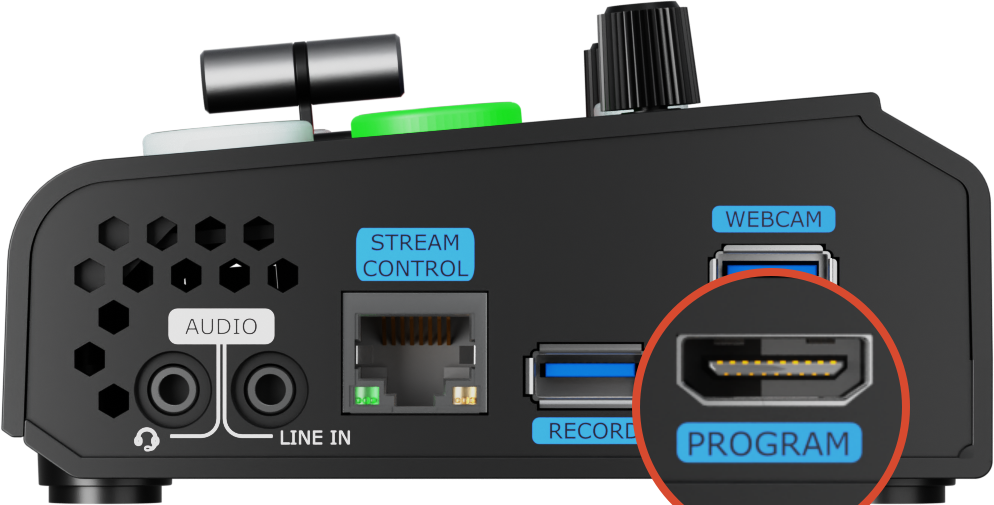
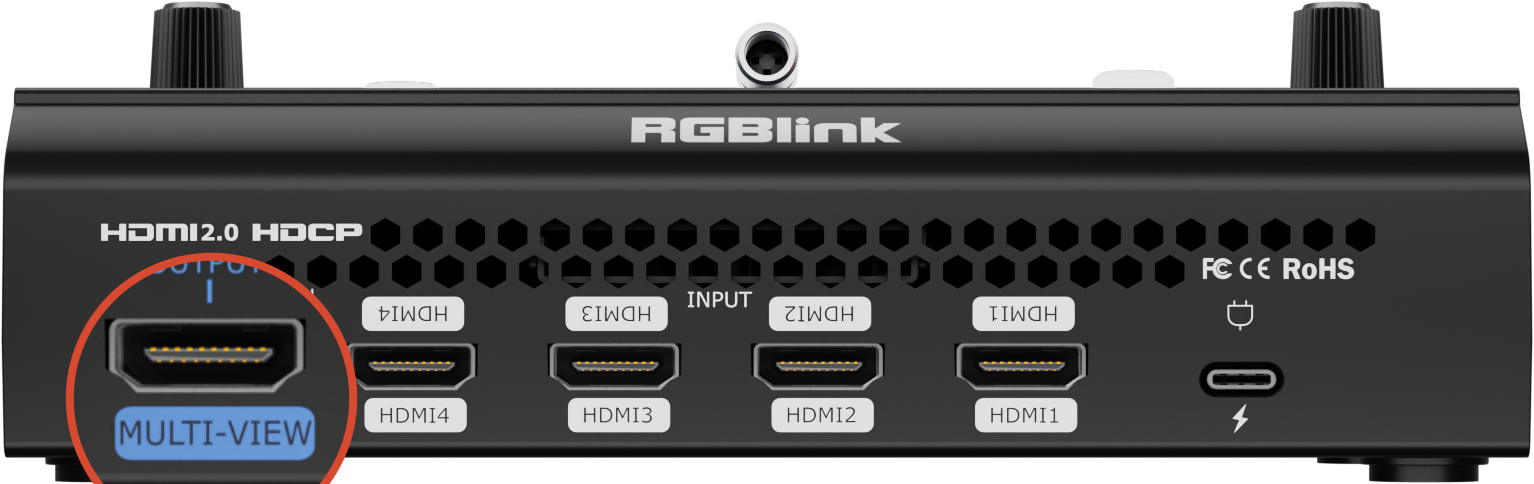
This allows simultaneous program output and multi-view monitoring without manual switching, making operation more intuitive and efficient.
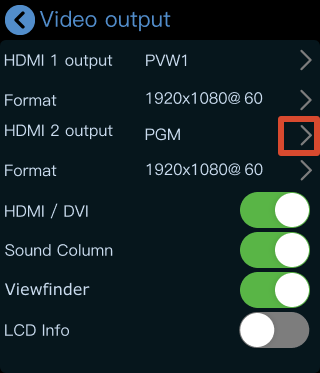
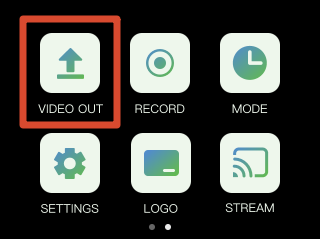
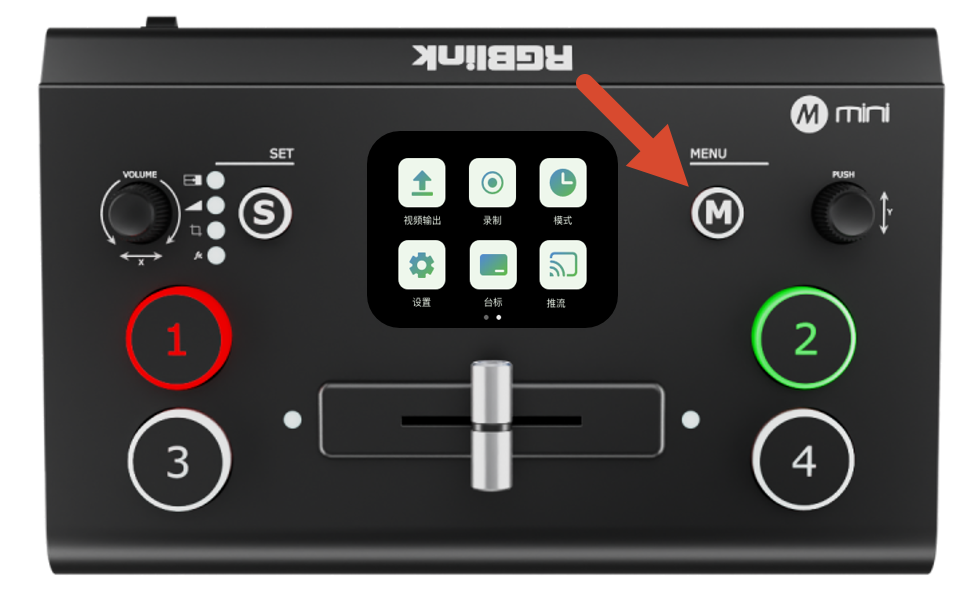
Press the [M] button to open the main menu, then tap [VIDEO OUT] to enter the output settings page.
HDMI 1 Output
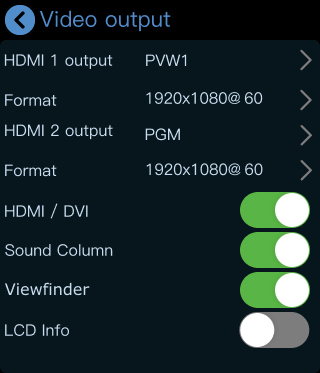
HDMI 1 outputs the multi-view preview (PVW) screen by default.
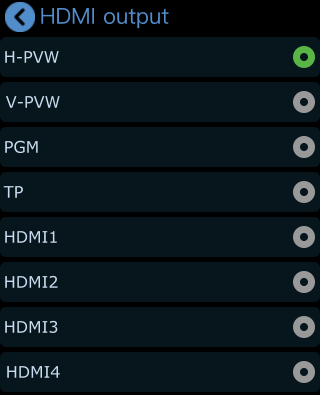
Depending on your workflow, it can also be configured to output:
- PVW 1/2
- PGM
- HDMI 1–4
- TP: Test Pattern
Go to the [VIDEO OUT] menu to configure [HDMI 1 output].
- Output Resolution
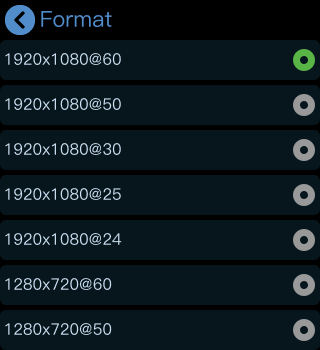
- ** **Tap [Format] to configure HDMI output resolution according to your requirements.
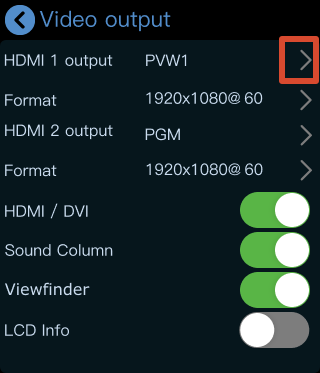
- Tap the [>] icon on the right side to select another output source and configure the output resolution.
- HDMI/DVI Mode
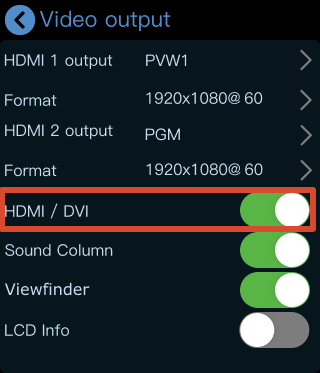
The [HDMI/DVI] option is enabled by default. This feature is designed for setups using different types of display devices simultaneously, such as:
- DVI devices
- LED controller/sender cards
- Monitors with DVI input
- HDMI devices
- Monitors with HDMI input
When enabled, mini automatically adapts to the connected display type.
- View the Output
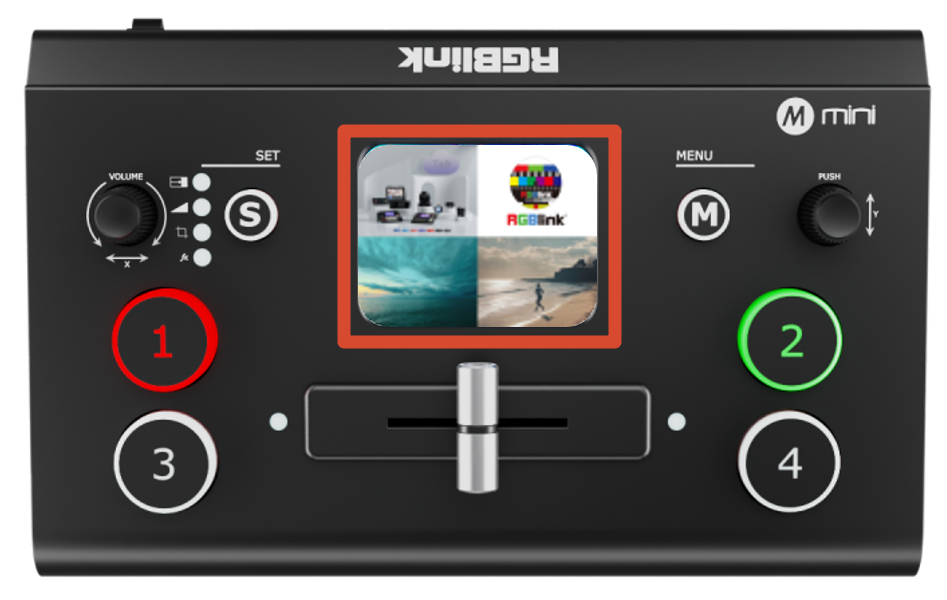
After connecting a display, you can directly monitor the configured output. After configuration:
- Press the [M] button to return to the main menu
- Press [M] again to switch pages
- Press [M] once more
The touchscreen will then enter the 4-view monitoring interface.
 | 👉 |  |
|---|
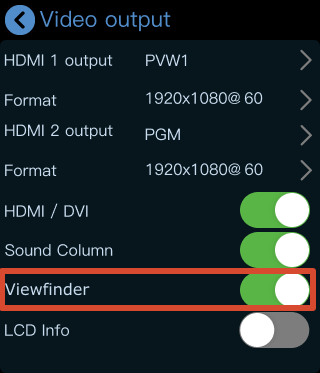
- Viewfinder
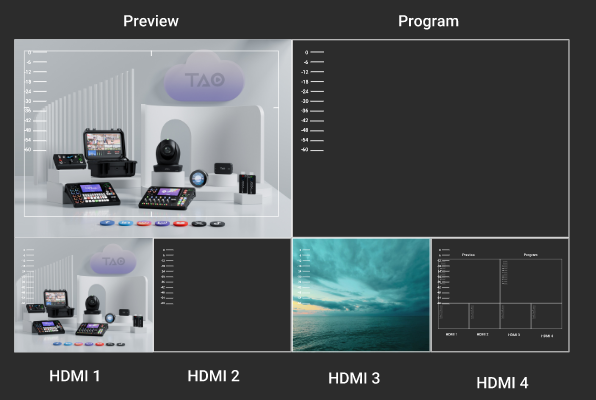
When [Viewfinder] is enabled, a white frame will appear on the PVW preview screen to assist with composition and framing.
- LCD Information Display
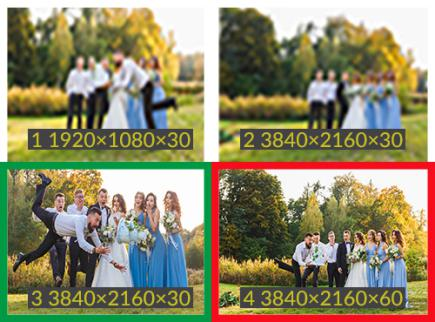
When [LCD Info] is enabled, the interface switches from Simple Mode to Standard Mode.
In Standard Mode, the resolution of all four input sources is displayed.
 | 👉 |  |
|---|
HDMI2 Output
HDMI 2 outputs the PGM feed by default.
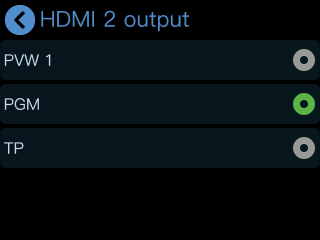
Depending on your workflow, it can also be configured to output:
- PVW 1/2
- HDMI 1–4
- TP: Test Pattern
- Go to the [VIDEO OUT] menu to configure [HDMI 2 output].
- Tap the [>] icon on the right side to select another output source and configure the output resolution.