Online Manual
mini User Manual

2.1.1 Activate TAO Cloud Benefits
Bind mini to TAO Cloud
Tap [Settings] > [TAO Cloud] to open the binding page.
You can bind RGBlink devices such as mini to TAO Cloud for management and efficient content production.
Connect mini to the Network
If mini is not bound to TAO Cloud and has no network connection, a network warning message will appear.
Connect mini to a router using an Ethernet cable.
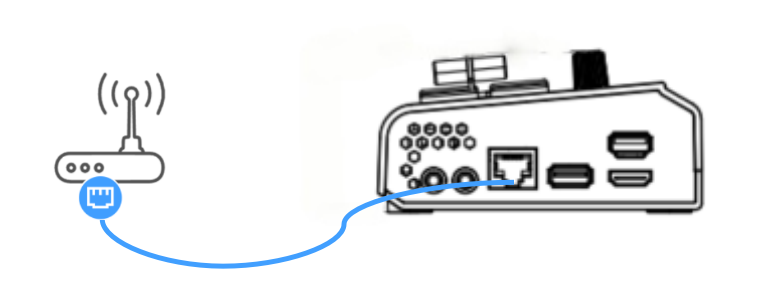
For detailed network setup instructions, refer to 2.1.3Direct Ethernet Connection
IP Settings
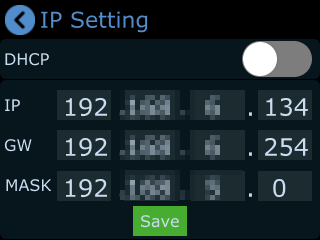
Go to [Settings] > [IP Settings] to configure the network.
- When DHCP is enabled, mini automatically obtains an IP address from the router
- When DHCP is disabled, you can manually configure
- IP address
- GW: Gateway
- MASK: Subnet mask
Get the Verification Code
After the network connection is established:
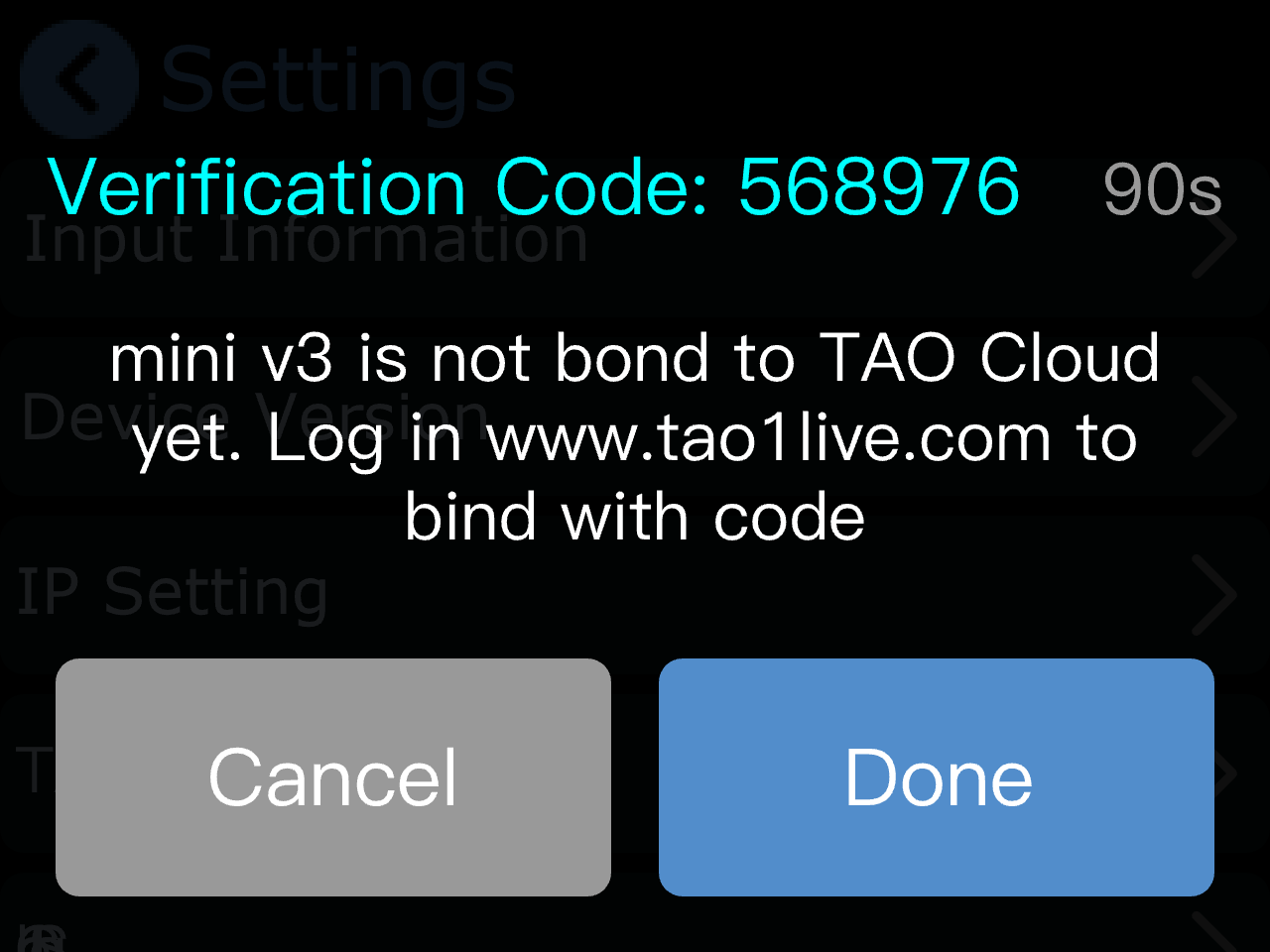
Tap [Settings] > [TAO Cloud]
The device binding verification code will be displayed on the screen.
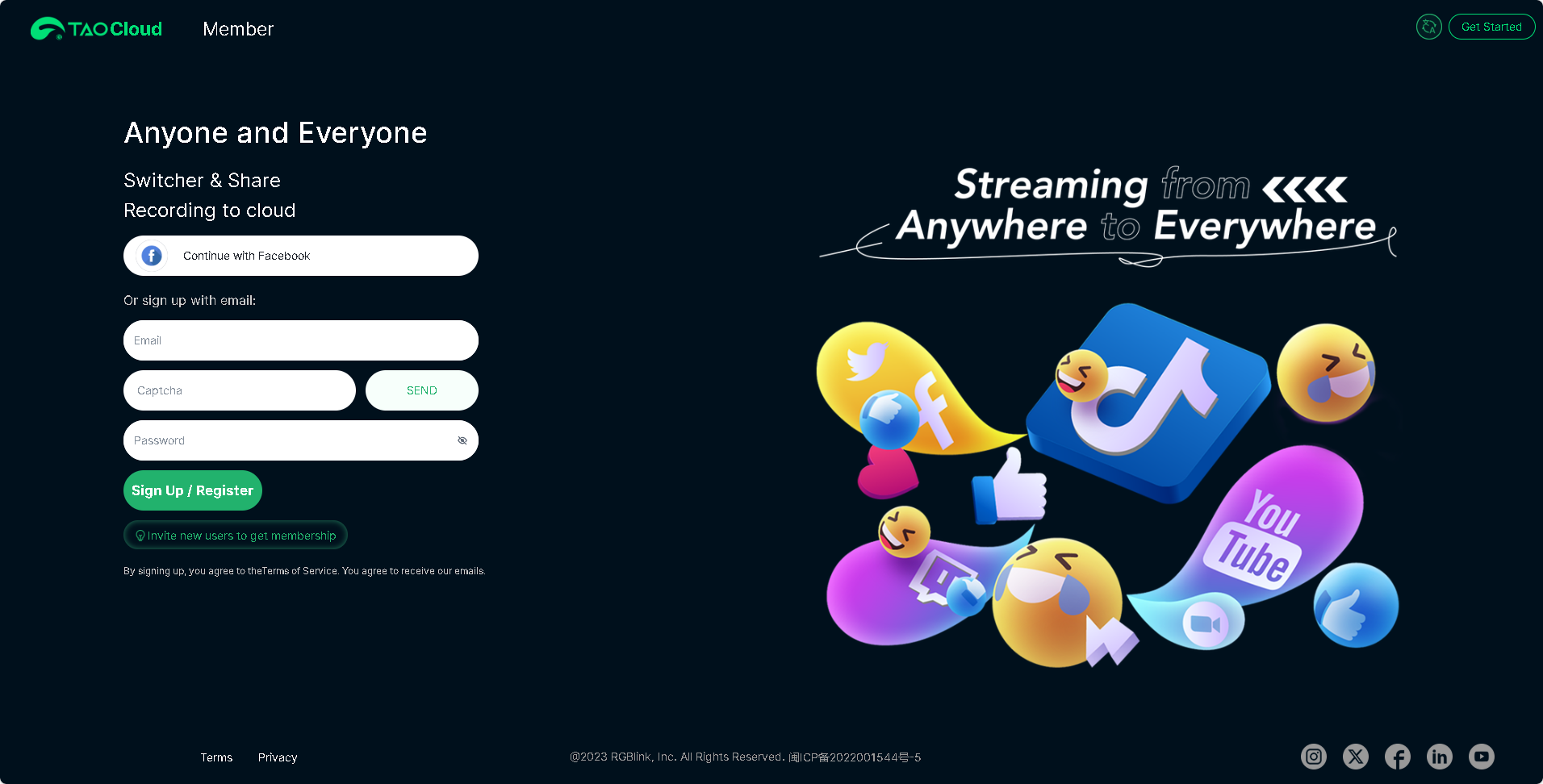
Log In to TAO Cloud
Open the official TAO Cloud website: TAO Cloud
Continue with Facebook account or sign up with e-mail.
Then tap [Send] for verification code.
After receiving the verification code, enter it and log in.
Bind the Device
After logging in to TAO Cloud, go to:
[My Collection] > [Device] > [All Application] >[Binding Devices]
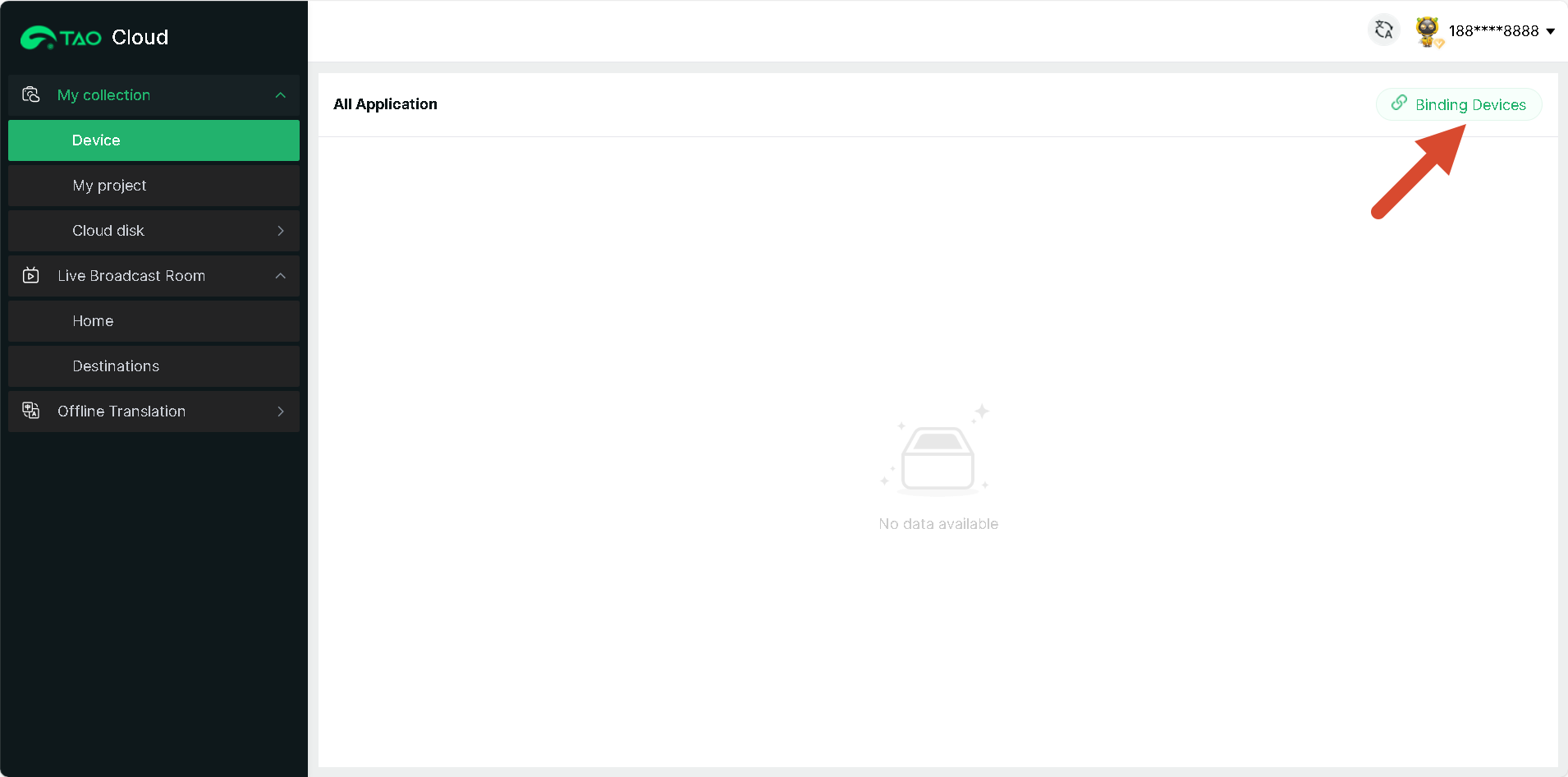
Enter:
- Device Name
- Verification Code
Then tap [Bind] to complete device binding.
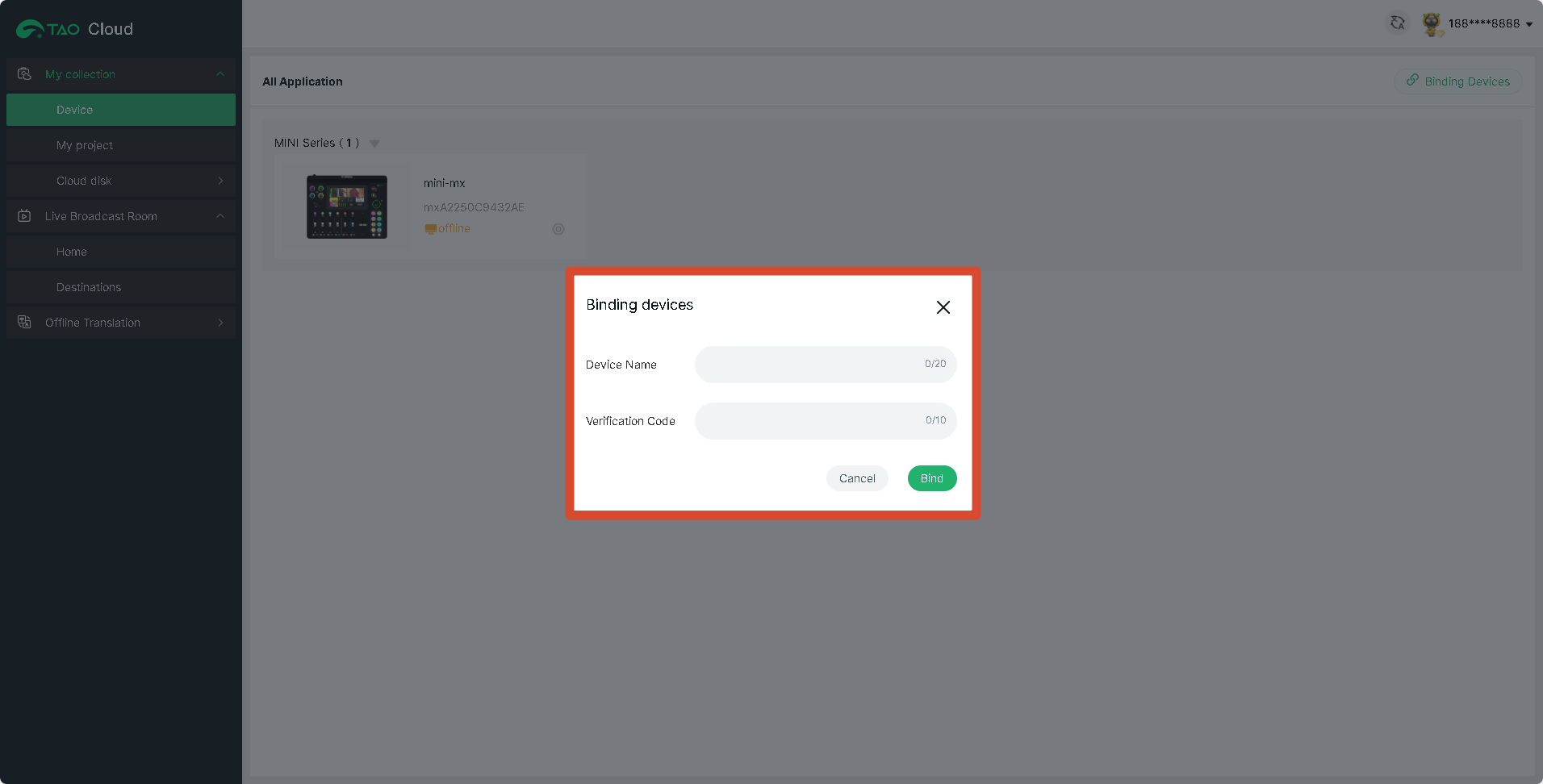
After binding, the device status can be viewed in [All Application] page.
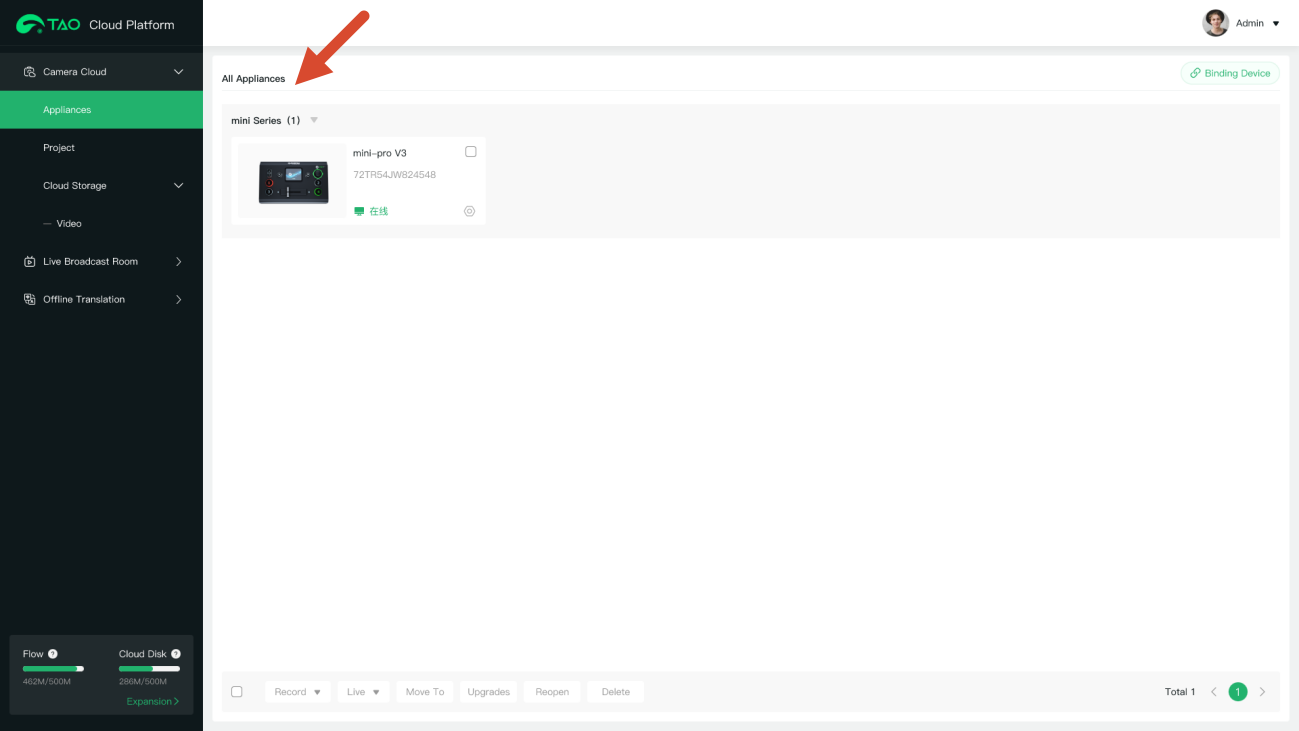
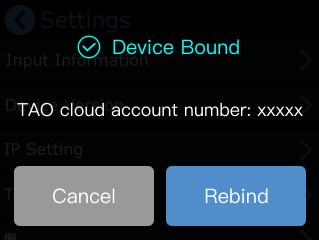
Unbind the Device
To unbind the device:
Open the [TAO Cloud] page on mini again and select [Rebind] to remove the current binding.
Feature Licensing
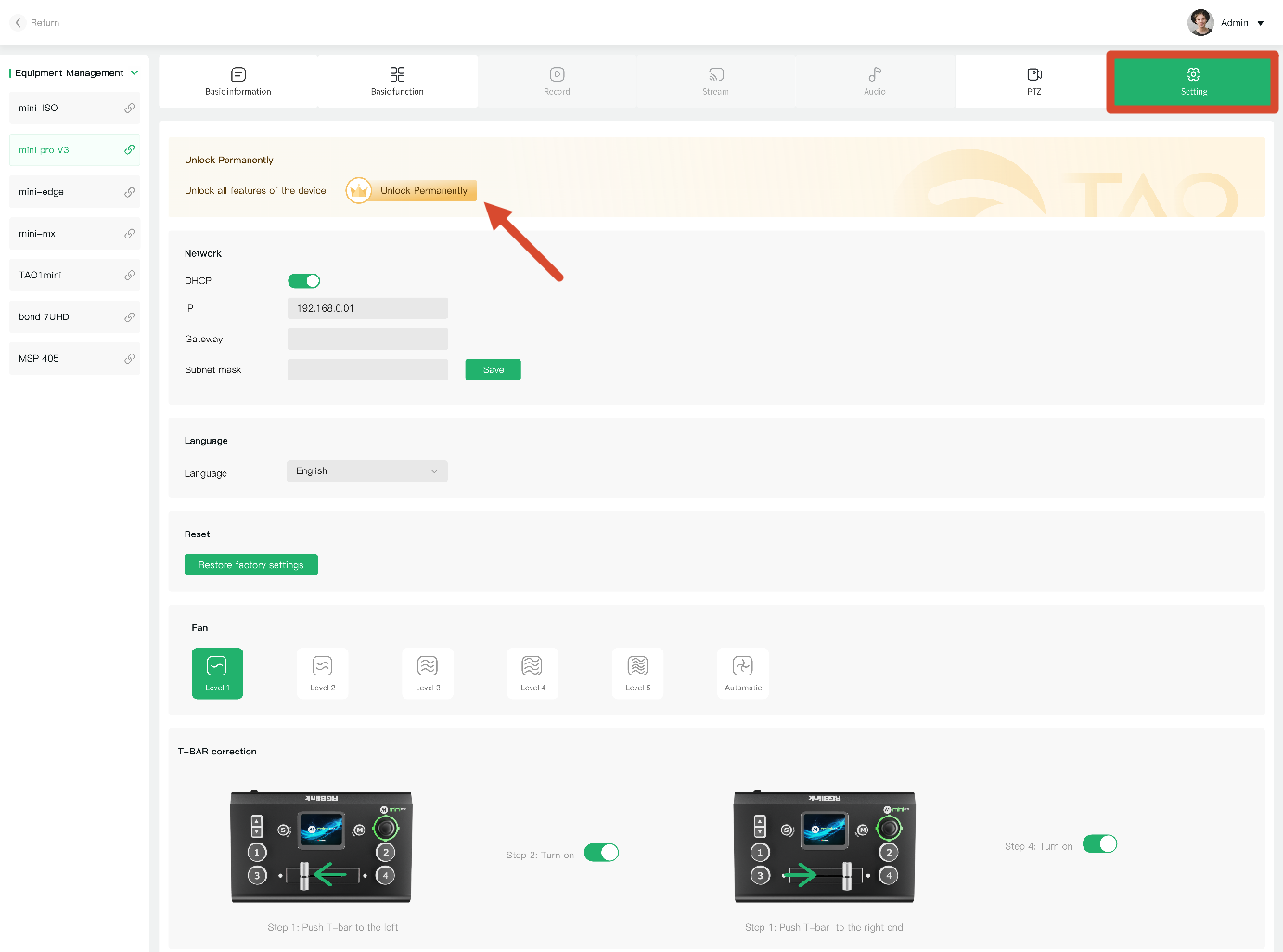
After binding the device, open the mini device management page.
Go to TAO Cloud > [Setting], find [Unlock Permanently]
Purchase Feature Licenses
Select the features you want to activate.
You can also choose [Pay Once, Use Forever]
Tap [Next] to proceed to the payment page.
After payment is completed, the selected features will be unlocked automatically.