Online Manual
mini User Manual

1.2.4 PiP (Picture in Picture)
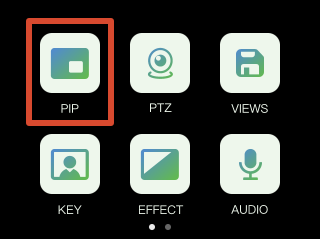
The PiP layout defines the preset scene structure.
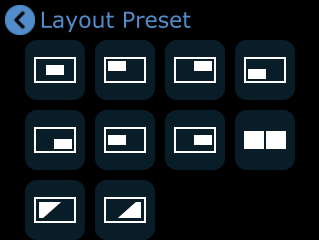
Tap the arrow on the right side of the [Layout Preset] option to open the PiP quick layout selection menu, where you can choose a layout based on your needs.
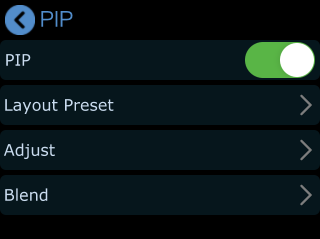
PiP Layer Settings
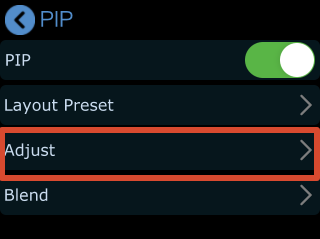
- Tap [Adjust] in the PiP menu to enter the layer adjustment interface.
- Select Main/Sub Layer
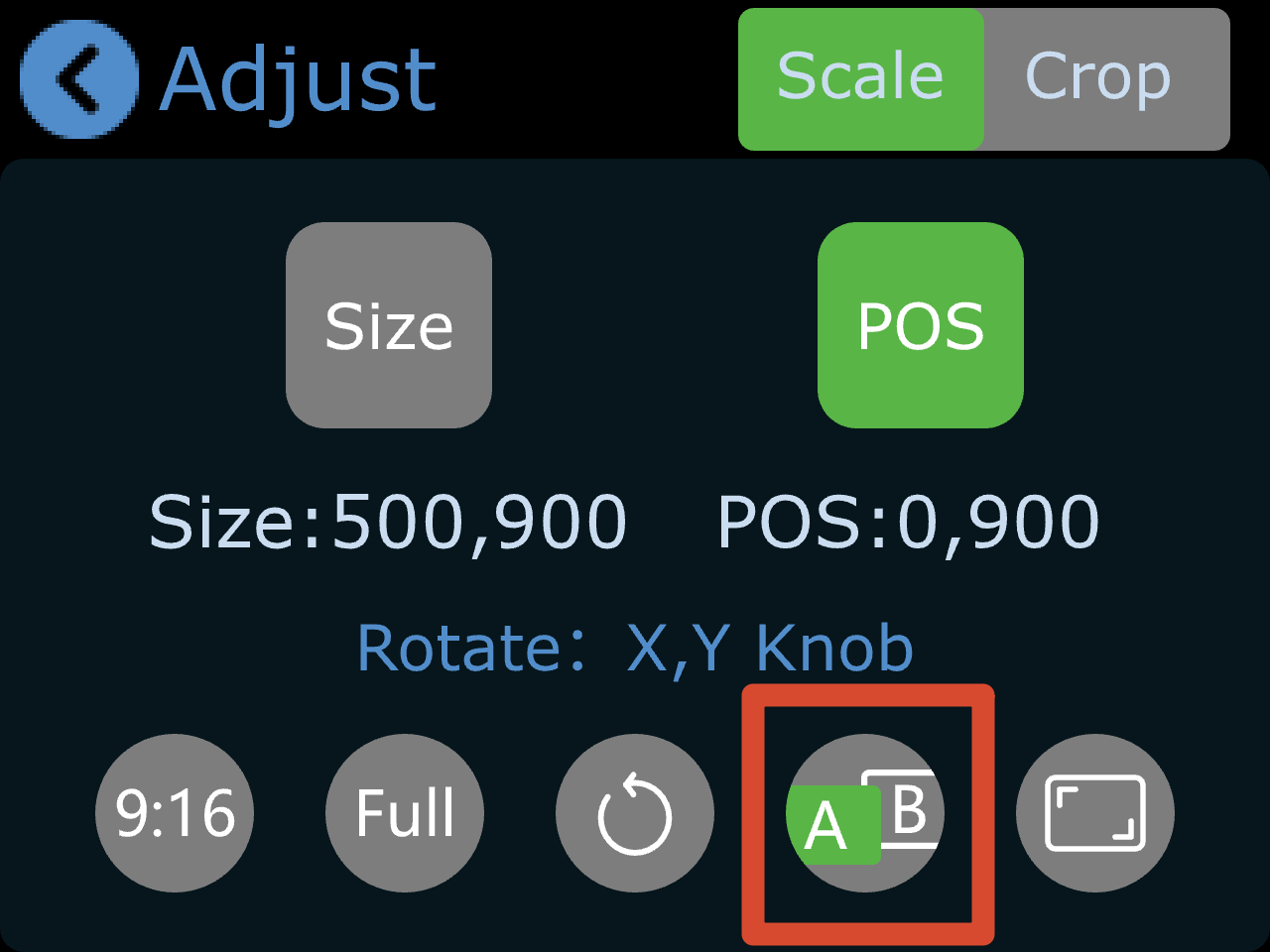
- Tap [A/B] to select the main or sub layer.
- Press [1] [2] [3] [4] to select the input source for each layer.
- Layer Adjustment
After selecting layer A or B, you will enter the edit mode for that layer.
You can adjust the image using the following methods:
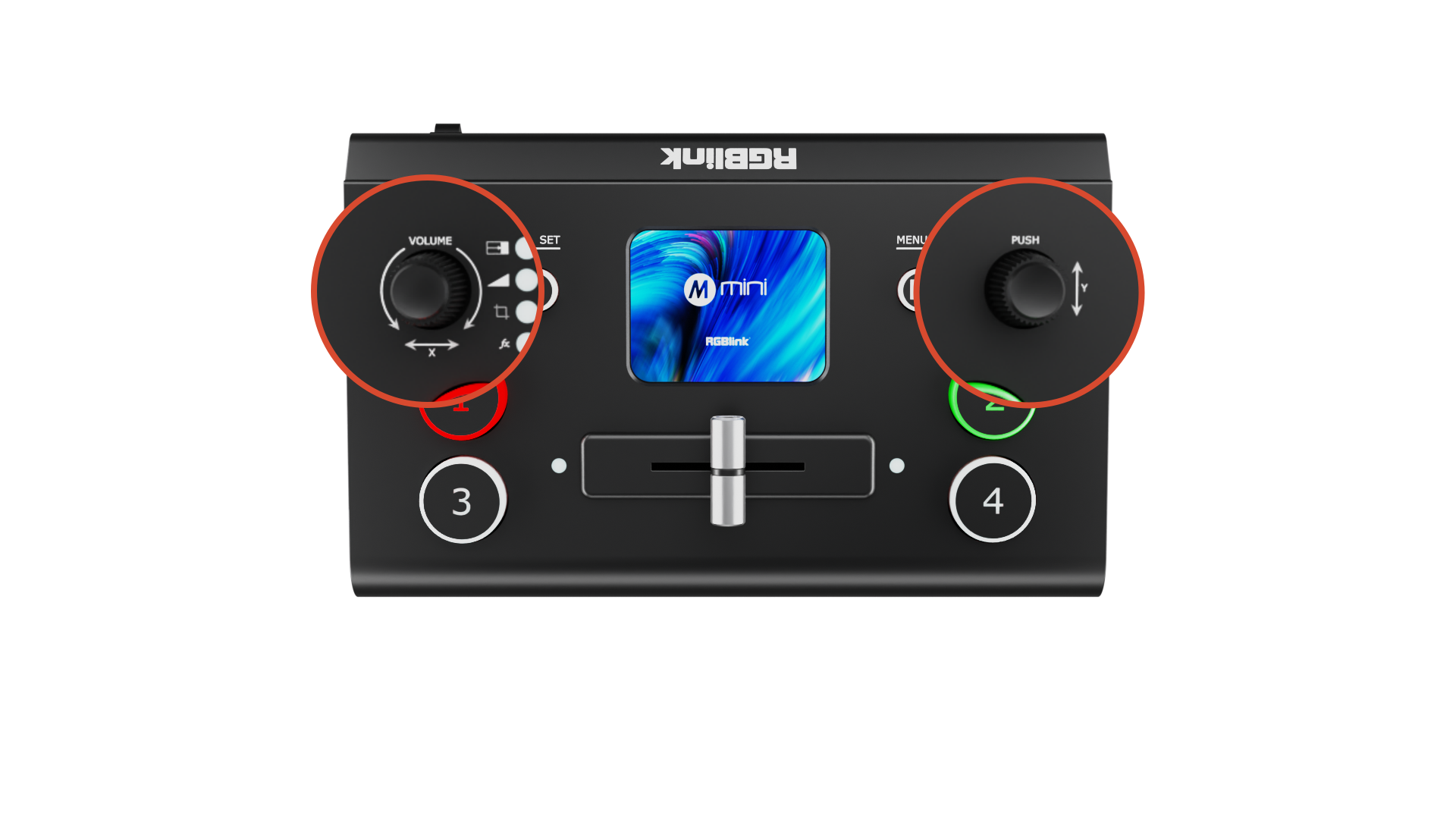
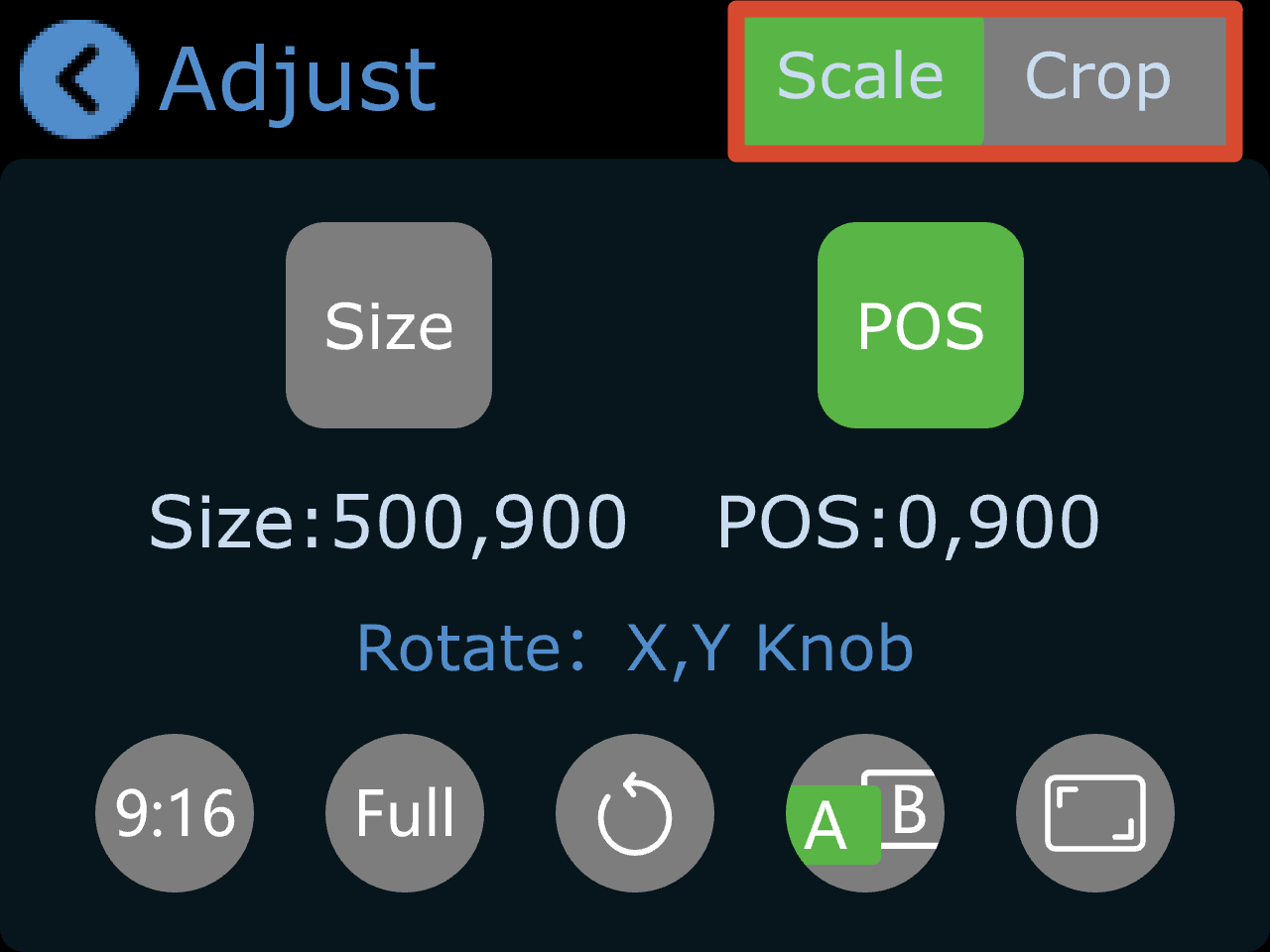
- Select Size or POS (Position) on the touchscreen, then use the X/Y knobs on the front panel.
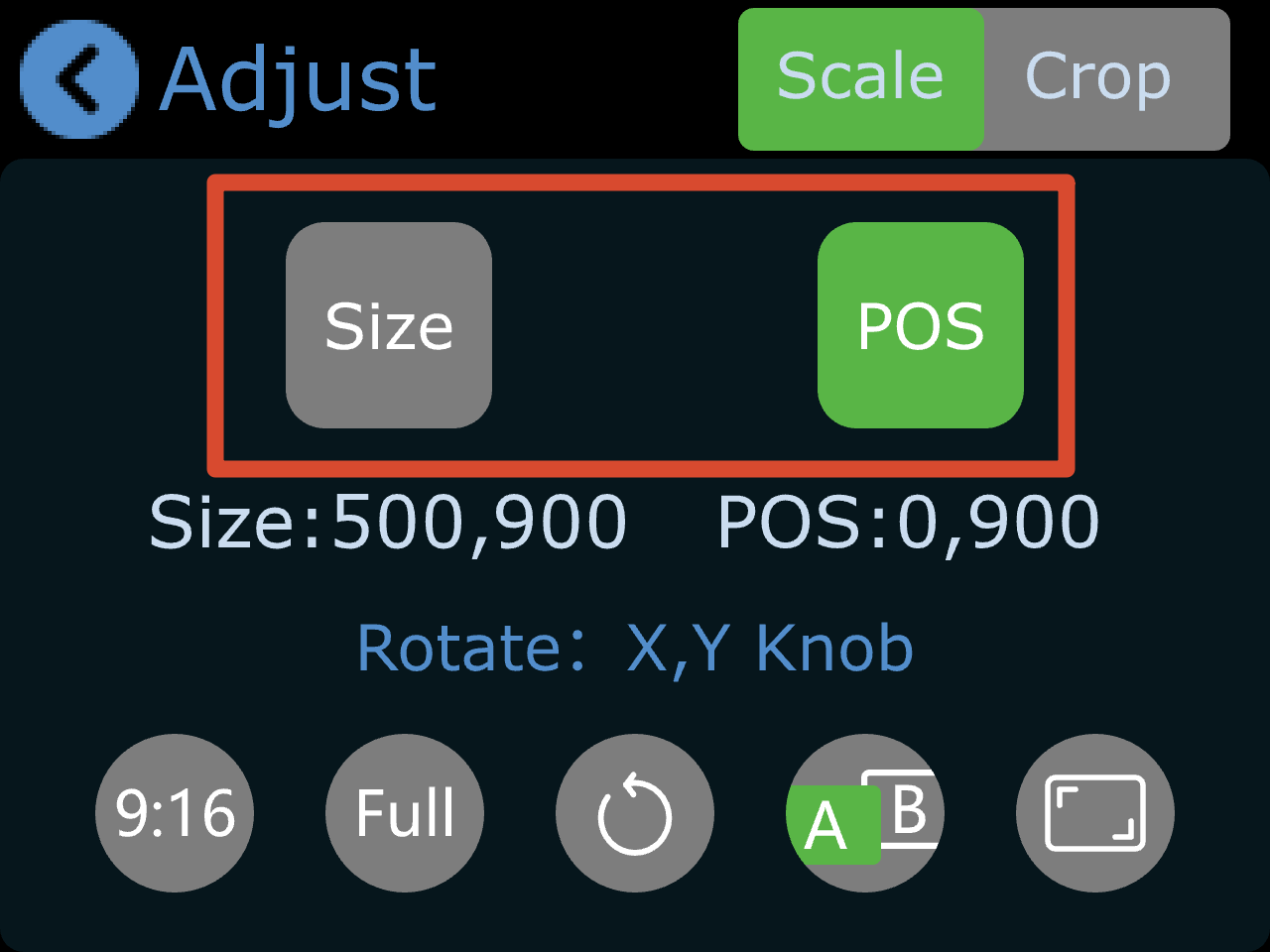
- Use X knob to adjusts width, and Y knob to adjusts height.
- All changes are saved in real time to the current scene.
- If aspect ratio lock is enabled, width and height will scale proportionally when adjusted.
- Aspect Ratio Adjustment
The default display mode is full screen.
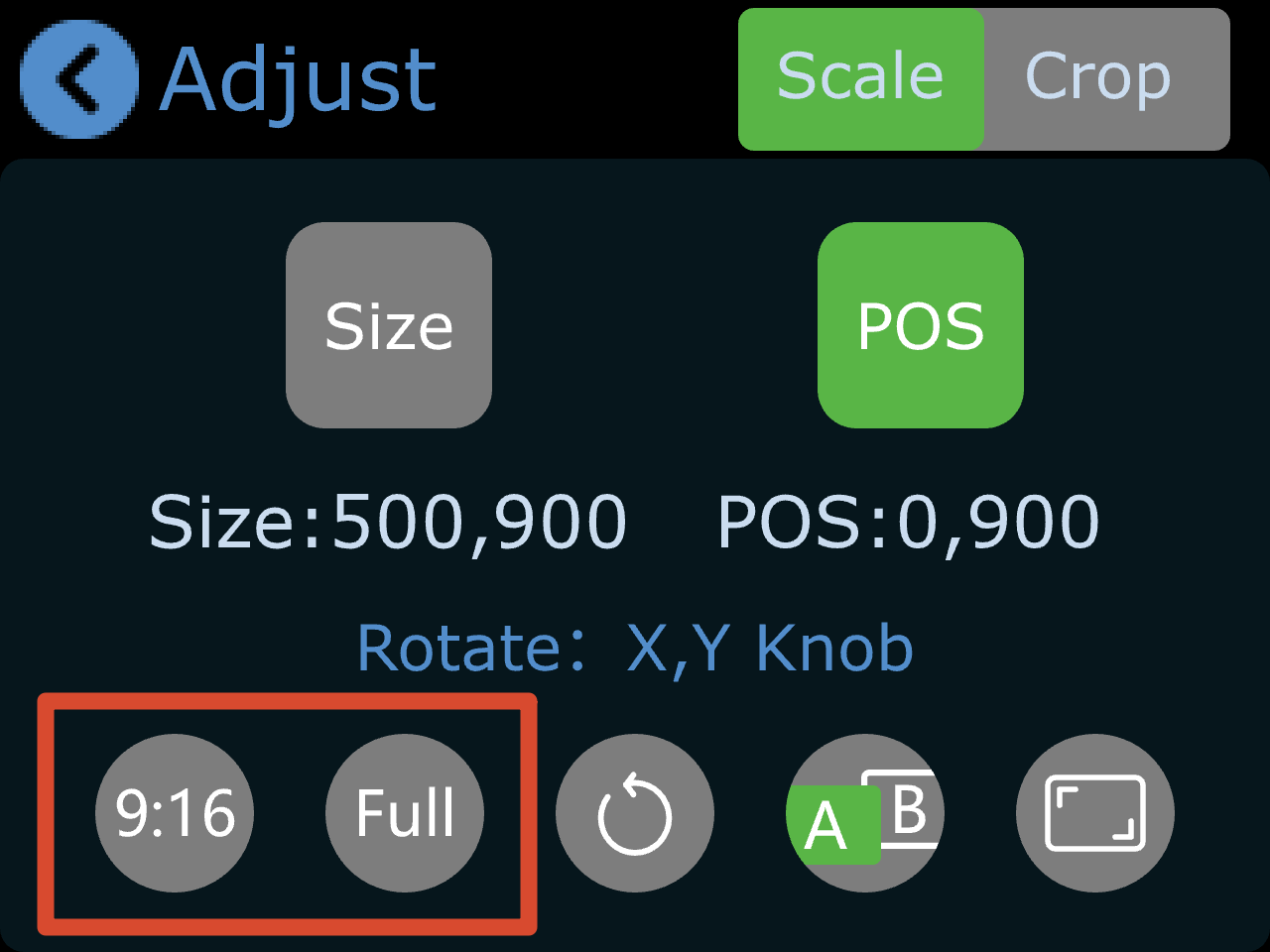
To support vertical video production, mini supports a 9:16 aspect ratio:
- Tap [9:16] to switch to vertical mode
- Tap [Full] to restore full screen
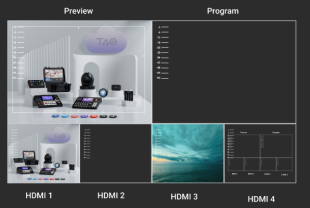 | 👉 | 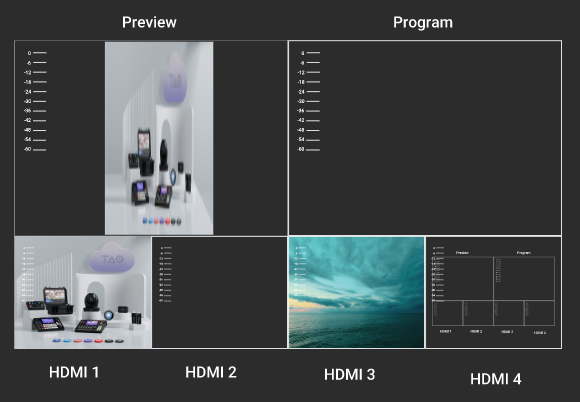 |
|---|
- Scale and Crop
Scale and Crop share the same control logic as image adjustment. Refer to the section above.
Blend
The Blend function creates a soft transition between two input sources by feathering the boundary area for a more natural composite effect.
- Go to the PiP menu and select [Blend] to enter the configuration page.
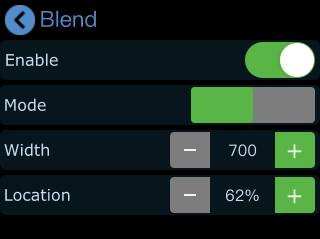
- Turn on the Enable switch to activate the blend effect.
- Parameters
Blend modes:
- Left blend
- Right blend
Adjustable parameters:
- Width (default: 700)
- Higher values increase the blur range and soften the edge
- Lower values create a sharper boundary
- Position
- Controls the proportion of the blending area
- Higher values expand the blend region
Blend settings can be saved to View 1–8 for quick recall.
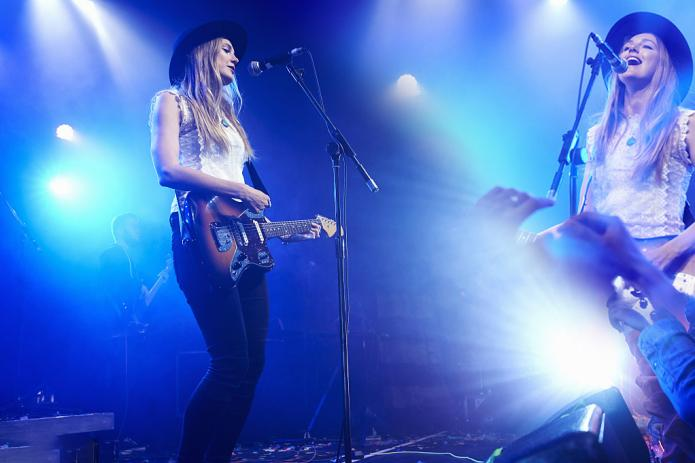
Following is the illustration of Blend effect.

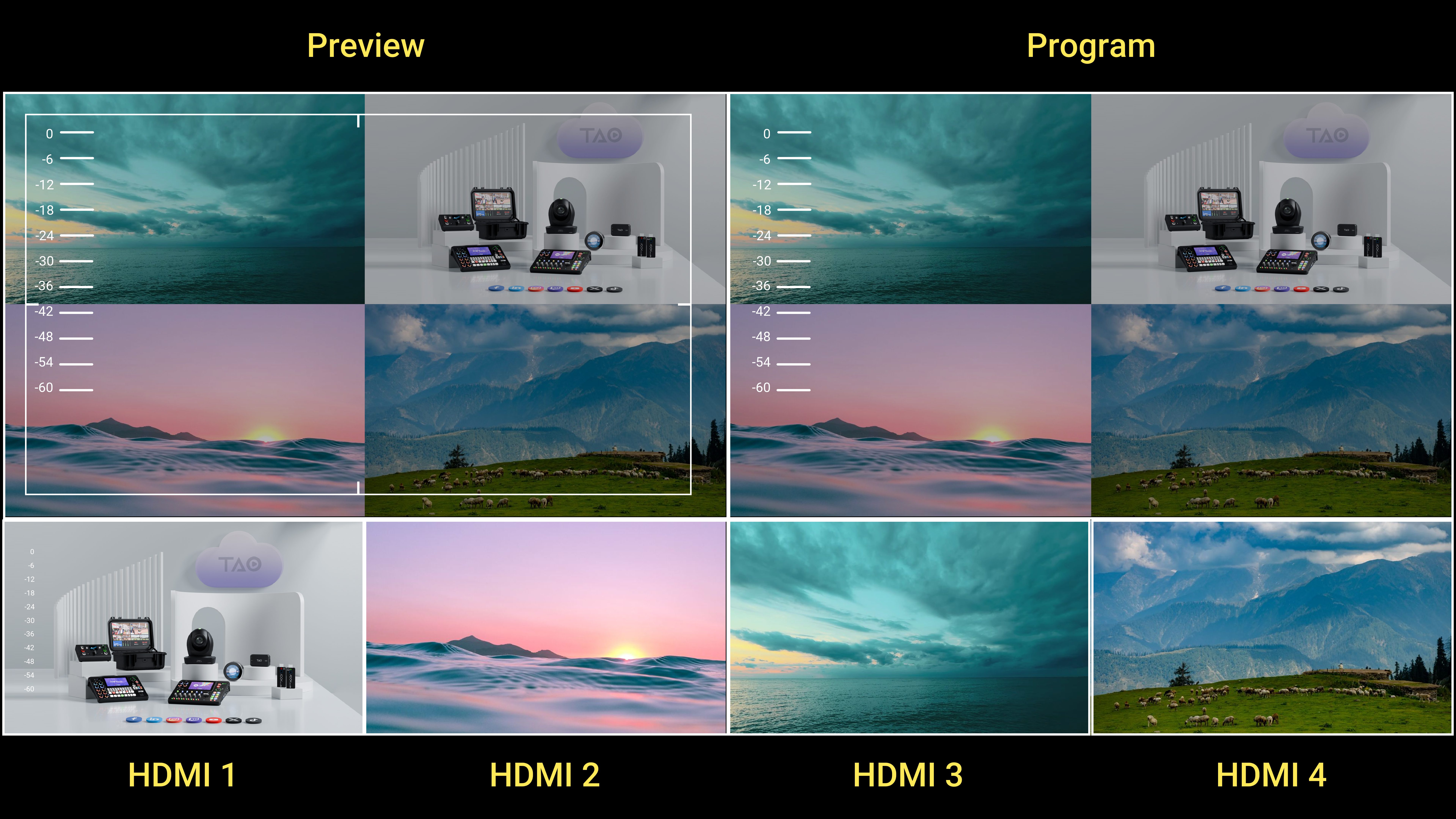
Display 4 Inputs on PGM
PiP supports up to two input sources in a left-right layout.
To display all four input sources simultaneously on the main output, combine PiP layout with T-Bar switching:
- Set both preview and program outputs to PiP layout.
- Set transition mode to T-Bar and select Fade effect.
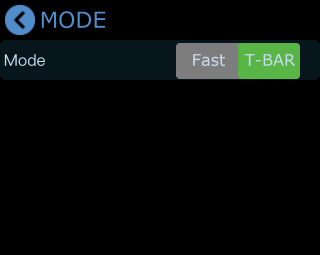
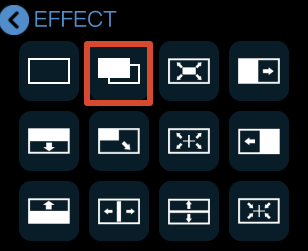
- When the T-Bar is positioned in the middle, both preview and program windows will display all four input sources.
**📢  Notes**

Since this display method uses a fade transition effect, the image may appear darker when the T-Bar is centered. You may adjust brightness as needed.