Online Manual
mini User Manual

1.2.2 Switch Source
Switch Sources
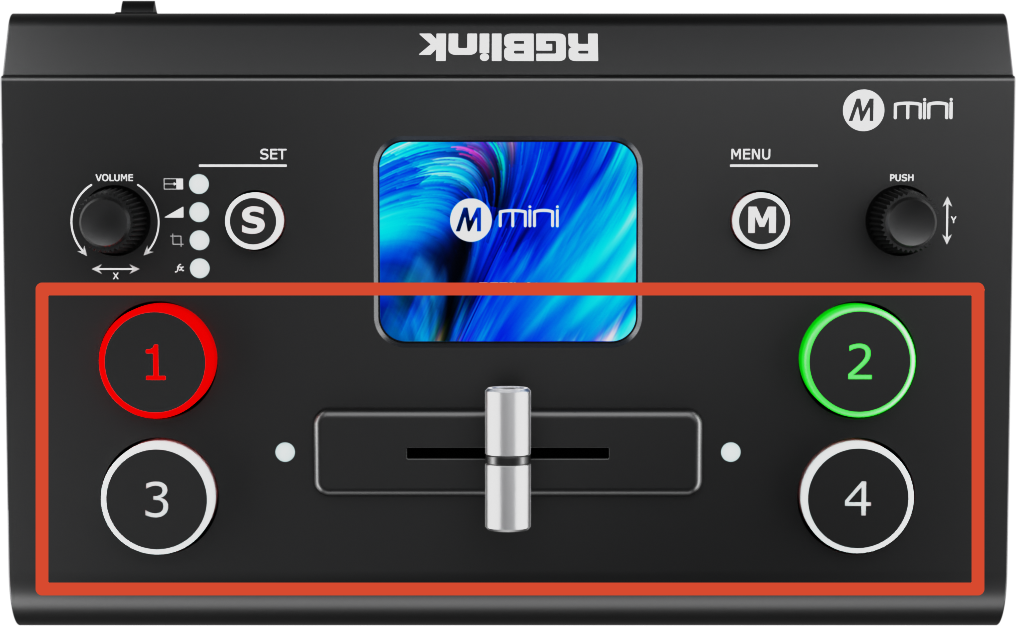
The [1], [2], [3], and [4] buttons on the mini control panel correspond to the four HDMI input ports.
After connecting input sources, the button indicators will display the following statuses:
- **Solid green: **Signal detected and idle
- **Flashing green: **The selected source is currently being edited
- **Solid red: **The source is currently on the main output
- **Off: **No signal detected, or the input resolution is not supported by mini
When four signal source plug in, the lights on the signal source buttons will appear in four states:
- **Steady green: **The signal is recognized and no operation is performed;
- **Flashing green: **The currently selected signal is ready to be switched;
- **Steady red: **The current signal is in Program output;
- **Unlit: **No signal source is connected or the resolution of the signal source connected is not accepted.
Transition Effect Settings
To create more dynamic scene transitions, mini provides 15 transition effects for different production scenarios.
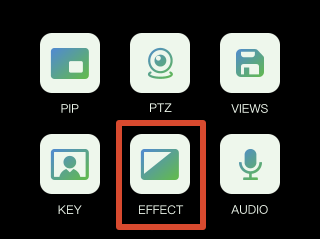
Tap the [EFFECT] icon on the touchscreen to open the transition effect selection menu.
What follows are the 15 transition effects.
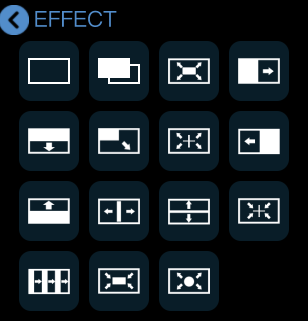
Transition Effects
Cut
The Picture 1 switches to Picture 2 instantly with no transition effect.
 | 👉 |  |
|---|
Mix
During the transition, Picture 1 gradually fades out while Picture 2 gradually fades in, blending together smoothly.
 | 👉 |  |
|---|
Circle Expand
A circular mask expands outward from the center of the screen to transition from Picture 1 to Picture 2.
 | 👉 |  |
|---|
Cross Expand
A cross-shaped mask expands outward from the center of the screen to transition from Picture 1 to Picture 2.
 | 👉 |  |
|---|
Cross Collapse
A cross-shaped mask expands inward from the screen edges toward the center to transition from Picture 1 to Picture 2.
 | 👉 |  |
|---|
Square Expand
A square mask expands outward from the center to transition between Picture 1 and Picture 2.
 | 👉 |  |
|---|
Square Collapse
A square mask expands inward from the screen edges, to transition between Picture 1 and Picture 2.
 | 👉 |  |
|---|
Bottom Up Wipe
Picture 2 wipes upward over Picture 1 until the transition is complete.
 | 👉 |  |
|---|
Top Down Wipe
Picture 2 wipes downward over Picture 1 until the transition is complete.
 | 👉 |  |
|---|
Left to Right Wipe
Picture 2 wipes from left to right over Picture 1 until the transition is complete.
 | 👉 |  |
|---|
Right to Left Wipe
Picture 2 wipes from right to left over Picture 1 until the transition is complete.
 | 👉 |  |
|---|
Diagonal Wipe
Picture 2 wipes in diagonally over Picture 1 until the transition is complete.
 | 👉 |  |
|---|
Horizontal Center Expand
Picture 2 expands horizontally from the center toward both sides until it fully replaces Picture 1.
 | 👉 |  |
|---|
Vertical Center Expand
Picture 2 expands vertically from the center toward both sides until it fully replaces Picture 1.
 | 👉 |  |
|---|
Venetian Blinds Right
Picture 2 appears in vertical strips expanding horizontally from the center, creating a venetian blinds transition effect.
 | 👉 |  |
|---|