Online Manual
mini User Manual

2.1.6 PTZ
**💎  **The features described in this chapter are licensed features. Please refer to [Activate TAO Cloud Benefits](https://www.yuque.com/rgblink-kb/rlueug/vg2nb6zdh9ylbe45) to unlock them before use.

```mini
supports PTZ camera control through the IP VISCA protocol, including:

-  Pan and tilt control (X/Y axis)
-  Lens zoom control
-  Manual and auto focus
-  PTZ preset recall

mini also supports saving PTZ camera position and zoom status for quick recall later.

PTZ scenes on mini save both PTZ parameters and the corresponding input source. When a PTZ scene is recalled, the system automatically switches to the associated camera input.

```info
mini v3 currently supports PTZ cameras using the** VISCA** protocol.
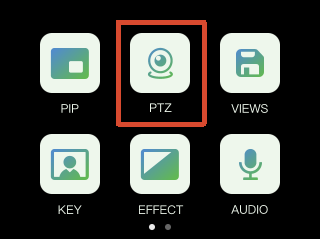
Open the PTZ Control Menu
- Press the [M] button to return to the main menu.
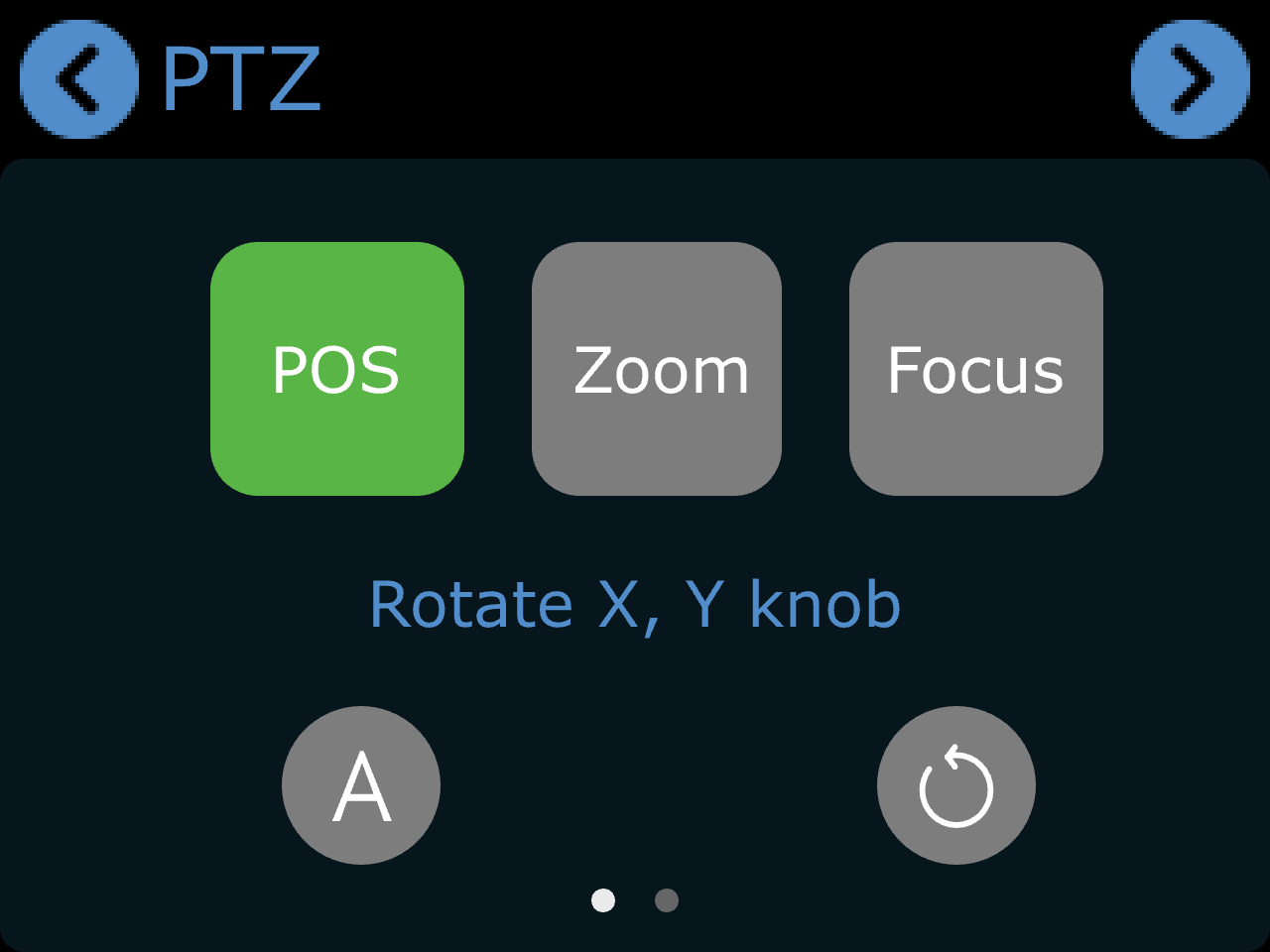
- Tap [PTZ] to enter the PTZ control page.
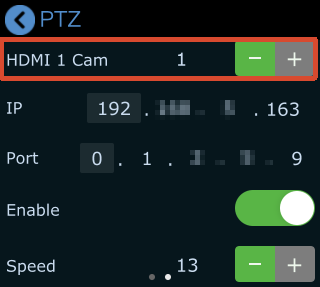
Select a PTZ Camera
- Press [1], [2], [3], or [4] to select the corresponding input source.
- Tap [-] or [+] next to the camera icon to switch between different video sources.
The selected camera becomes the active PTZ camera for control.
Camera Port Settings
Before controlling the camera with mini, ensure the camera port number is set to 1259.
If the camera port is not 1259:
- Refer to the camera user manual
- Enter the correct port number on the PTZ settings page
This ensures proper PTZ communication.
We recommend using the RGBlink vue series PTZ cameras.
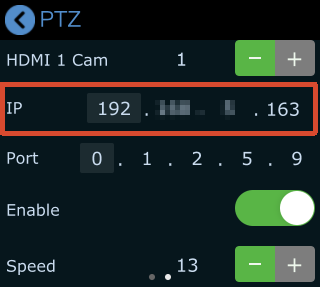
Network Requirements
mini and the PTZ camera must be on the same subnet.
The first three segments of the following IP addresses must match:
- mini IP address
- PTZ camera IP address
The mini IP address can be modified in:
- [PTZ] menu
- [SETTINGS] > [IP Setting]
When modifying the IP address, use the X/Y knobs on the front panel to select and adjust each IP address segment.
PTZ Preset Control
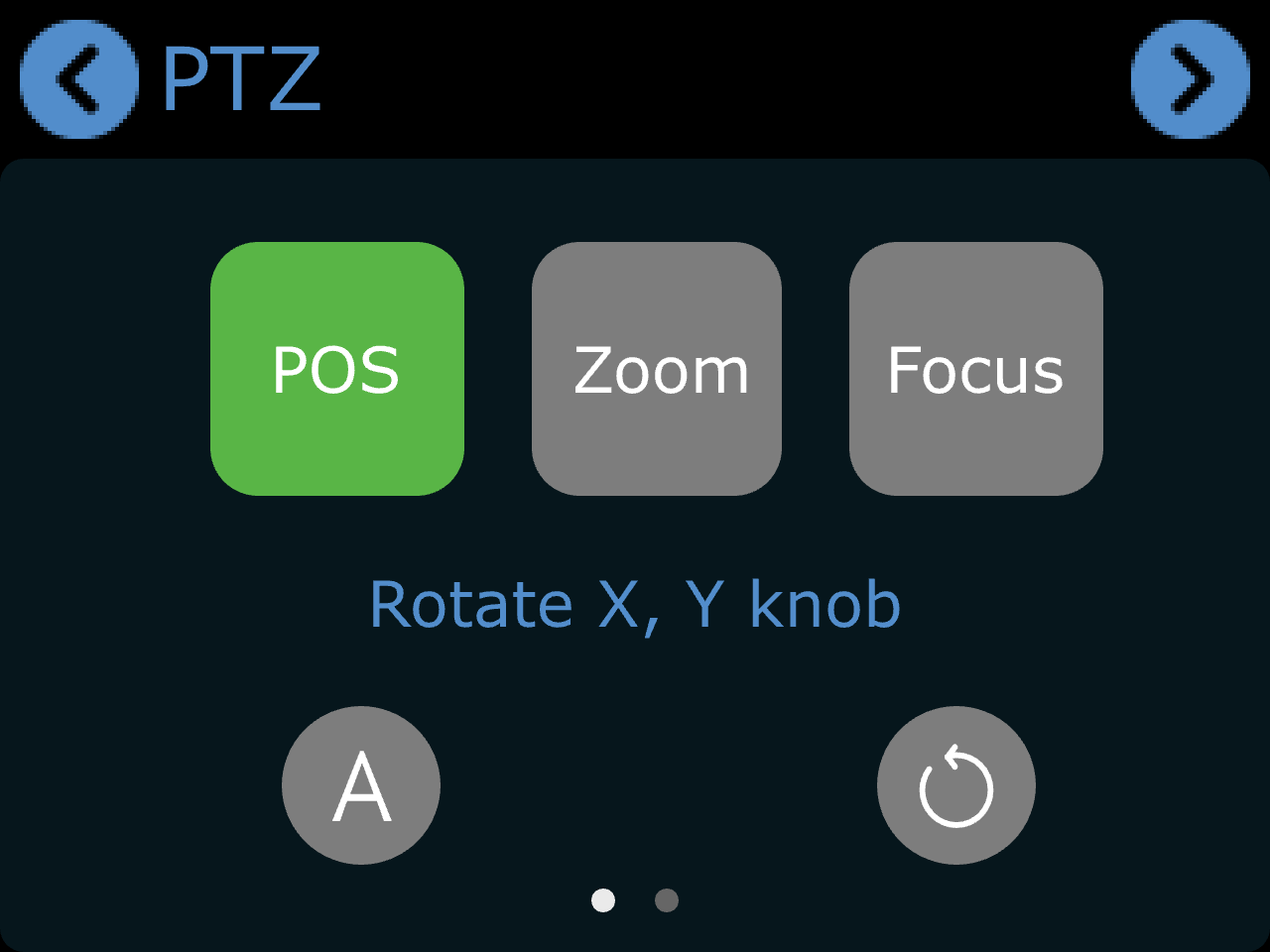
Adjust Position / Zoom / Focus
After PTZ is enabled:
- Tap [POS] and use the X/Y knobs on the main panel to control camera movement
- Tap [Focus] and use the X knob on the main panel for manual focus
- Tap [A] icon
 to enable auto focus
Adjust PTZ Speed
- Tap [POS].
- Tap the next-page button
 to enter the detailed settings page.
- Adjust the PTZ movement speed in the [Speed] section.
- Supported speed levels: 17, 14, 11, 8, 5, 2
Reset PTZ Settings
Tap the reset icon  on the screen to restore PTZ parameters to default settings.