Online Manual
mini User Manual

3 Upgrade
mini supports online upgrades.
Before You Start
- Connect the mini to the computer using an Ethernet cable.
- Open the network settings on the computer and ensure the computer and mini are connected to the same LAN. DHCP is recommended for automatic IP address assignment to ensure proper communication.
Upgrade Procedure
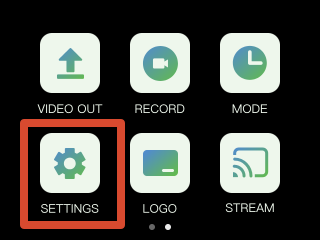
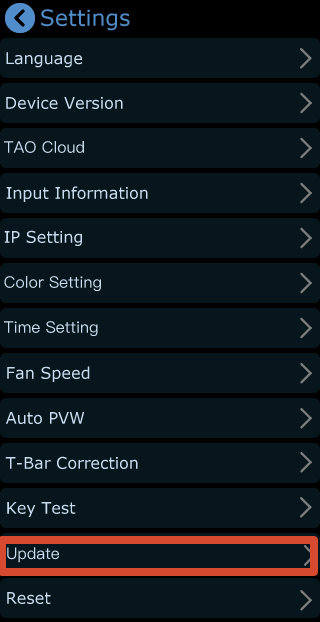
- Go to [SETTINGS] > [Upgrade] to open the upgrade page.
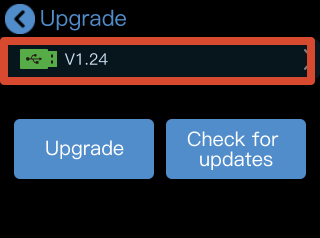
- If the device is already running the latest version, tap [Check for Updates], the page will display [Currently in the latest version] along with the current version number.
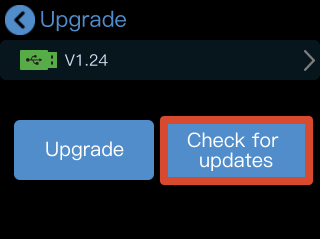

- If a new version is available, the page will display [New Version Available].
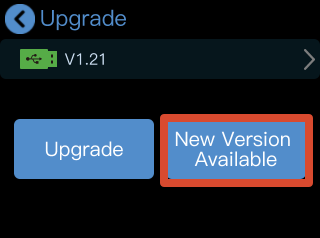
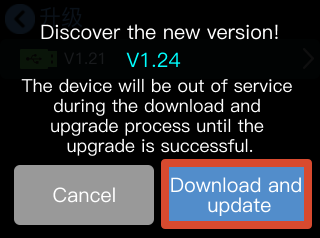
- Tap [New Version Available] to view the latest version information. Then tap [Download and Update] to download the upgrade package.
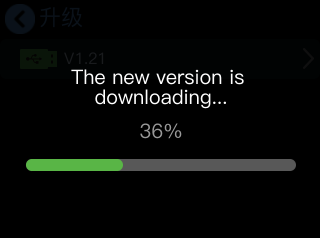
- The download progress will be displayed during the process.
The download may take approximately 10 minutes, depending on the network speed.
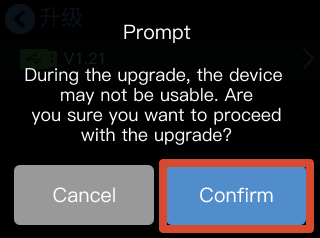
- After the download is complete, tap [Confirm] to start the upgrade.
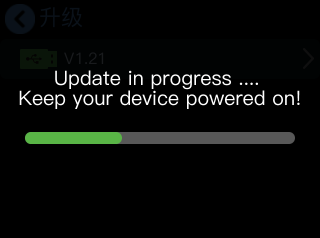
- The upgrade progress bar will be displayed during the upgrade process. Once the upgrade is complete, the device will restart automatically.
**📢  Important**

**Do not** power off the device during the upgrade process.

Otherwise, the upgrade may fail.
- After the device restarts, the updated version number will be displayed on the [Upgrade] page.