General / XTOOL / Software Install
XTOOL Software Installation Steps
Overview
🔔 Current XTOOL Version:1.0.2.59
XTOOL is used to upgrade device firmware. It also displays the device connection status, device information, and firmware upgrade progress.
Where to Download XTOOL
Download XTOOL using either of the following methods.
Method 1: Download from the official website
- Visit the Official RGBlink Website.
- Search for XTOOL.
- Locate the Downloads section on the product page.
- Click the corresponding download button.
Method 2: Download from the Support page
- Visit the official RGBlink website and open the Support page.
- Click Get Support under the proAV section.
- On the support page, locate and expand the Software section.
- Find XTOOL in the list and download the software.
Method 3: Download from the APPS section
- Visit the Official RGBlink Website.
- Scroll to the footer and click Software under APPS.
- The website redirects to the Support page > Software section.
- Find XTOOL in the list and download the software.
XTOOL Installation Steps
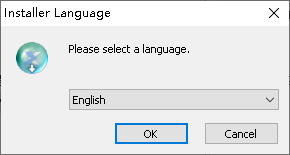
1. Launch the Installer
Double-click the installer on the desktop.
When the language selection dialog appears, choose the desired language and click OK.
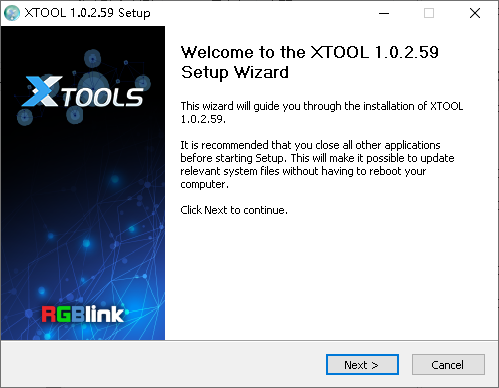
2. Start Installation
When the Setup Wizard opens, click Next> to continue.
3. Select the Installation Location
Click Browse... to choose the installation directory, then click Install.
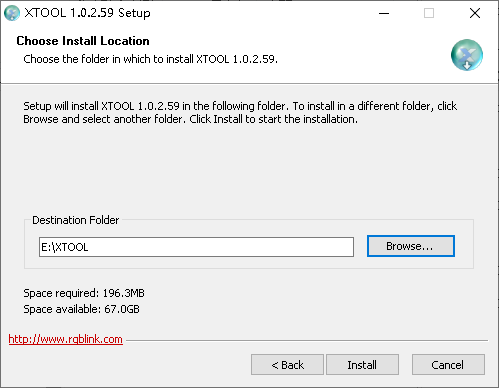
📢  Important

On Windows 7 or later, administrator privileges are required when installing to the system drive (C:).
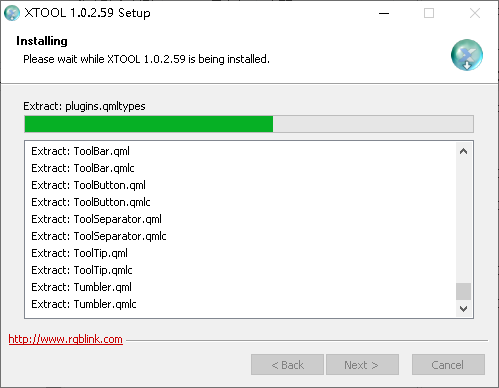
4. Install the Virtual Com Port Driver
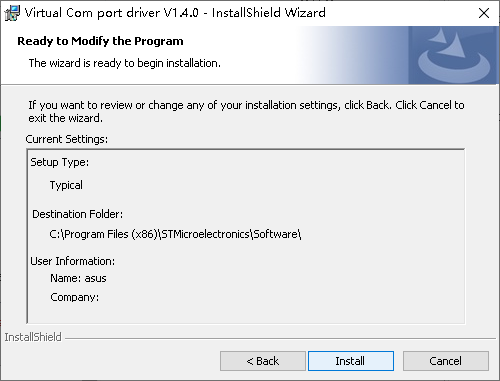
During installation, the Virtual Com port driver installer opens automatically.
- Click Next >.
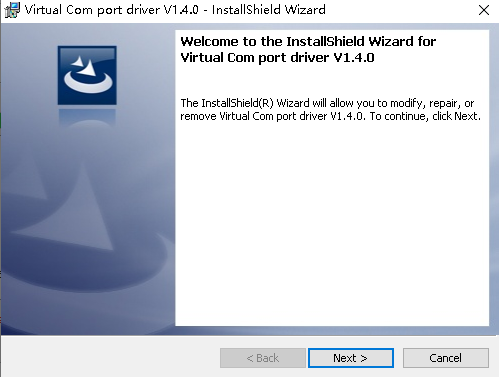
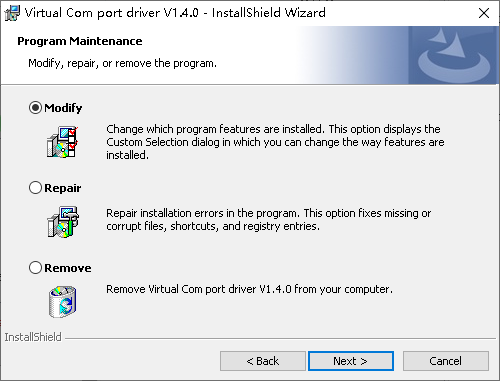
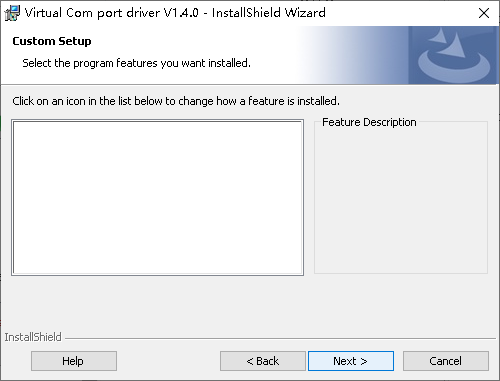
- Review the installation settings, then click Install.
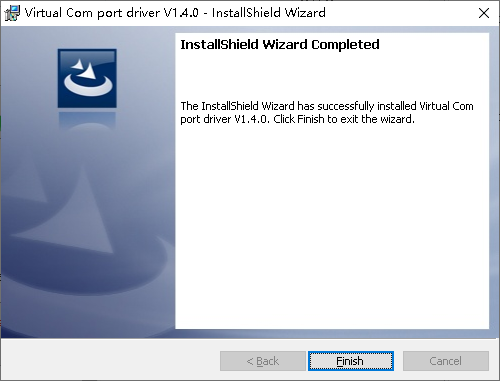
- When installation is complete, click Finish.
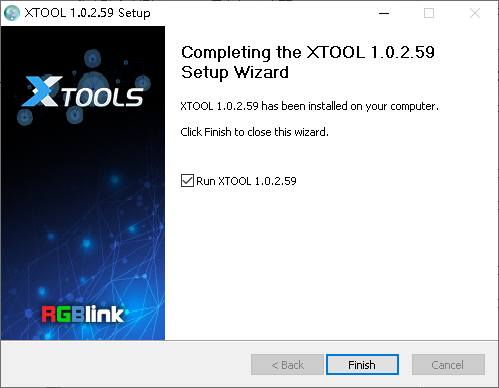
5. Complete the Installation
After the multimedia components are installed, the XTOOL Setup Wizard resumes.
Click Finish to complete the installation.