Online Manual
mini-edge SDI User Manual

3.1 Main Interface and Menu
Main Interface
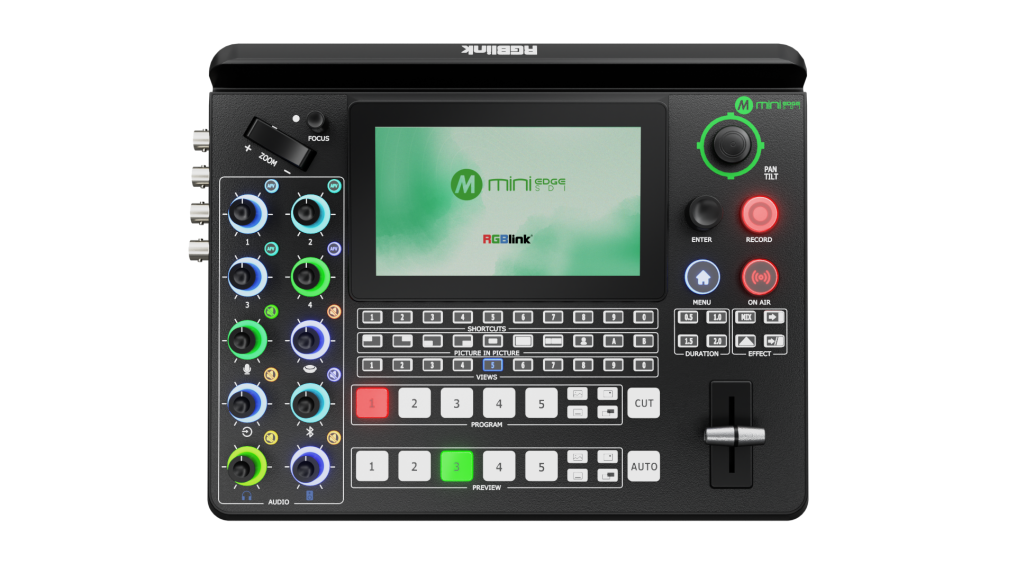
After mini-edge SDI is powered on, the 5.5-inch full-color display will automatically enter the Main Interface once the startup logo has finished loading.
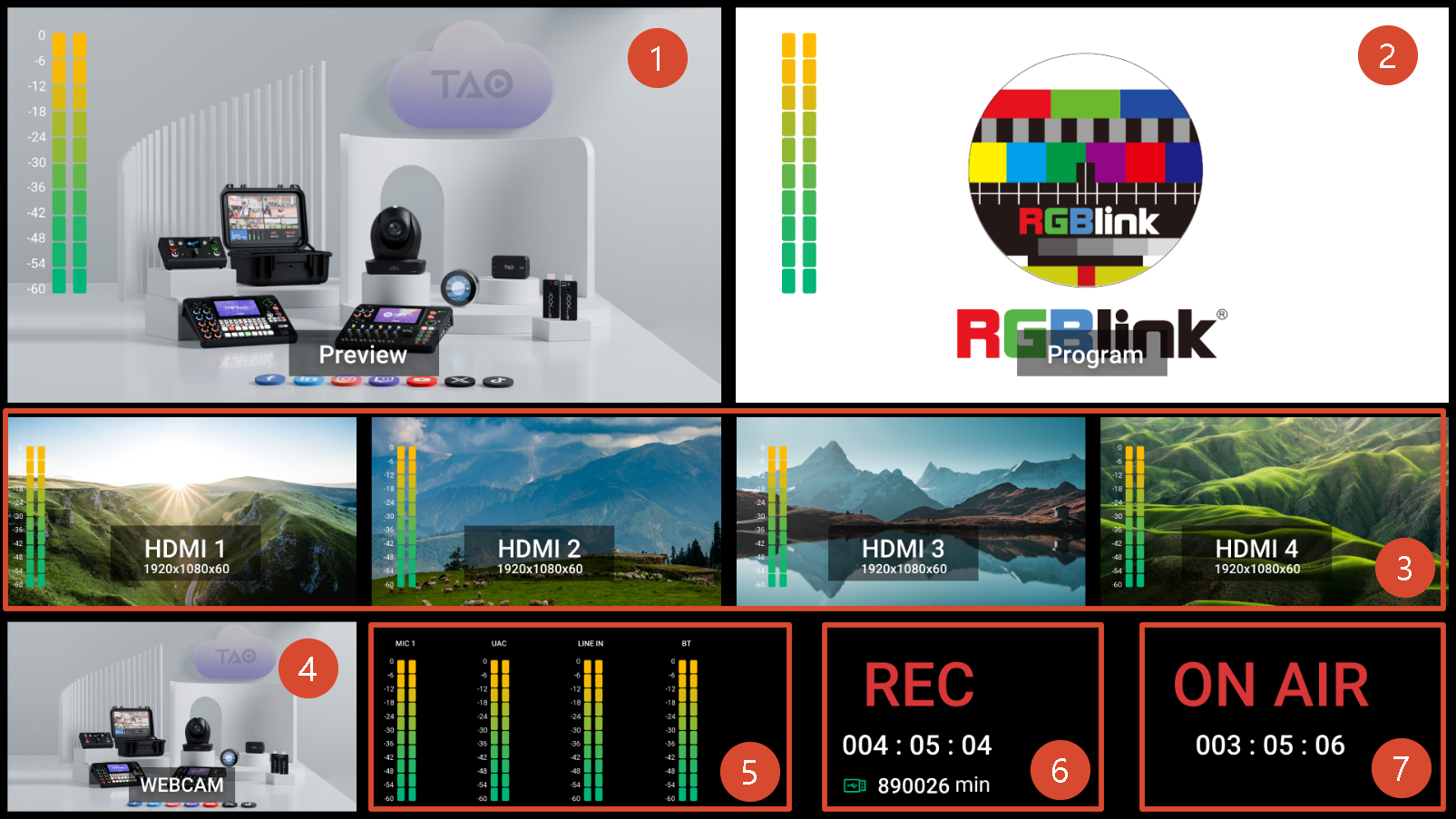
| Area | Description |
|---|---|
| ❶ PREVIEW | Show Preview screen and audio meter. |
| ❷ PROGRAM | Show Program screen and audio meter. |
| ❸ HDMI/SDI Signal | Show HDMI/SDI 1-4 signals and audio meter. |
| ❹ UVC Signal | Monitor UVC/NDI input signal. For more details, refer to |
| ❺ Audio Status | Monitor Microphone, UAC, Line-in and Bluetooth input status. For more details, refer to |
| ❻ Recording | Check recording duration and status. |
| ❼ Streaming | Check streaming duration and status. |
Menu
The mini-edge SDI control panel features a 5.5-inch full-color display for menu navigation and device status monitoring.
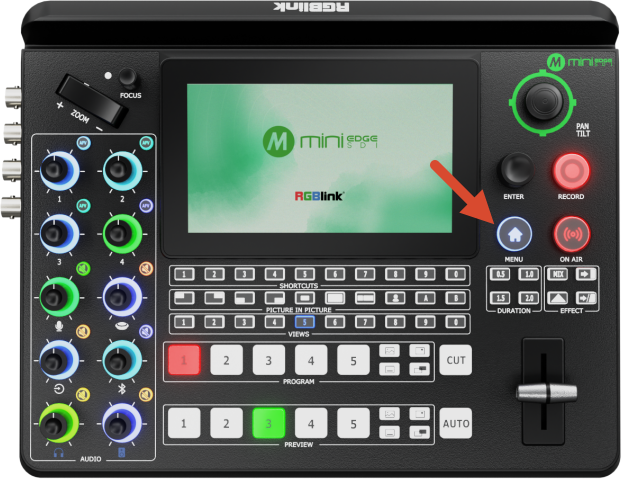
From the Main Interface, press MENU to enter the menu screen.
The menu system uses an icon-based interface similar to a smartphone operating system.
All primary menu items are displayed as icons. Rotate and press ENTER to navigate, select, and confirm menu options, then enter the corresponding function page for configuration and operation.
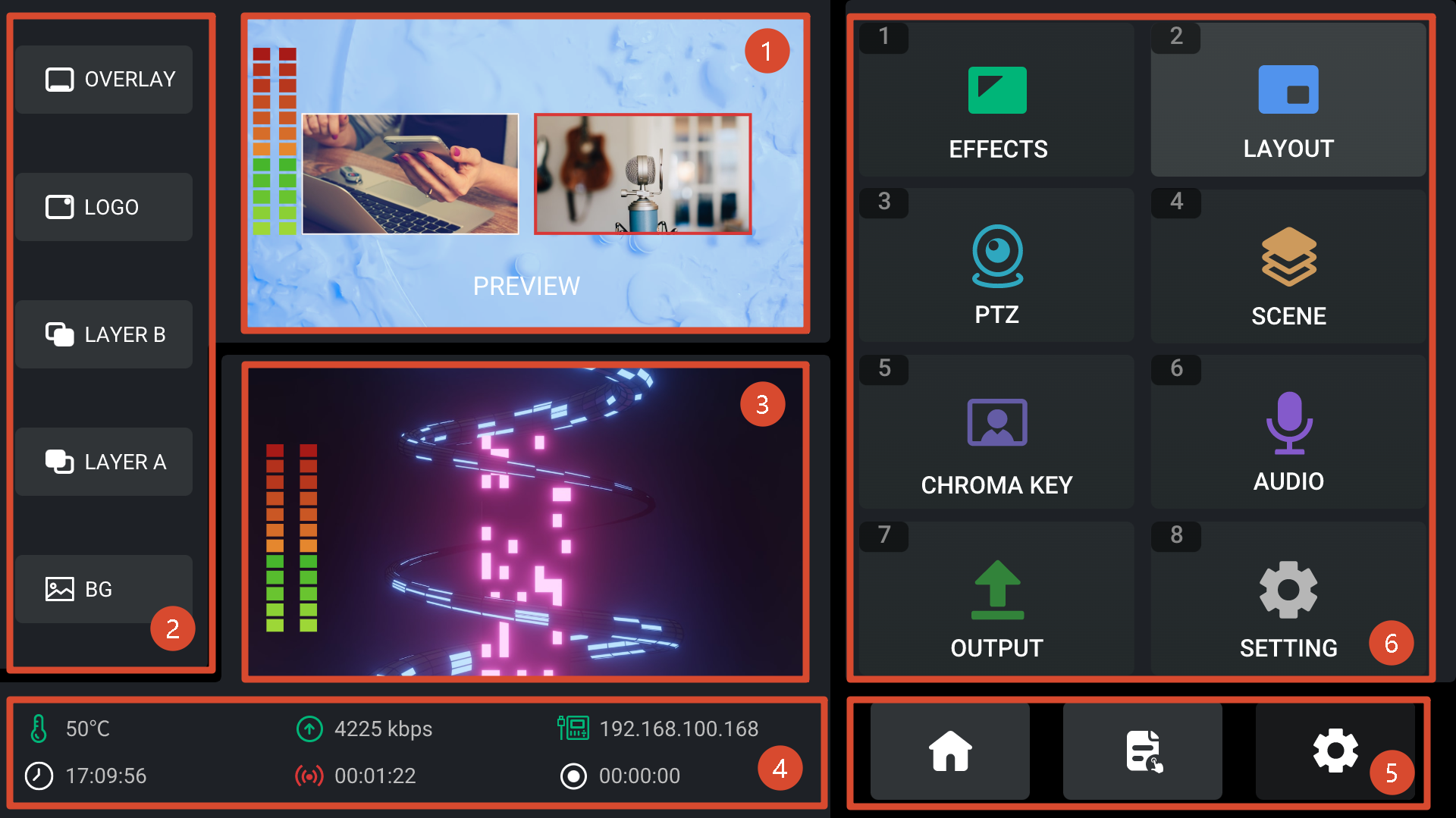
| Area | Description |
|---|---|
| ❶PREVIEW | Show Preview screen and audio meter. |
| ❷ Layer Selection | ● Icon in green indicates enabled status. ● Icon in blue indicates editing status. |
| ❸ PROGRAM | Show Program screen and audio meter. |
| ❹ Status Display |  : Temperature  : Bit Stream  : Network Status & IP  : Time  : Streaming Duration  : Recording Duration |
| ❺ Icons | Correspond to Main Interface, Standby Interface and MENU Interface. |
| ❻ Function Selection | Eight functions in total are available in MENU, including EFFECTS, LAYOUT, PTZ, SCENE, CHROMA KEY, AUDIO, OUTPUT and SETTING. Press the MENU button can return to the previous page. |