Online Manual
mini-edge SDI User Manual

3.15 Customized Buttons
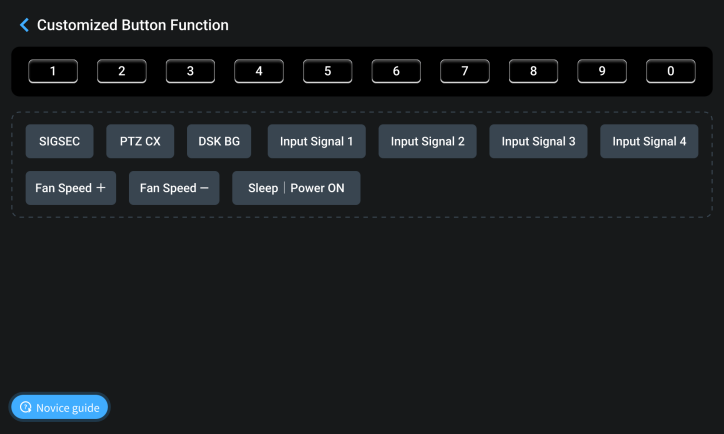
Customized Button Function
The 0–9 numeric buttons on the front panel can be assigned to user-defined functions for quick access.
Open the mini-edge SDI web interface and navigate to Custom Button Function.
Users can drag and drop functions onto any numeric button to create shortcuts. A single function can be assigned to multiple buttons.
Click Novice Guide in the lower-left corner of the page for a quick overview of the configuration process.
Button Status Indicators
The button editor uses the following status indicators:
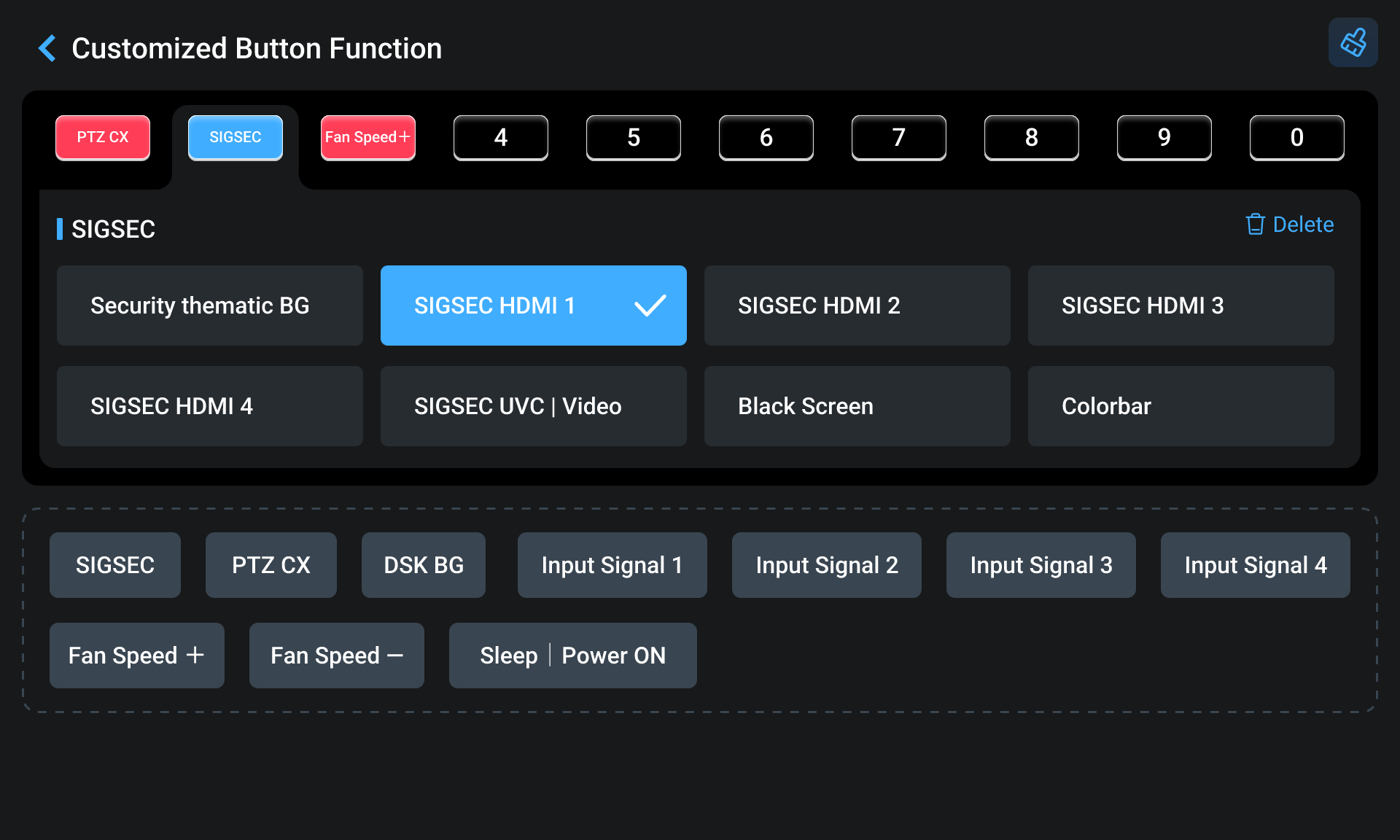
- Red: Function assigned
- Blue: Currently selected for editing
- Number Button: No function assigned
 : Remove all button assignments
 : Remove the selected button assignment
Available Functions
The following functions can be assigned to custom buttons:
- SIGSEC (Signal Security)
- PTZ CX (signal channel)
- DSK BG
- Input Signal 1
- Input Signal 2
- Input Signal 3
- Input Signal 4
- Fan Speed +
- Fan Speed-
- Sleep | Power ON
SIGSEC
The SIGSEC function allows the system to switch instantly to a predefined output source when required.
Available options include:
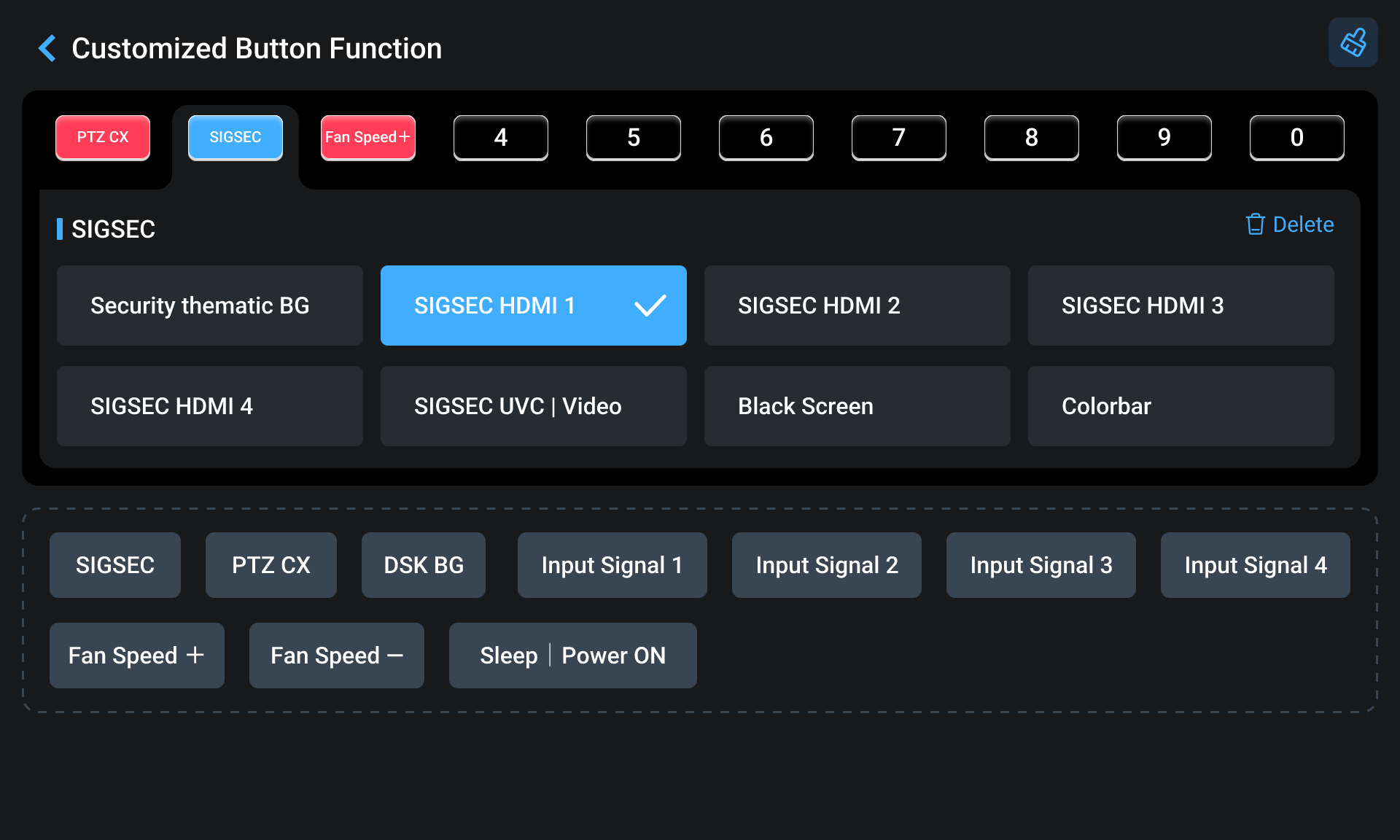
- Security Thematic BG: One-click to realize switching to the specific backup signal in case of emergencies.
- SIGSEC HDMI 1- HDMI 4: PGM output SIGSEC HDMI 1/2/3/4 in full screen in any state.
- SIGSEC UVC | Video: Output UVC signal, video.
- Black Screen: One-click to go to black screen for Program.
- Colorbar: Static colorbar picture.
Selecting a SIGSEC immediately switches the Program output to the configured source.
PTZ CX
PTZ CX provides quick access to a camera control interface.
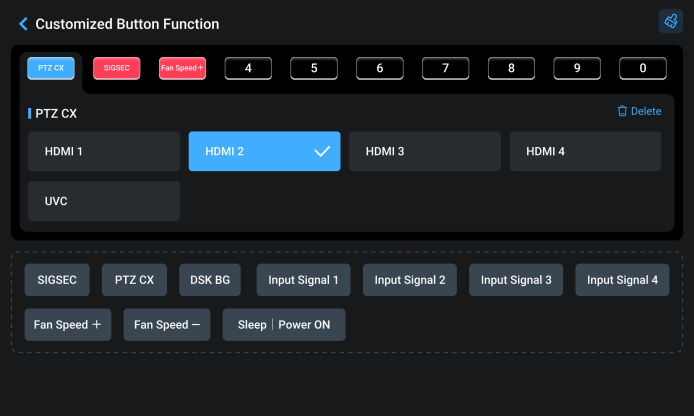
After selecting an HDMI or UVC source, the corresponding PTZ control page opens automatically and PTZ control is enabled.
Users can operate the camera using the 5-Direction Joystick and focus controls on the front panel.
DSK BG
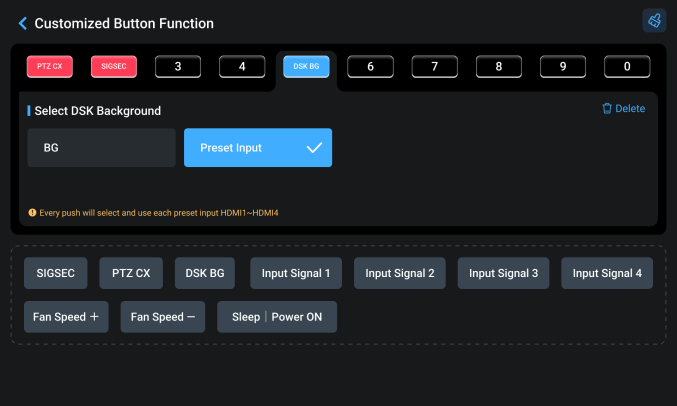
The DSK BG function allows rapid switching of background sources.
Available options include:
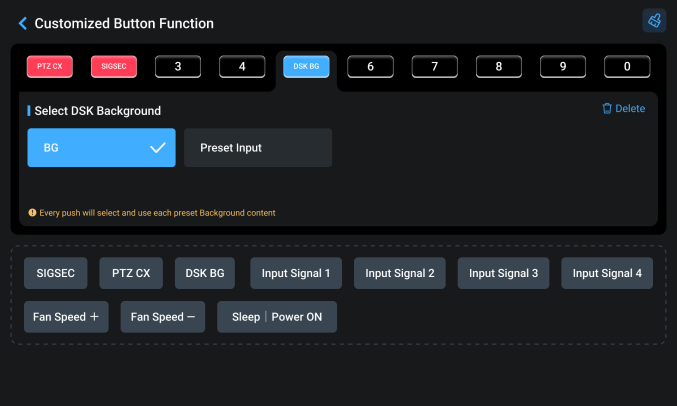
- BG: Select an image stored on the device as the DSK background. Repeatedly pressing the assigned button cycles through the available background images. After the last image is reached, the sequence returns to the first image.
- Preset Input: Select HDMI 1–HDMI 4 as the DSK background source.
Input Signal Selection
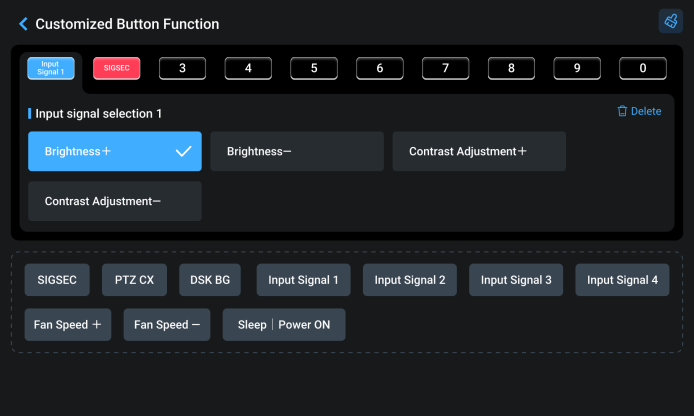
This function provides quick access to image adjustment controls for a selected input source.
Available parameters:
| Parameter | Range | Default |
|---|---|---|
| Brightness + | 1-255 | 128 |
| Brightness - | 1-255 | 128 |
| Contrast + | 1-100 | 50 |
| Contrast - | 1-100 | 50 |
Fan Speed
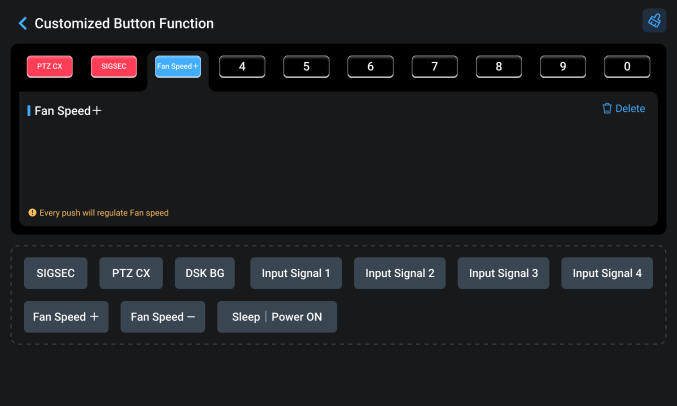
Fan Speed Control allows quick adjustment of the cooling fan speed.
| Parameter | Range | Default |
|---|---|---|
| Fan Speed Up | Level 1–5 | Auto |
| Fan Speed Down | Level 1–5 | Auto |
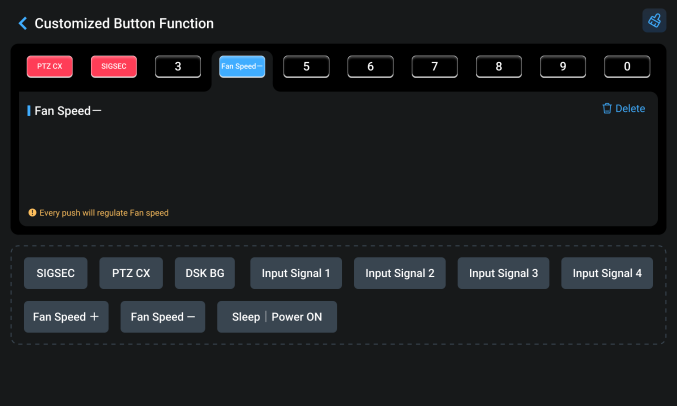
Sleep | Power ON
Sleep | Power ON function allows the operating state of the device to be switched quickly.
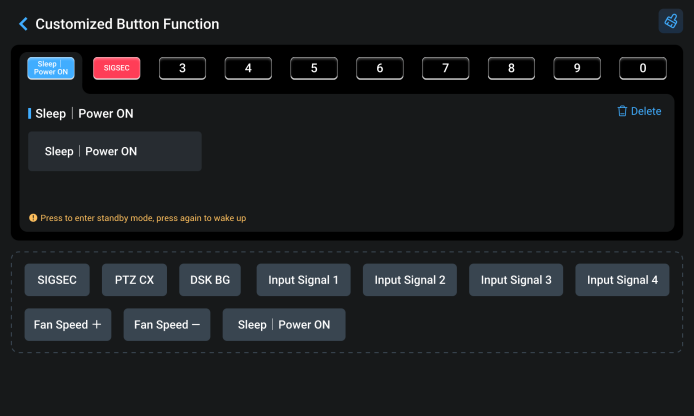
After the function is assigned, pressing the corresponding button displays a standby confirmation.
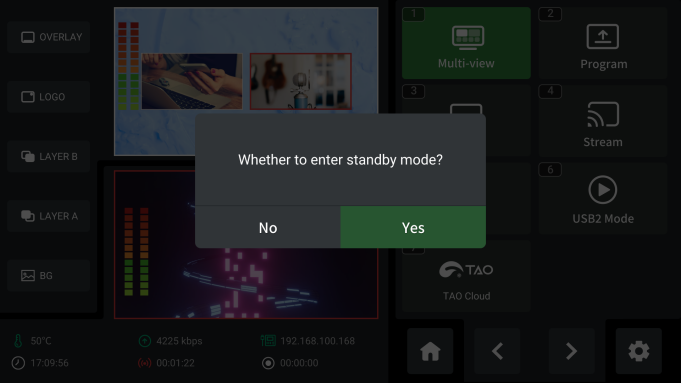
Select Yes to enter standby mode after 3 seconds.

Standby Mode
- The assigned shortcut button flashes blue slowly
- All other button indicators turn off
- Front-panel controls are disabled
- Video output switches to black
- Active recording sessions stop automatically
- Active streams stop automatically
Wake Up
Press the assigned button again to restore normal operation. After waking:
- Video output returns to its previous state
- Streaming resumes automatically
- Recording resumes automatically