Online Manual
mini-edge SDI User Manual

3.12 Transition Effects
mini-edge SDI provides 17 transition effects, allowing users to create smooth and professional transitions between video sources.
Transition duration can also be adjusted to suit different production requirements.
Selecting a Transition Effect
Transition effects can be selected in either of the following ways:
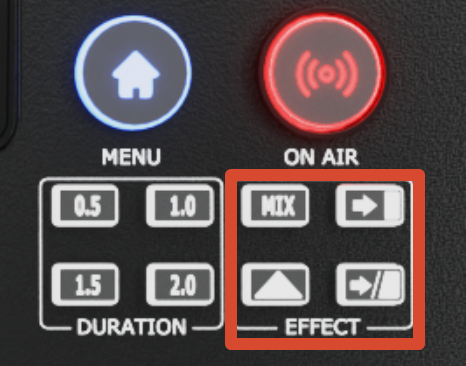
- Use the EFFECT buttons on the front panel for quick access to 4 commonly used effects.
- Navigate to MENU > EFFECTS.
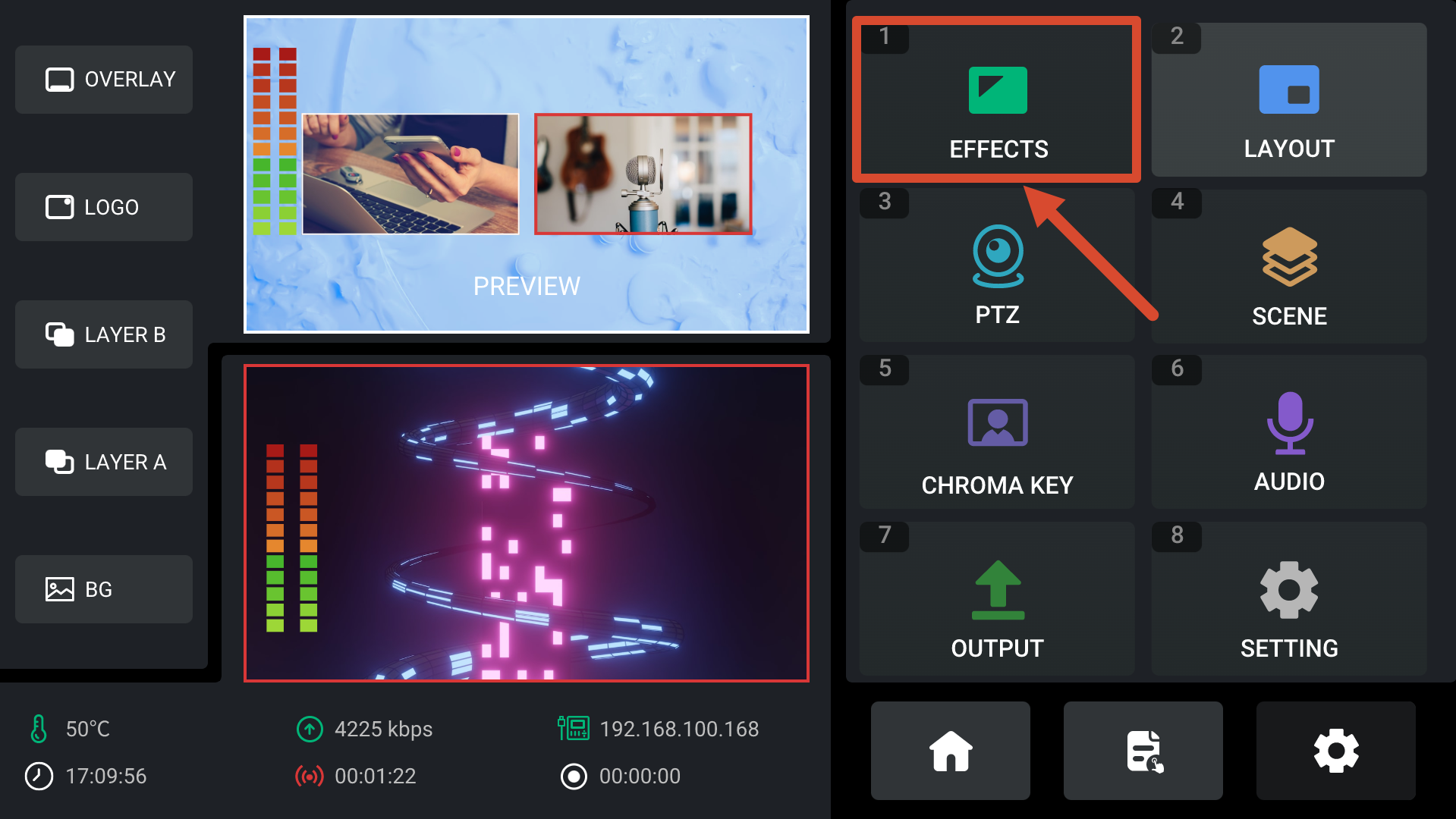
A total of 17 transition effects are available.
Transition Effect Descriptions
Use ENTER to select a transition effect and set it as the active transition.
The following effects are supported:
Cut
The Picture 1 switches to Picture 2 instantly with no transition effect.
 | 👉 |  |
|---|
Mix
During the transition, Picture 1 gradually fades out while Picture 2 gradually fades in, blending together smoothly.
 | 👉 |  |
|---|
Square Collapse
A square mask expands inward from the screen edges, to transition between Picture 1 and Picture 2.
 | 👉 |  |
|---|
Square Expand
A square mask expands outward from the center to transition between Picture 1 and Picture 2.
 | 👉 |  |
|---|
Cross Collapse
A cross-shaped mask expands inward from the screen edges toward the center to transition from Picture 1 to Picture 2.
 | 👉 |  |
|---|
Cross Expand
A cross-shaped mask expands outward from the center of the screen to transition from Picture 1 to Picture 2.
 | 👉 |  |
|---|
Circle Collapse
A circular wipe expands inward from the screen edges, transitioning from Source 1 to Source 2.
 | 👉 |  |
|---|
Right to Left Wipe
Picture 2 wipes from right to left over Picture 1 until the transition is complete.
 | 👉 |  |
|---|
Left to Right Wipe
Picture 2 wipes from left to right over Picture 1 until the transition is complete.
 | 👉 |  |
|---|
Bottom Up Wipe
Picture 2 wipes upward over Picture 1 until the transition is complete.
 | 👉 |  |
|---|
Top Down Wipe
Picture 2 wipes downward over Picture 1 until the transition is complete.
 | 👉 |  |
|---|
Diagonal Wipe
Picture 2 wipes in diagonally over Picture 1 until the transition is complete.
 | 👉 |  |
|---|
Vertical Center Expand
Picture 2 expands vertically from the center toward both sides until it fully replaces Picture 1.
 | 👉 |  |
|---|
Horizontal Center Expand
Picture 2 expands horizontally from the center toward both sides until it fully replaces Picture 1.
 | 👉 |  |
|---|
Venetian Blinds Right
Picture 2 appears in vertical strips expanding horizontally from the center, creating a venetian blinds transition effect.
 | 👉 |  |
|---|
Dip
Source 1 gradually fades to a solid color before transitioning to Source 2.
 | 👉 |  |
|---|
Merge
Blends two video sources together to create a soft compositing effect.
 | 👉 |  |
|---|
Setting the Transition Duration
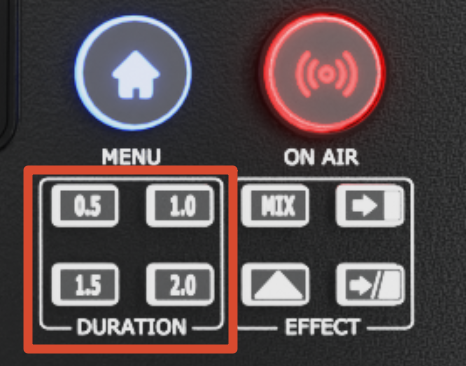
Use the DURATION controls on the front panel to adjust the transition duration.
The duration is measured in seconds.
Longer durations create smoother and more gradual transition animations.