Online Manual
mini-edge SDI User Manual

3.10 Streaming
mini-edge SDI supports three streaming methods:
- Streaming on Device
- TAO Cloud Streaming
- USB 2 Port Capture and Output
Choose the method that best fits your production workflow.
3.10.1 Streaming on Device
mini-edge SDI supports standalone live streaming without requiring a computer.
Once connected to the network, the device can stream directly. When used with TAO Cloud, up to 4 platforms can be streamed simultaneously from a single device.
Network Connection
Before using the streaming function, make sure mini is connected to the network.
Supported connection methods:
- Wired Ethernet connection
- Mobile network sharing
Wired Ethernet Connection
Connect the device to a router or network switch using an Ethernet cable.
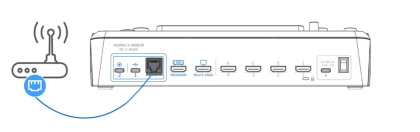
RGBlink CAT6 Ethernet cables are recommended. Product code: 940-0001-00-11-0
Mobile Network Sharing
📢  Notes

Due to ongoing updates to third-party operating systems, the interface layouts and navigation paths described below may differ slightly from the actual interface.

Please refer to the actual version in use.
- iPhone Network Sharing
-
Connect the iPhone to the device using a standard USB cable through the USB1 streaming port
-
When the "Trust This Device" prompt appears, tap Trust
-
Open Settings > Personal Hotspot
-
Set the Wi-Fi password and enable Personal Hotspot
-
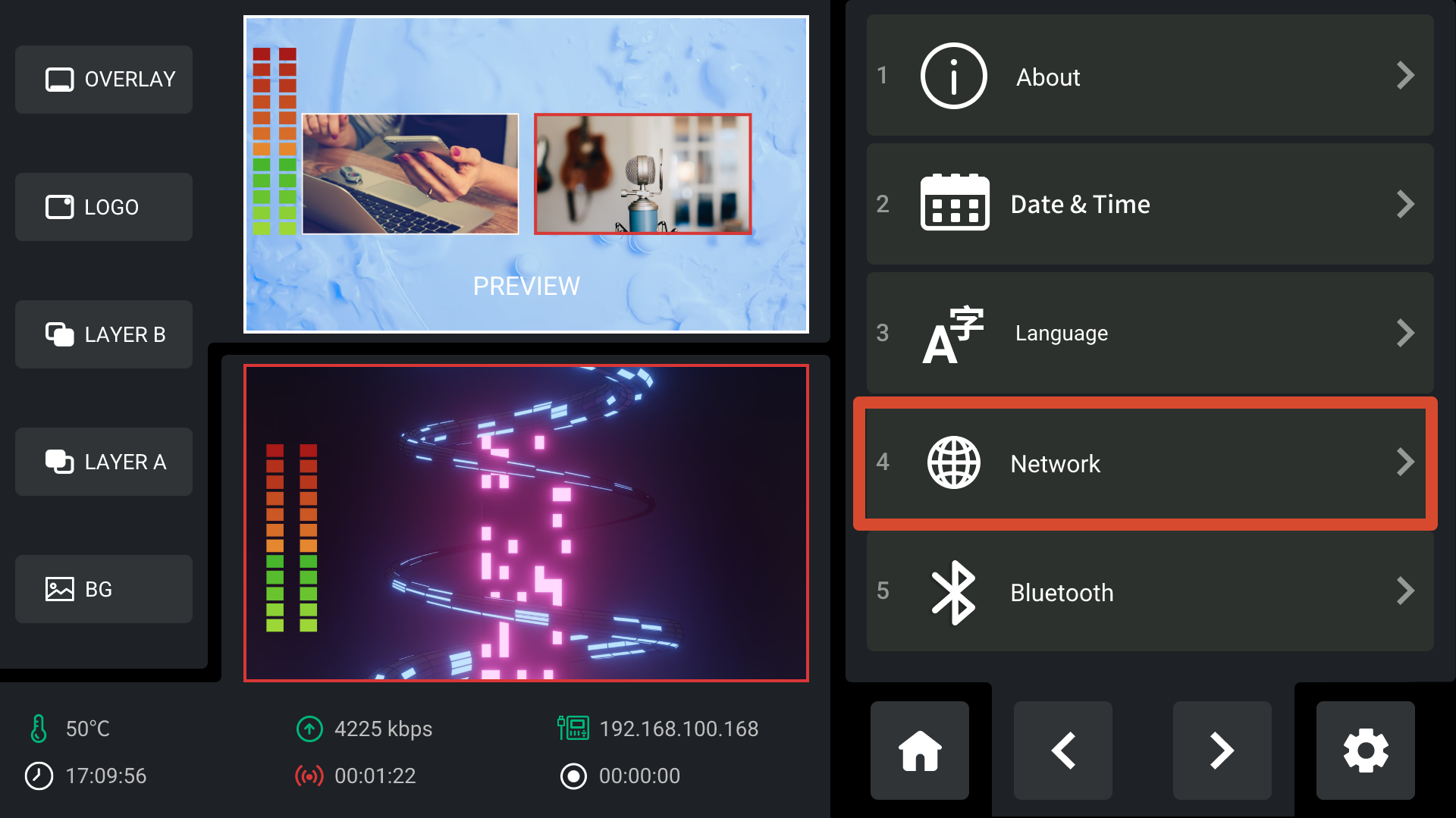
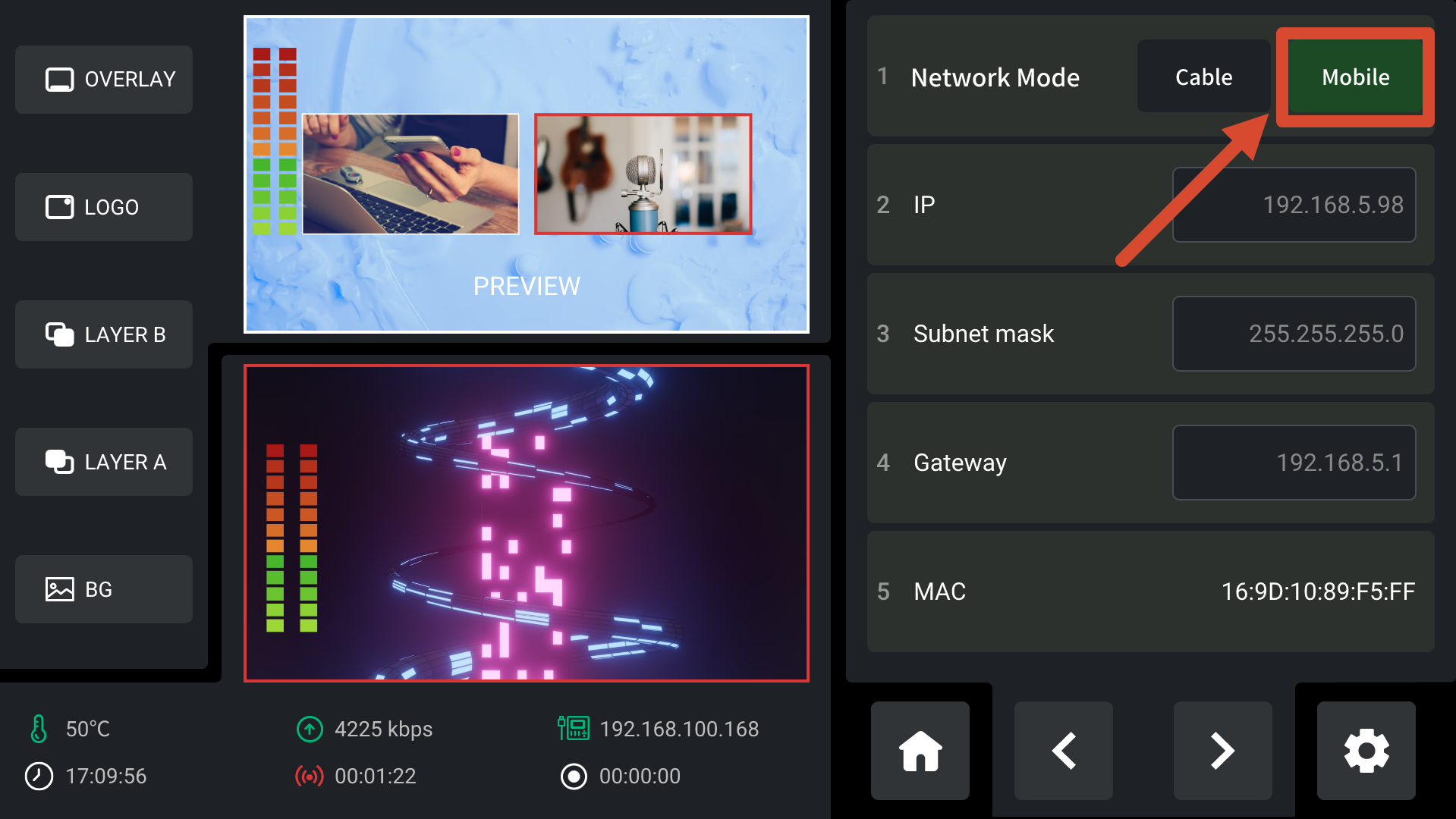
On mini-edge SDI, navigate to MENU > SETTING > Network. Select Mobile. Once connected, mini-edge SDI will access the Internet through the iPhone hotspot.
-
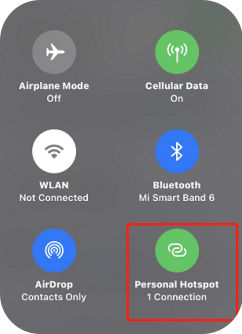
Open Control Center and press the network panel in the upper-left corner
-
When the hotspot status changes to "Connection", mini has successfully connected to the network.
-
- Android Network Sharing
- Open Settings > More Settings > Developer Options
- Enable USB Debugging
- Connect the phone to the device using a standard USB cable through the USB1 streaming port
- Open Settings > Mobile Network > Personal Hotspot > Other Sharing Mode
- Enable Share phone network via USB
- On mini-edge SDI, navigate to MENU > Settings > Network. Select Mobile to complete the connection.
 | 👉 |  |
|---|
📢  Notes

- Ensure that DHCP is enabled.
- If the connection fails, try using an OTG adapter cable.
- User interfaces may vary between Android devices and operating system versions.
Importing Streaming Information via TAO Cloud
After mini-edge SDI is connected to the network, streaming destinations can be delivered remotely through TAO Cloud.
This section uses YouTube as an example for configuring a streaming destination.
- Get the Streaming Address
- Go to YouTube Studio.
- Click Create > Go live.
- Copy the Stream key and Stream URL from the stream settings tab.
🚨 Risk Warning

Do not share your stream key with anyone or display it during a live stream. Doing so may result in unauthorized account access, stream hijacking, or other potential risks and losses.

If your stream key is exposed:

-  Immediately reset the stream key on the corresponding platform.
-  Stop the current live stream.
-  Restart streaming using the new stream key.
View Streaming to Live Platforms to check how to get stream key from other platforms.
- Bind the Device to TAO Cloud
Log in to TAO Cloud and complete device binding.
Make sure the network connection remains stable while receiving the verification code.
- Import Streaming Information
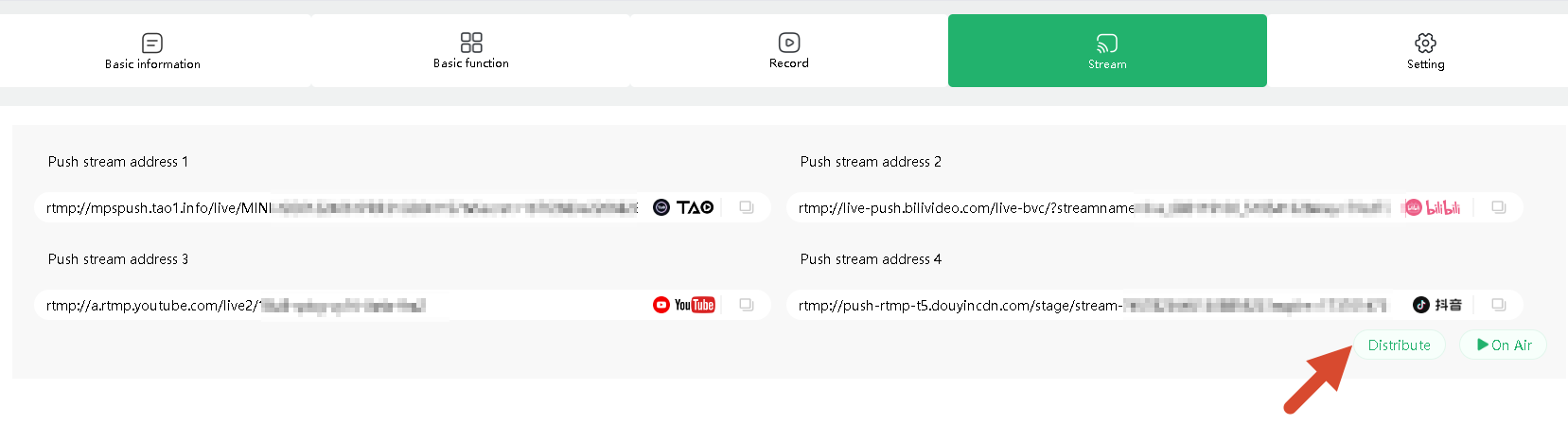
Paste the streaming address and stream key into TAO Cloud, then click Distribute.
Selecting Streaming Platforms
mini-edge SDI supports streaming to up to four platforms simultaneously.
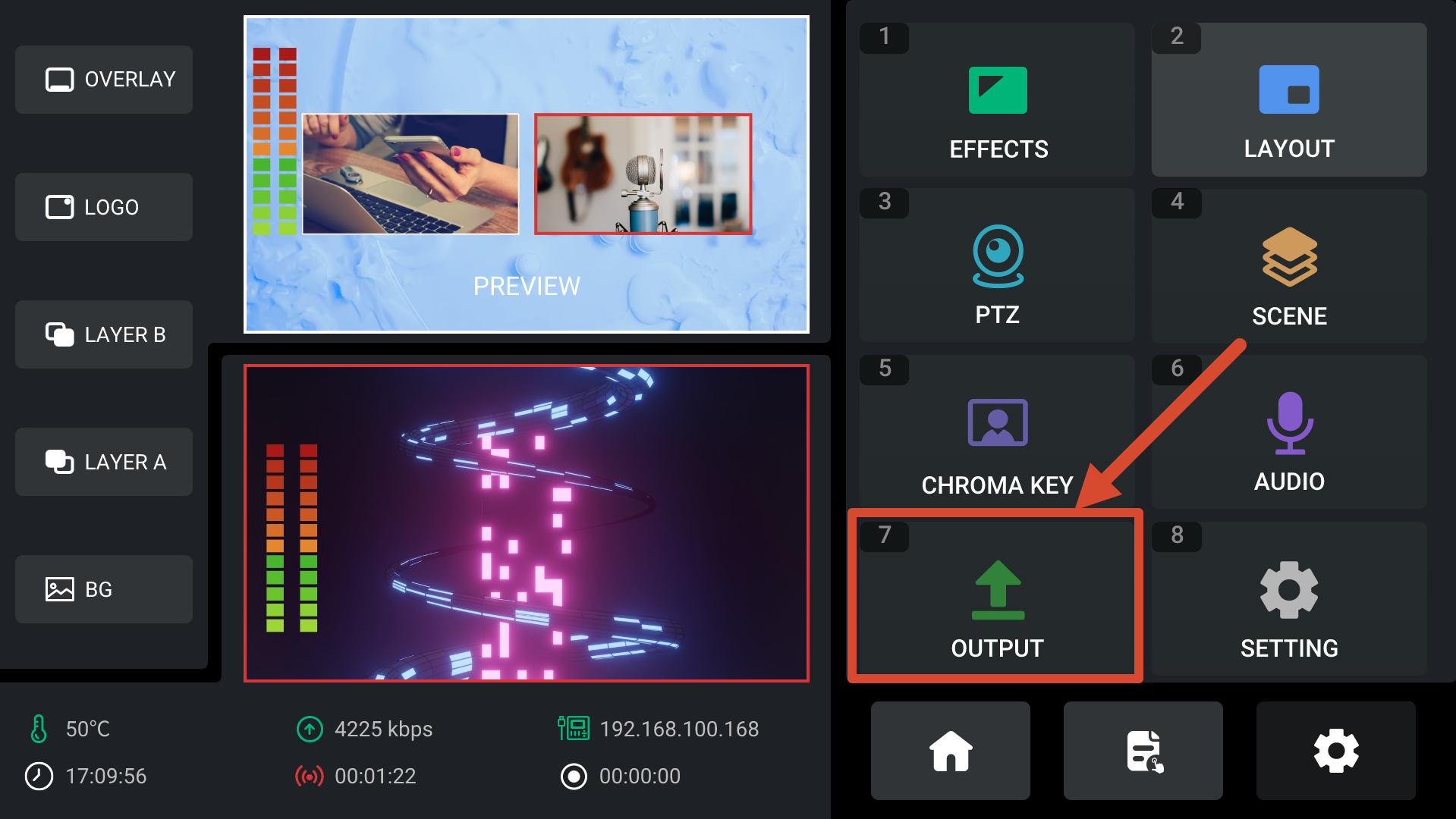
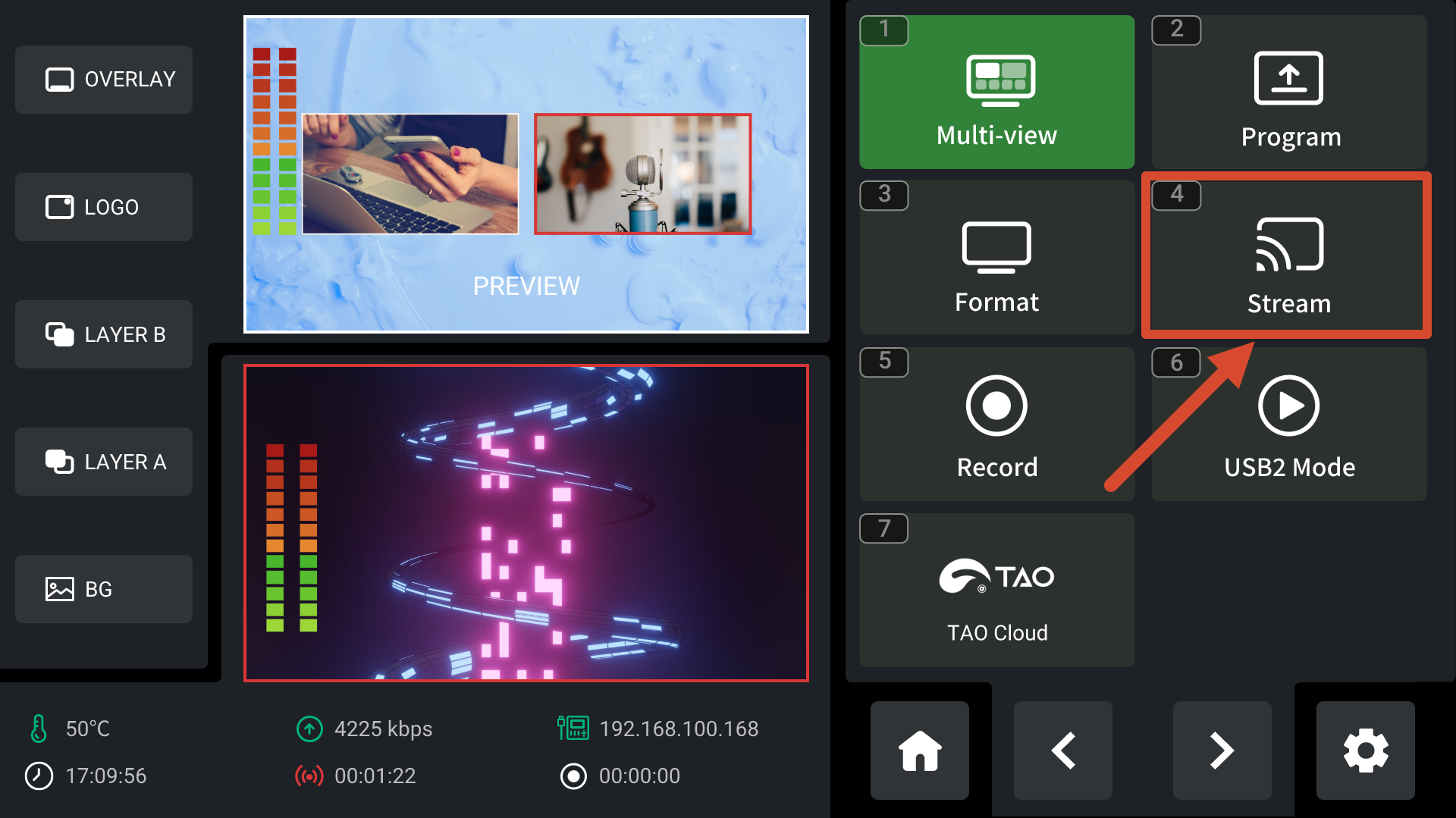
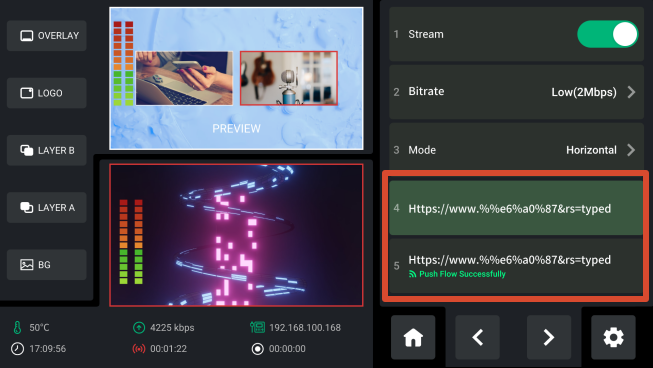
- Navigate to MENU > OUTPUT > Stream
 | 👉 |  |
|---|
- The device displays all detected streaming destinations.
- Enable the platforms you want to use.
Streaming Settings
mini-edge SDI supports the RTMP streaming protocol.
The following settings are available:
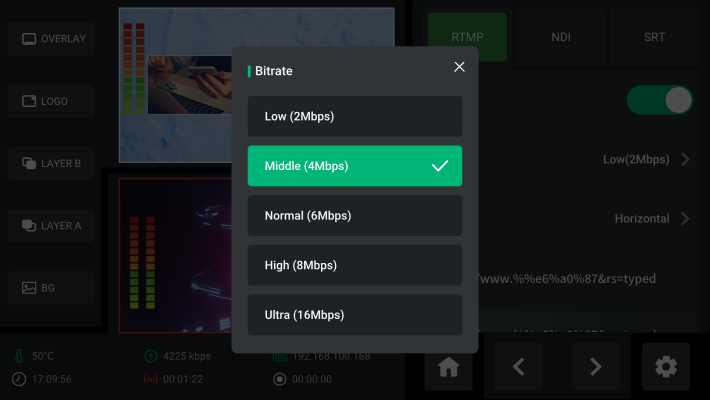
- Bitrate
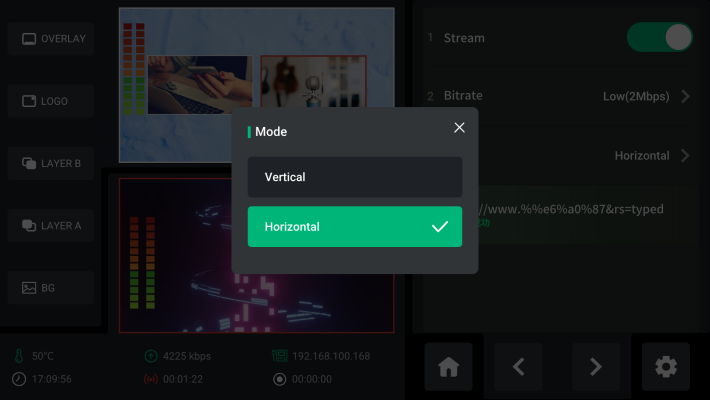
- Horizontal/Vertical Mode
Bitrate Settings
Higher bitrates provide better image quality.
If available network bandwidth is limited, reducing the bitrate may improve streaming stability.
Horizontal and Vertical Modes
mini-edge SDI supports both Horizontal and Vertical streaming formats.
Select the appropriate mode according to the requirements of the target platform.
Starting a Stream
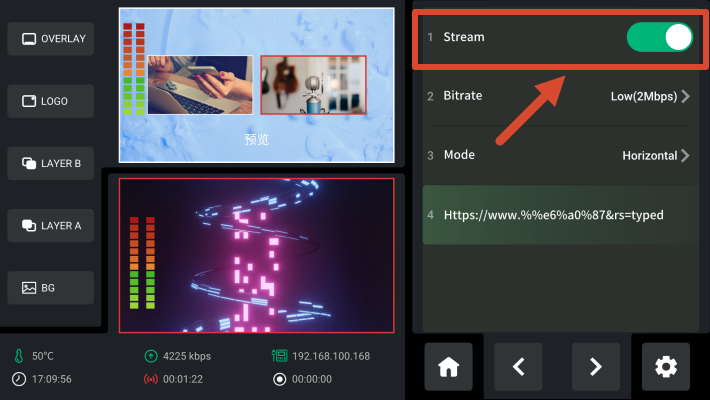
- Streaming can be started using either of the following methods:
- Enable the streaming switch on the Streaming page.
- Press the ON AIR button on the front panel.
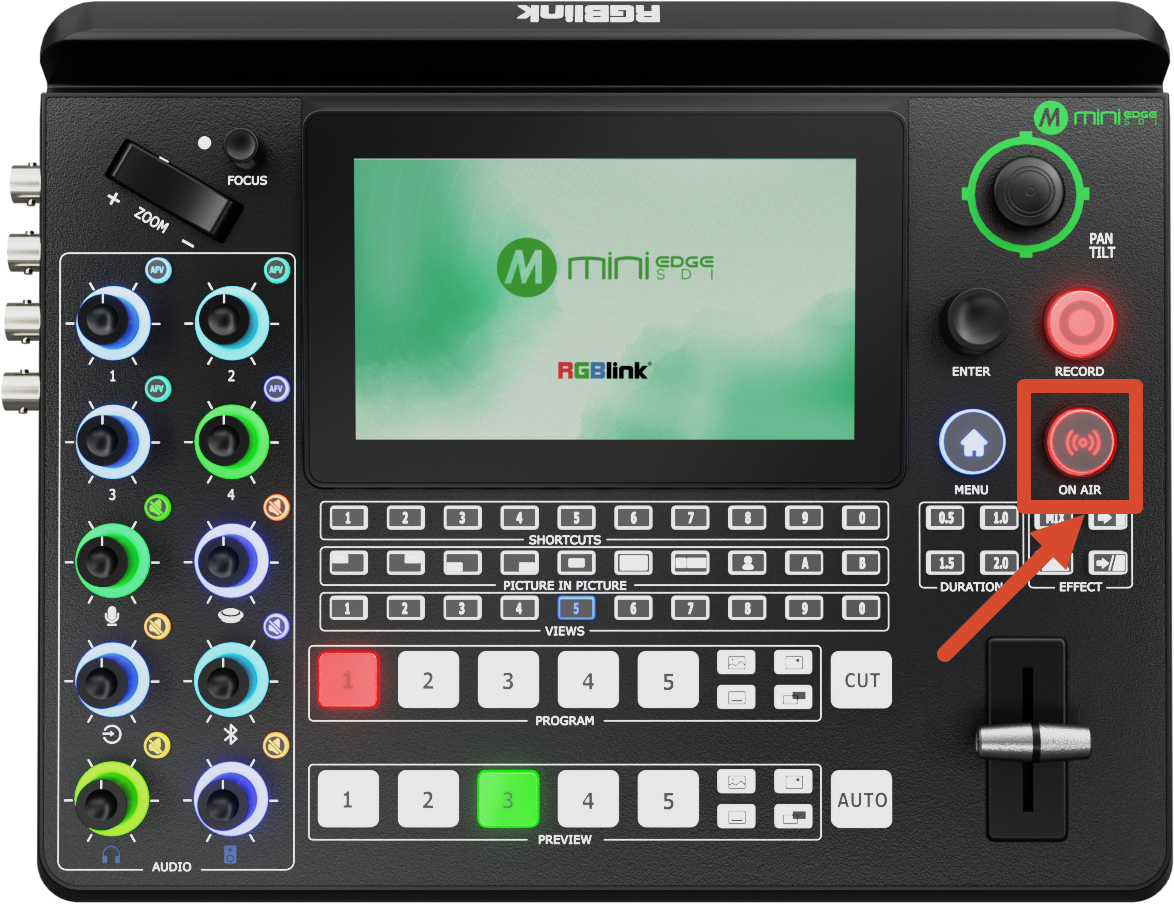
- During streaming:
- Individual platforms can be enabled or disabled independently.
- Streaming destinations can be managed without interrupting other active streams.
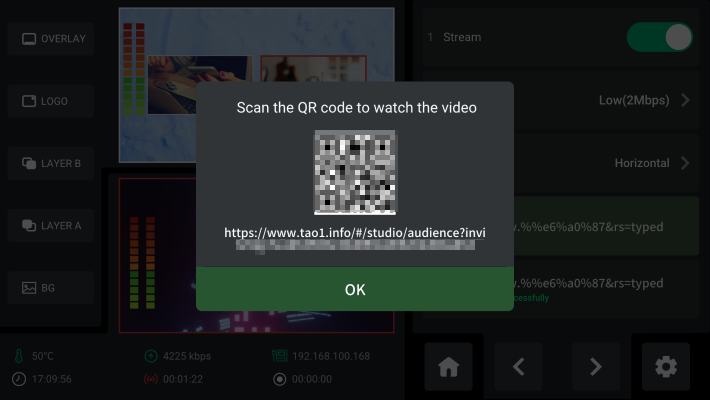
- To view the live stream status:
- Use ENTER to move the cursor to the desired streaming destination.
- Press and hold ENTER for three seconds. A QR code containing the viewing URL is displayed for real-time monitoring.
3.10.2 TAO Cloud Streaming
After linking the device to TAO Cloud, cloud-based multi-platform streaming becomes available.
TAO Cloud currently supports distribution to more than 30 major live-streaming platforms.
Creating a Live Room
- Sign in to TAO Cloud.
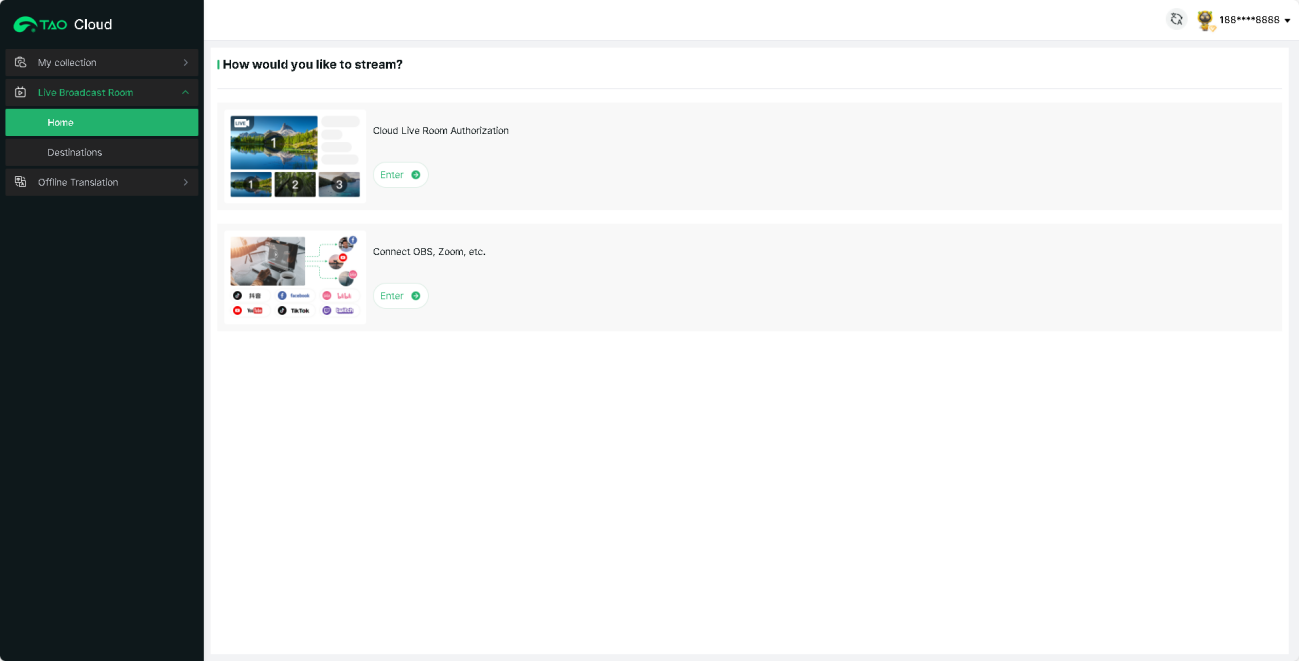
- Navigate to Live Broadcast Room > Home > Connect OBS, Zoom, etc.
- Click Enter
Adding Streaming Platforms
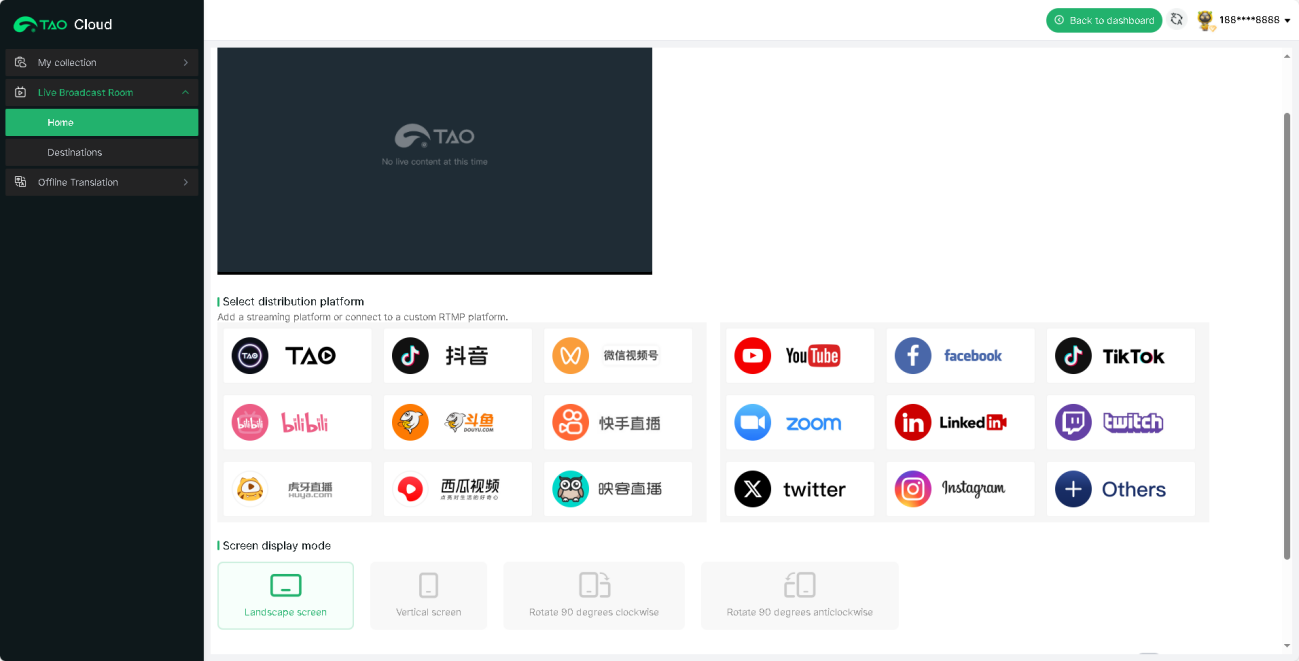
TAO Cloud includes presets for multiple popular streaming platforms.
Users can:
- Select a built-in platform
- Add a custom platform
The following streaming formats are supported:
- Landscape screen
- Vertical screen
Configuring Streaming Information
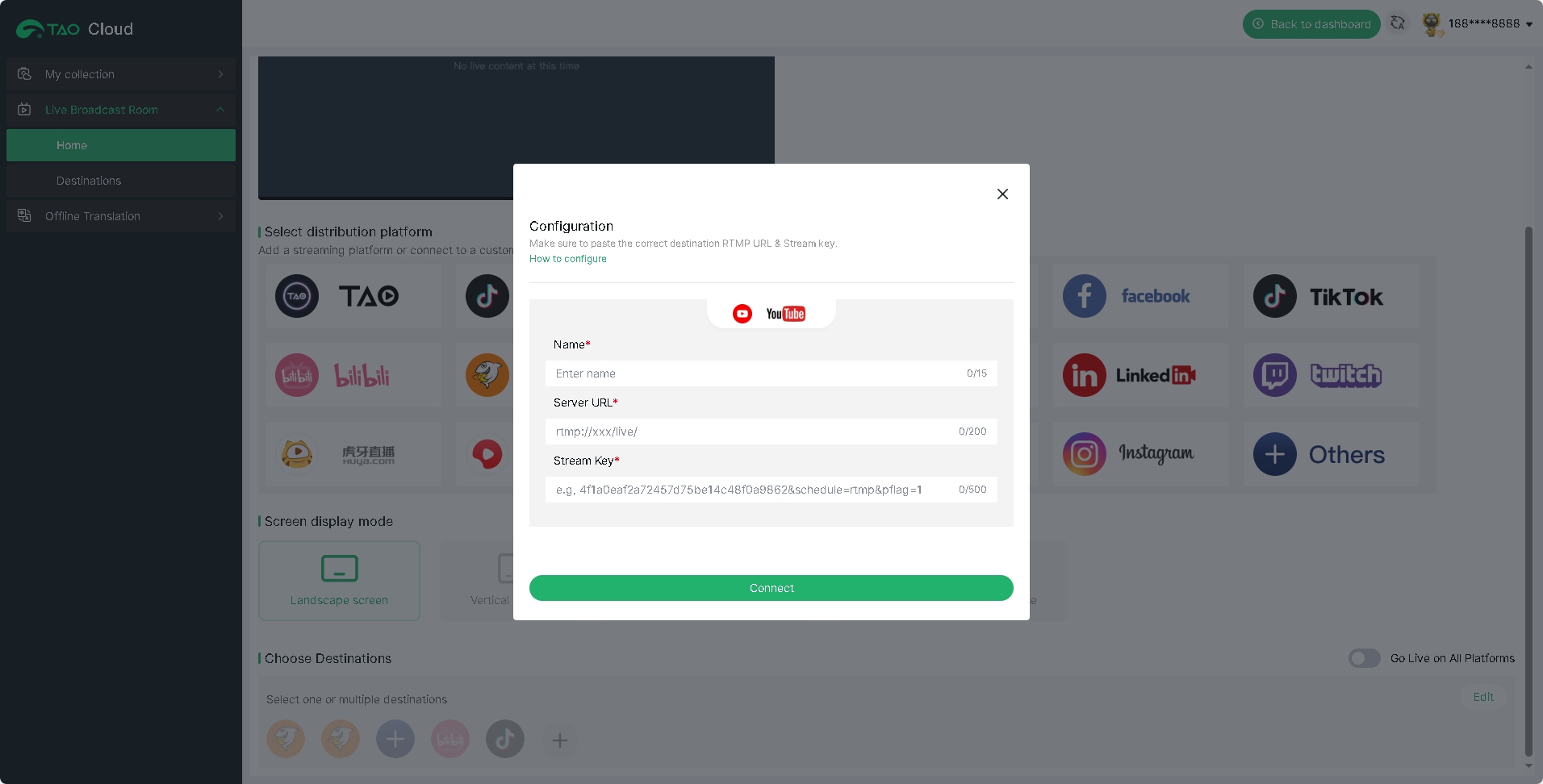
Enter the following information and click Connect:
- Platform Name
- Server URL
- Stream Key
Starting Multi-Platform Streaming
On the Distribution page:
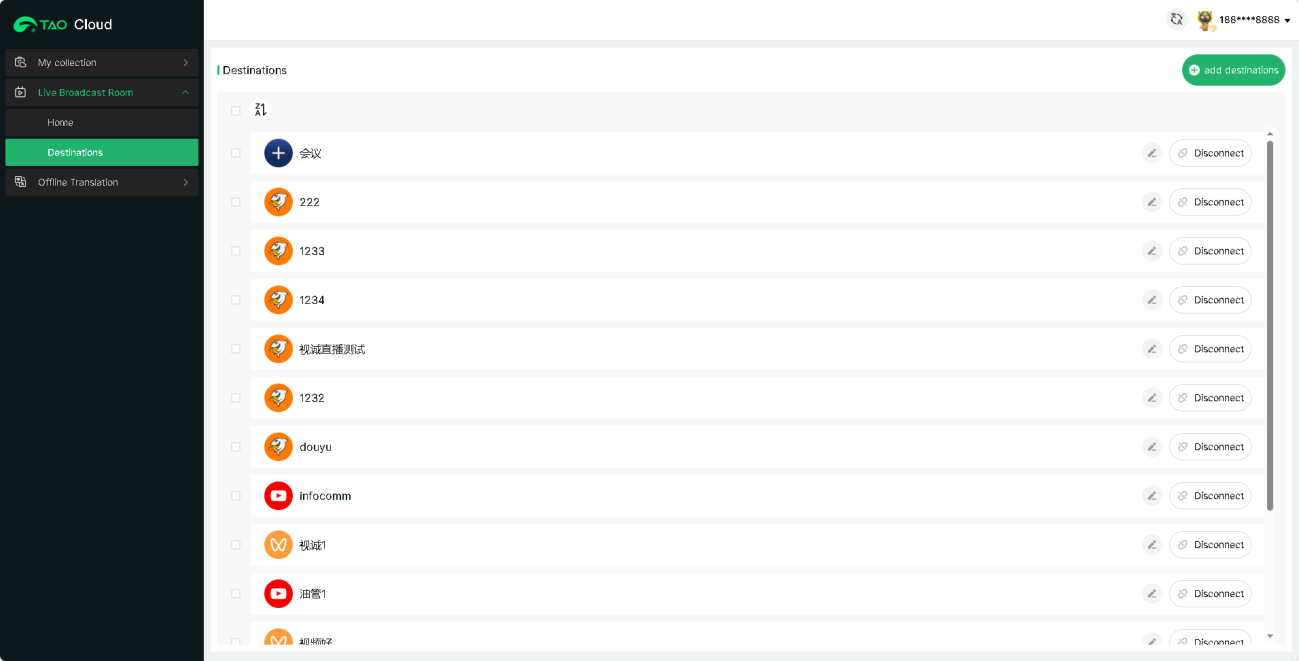
- Click + to add a distribution platform.
- Enable individual platforms as needed.
- Or select Go Live on All Platforms.
The live stream is then distributed simultaneously to all selected destinations.
3.10.3 USB 2 Port Capture and Output
mini-edge SDI can also be connected to a computer through USB2 and used as a video source for third-party streaming software such as OBS Studio.
The following examples use OBS Studio for demonstration.
Download OBS from: OBS Studio
Install the software and update it to the latest version before use.
Audio Settings
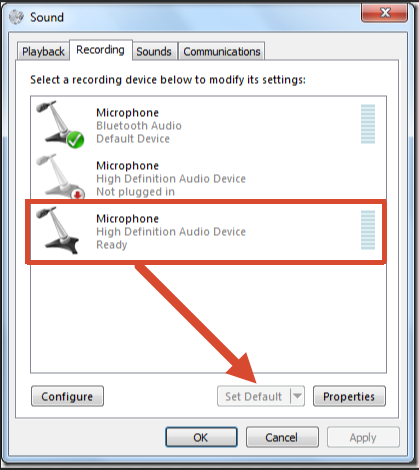
If no audio is detected during streaming:
- Confirm the audio source on the device is configured correctly (Set Default).
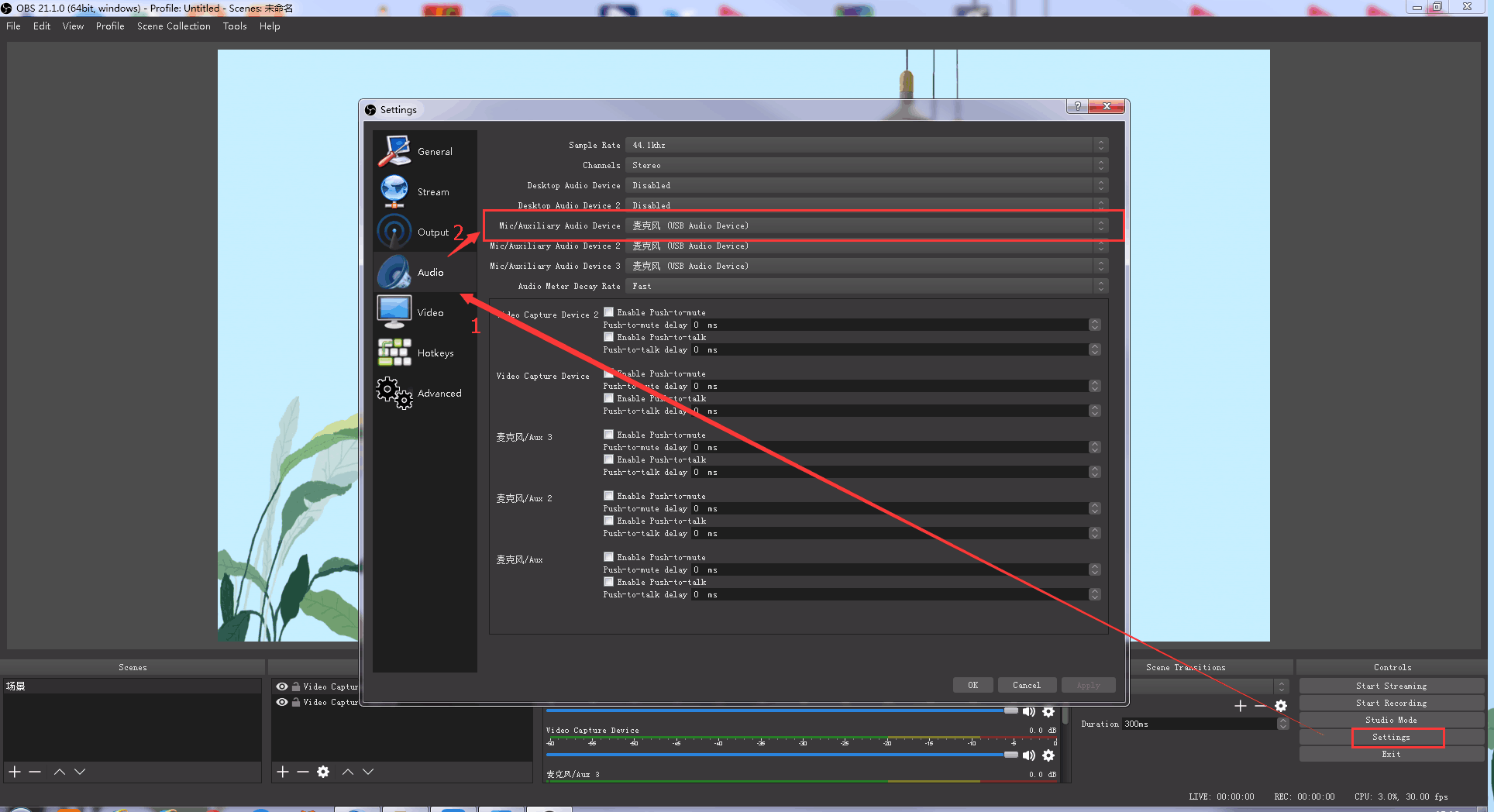
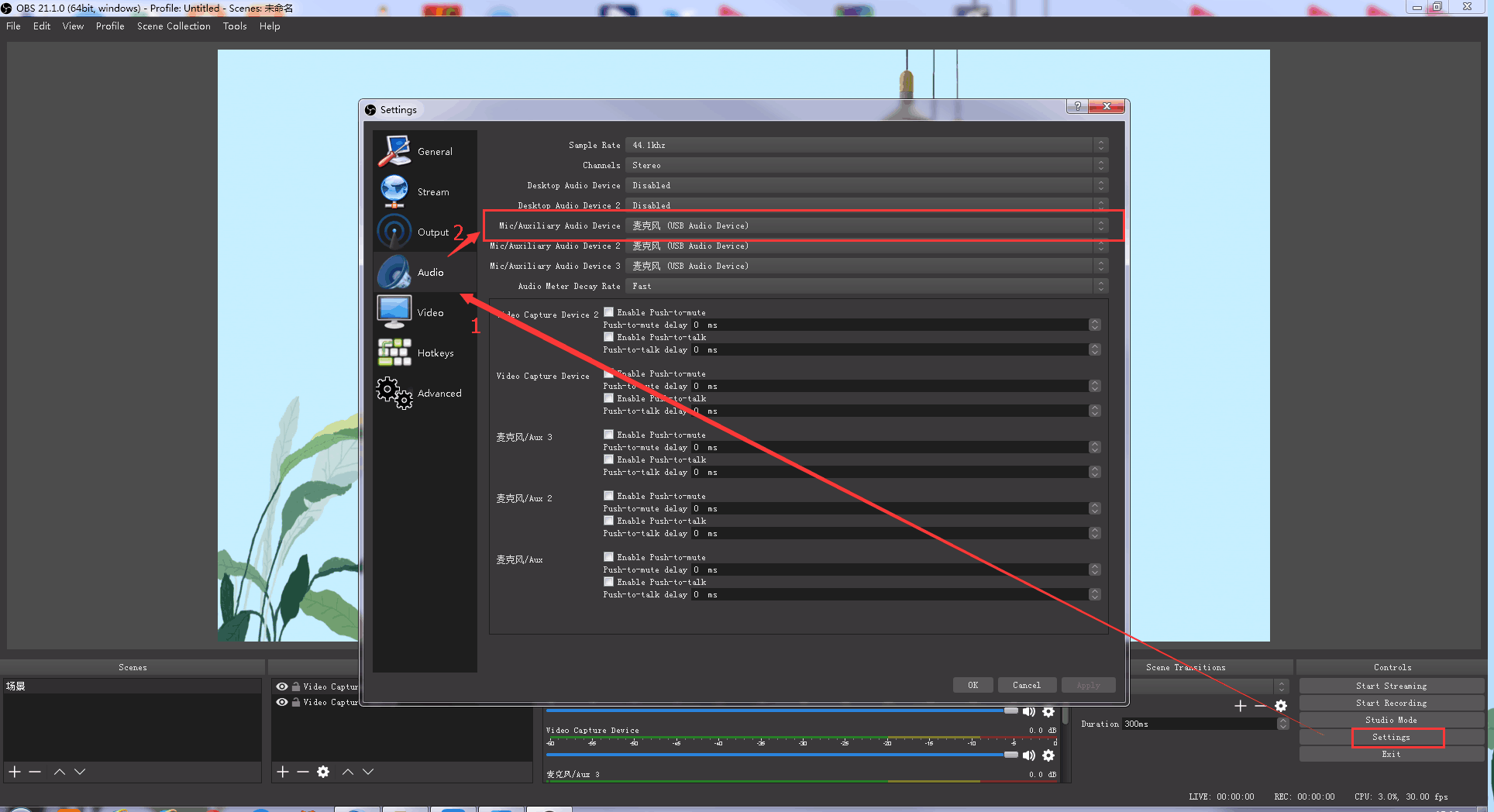
- In OBS, go to Settings > Audio. Select the correct device Mic/Auxiliary Audio Device.
Synchronize Video with External Audio
If the video source does not contain embedded audio and external audio is used separately, synchronize the audio and video using the following steps.
- Go to Settings > Audio > Mic/Auxiliary Audio Device and select the audio source.
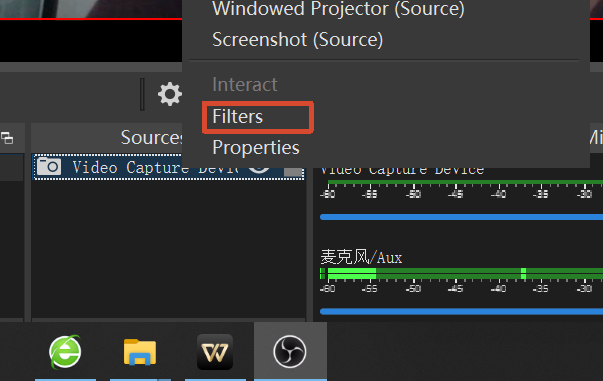
- In the Sources panel, right-click Video Capture Device, then select Filters.
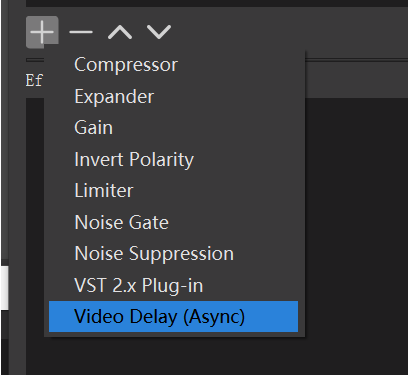
- Under Audio/Video Filters, click + and select Video Delay (Async).
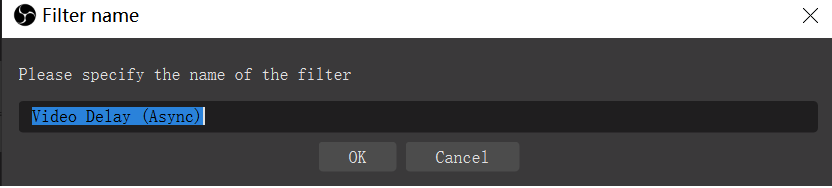
- Enter a filter name if needed, then click OK.
- synchronous.Enter the delay value in milliseconds (ms).
Adjust the value until the audio and video are synchronized.

Streaming Settings
- Obtain the RTMP URL and Stream Key from the streaming platform.
- Copy the RTMP URL and Stream Key.
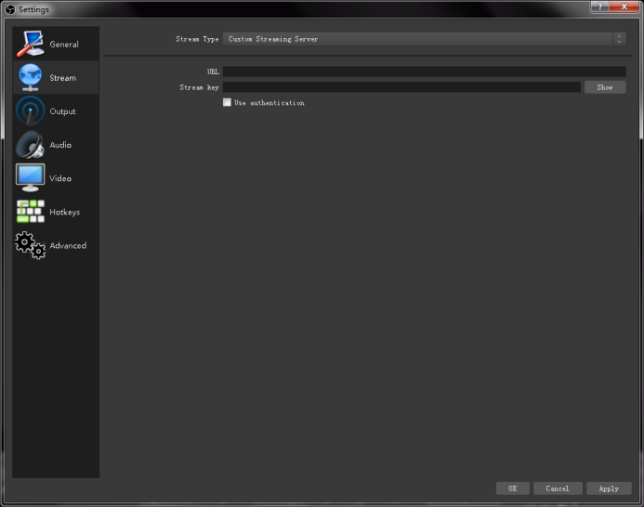
- In OBS, go to Settings > Stream.
- Select the streaming type:
- Streaming Service
- Custom Streaming Server
If the platform is listed under Service, select it directly.
If using a custom server:
- Enter the RTMP URL in Server/URL
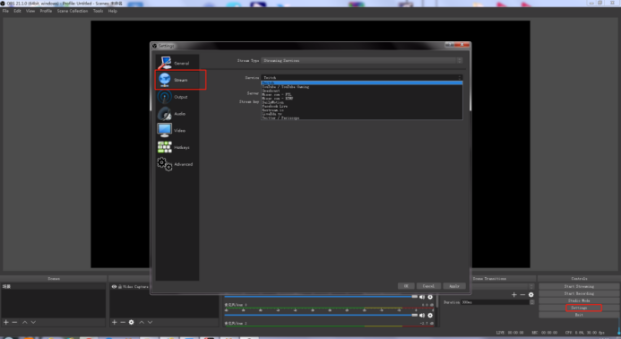
- Enter the Stream Key in Stream Key
- Click Start Streaming.
- Return to the streaming platform and confirm the live stream is active