Online Manual
mini-edge SDI User Manual

3.3 PiP Layout (Picture-in-Picture)
By default, mini-edge SDI outputs a single full-screen video source. The device also supports Picture-in-Picture (PiP) layouts.
PiP allows multiple video windows to be displayed simultaneously on the same screen, with one source presented as an inset window.
Accessing the PiP Menu
There are two ways to access the PiP layout settings page.
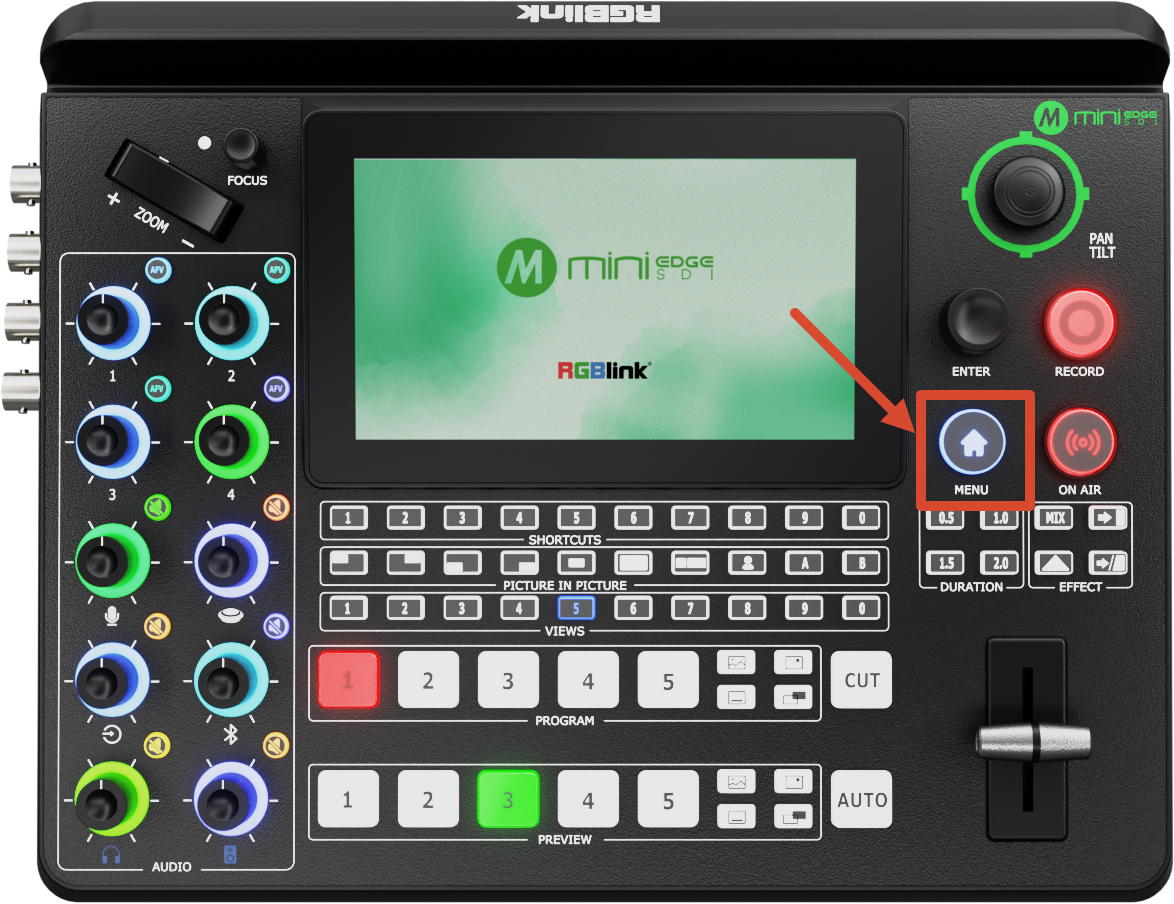
Method 1: Through the Menu
- Press MENU to enter the menu screen.
- Select LAYOUT.
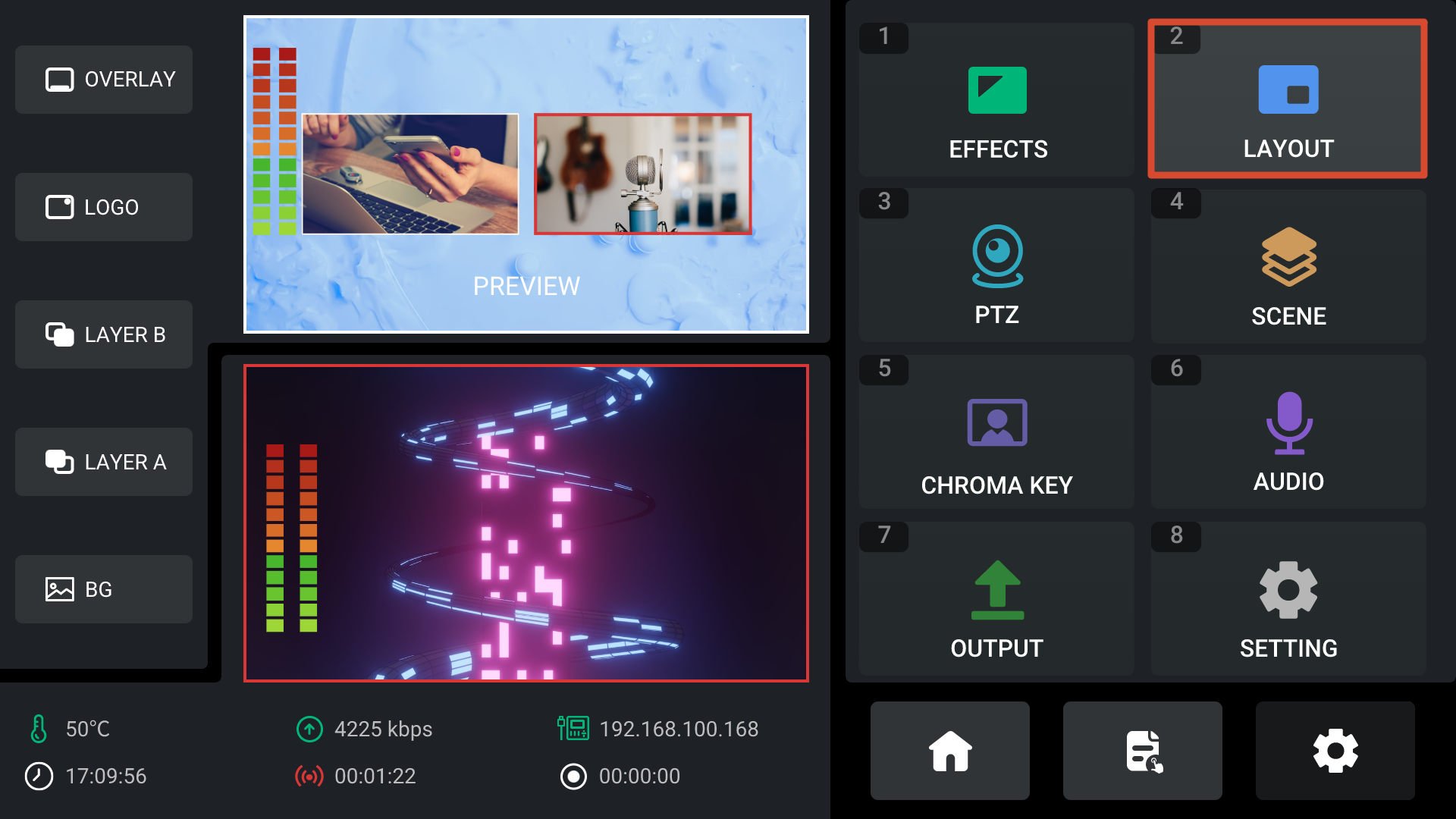
- Press ENTER to open the PiP layout page.
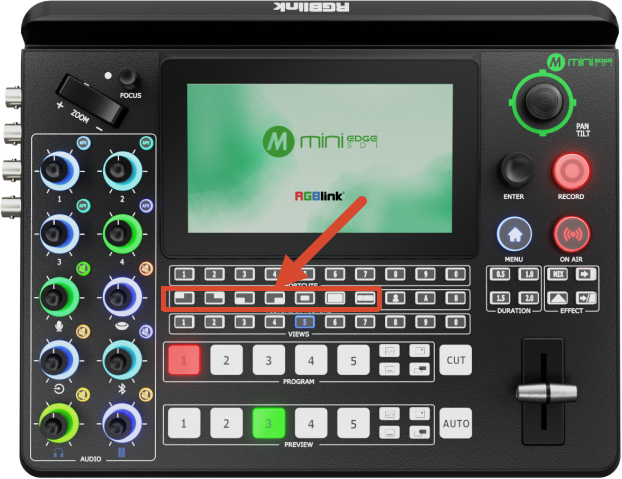
Method 2: Using Front-Panel Shortcuts
Press and hold any PiP layout icon in the front-panel PiP section to open the layout settings page directly.
Selecting a PiP Layout
- Rotate ENTER to highlight the desired layout.
- Press ENTER to confirm.
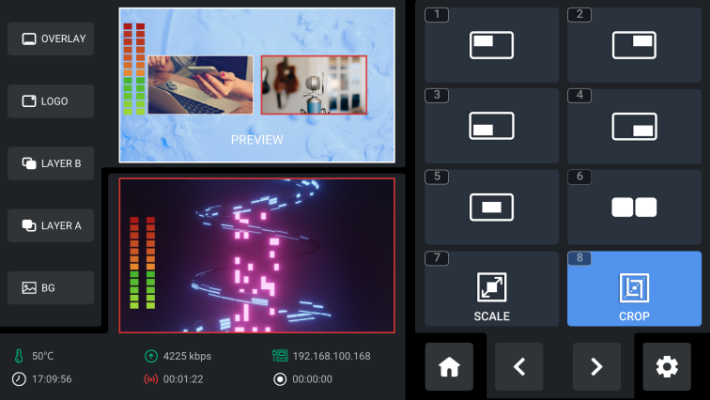
mini-edge SDI provides 6 PiP layout presets.
Layouts can also be switched instantly by pressing the corresponding PiP layout button on the front panel.
Configuring Scale and Crop Settings
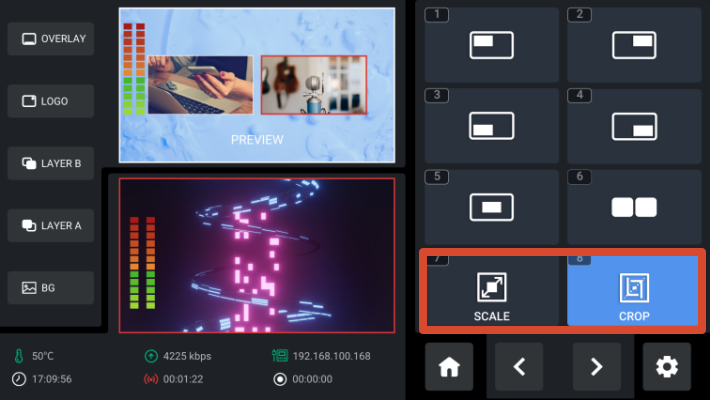
mini-edge SDI supports independent scaling and cropping of PiP layers.
Open the SCALE or CROP page to adjust the corresponding parameters.
Adjusting Scale Parameters
On the Scale page:
- Rotate ENTER to select the parameter to be adjusted.
- Press ENTER to confirm.
- Rotate ENTER to modify the value.
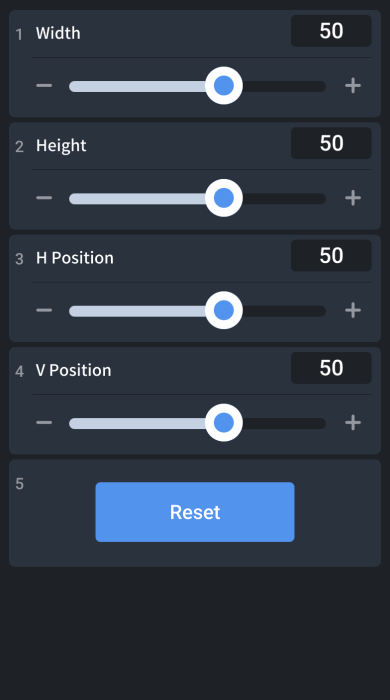
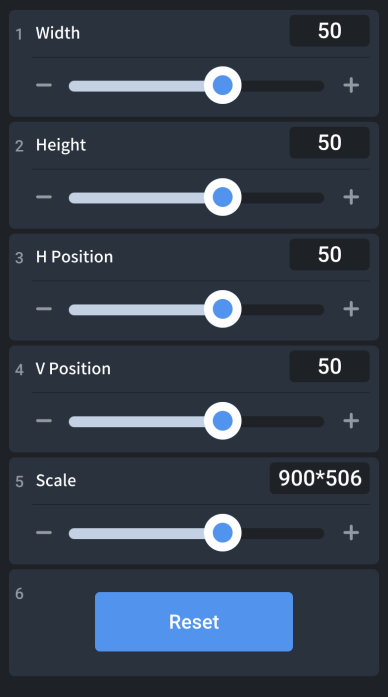
The following parameters can be adjusted:
- Width
- Height
- H (Horizontal) Position (X)
- V (Vertical) Position (Y)
- Scale ratio
If an incorrect setting is applied, select Reset to restore the default values.
Adjusting Crop Parameters
On the Crop page, the following parameters can be adjusted:
- Width
- Height
- H (Horizontal) Position (X)
- V (Vertical) Position (Y)
If an incorrect setting is applied, select Reset to restore the default values.